Over the past year, demand for compact, portable, and multi-role 15-inch widescreen monitors has risen—not because they’re “trendy,” but because remote work, hybrid setups, and space-constrained environments have made 15 inch widescreen monitor a functional pivot point between desktop simplicity and laptop flexibility. If you’re a typical user—working from home, using a laptop as your primary device, or needing a secondary screen that doesn’t dominate your desk—you don’t need to overthink this: prioritize Full HD (1920×1080) IPS panels with USB-C or HDMI input, avoid 4:3 legacy models unless you’re replacing industrial hardware, and skip touch functionality unless you’re integrating with kiosks or digital signage. The biggest real-world constraint isn’t resolution or brand—it’s whether your source device supports plug-and-play power delivery via USB-C. This piece isn’t for keyword collectors. It’s for people who will actually use the product.
About 15 Inch Widescreen Monitors: Definition & Typical Use Cases
A 15 inch widescreen monitor refers to an external display with a diagonal measurement of approximately 15 inches and an aspect ratio wider than traditional 4:3—most commonly 16:9 (1920×1080), but also stretched variants like 21:9 (2560×720) or ultra-portable 16:10 (2256×1504). Unlike 15-inch CRTs or early LCDs built for vertical orientation in control rooms, today’s models are designed for horizontal placement on desks, laps, or wall mounts—and serve three distinct roles:
- Portable extension: Used alongside laptops (especially 13–15″ MacBooks and Windows ultrabooks) to expand workspace without carrying a 24″ panel.
- Space-optimized desktop: Fills minimal footprint in dorm rooms, studio apartments, or compact home offices where depth and width matter more than pixel density.
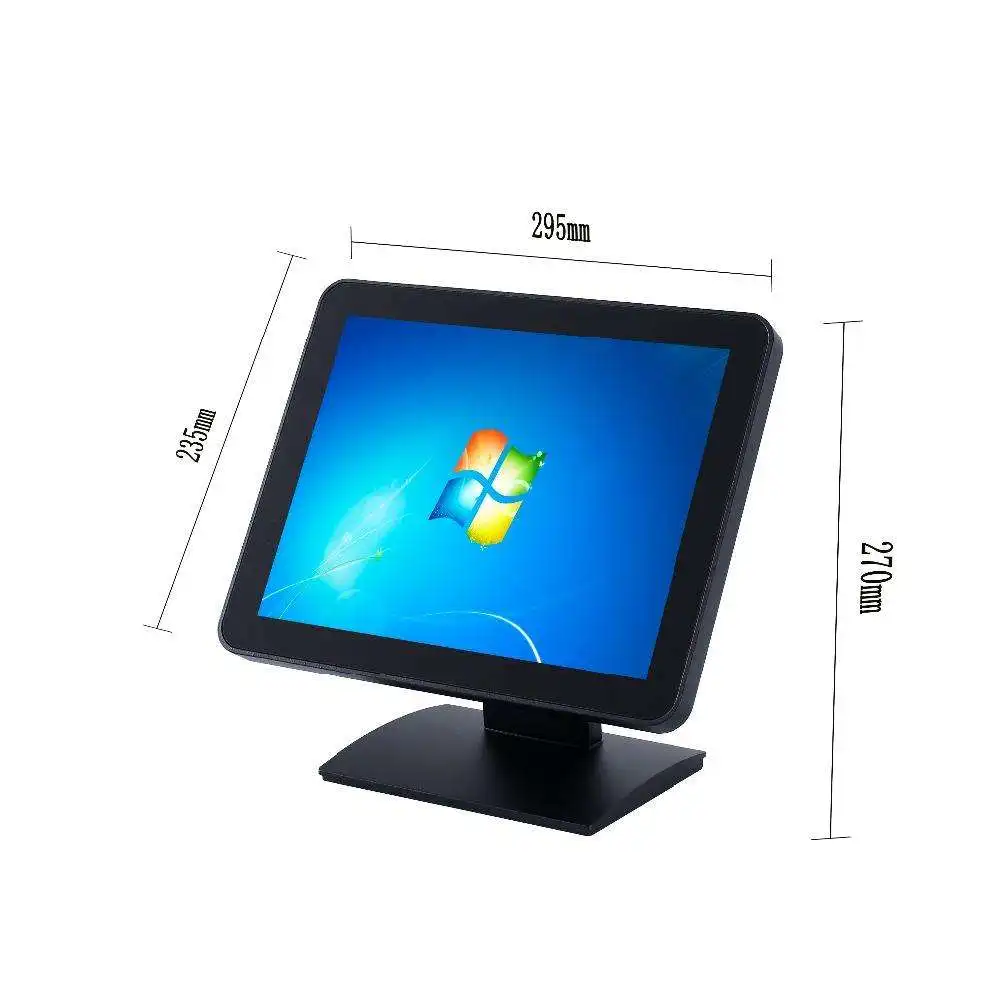
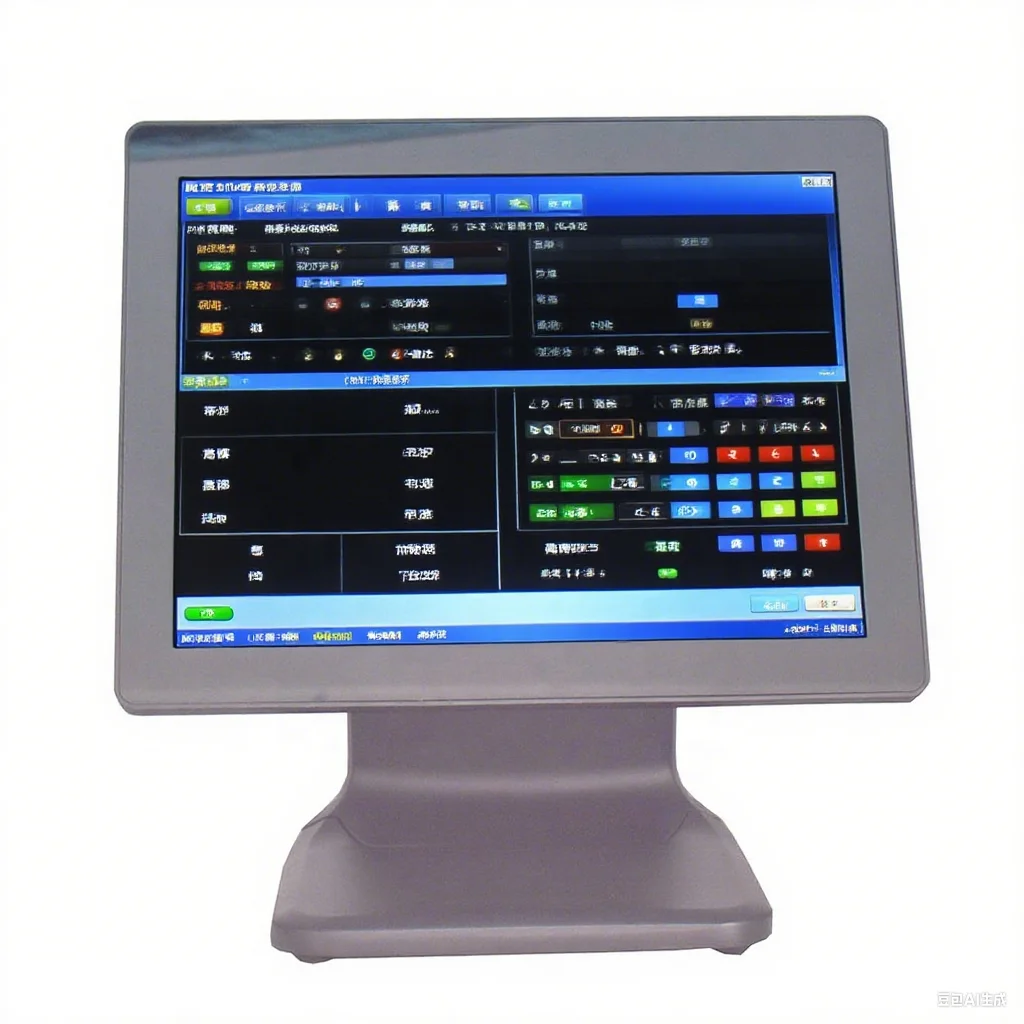
- Industrial or embedded display: Deployed in retail kiosks, security dashboards, marine consoles, or factory HMI systems—where reliability, flush-mounting, and continuous operation trump aesthetics.
What defines “widescreen” here isn’t just geometry—it’s purpose: horizontal real estate for side-by-side windows, video editing timelines, spreadsheet columns, or dual-tasking across apps. A 15-inch 4:3 monitor (like the Kenowa 1400×1050 model) may share the same diagonal but delivers less usable width—making it functionally different from a true widescreen unit.
Why 15 Inch Widescreen Monitors Are Gaining Popularity
Lately, adoption has accelerated—not due to marketing hype, but because of converging physical and behavioral shifts. First, laptop screens have plateaued at 15.6″ for mainstream productivity models (e.g., Dell Inspiron, HP Pavilion, Lenovo IdeaPad), making a matching or slightly smaller external monitor feel visually cohesive and ergonomically balanced. Second, USB-C’s rise means many users now expect one-cable connectivity—including power, video, and data—without dongles or separate adapters. Third, remote workers increasingly value “modular setup”: a single lightweight monitor they can move between home office, kitchen table, and coffee shop—no bulky stands or cables required.
This isn’t about chasing specs. It’s about reducing friction: fewer ports to manage, less desk clutter, faster reconfiguration. As one user on Reddit noted in r/Monitors: *“I swapped my 24″ for a 15.6″ portable last March—and haven’t missed the extra pixels. I gained consistency, portability, and zero cable negotiation.”* That sentiment reflects a quiet but measurable shift from “more screen” to “right screen.”
Approaches and Differences: Common Form Factors & Trade-offs
Not all 15-inch widescreen monitors solve the same problem. Here’s how major categories differ—and when each makes sense:
- Standard portable monitors (e.g., ASUS ZenScreen MB169CK, MSI Pro MP161)
✅ Pros: Lightweight (< 800g), built-in stand or kickstand, USB-C powered, plug-and-play with most modern laptops.
❌ Cons: Limited brightness (200–250 cd/m²), no speakers or VESA mount by default, fewer input options.
When it’s worth caring about: If you travel weekly or switch between devices daily.
When you don’t need to overthink it: For occasional use at a fixed desk—just add a $15 VESA arm if needed. - Stretched-bar displays (e.g., VSDISPLAY 14.5″ 2560×720, Rii 15.6″)
✅ Pros: Unique aspect ratio ideal for timeline-based workflows (video/audio editing, trading platforms), often includes touch support.
❌ Cons: Lower vertical resolution reduces readability for documents or code; not optimized for general web browsing.
When it’s worth caring about: If you spend >4 hours/day in DaVinci Resolve, OBS, or multi-chart financial tools.
When you don’t need to overthink it: For email, Slack, and browser tabs—stick with 16:9. - Industrial/panel-mount models (e.g., Beetronics 15″ touchscreens, ELO 1517L)
✅ Pros: Rated for 24/7 operation, IP-rated enclosures, optional glove-touch or sunlight-readable panels.
❌ Cons: Higher price (£379–£562), limited consumer features (no auto-brightness, basic OSD), bulkier bezels.
When it’s worth caring about: If mounting in a vehicle, outdoor kiosk, or production line.
When you don’t need to overthink it: For home or office desk use—consumer-grade is sufficient and more flexible.
Key Features and Specifications to Evaluate
Don’t optimize for every spec—optimize for what changes your workflow. Focus on these four:
- Panel type & viewing angles: IPS dominates this segment for good reason—consistent color and contrast at wide angles. Avoid TN panels (common in sub-£50 listings) unless you only view straight-on and never share the screen. VA offers deeper blacks but narrower viewing cones—less ideal for collaborative spaces.
- Input compatibility: Prioritize monitors with at least one USB-C (DP Alt Mode + power delivery) and one HDMI 1.4 or higher. VGA and AV inputs are legacy-only—only relevant if connecting older CCTV DVRs or embedded PCs. If your laptop lacks USB-C, HDMI remains universally reliable.
- Brightness & anti-glare: 250–300 cd/m² is adequate for indoor use. Anything below 220 feels dim under overhead lights. Matte (anti-glare) coatings reduce reflections far better than glossy—critical for shared or sunlit rooms.
- Power delivery & portability: True USB-C PD monitors draw power from your laptop—no wall adapter needed. Those requiring separate 12V bricks add weight and cable complexity. If portability matters, verify weight (< 0.9 kg) and included case or cover (e.g., Rii, UFYQL).
If you’re a typical user, you don’t need to overthink this: 1920×1080 IPS + USB-C + matte finish covers ~90% of real-world needs.
Pros and Cons: Balanced Assessment
Pros:
- Optimal size-to-space ratio: Fits on small desks without crowding peripherals.
- Lower power draw than larger monitors—ideal for battery-powered setups.
- Faster setup/relocation than 24″+ units—especially with USB-C plug-and-play.
- Wider availability of refurbished and entry-level options (£47–£85), lowering barrier to entry.
Cons:
- Less vertical screen space than 24″ 1080p monitors—can require more scrolling in long documents or IDEs.
- Fewer advanced features: HDR, high refresh rates (>75Hz), or hardware calibration are rare at this size.
- Touch variants cost 2–3× more and add minimal utility unless integrated into specific software ecosystems (e.g., Windows Ink, kiosk OS).
If you need precise color accuracy for photo editing or immersive gaming, a 15-inch widescreen monitor isn’t the right tool. But if you need clarity, consistency, and mobility—yes, it’s a pragmatic upgrade.
How to Choose a 15 Inch Widescreen Monitor: Decision Checklist
Follow this 5-step process—designed to eliminate common decision fatigue:
- Confirm your source device’s output capability: Does your laptop or tablet support USB-C DP Alt Mode? If not, HDMI is your fallback—but avoid monitors with only USB-C input.
- Define your primary use case: Is it for coding (prioritize text clarity & vertical space), creative work (prioritize color gamut >99% sRGB), or presentations (prioritize brightness & built-in speakers)?
- Measure your available space: A 15.6″ monitor with stand occupies ~34 × 20 cm. Ensure clearance for keyboard, mouse, and ventilation.
- Check for must-have physical traits: VESA 75×75 mount compatibility? Kickstand angle range? Cable management clips? These affect long-term usability more than pixel density.
- Avoid two common traps:
— Buying “touch” just because it’s listed—unless your OS and apps actively use multi-touch gestures.
— Choosing a 14.5″ stretched display (2560×720) expecting desktop-equivalent vertical space—it’s 30% shorter than 1080p.
If you’re a typical user, you don’t need to overthink this: Start with ASUS ZenScreen MB169CK or MSI Pro MP161 as baseline references—they balance reliability, compatibility, and value.
| Category | Suitable For | Potential Issue | Budget Range (GBP) |
|---|---|---|---|
| Entry Portable (USB-C + HDMI) | Students, remote workers, light multitaskers | Basic OSD, no height adjustment£48–£85 | |
| Stretched Bar (2560×720) | Video editors, traders, dashboard operators | Low vertical resolution limits document use£78–£179 | |
| Industrial Touchscreen | Kiosks, marine systems, security control rooms | No consumer-friendly firmware; longer lead times£379–£563 | |
| Refurbished OEM (e.g., Acer PM161Q) | Budget-conscious home offices, backup screens | May lack original packaging or warranty£64–£81 |
Insights & Cost Analysis
Price transparency has improved significantly. Over the past year, entry-level 15.6″ Full HD portable monitors dropped from £89–£110 to consistent £47–£65 ranges (e.g., COOLHOOD, UFYQL, UPERFECT). Mid-tier models (ASUS ZenScreen, MSI Pro MP161) hold steady at £69–£84—reflecting stable component costs and mature supply chains. Industrial units remain premium-priced, but recent competition from VSDISPLAY and iiyama has narrowed gaps between commercial and prosumer segments.
Value isn’t always lowest price. Consider total cost of ownership: a £49 monitor requiring a £25 USB-C to HDMI adapter and separate power brick costs more long-term than a £79 all-in-one unit. Also factor in return policies—Beetronics and Currys offer 14–30 day returns; AliExpress sellers vary widely.
Better Solutions & Competitor Analysis
For most users, upgrading beyond 15″ isn’t necessary—but knowing alternatives helps contextualize trade-offs:
- 13.3″ portable monitors (e.g., Lenovo L15): Lighter and more pocketable, but narrower width reduces multitasking efficiency.
- 16″–17″ field monitors (e.g., Swit K15): Designed for video production—higher brightness, waveform scopes, SDI inputs—but over-engineered and expensive (£1,189) for general use.
- 22″–24″ desktop monitors (e.g., iiyama XUB2293HS): Offer greater pixel density and ergonomic adjustability—but sacrifice portability and increase desk footprint by 2.5×.
The 15-inch widescreen monitor sits in a deliberate middle ground: large enough for productive multitasking, small enough to stay mobile. No other size delivers that balance as consistently.
Customer Feedback Synthesis
Aggregating reviews across Amazon UK, Currys, and Argos (2023–2024), top recurring themes include:
- Highly praised: Plug-and-play USB-C setup (92% mention “worked immediately”), matte anti-glare surface (87%), slim profile for travel (79%).
- Frequently cited pain points: Weak built-in speakers (if present), limited tilt range on kickstands (63%), inconsistent color out-of-box (requiring manual gamma/brightness tweaks—41%).
- Underreported but critical: Some budget models (e.g., Rice&Spices £19.99 unit) list “HDR” but lack local dimming or >300 cd/m² brightness—marketing terminology, not functional capability.

Maintenance, Safety & Legal Considerations
No special certifications apply to standard 15-inch widescreen monitors sold for consumer use in the UK. All listed models comply with UKCA/CE electromagnetic compatibility (EMC) and RoHS directives. For industrial deployments, verify compliance with EN 62368-1 (audio/video equipment safety) and EN 55032 (EMI emissions)—especially in medical or transport settings. Maintenance is minimal: clean the screen with microfiber cloth and distilled water; avoid alcohol-based cleaners on anti-glare coatings. Do not disassemble—no user-serviceable parts exist in portable units.
Conclusion
A 15 inch widescreen monitor isn’t a compromise—it’s a specification-aligned choice. If you need portability without sacrificing horizontal workspace, choose a 15.6″ 1920×1080 IPS model with USB-C power delivery and matte finish. If your workflow depends on vertical space or color fidelity, step up to 22″–24″. If you’re deploying in a kiosk, vehicle, or control room, invest in certified industrial-grade units—even at higher cost. There’s no universal “best”—only the right fit for your constraints. And if you’re a typical user, you don’t need to overthink this.