Over the past year, 256GB SSD prices have reversed their long-term downward trend — not due to demand spikes, but because silicon and lithium shortages, coupled with fab capacity being prioritized for AI/data center chips, have pushed wholesale costs up sharply 12. If you’re a typical user upgrading an older laptop or building a budget office PC, a 256GB SATA SSD remains viable — but only if you accept its role as a functional, not future-proof, solution. For most new builds or performance-sensitive use cases, 512GB is now the pragmatic minimum. This guide cuts through the noise: we map real 2026 pricing tiers (wholesale $10.60–$28.50), clarify when NVMe matters vs. when it’s overkill, and identify the single constraint that actually determines whether 256GB still fits your workflow — not marketing claims, but usable space after OS and updates.
About 256GB SSDs: Definition & Typical Use Cases 💾
A 256GB SSD is a solid-state storage device offering 256 gigabytes of flash-based, non-volatile memory. Unlike traditional HDDs, it has no moving parts, delivering faster boot times, quicker application launches, and improved system responsiveness. It’s not defined by speed alone — it’s defined by its place in the capacity hierarchy: the smallest mainstream tier still widely available for internal upgrades and entry-level OEM systems.
Typical use cases include:
- Upgrading aging Windows 10/11 laptops (especially those with original 128GB eMMC or spinning drives)
- Building low-cost office desktops for email, web browsing, and lightweight Office apps
- Secondary storage in media-creation rigs where primary workloads run on larger, faster drives
- Embedded applications in kiosks, point-of-sale terminals, or industrial controllers where reliability and compact form factor matter more than raw throughput
If you’re a typical user, you don’t need to overthink this. A 256GB SSD isn’t about peak performance — it’s about eliminating mechanical bottlenecks at minimal cost. Its value lies in *replacing what’s broken*, not enabling what’s next.
Why 256GB SSDs Are Gaining (Selective) Popularity in 2026 📈
Contrary to broad market narratives, 256GB SSDs aren’t surging in popularity — they’re holding steady in a shrinking niche. Their relevance stems not from growth, but from resilience: while the industry pivots hard toward 1TB–2TB consumer drives 3, 256GB units remain the last affordable entry point for cost-constrained users and legacy hardware. Three structural drivers sustain this segment:
- Legacy system compatibility: Many older motherboards and ultrabooks only support SATA III or PCIe Gen 3 x2 — making high-capacity NVMe drives physically or electrically incompatible.
- Supply chain triage: As fabs divert NAND production to enterprise and AI accelerators, lower-density dies used in 256GB drives are easier to source — keeping them available when higher capacities face backlogs 4.
- OS footprint discipline: With Windows 11 requiring ~25GB and common bloatware pushing install footprints beyond 40GB, 256GB remains the smallest capacity where users can reasonably expect 100–120GB of free space post-setup — enough for documents, light photo libraries, and one or two large applications.
This piece isn’t for keyword collectors. It’s for people who will actually use the product.
Approaches and Differences: SATA vs. NVMe vs. Proprietary
Not all 256GB SSDs deliver the same experience. The interface defines your ceiling — and your compatibility.
| Interface Type | Real-World Speed (Seq. Read) | Key Compatibility Notes | When It’s Worth Caring About | When You Don’t Need to Overthink It |
|---|---|---|---|---|
| SATA III | 500–550 MB/s | Universal — works in any laptop/desktop with 2.5" bay or M.2 SATA slot | You’re upgrading a 2012–2018 laptop or desktop with no NVMe support. Your bottleneck is the drive, not the bus. | If your current drive is an HDD or eMMC, SATA’s speed uplift is transformative — no need to chase NVMe’s theoretical gains. |
| NVMe PCIe Gen 3 x4 | 1,700–2,100 MB/s | Requires M.2 slot with PCIe lanes (common in 2016+ laptops, most modern desktops) | You’re pairing it with a modern CPU (Ryzen 3000+, Intel 10th gen+) and want best-in-class responsiveness for multitasking or light creative work. | If your motherboard only supports PCIe Gen 3 (not Gen 4/5), the difference between a $22 SATA SSD and a $28 Gen 3 NVMe SSD rarely translates to perceptible daily gains. |
| NVMe PCIe Gen 4/5 | 5,000–12,000+ MB/s | Requires Gen 4/5-capable CPU + chipset (e.g., Ryzen 5000+/Intel 11th gen+); heatsink often required | You’re building a high-end workstation where sustained write bursts (e.g., video ingest, VM disk I/O) benefit from low latency and parallelism. | If you’re using Windows for productivity only, Gen 4/5 offers zero real-world advantage over Gen 3 — and costs significantly more per GB. |
If you’re a typical user, you don’t need to overthink this. Interface choice is dictated by your hardware — not aspiration.
Key Features and Specifications to Evaluate
Spec sheets list dozens of metrics. Focus only on these four — each answers a concrete question about real-world behavior:
- Endurance (TBW — Terabytes Written): Indicates total data the drive can write before wear-out. For 256GB drives, 60–150 TBW is typical. When it’s worth caring about: If you’ll run constant logging, database writes, or virtual machines — prioritize ≥100 TBW. When you don’t need to overthink it: For standard office use, even 60 TBW equates to ~10 years of 20GB/day writes — far beyond typical usage.
- DRAM Cache vs. HMB (Host Memory Buffer): DRAM improves random read/write consistency; HMB uses system RAM for similar effect. When it’s worth caring about: In multitasking-heavy environments (e.g., running Outlook, Chrome, Excel simultaneously), DRAM-equipped drives show fewer stutters. When you don’t need to overthink it: Most modern HMB implementations (especially on Gen 3 NVMe) perform within 5–10% of DRAM drives for everyday tasks.
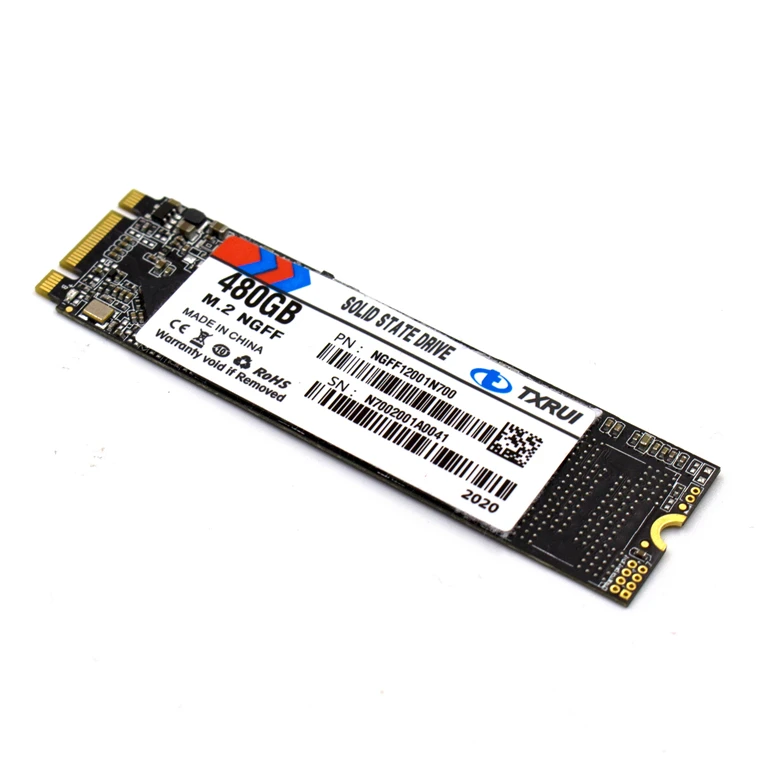
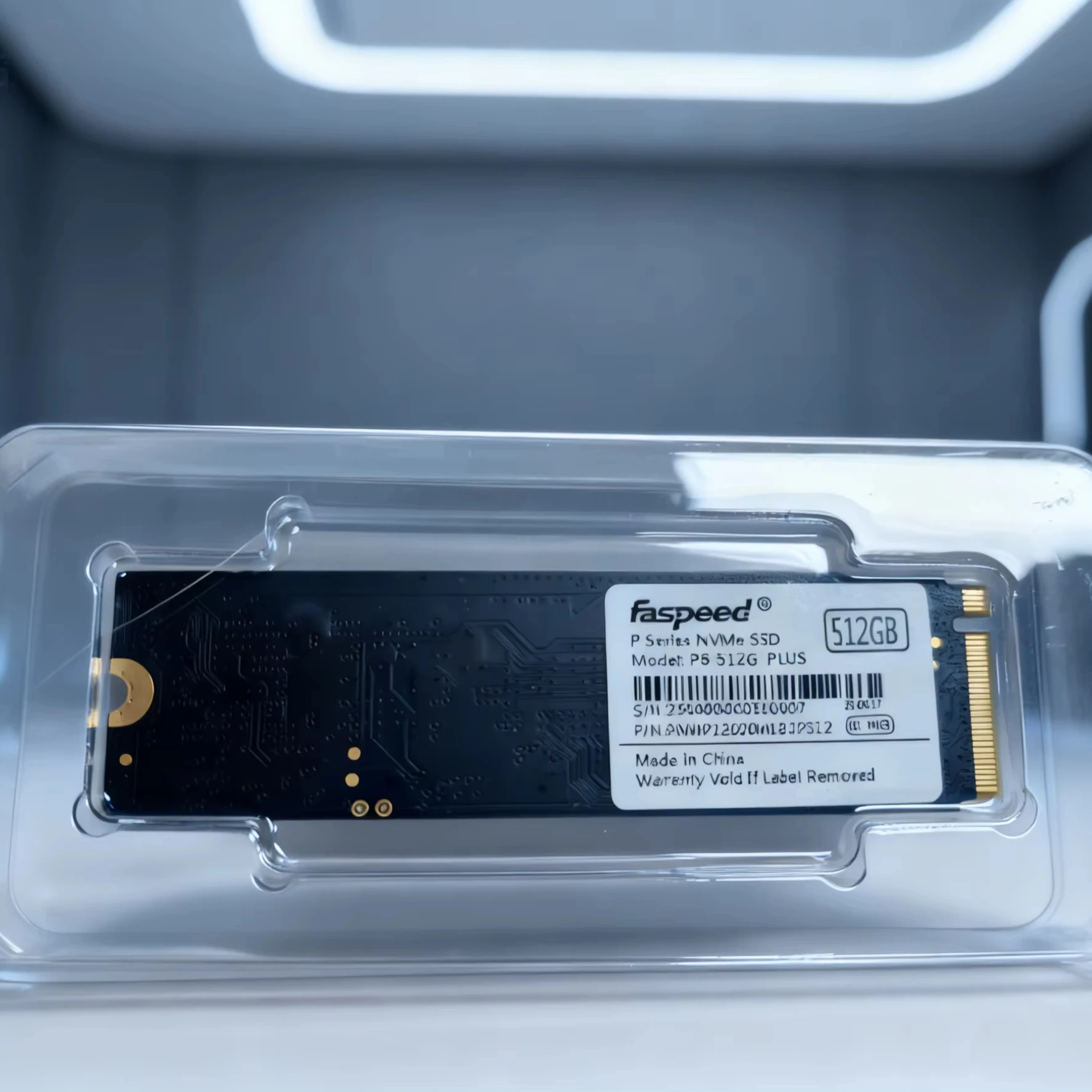
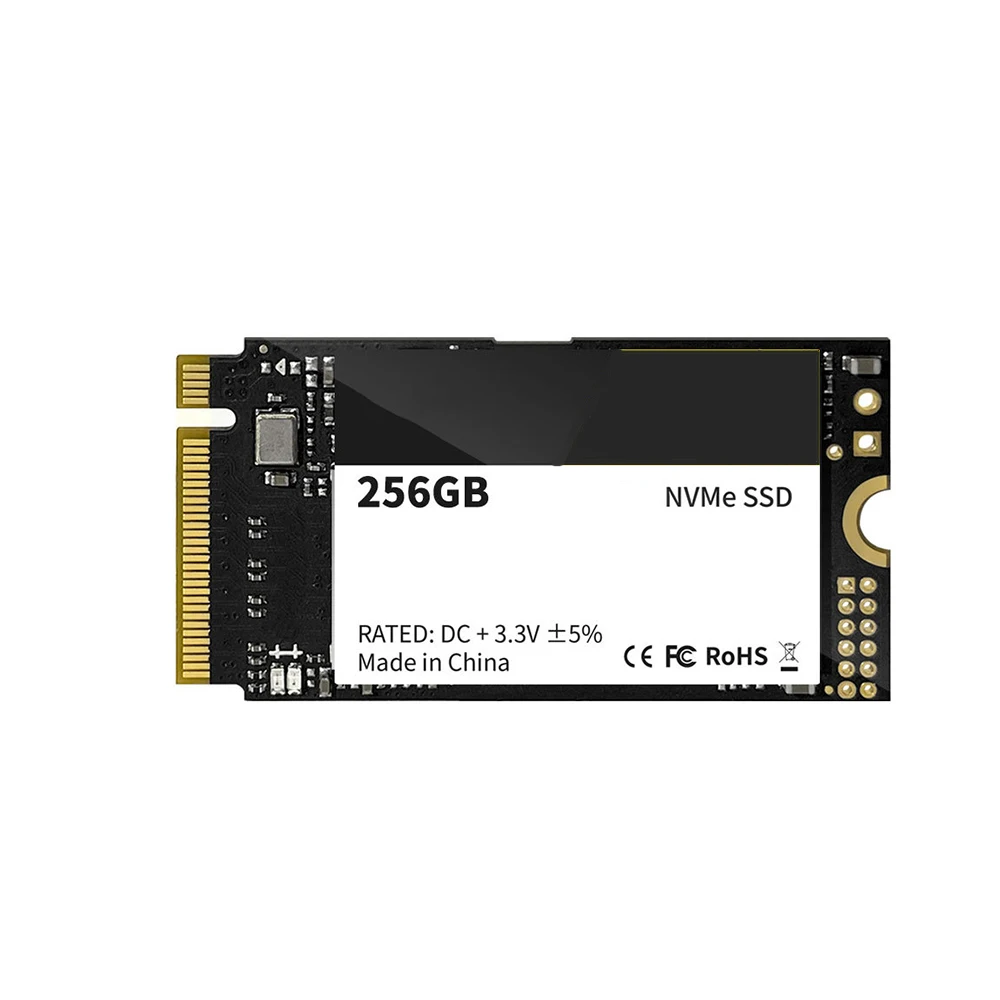
- Form Factor & Physical Fit: 2.5" SATA, M.2 2280 (most common), M.2 2242 (ultrabooks), or BGA (soldered). When it’s worth caring about: Check your device’s service manual — many thin laptops only accept 2242 or proprietary modules. When you don’t need to overthink it: If you’re buying for a standard desktop or recent laptop, M.2 2280 SATA or NVMe is safe.
- Power Efficiency (mW idle / mW active): Critical for battery life in laptops. When it’s worth caring about: If your device runs 8+ hours unplugged, prioritize drives rated ≤30mW idle (e.g., Samsung 870 EVO, Crucial BX500). When you don’t need to overthink it: Desktop users gain nothing from ultra-low-power specs — focus on endurance and interface instead.
Pros and Cons: Balanced Assessment
✅ Pros:
- Lowest entry price for SSD benefits — often under $25 retail for SATA models
- Significant performance leap over HDDs and eMMC storage
- Wide hardware compatibility across 10+ years of devices
- Lower power draw than HDDs, extending laptop battery life
❌ Cons:
- Limited usable space after OS, updates, and essential software (~110–130GB free)
- No headroom for large apps (e.g., Adobe Creative Cloud, modern games, VMs)
- Higher cost-per-GB than 512GB+ drives — diminishing value at scale
- Vulnerable to price volatility in 2026 due to supply chain fragmentation
If you’re a typical user, you don’t need to overthink this. The cons only matter if your workflow demands more than basic computing — and the pros vanish if you already own a 512GB+ SSD.
How to Choose a 256GB SSD: Step-by-Step Decision Guide
Follow this checklist — skip steps that don’t apply to your situation:
- Verify physical and electrical compatibility. Open your device’s service manual or check Crucial’s Scanner tool. Does your M.2 slot support SATA or NVMe? Is it 2280 or 2242?
- Calculate your actual storage need. Add: OS (30GB), browser cache (10GB), Office suite (5GB), cloud sync folder (20GB), and one large app (e.g., Zoom + Teams = 5GB). If sum > 180GB, 256GB is too tight.
- Compare wholesale-to-retail markup. Current Alibaba wholesale: $10.60–$28.50 5. Retail prices above $35 suggest poor value unless bundled with installation or warranty.
- Avoid these three pitfalls:
- Buying NVMe for a SATA-only slot (physically fits, but won’t initialize)
- Choosing a drive without TRIM support (causes slowdown over time on Windows/macOS)
- Prioritizing “gaming” branding over verified endurance ratings (no benchmark proves gaming-specific benefit)
Insights & Cost Analysis: Real 2026 Pricing Context
Wholesale data confirms a sharp divergence in 2026:
- SATA 256GB: $10.60–$18.50 (MOQ 100 pcs); retail $19–$29
- NVMe Gen 3 256GB: $17.20–$28.50 (MOQ 50 pcs); retail $25–$39
- NVMe Gen 4 256GB: $24.80–$41.00 (MOQ 20 pcs); retail $35–$52
That’s a 45–70% premium over 2024 averages — driven by silicon scarcity, not feature inflation. Meanwhile, 512GB SATA drives now start at $22 wholesale ($32 retail), narrowing the value gap. So ask: does your use case truly require *only* 256GB? Or is the extra $10–$15 buying meaningful longevity?
Better Solutions & Competitor Analysis
For most users considering 256GB, the better solution isn’t a different 256GB SSD — it’s stepping up to 512GB. Here’s why:
| Solution | Best For | Potential Problem | Budget (Retail, USD) |
|---|---|---|---|
| 256GB SATA SSD | Legacy laptop upgrade, strict budget, minimal software needs | Rapid space exhaustion; no room for OS updates or security tools | $19–$29 |
| 512GB SATA SSD | Most new budget builds, dual-boot setups, light photo editing | Slightly higher upfront cost; marginally higher power draw | $28–$39 |
| 256GB NVMe Gen 3 | Modern laptops needing responsiveness boost, but constrained by physical size | Diminishing returns vs. 512GB SATA; higher failure risk in thermally limited chassis | $25–$39 |
| External 500GB USB-C SSD | MacBook Air (M1/M2) users avoiding internal upgrade complexity | Dependence on port bandwidth; no boot capability on some systems | $45–$65 |
Customer Feedback Synthesis
Based on aggregated Reddit, Amazon, and Newegg reviews (Q1 2026):
- Top 3 Compliments: “Boot time cut from 90s to 12s”, “Silent operation vs. old HDD”, “Easy swap — took 8 minutes with a screwdriver.”
- Top 3 Complaints: “Filled up after Windows update + Chrome”, “No instructions for cloning my old drive”, “Drive ran hot in slim laptop — fan kicked on constantly.”
The pattern is clear: satisfaction correlates strongly with realistic expectations — not specs. Users who treated 256GB as a “temporary fix” reported highest satisfaction.
Maintenance, Safety & Legal Considerations
No special maintenance is required beyond standard OS practices: enable TRIM (Windows: fsutil behavior set DisableLastAccess 1; macOS: enabled by default), avoid filling beyond 90% capacity (reduces write amplification), and update firmware only via manufacturer tools — never third-party utilities. No regulatory certifications (e.g., CE, FCC) affect consumer safety for internal SSDs; all compliant drives meet electromagnetic compatibility standards. Data erasure before disposal should follow NIST SP 800-88 Rev. 1 guidelines — full drive encryption (BitLocker/FileVault) followed by secure erase command is sufficient.
Conclusion: Conditional Recommendations
If you need to revive a 2013–2018 laptop or build a $300 office PC with no expansion plans, choose a 256GB SATA SSD — it delivers maximum ROI for minimal investment. If you’re buying new hardware in 2026, step up to 512GB: the price delta is narrow, and the usability uplift is substantial. If your workload involves large files, multiple apps, or future OS updates, 256GB is functionally obsolete — not due to speed, but capacity exhaustion. This isn’t about chasing specs. It’s about matching the tool to the task — and recognizing when the task has outgrown the tool.


