About Android Mini Data Show Projectors
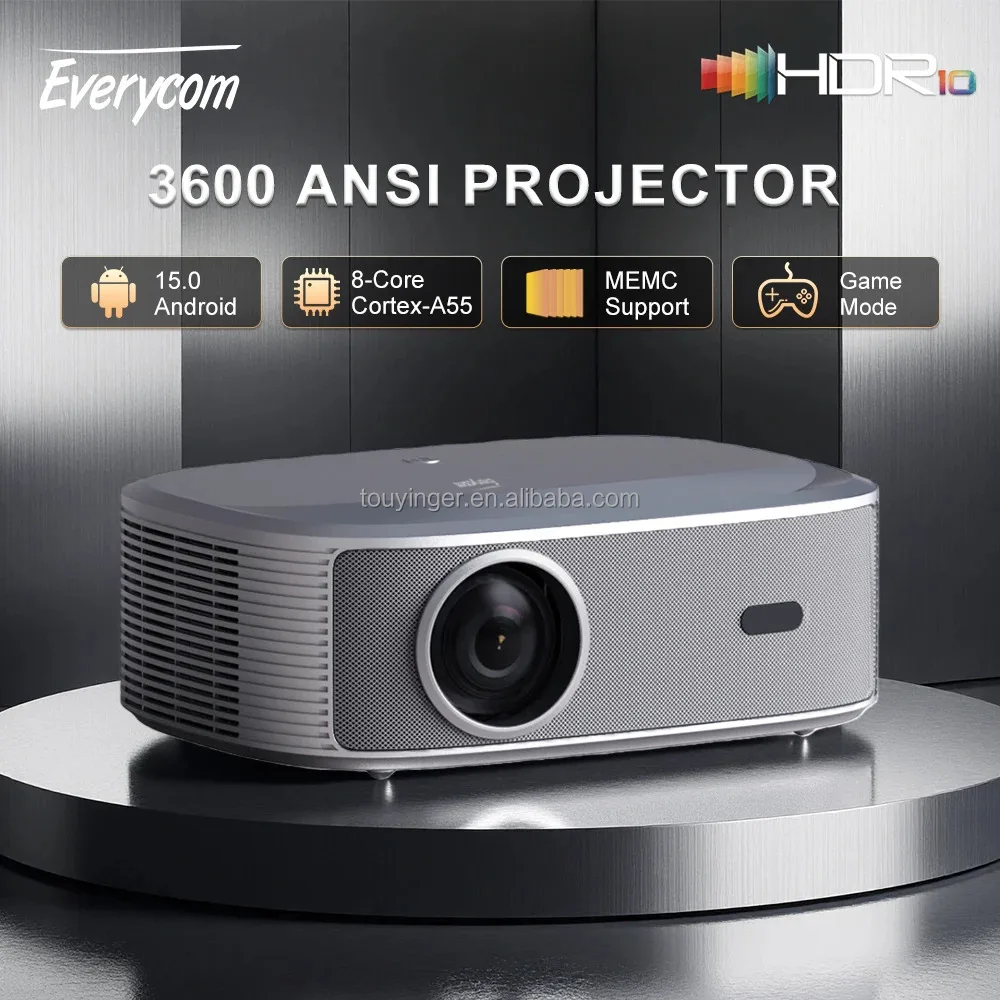
An Android mini data show projector is a compact, self-contained projection device running the Android operating system — typically Android 9 through 14 — with integrated Wi-Fi, Bluetooth, storage (8–32 GB), and preloaded apps like YouTube, Netflix, and Chrome. Unlike traditional projectors requiring external media players or HDMI sources, these units operate independently: you power them on, connect to Wi-Fi, launch an app, and project — no phone or laptop needed. They’re designed for mobile-first scenarios: impromptu team briefings in co-working spaces, student study sessions, travel-friendly movie nights, or small-scale retail demos. Their defining traits are portability (most weigh under 1 kg), plug-and-play software, and direct access to Android’s ecosystem — not cinema-grade contrast or HDR support.
Why Android Mini Data Show Projectors Are Gaining Popularity
Lately, demand has risen not because of technical leaps — but because usability gaps have narrowed. Over the past year, three changes made real-world adoption viable: first, widespread adoption of Wi-Fi 6 and Bluetooth 5.2+ reduced latency during screen mirroring and audio sync; second, manufacturers began shipping Android 11+ with verified Google Play certification, meaning Netflix and Disney+ work reliably — unlike earlier Android 9 units that failed DRM handshakes2; third, automatic vertical/horizontal keystone correction eliminated manual alignment frustration for users projecting onto uneven walls or desks. This isn’t about replacing home theaters — it’s about removing friction between idea and display. If you’re a typical user, you don’t need to overthink this: what matters is whether the unit boots in under 12 seconds, stays connected for 90+ minutes, and opens YouTube without crashing.
Approaches and Differences
There are two dominant implementation paths — and they drive real-world behavior:
- Standalone Android OS projectors (e.g., Momount 4K, Alwtniet Android 14, XGIMI MoGo 2 Pro): Run full Android with app store access, local storage, and multi-user profiles. Pros: true independence, voice search, sideloading APKs. Cons: occasional OS bloat, slower updates, higher power draw.
- Hybrid smart projectors (e.g., Xiaomi Smart Projector L1, HY300): Use lightweight custom UIs layered atop Android kernel — optimized for speed and stability, but limit app flexibility. Pros: faster boot, smoother UI, longer firmware support. Cons: no Google Play, limited third-party app support.
If you’re a typical user, you don’t need to overthink this: choose standalone Android only if you plan to install Kodi, Plex, or custom presentation tools. For Netflix, Prime Video, and Zoom sharing? A hybrid unit performs more consistently — and receives security patches longer.
Key Features and Specifications to Evaluate
Not all specs carry equal weight. Here’s how to triage:
- Brightness (ANSI lumens): ✅ When it’s worth caring about: If you’ll use it in rooms with uncontrolled ambient light (e.g., shared offices, sunlit living rooms). When you don’t need to overthink it: In bedrooms, dorms, or after-dark setups — 200–300 ANSI lumens delivers sharp, watchable images. Avoid “LED lumens” or “CVIA lumens” unless explicitly converted to ANSI.
- Resolution & Native Panel: ✅ When it’s worth caring about: For text-heavy slides or coding demos — native 1080p (1920×1080) avoids upscaling blur. When you don’t need to overthink it: For movies and video — most 720p units with strong upscaling (e.g., via MediaTek MT9669 chip) look indistinguishable at 80–120″ sizes.
- Android Version & Update Policy: ✅ When it’s worth caring about: Android 11+ supports Widevine L1 DRM — essential for Netflix HD/4K. When you don’t need to overthink it: Android 9 or 10 units may run YouTube fine but will fail on Disney+, Max, or Apple TV app — and rarely receive security patches beyond 12 months.
- Connectivity Stack: ✅ When it’s worth caring about: Wi-Fi 6 + Bluetooth 5.2 ensures stable casting from modern phones (especially Samsung Galaxy S23+/iPhone 14+). When you don’t need to overthink it: Wi-Fi 5 + BT 5.0 works fine for static file playback — but expect stutter during live screen mirroring.
Pros and Cons
Pros:
- No secondary device needed — eliminates cable clutter and setup time
- Works offline with downloaded content (e.g., TED Talks, training videos)
- Consistent interface across brands — familiar Android navigation lowers learning curve
- Supports both wireless casting (Miracast, Chromecast built-in) and wired HDMI input
Cons:
- Limited battery life (most lack internal batteries — require constant power)
- Audio quality remains weak (typically 2–3W mono speakers; external Bluetooth speaker recommended)
- Thermal throttling in sustained use (>60 min) can dim brightness by 15–20%
- Firmware update frequency varies widely — some brands release patches quarterly; others abandon models after 6 months
How to Choose an Android Mini Data Show Projector
Follow this 5-step checklist — and avoid the two most common dead ends:
- Verify Android version and DRM support: Check manufacturer spec sheet for “Widevine L1” or “Netflix HD certified.” If unlisted, assume L3 — which caps streaming at SD.
- Test Wi-Fi stability yourself: Before buying, search for hands-on videos showing “Android mini data show projector Wi-Fi disconnect test” — many units drop connection after 20–30 minutes under load.
- Confirm physical ports: At minimum, you need HDMI 2.0 (for laptops), USB-A (for flash drives), and a 3.5mm audio jack (for external speakers).
- Avoid “4K decoding” traps: This means the chip can *read* 4K files — not that it *projects* 4K. True 4K native resolution remains rare under €500.
- Check focus mechanism: Manual focus rings wear out; motorized or autofocus (e.g., HY350 Pro, Momount N1S) saves daily recalibration.
The two most common ineffective纠结 points? First, comparing “3000 lumens” marketing claims — irrelevant without ANSI context. Second, obsessing over speaker wattage — no sub-€200 model produces room-filling audio. The one real constraint that affects outcome? Firmware longevity. Units from Xiaomi, XGIMI, and Momount push updates for 18–24 months; generic OEMs often stop after 6.
| Category | Suitable For | Potential Issue | Budget Range (€) |
|---|---|---|---|
| Entry-tier (Android 11–14, 200–330 ANSI) | Students, remote workers, casual streamers | Limited app compatibility on older builds; no auto-focus | 50–130 |
| Mid-tier (Wi-Fi 6, 450+ ANSI, motorized focus) | Small teams, educators, frequent travelers | Heavier (≥0.8 kg); shorter battery-free runtime | 130–250 |
| Premium-tier (Tri-fold, laser light source, Android TV) | Prosumers, hybrid office/home users | Price premium >200%; minimal portability gain | 300–500+ |
Insights & Cost Analysis
Price no longer correlates linearly with performance. Over the past year, €59–€69 units (e.g., Vivolux 12″, apeman LC500) gained Android 11 and stable Wi-Fi — but lack firmware updates beyond 2025. At €129–€139 (Momount 4K, Alwtniet Android 14), you get verified Widevine L1, OTA updates, and consistent Bluetooth audio passthrough. The €299–€300 tier (XGIMI MoGo 2 Pro, CineNova) adds Dolby-certified speakers and 120″ image stability — but gains little for pure data display. If you’re a typical user, you don’t need to overthink this: the €129–€139 band delivers the strongest value-per-feature ratio for Android mini data show projector use cases.
Better Solutions & Competitor Analysis
“Better” depends on your priority:
- Better for reliability: XGIMI MoGo 2 Pro — verified Android TV 11, dual 8W Dolby speakers, 2-year firmware commitment.
- Better for portability: Aurzen ZIP — tri-fold design, 0.68 kg, USB-C power — but lacks Widevine L1 and runs Android 12 Go.
- Better for budget-conscious presenters: Momount 4K (330 ANSI) — Android 11, Wi-Fi 6, and documented 18-month update history.
This piece isn’t for keyword collectors. It’s for people who will actually use the product.
Customer Feedback Synthesis
Based on aggregated reviews (Amazon.de, eBay, Kaufland.at, Trustpilot), top recurring themes:
- Highly praised: Fast boot time (<8 sec), intuitive remote layout, accurate auto-keystone in well-lit rooms, seamless YouTube/Prime Video launch.
- Frequently cited pain points: Overheating after 45 min (causing brightness drop), inconsistent Bluetooth audio pairing (especially with Android 14 phones), weak built-in speakers requiring external audio.
Maintenance, Safety & Legal Considerations
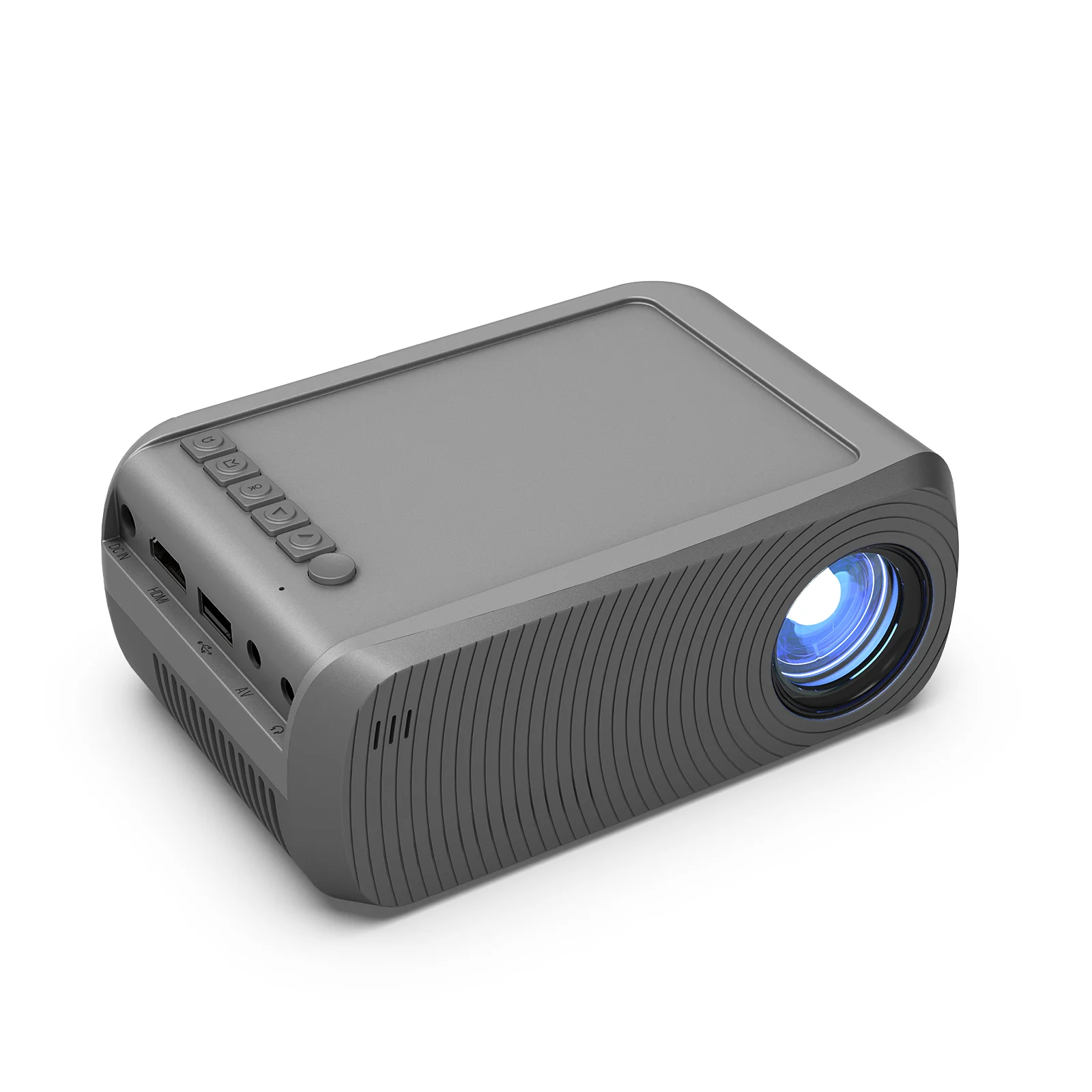
These units generate heat and consume ~30–60W — always place on hard, level surfaces with ≥5 cm clearance around vents. Avoid covering with fabric or placing inside cabinets. No CE or FCC certification is required for personal indoor use in EU/US — but verify the seller provides a valid Declaration of Conformity (DoC) document. Firmware updates should be applied over Wi-Fi only — never interrupt power mid-update. Clean lenses with microfiber cloths only; never alcohol or abrasives.
Conclusion
If you need reliable, app-driven projection for presentations, remote collaboration, or personal media — without tethering to a phone or laptop — an Android mini data show projector is now a mature, practical choice. If you prioritize simplicity and broad app support, choose a unit with Android 11+ and Widevine L1 (e.g., Momount 4K or Alwtniet Android 14). If you prioritize audio and long-term software support, step up to XGIMI MoGo 2 Pro. If your environment has strong ambient light, invest in ≥450 ANSI lumens — otherwise, 200–300 suffices. If you’re a typical user, you don’t need to overthink this: start with verified Android 11, skip gimmicks, and treat brightness claims as directional — not absolute.