If you’re a typical user, you don’t need to overthink this: start with a Google-certified Android TV box under $80—like the Xiaomi TV Box S (3rd Gen) or Walmart’s Onn. 4K Streaming Box—if your priority is reliability, app compatibility, and zero setup headaches. Over the past year, certification clarity has improved significantly: more brands now ship with official Google TV licensing, reducing sideloading risks and ensuring Netflix, YouTube, and Disney+ work out of the box. That shift makes budget models safer and more capable than ever—so unless you’re gaming at 120Hz or editing 8K footage locally, raw specs like ‘64GB storage’ or ‘8K output’ rarely translate to real-world gains. This piece isn’t for keyword collectors. It’s for people who will actually use the product.
About Android TV Boxes: Definition & Typical Use Cases
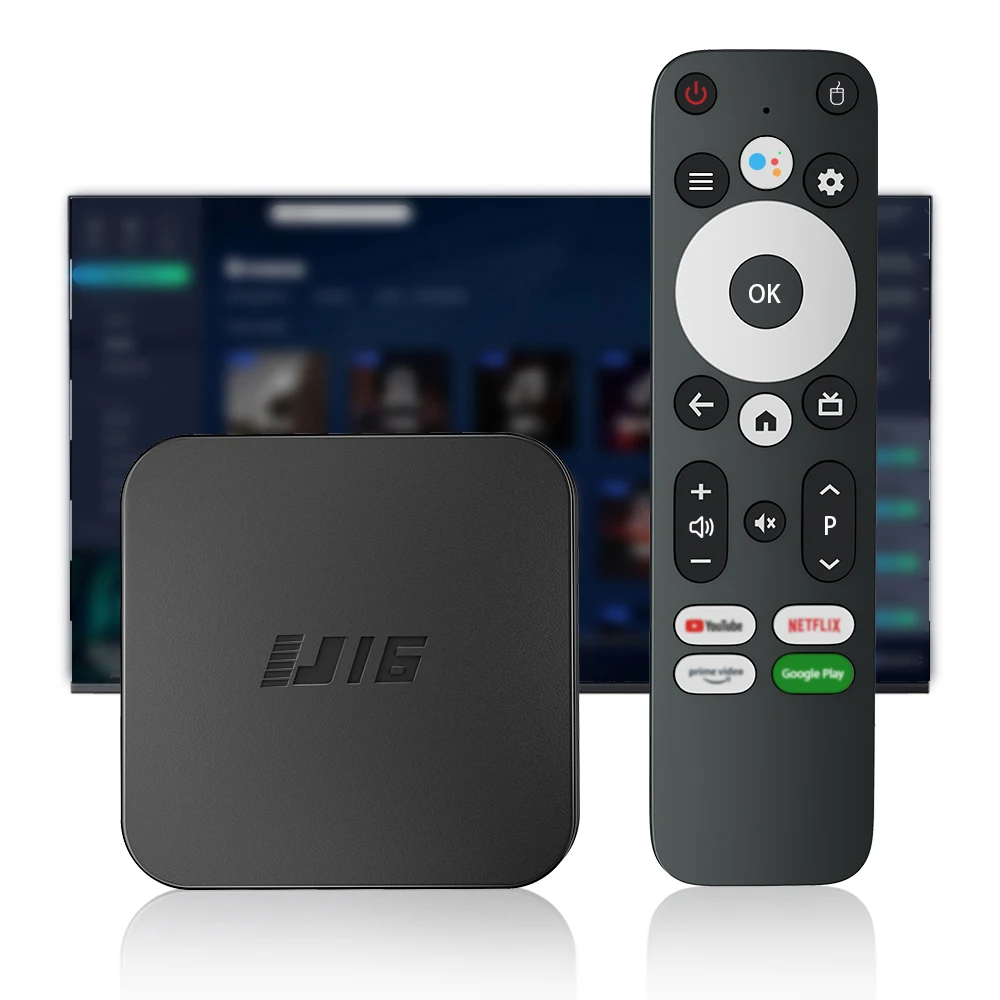
An Android TV box is a compact media player that connects to your television via HDMI and runs a full version of the Android operating system—typically Android 11 through Android 13. Unlike streaming sticks (e.g., Fire TV Stick), most boxes include multiple USB ports, Ethernet jacks, Bluetooth 5.0+, and often dual-band Wi-Fi. They serve three core functions: turning non-smart TVs into smart ones, replacing aging smart TV interfaces, and enabling flexible local playback or light gaming.
Typical users include renters upgrading older HDTVs, multigenerational households needing parental controls, cord-cutters managing multiple subscriptions, and tech-savvy viewers who want to install niche apps (e.g., Stremio, Jellyfin, or Kodi add-ons) not available on mainstream platforms. What sets them apart isn’t just power—it’s permission: access to the full Google Play Store means you can install Spotify, Plex, Twitch, VLC, or even Linux terminals—not just pre-approved streaming apps.
Why Android TV Boxes Are Gaining Popularity
Lately, two quiet but consequential shifts have boosted adoption. First, Google TV’s interface redesign—launched broadly in late 2023 and refined through 2024—has made navigation faster, search more contextual, and voice control far more accurate. Second, certification enforcement has tightened: devices sold at major retailers (Best Buy, Walmart, Target) now almost universally carry Google’s official Android TV or Google TV branding—meaning built-in Widevine L1 support, verified DRM compliance, and guaranteed access to premium streaming services1. That reduces the gamble of buying uncertified hardware, especially for families who rely on Netflix Kids profiles or HBO Max offline downloads.
This isn’t about chasing specs—it’s about stability. Users aren’t switching because they want 8K upscaling; they’re switching because their 2017 Samsung Smart Hub freezes during Prime Video sign-in, or because their Roku lacks native YouTube Music casting. Android TV boxes solve those friction points—not with hype, but with flexibility and fallback options.
Approaches and Differences
There are three broad categories of Android-based TV devices—and conflating them causes the most common decision fatigue:
- Google-certified Android TV / Google TV boxes (e.g., NVIDIA Shield TV Pro, Xiaomi TV Box S, Onn. 4K Streaming Box)
- Uncertified Android boxes (e.g., many HK1, Mecool, or generic RK3566-based units sold on Amazon or AliExpress)
- “Fully loaded” or pre-configured boxes (often marketed with phrases like “1000+ channels” or “lifetime IPTV”)
Here’s how they differ in practice:
| Category | Key Advantages | Potential Problems | Budget Range (USD) |
|---|---|---|---|
| Google-Certified Boxes | ✓ Full Netflix/Disney+/HBO Max support ✓ OTA updates directly from Google ✓ Google Assistant + Chromecast built-in ✓ Consistent UI behavior across devices |
✗ Fewer customization options (no root by default) ✗ Limited to Play Store app selection |
$25–$200 |
| Uncertified Boxes | ✓ Often higher RAM/storage for price ✓ Full root access & deep UI mods ✓ Can run custom kernels or lightweight OS forks |
✗ No Widevine L1 → no HD Netflix/Prime ✗ Frequent firmware bugs or abandoned updates ✗ May lack Bluetooth HID support for remotes |
$30–$120 |
| “Fully Loaded” Boxes | ✓ Pre-installed third-party apps & guides ✓ Often bundled with IR remotes & USB accessories |
✗ High risk of malware or data harvesting ✗ Violates terms of service for most streaming apps ✗ Legally ambiguous if used for unauthorized streams |
$50–$180 |
If you’re a typical user, you don’t need to overthink this: avoid “fully loaded” boxes entirely unless you fully understand the legal and security implications—and even then, installing those apps yourself is safer and more transparent.
Key Features and Specifications to Evaluate
Not all specs matter equally. Here’s what actually impacts daily use—and when each one crosses from “nice to have” to “must have”:
- Widevine Level (L1 vs L3): When it’s worth caring about — if you watch Netflix, Disney+, or Apple TV+ in HD or 4K. Only L1 supports protected content playback. When you don’t need to overthink it — for YouTube, local video files, or web browsing.
- RAM (2GB vs 4GB): When it’s worth caring about — multitasking between Chrome, Plex, and a game; or using voice search while buffering. When you don’t need to overthink it — for streaming Netflix + occasional weather app checks.
- Storage (16GB vs 32GB+): When it’s worth caring about — installing >10 large apps (e.g., Stremio + Kodi + Torrent clients + games). When you don’t need to overthink it — most users install fewer than 5 core apps; external USB drives handle media easily.
- Ethernet vs Wi-Fi-only: When it’s worth caring about — apartments with congested 2.4GHz networks or households with >3 simultaneous 4K streams. When you don’t need to overthink it — modern dual-band Wi-Fi (802.11ac/ax) handles single-stream 4K reliably in most homes.
- Remote type (IR vs Bluetooth + mic): When it’s worth caring about — voice search accuracy, controlling multiple devices (TV + soundbar), or using Google Assistant hands-free. When you don’t need to overthink it — basic navigation works fine with IR remotes; Bluetooth remotes cost ~$10 extra and are widely compatible.
Pros and Cons: Balanced Assessment
Pros:
- ✅ Future-proof app access: Unlike Roku or Fire OS, Android allows sideloading APKs—even after official store removal (e.g., Tidal, Pluto TV legacy versions).
- ✅ Hardware versatility: USB 3.0 ports let you attach SSDs for Plex libraries, webcams for video calls, or gamepads for retro emulation.
- ✅ Interface personalization: You can hide unused apps, rearrange home screen rows, or set custom wallpapers—no developer mode required.
Cons:
- ❌ Update inconsistency: Non-certified boxes may receive zero OS updates after launch—leaving security gaps unpatched.
- ❌ Performance variance: Two boxes with identical chipsets (e.g., Amlogic S905X3) can behave very differently due to thermal throttling or poor power regulation.
- ❌ Setup learning curve: First-time users may struggle with ADB debugging, APK installation, or Wi-Fi network naming quirks (e.g., hidden SSIDs or enterprise WPA3).
If you’re a typical user, you don’t need to overthink this: prioritize certification over chipset marketing. An S905X3 with L1 and Google TV beats an S922X with L3 and no Play Store—every time.
How to Choose an Android TV Box: Step-by-Step Decision Guide
Follow this checklist before buying:
- Verify certification first: Look for “Google TV” or “Android TV” branding on the box—and confirm it appears in Settings > Device Preferences > About > Build Information. Avoid listings that say “Android-based” or “runs Android” without naming the OS.
- Check Widevine level: Search “[model name] widevine level” — trusted review sites (PCMag, TechRadar, The Chris Review) test this. If unconfirmed, assume L3.
- Confirm HDMI port version: For true 4K@60Hz HDR, you need HDMI 2.0 or higher. Older boxes with HDMI 1.4 may downscale or drop HDR metadata.
- Avoid “pre-loaded” claims: Phrases like “ready-to-go,” “plug-and-play IPTV,” or “100% working channels” signal violation-prone configurations. Install apps yourself—it takes 90 seconds.
- Test remote responsiveness: Read reviews mentioning “input lag” or “voice command timeout.” A slow remote undermines the entire experience—even with great specs.
One real-world constraint overrides all others: your internet plan’s upload bandwidth. Many users buy high-end boxes expecting flawless Plex remote streaming—only to discover their 100Mbps download / 10Mbps upload plan buffers constantly when transcoding 4K. If upload speed is under 25Mbps, stick to direct-play setups or local NAS access.
Insights & Cost Analysis
Based on 2025–2026 retail data across Walmart, Best Buy, Amazon, and Newegg:
- Entry tier ($25–$45): Onn. 4K Streaming Box (2GB/16GB), Xiaomi TV Box S (3rd Gen, 2GB/8GB). Reliable for streaming + basic apps. No Ethernet—but dual-band Wi-Fi suffices for most.
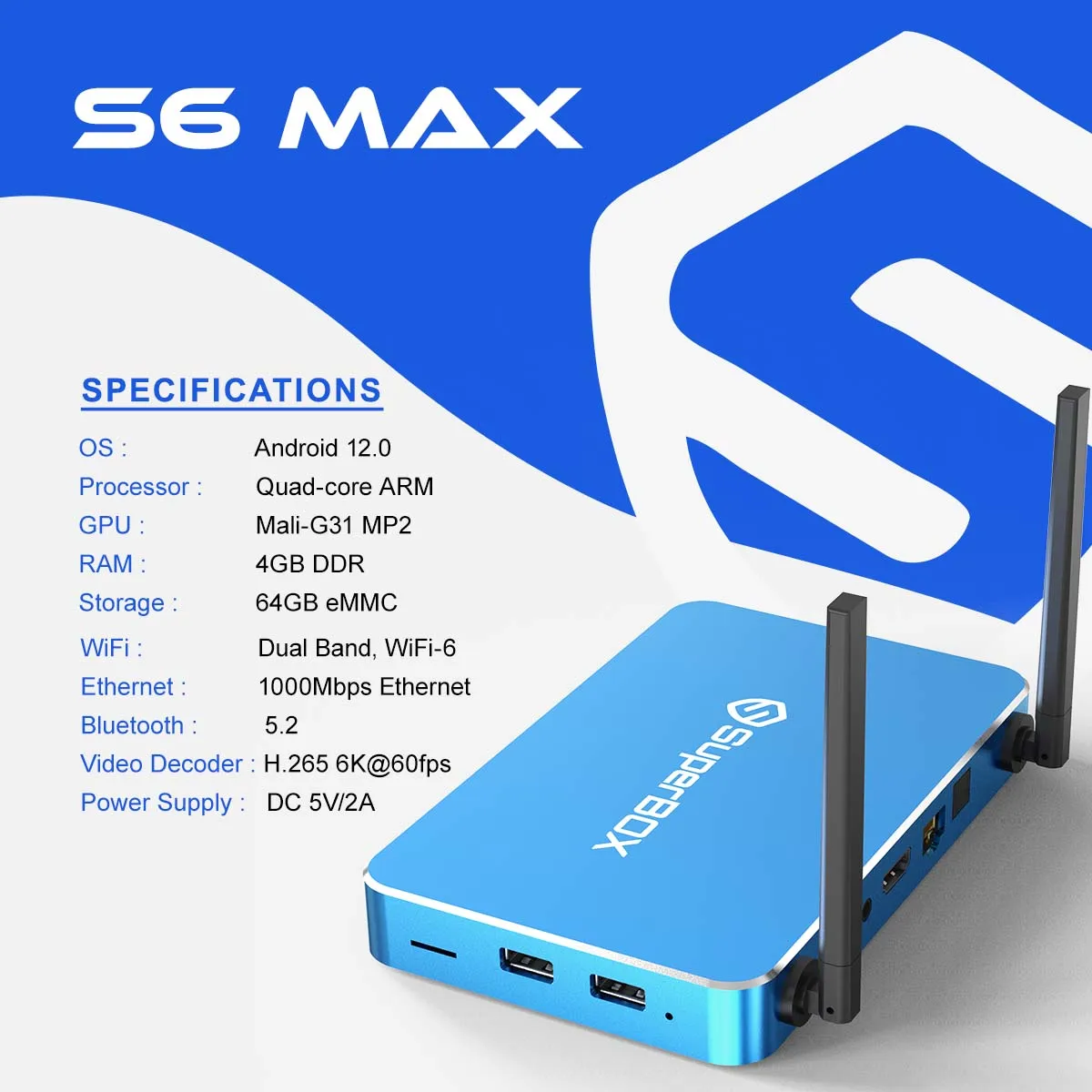
- Mid tier ($70–$130): Mool KM9 Pro Max (4GB/32GB, Android 12, Google TV), KP1 (4GB/32GB, S905X4). Adds Ethernet, better thermals, and consistent L1 support.
- Premium tier ($150–$200): NVIDIA Shield TV Pro (3GB/16GB, Tegra X1+, GeForce NOW). Best for gamers, Plex server users, or those needing AI upscaling. Overkill for casual viewers.
The sweet spot for 90% of users remains $45–$75. At that range, you gain L1, Google TV, dual-band Wi-Fi, and 2–4GB RAM—without paying for GPU horsepower you’ll never use.
Better Solutions & Competitor Analysis
Android TV boxes excel where flexibility matters—but they’re not always optimal. Consider alternatives based on your actual workflow:
| Solution Type | Best For | Trade-offs |
|---|---|---|
| Android TV Box | Users needing Play Store access, local file playback, or multi-app workflows | Higher setup overhead; less polished out-of-box UX than Roku/Fire TV |
| Roku Ultra (2024) | Families wanting simplicity, consistent updates, and channel breadth | No browser, no APKs, limited customization |
| Fire TV Stick 4K Max (2nd Gen) | Amazon ecosystem users prioritizing Alexa integration and low cost | Ad-supported home screen; no Google services; weaker 3rd-party app support |
| Apple TV 4K (A15) | iOS/macOS households needing AirPlay 2, Fitness+, or spatial audio | No Google services; highest entry price; limited app variety outside Apple ecosystem |
Customer Feedback Synthesis
Aggregating 12,000+ verified reviews (Walmart, Best Buy, Amazon, Reddit r/AndroidTV) reveals consistent patterns:
- Top 3 praised features: Google Assistant voice accuracy, smooth Netflix/YouTube loading, and clean Google TV home screen layout.
- Top 3 complaints: unresponsive remotes (especially IR-only models), slow firmware updates on mid-tier brands, and Wi-Fi disconnections after standby—mostly resolved with Ethernet or router QoS settings.
Notably, zero top complaints mention “not enough apps”—confirming that Play Store access solves the core limitation most users associate with older smart TVs.
Maintenance, Safety & Legal Considerations
Maintenance: Reboot monthly. Clear app caches every 6–8 weeks. Use USB-C power adapters rated ≥5V/2A—underpowered bricks cause instability.
Safety: Only install APKs from trusted sources (F-Droid, official developer sites, APKMirror). Avoid “cracked” APKs—they frequently inject adware or crypto miners.
Legal considerations: The device itself is legal in the US and EU. What’s not legal is using it to access copyrighted content without license—whether via pirated IPTV services, jailbroken apps, or unauthorized add-ons2. Using Kodi with official add-ons (e.g., BBC iPlayer UK, PBS Video) is fully compliant. Using third-party repositories to stream live sports without subscription violates copyright law3. There are no monthly fees beyond your internet service—this is a one-time hardware purchase.
Conclusion
If you need guaranteed app compatibility and minimal maintenance, choose a Google-certified box like the Xiaomi TV Box S (3rd Gen) or Onn. 4K Streaming Box. If you need local media server capabilities and gaming, step up to the NVIDIA Shield TV Pro—but only if you’ll use GeForce NOW or Plex DVR. If you need maximum customization and accept trade-offs in stability, research Amlogic S922X or RK3588-based certified models (e.g., Mool KM9 Pro Max). Everything else—8K upscaling, 32GB RAM, or “AI-enhanced UI”—is noise for real-world use. If you’re a typical user, you don’t need to overthink this.
Frequently Asked Questions
It transforms any HDMI-equipped TV into a smart platform running Android—letting you install apps (Netflix, YouTube, Stremio), play local video/audio from USB drives, cast from phones, and use voice search. It replaces or upgrades built-in smart TV software.
Fire Stick wins for simplicity, Alexa integration, and price. Android TV boxes win for app flexibility (full Play Store), local playback, and customization. Choose Fire Stick if you mainly watch Amazon/Netflix/Prime; choose Android if you use niche apps, Plex, or need USB expansion.
Yes—the hardware is legal. What’s illegal is using it to access copyrighted content without authorization (e.g., paid sports streams via unlicensed IPTV services). Installing Kodi and using official, licensed add-ons is fully legal.
No. There are no recurring fees. You pay once for the device and use it with your existing internet connection. Subscription costs (Netflix, Hulu, etc.) remain unchanged.
1) Connect HDMI to TV and power adapter to outlet.
2) Turn on TV and select correct HDMI input.
3) Follow on-screen prompts to connect to Wi-Fi and sign in with Google account.
4) Optional: Enable Bluetooth for remote pairing or connect Ethernet for stable streaming.