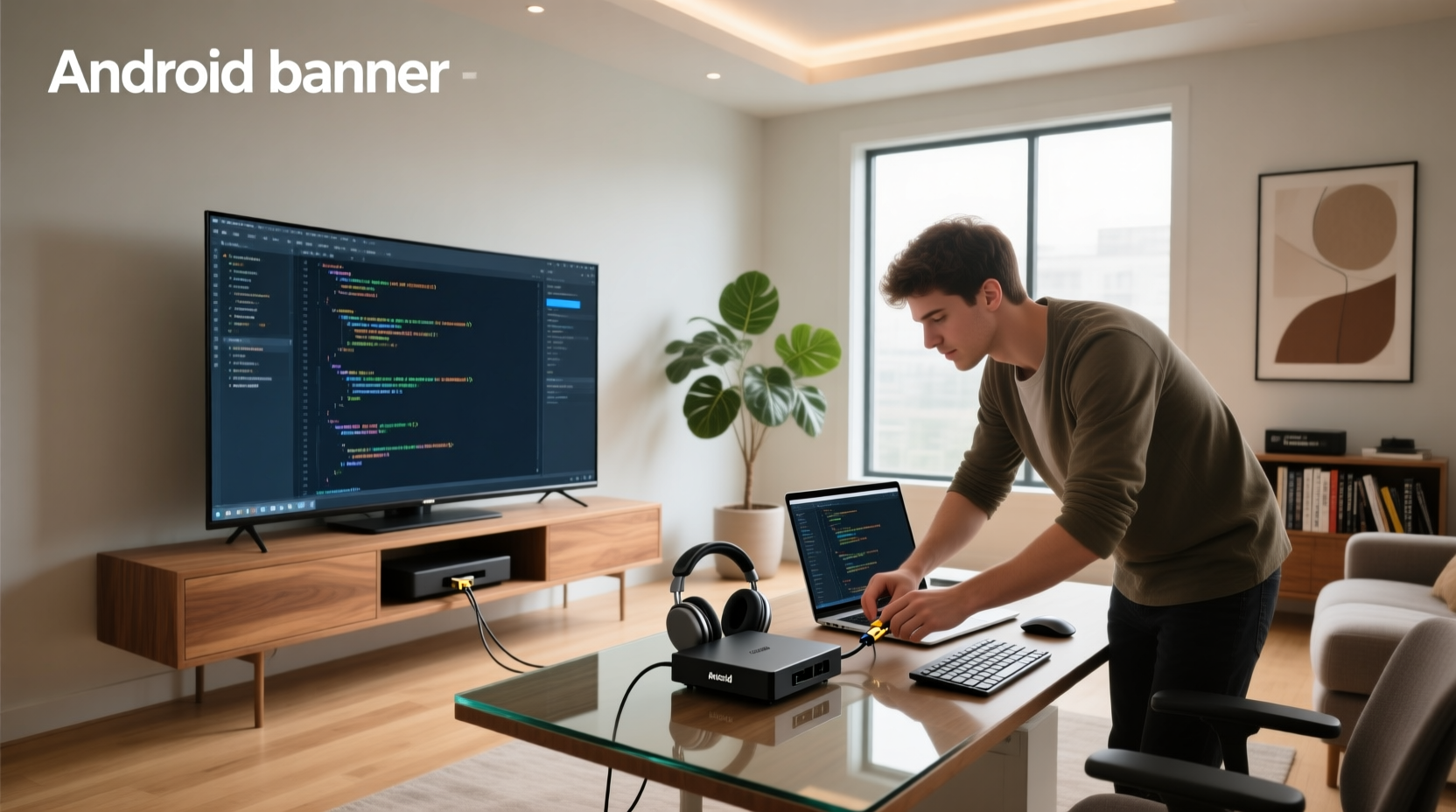
Over the past year, more users have moved beyond basic streaming to actively customize their Android TV boxes — not just installing apps, but modifying behavior, automating inputs, or even deploying lightweight custom interfaces. If you’re a typical user, you don’t need to overthink this: most programming tasks boil down to three actions — enabling Developer Options, connecting via USB debugging, and sideloading APKs built in Android Studio using Kotlin or Java. You don’t need root access, a custom ROM, or deep system knowledge to add value. What matters most is knowing when to stop — and where real-world constraints (like inconsistent Wi-Fi, limited storage, or lack of official firmware updates) override theoretical capability. This piece isn’t for keyword collectors. It’s for people who will actually use the product.
About Android TV Box Programming
Android TV box programming refers to the process of developing, modifying, or deploying software specifically for devices running Android-based TV operating systems — whether consumer-grade boxes (e.g., MXQ Pro, T95 series) or developer-targeted hardware like the ADT-3. Unlike mobile app development, TV programming emphasizes navigation via remote control, large-screen layout optimization, and voice or gesture integration. Typical use cases include:
- Building a simplified launcher for elderly family members
- Automating channel switching or input routing across HDMI sources
- Sideloaded media center frontends (e.g., custom Kodi forks)
- Testing early Android TV OS features before public release
- Deploying internal dashboards or kiosk-mode applications in small businesses
It does not mean jailbreaking, unlocking bootloaders, or flashing factory images — those are separate system-level operations with higher risk and lower return for most users.
Why Android TV Box Programming Is Gaining Popularity
Lately, two shifts have made programming these devices more accessible — and more relevant. First, low-cost hardware has matured: many $30–$60 boxes now ship with quad-core ARM processors, 2GB+ RAM, and full Android 11/12 compatibility — enough to run debug builds reliably. Second, developer tooling has converged: Android Studio supports TV targets out of the box, and open-source libraries (e.g., Leanback support library) handle remote navigation and focus management automatically.
But popularity doesn’t equal universality. The real driver is control: users tired of opaque auto-updates, unpredictable ad banners in third-party launchers, or missing features in stock interfaces are turning to light customization — not full software engineering. That’s why “how to program your Android TV box” searches now often pair with “how to remove ads,” “how to disable recommendations,” or “how to set up without Google account.” These aren’t developer questions — they’re user autonomy questions dressed in technical language.
Approaches and Differences
There are three main approaches to Android TV box programming — each serving different goals, skill levels, and time investments:
✅ Sideloading Pre-Built APKs (Low Effort, High Utility)
You download or build an APK elsewhere (e.g., from GitHub or Android Studio), enable USB debugging on the box, and install it via adb install. No coding required if using existing tools.
When it’s worth caring about: You want to replace the default launcher, add a privacy-focused browser, or test a beta version of a media app.
When you don’t need to overthink it: You’re not changing core behavior — just swapping one interface for another. If you’re a typical user, you don’t need to overthink this.
⚙️ Custom App Development (Medium Effort, Medium Control)
You write a new app (in Kotlin or Java) targeting Android TV, using Android Studio’s TV templates, then deploy directly to the device. Requires understanding of LeanbackFragment, focus handling, and D-pad navigation.
When it’s worth caring about: You need a unique workflow — e.g., launching specific apps based on time-of-day, integrating with local network sensors, or displaying dynamic status feeds.
When you don’t need to overthink it: You’re replicating functionality already available in Play Store apps. Don’t rebuild YouTube TV unless you’re solving a concrete gap — like offline playlist sync or multi-room audio routing.
🔧 System-Level Modification (High Effort, Low Return for Most)
This includes rooting, patching system partitions, or building custom Android TV images. Rarely necessary for functional improvements — and almost always breaks OTA updates, voids warranties, and introduces instability.
When it’s worth caring about: You’re maintaining a fleet of boxes in a commercial kiosk deployment and require signed, locked-down firmware.
When you don’t need to overthink it: You’re trying to “speed up” your box or “remove bloatware.” Those goals are better addressed by clearing caches, disabling unused services, or choosing lighter launchers. If you’re a typical user, you don’t need to overthink this.
Key Features and Specifications to Evaluate
Before writing or deploying anything, verify your target device meets minimum practical thresholds:
- USB Debugging Support: Not all boxes expose this in Settings > Device > About > Build Number (tap 7x). Some hide it behind obscure menus or omit it entirely. Check manufacturer documentation or community forums first.
- ADB Over Network: Useful when USB ports are inaccessible. Requires stable local network and correct IP configuration — but Wi-Fi latency makes it unreliable for interactive debugging. Ethernet is strongly preferred.
- Storage Space: Most boxes ship with 8–16GB eMMC, but only ~4–6GB remains usable after OS overhead. APKs with native libraries (e.g., games, video encoders) quickly consume space. Prioritize APKs with
android:extractNativeLibs="false"when possible. - Firmware Update Path: Boxes with no official update channel often ship outdated Android versions (e.g., Android 7 or 8), limiting API availability and security patches. Avoid unless you plan to maintain your own image.
Pros and Cons
Pros:
- Full control over installed software — no dependency on app store approvals or regional restrictions
- Ability to automate repetitive tasks (e.g., daily restart, input switching)
- Lightweight alternatives to bloated stock interfaces improve responsiveness
- Learning path overlaps with broader Android development — transferable skills
Cons:
- No official support for sideloaded apps — crashes or incompatibilities must be diagnosed manually
- Limited access to Google Mobile Services (GMS) on non-certified boxes affects Play Store, Cast, and Assistant integrations
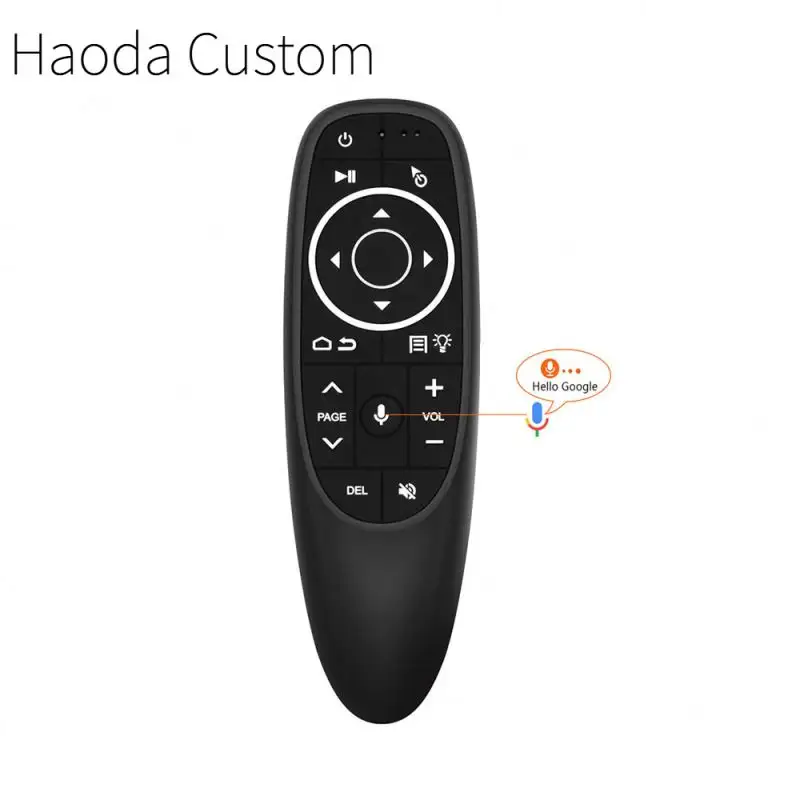
- Remote pairing inconsistencies: some remotes require holding OK + Volume Down for 5 seconds to re-pair — not documented anywhere on-device2
- UI scaling mismatches: apps designed for phones often render poorly on 4K displays without proper
android:resizeableActivityand resource qualifiers
How to Choose the Right Programming Approach
Follow this decision checklist — in order — before opening Android Studio:
- Can your goal be achieved with settings alone? (e.g., hiding recommendations, changing default input, disabling notifications) → Use built-in Settings > Home screen > Edit layout.
- Is there a trusted, pre-built APK that solves it? (e.g., “ATV Launcher”, “Simple Remote Control”) → Download, verify signature, sideload.
- Does the behavior require real-time device interaction? (e.g., reading IR blaster signals, triggering HDMI-CEC commands) → You’ll need custom code — start with Android Studio TV template.
- Do you have reliable Ethernet access and at least 2GB free storage? → If not, delay development until infrastructure improves. Unstable ADB = wasted time.
Avoid these common traps:
- Assuming all “Android TV” boxes support the same APIs — many cheap models report false Android TV compliance and lack Leanback libraries.
- Using Wi-Fi for ADB — leads to dropped connections and failed installs (confirmed across multiple YouTube walkthroughs13).
- Ignoring remote focus behavior — apps that work fine on tablets often fail TV navigation if focus traversal isn’t explicitly defined.
Insights & Cost Analysis
There is no monetary cost to begin programming — Android Studio, platform SDKs, and ADB tools are free. The real cost is time and reliability:
- Time investment: Enabling Developer Options and sideloading takes under 5 minutes on a compatible box. Building and debugging a simple launcher takes 2–8 hours for someone familiar with Android fundamentals.
- Hardware cost: A reliable development box starts at ~$45 (e.g., Tanix TX6 with verified ADB support). Avoid sub-$30 models unless you’re comfortable troubleshooting driver issues or missing features.
- Maintenance cost: Expect to re-validate apps after every major OS update — especially if relying on hidden APIs or undocumented system broadcasts.
Better Solutions & Competitor Analysis
For most users, the highest-leverage action isn’t coding — it’s selecting hardware with predictable developer support. Below is a comparison of common paths:
| Category | Best for | Potential Problems | Budget |
|---|---|---|---|
| Official ADT-3 Kit | Testing Android 12/13 TV features pre-release; enterprise validation | Hard to source; no retail availability; requires NDA for some firmware | $299+ |
| Tanix TX6 / Beelink GT King | Reliable ADB + Ethernet + consistent kernel support | Slower updates; limited community docs outside Chinese forums | $45–$85 |
| Generic $25 Boxes (AliExpress) | One-off experiments; disposable testing | Frequent ADB failures; no recovery mode; missing system libraries | $20–$35 |
| Raspberry Pi 4 + Android TV Image | Learning Android internals; reproducible builds | No official Android TV certification; HDMI CEC spotty; no Widevine L1 | $75–$110 |
Customer Feedback Synthesis
Based on Reddit threads, YouTube comments, and forum posts (e.g., r/learnprogramming, XDA Developers), users consistently praise:
- “Being able to delete the default launcher and use ATV Launcher — finally no more sponsored tiles.”
- “ADB over Ethernet works flawlessly — I can push updates while the box is mounted behind my TV.”
- “The 7-tap trick to unlock Developer Options saved me hours — wish it was in the manual.”
Top complaints:
- “Wi-Fi keeps dropping ADB connection — had to buy a $12 USB-Ethernet adapter.”
- “App crashes on startup because focus isn’t set on first fragment — took 3 days to find the fix.”
- “No way to disable automatic app updates — my custom APK gets overwritten weekly.”
Maintenance, Safety & Legal Considerations
Maintenance is lightweight: monitor for APK compatibility after OS updates, clear app caches quarterly, and verify remote pairing annually. No physical safety risks exist — unlike modifying power supplies or soldering. Legally, sideloading your own software falls under fair use in most jurisdictions. Distributing modified APKs of proprietary apps (e.g., Netflix, Disney+) violates terms of service and may trigger license revocation — stick to open-source or self-developed code.
Conclusion
If you need full control over interface behavior or automation, choose custom app development — but start with sideloading proven tools. If you need reliable, long-term stability with minimal upkeep, invest in hardware with verified ADB and Ethernet support — not raw specs. If you need a faster, cleaner experience without coding, skip programming entirely and optimize settings and launcher choice. Most users never need deeper intervention. If you’re a typical user, you don’t need to overthink this.
Frequently Asked Questions