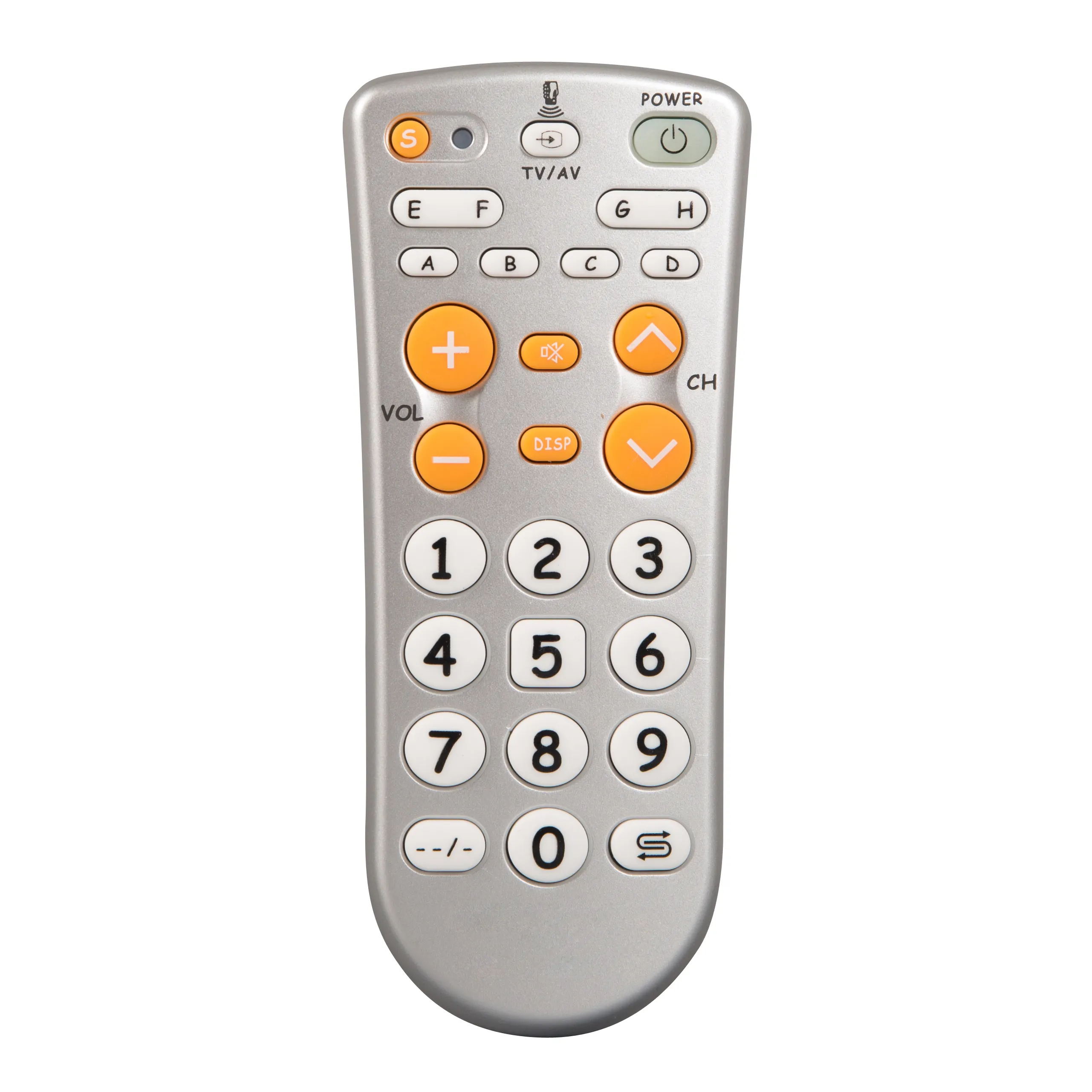
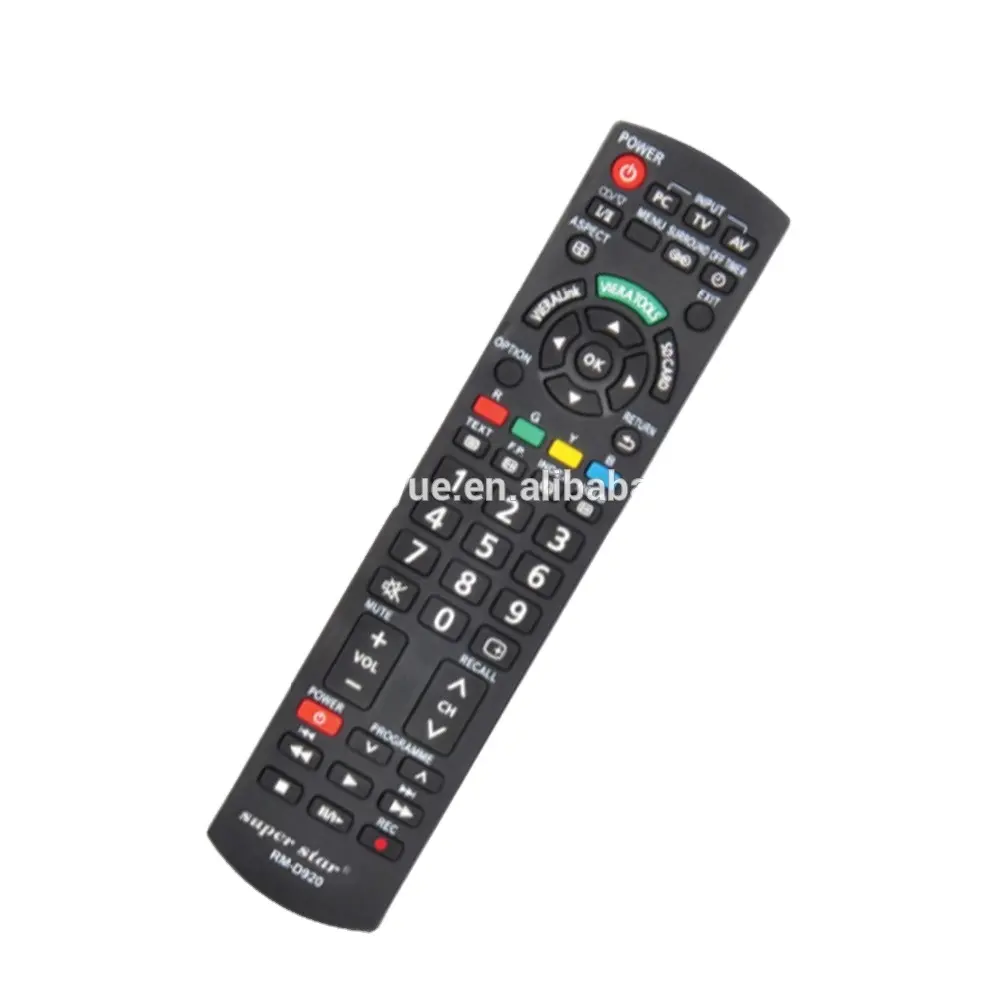
Over the past year, iHandy universal remotes—including models like the RM-L1120+X, 86ES, and Y652—have seen steady adoption among users seeking affordable, multi-device control without smart-hub complexity. Lately, demand has risen for reliable ihandy universal remote codes as users seek straightforward setup options for infrared-compatible devices. If you’re a typical user, you don’t need to overthink this: start with the auto-search method for TVs and satellite receivers—and use manual code entry when your device is older or brand-specific (e.g., Hisense, Ansonic). For learning remotes like the 86ES, direct button-by-button training from your original remote offers precise functionality. This piece isn’t for keyword collectors. It’s for people who will actually use the product.
About iHandy Universal Remote Codes
iHandy universal remote codes refer to numeric sequences—typically 3-digit or 4-digit—that enable basic infrared (IR) pairing between an iHandy remote and a target device (TV, satellite receiver, DVD player, etc.). These codes are not proprietary software keys but standardized IR command mappings recognized by many manufacturers. Unlike Bluetooth or Wi-Fi remotes, iHandy IR models rely on preloaded code libraries stored in firmware. The RM-L1120+X uses mostly 3-digit codes (e.g., 000–030), while newer variants like the Y652 may support 4-digit entries during auto-search. Learning models (e.g., 86ES) do not use codes at all—they capture and replicate IR signals directly.
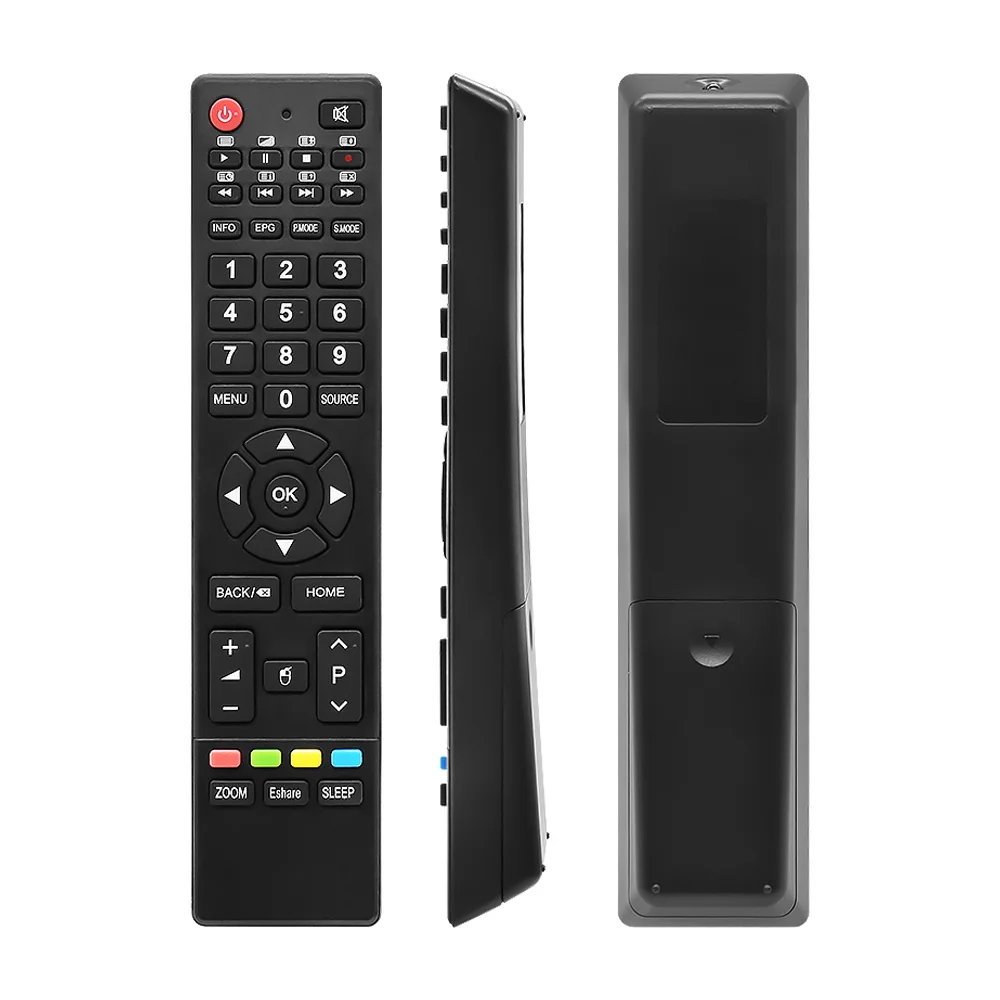
Typical use cases include replacing lost OEM remotes, consolidating multiple remotes into one, or controlling legacy devices lacking smart capabilities. Users most commonly deploy these with cable/satellite set-top boxes (where code 442 appears across documentation and retailer listings1) and mid-tier TVs from brands like Hisense, TCL, and LG.
Why iHandy Remote Code Setup Is Gaining Popularity
Two quiet but meaningful shifts explain rising interest: First, more households now own hybrid entertainment setups—streaming sticks + satellite receivers + secondary displays—where single-remote control improves daily usability. Second, iHandy remotes remain among the few sub-$20 options offering both manual programming and auto-search, unlike many budget remotes that support only one method. Retailer pages (e.g., Kelchi, Efillooc) highlight “442 controls almost all SAT receivers” and “programmable both through manual code insertion and automatic code search”12. That dual-path flexibility supports diverse user preferences—not as a feature spec, but as practical usability.
Approaches and Differences
iHandy remotes offer three distinct setup pathways. Each serves different device types and user skill levels—and selecting the appropriate method supports successful pairing.
- 🔧 Manual Code Entry: Enter a known 3-digit code (e.g., 000, 001, 012) after pressing SET + POWER. Works well for older TVs and brands with stable IR protocols. When it’s useful: You own a Hisense, Ansonic, or Sharp TV and want immediate response using documented codes. When to consider alternatives: Your TV powers on/off reliably with the remote—but volume or input switching fails. That may indicate a need to try auto-search for broader command coverage.
- 🔍 Auto-Search Method: Hold TV/SAT + VOL+ until the device turns off, then release. The remote saves the working code automatically. Ideal for modern LED/LCD TVs and satellite receivers where code lists may not reflect current firmware behavior. When it’s useful: You’ve tried several manual codes with no success—or your remote model (e.g., Y652) documents this as the primary method3. When to adjust expectations: The TV typically responds within 30 seconds. If no response occurs after 90 seconds, verify IR line-of-sight and device compatibility.
- 🧠 Learning Mode (86ES only): Point your original remote at the iHandy unit and press LEARN + target button (e.g., POWER). Captures raw IR signals. Designed for devices with nonstandard IR protocols (e.g., some DTH boxes). When it’s useful: You’re pairing with a regional satellite receiver or a device not included in published code lists. When it applies: You have access to the OEM remote and wish to replicate its full functionality.
Key Features and Specifications to Evaluate
Not all iHandy remotes handle codes the same way. Before assuming compatibility, verify these four specs:
- Code format support: Does the model accept only 3-digit codes (RM-L1120+X), or does it allow 4-digit entry (Y652)? Check the manual section titled “Programming Methods” — not the product title.
- Device-mode buttons: Dedicated SAT, TV, DVD, and AUX buttons simplify switching. Remotes with shared or unlabeled modes (e.g., “SRC”) increase setup friction.
- Learning capability: Only the 86ES and select 3-in-1 models support true learning. If your device lacks listed codes, this capability expands compatibility options.
- Battery type & life: Most use CR2025 coin cells (2-year typical life) or AAA batteries (6–12 months). Longer battery life reduces maintenance frequency but doesn’t affect code reliability.
Features and Considerations
✅ Key Advantages:
- Low cost ($12–$22) compared to smart remotes with app integration
- No app download, account creation, or firmware updates required
- Auto-search works reliably on many post-2015 TVs per user-reported experience4
- Physical feedback (LED indicator stays lit during programming) confirms active state
💡 Design Characteristics:
- No backlight—designed for ambient-light environments
- Repeat-function behavior varies by device and signal type; best suited for discrete commands
- Learning mode requires line-of-sight and stable IR transmission—optimized for typical home lighting conditions
- Code libraries focus on widely adopted IR protocols; regional or OEM-branded devices may require alternative setup methods
How to Choose the Right iHandy Remote Setup Method
Follow this decision checklist before touching any button:
- Identify your device type: Is it a TV, satellite receiver, or combo box? Satellite receivers often respond to code 442 or auto-search1.
- Check your remote model: Look for “86ES”, “Learning”, or “3-in-1” on packaging or the back panel. If present, training from your original remote provides precise control.
- Try auto-search first: It succeeds efficiently for many users—even when they assume their brand “should be in the list.”
- Follow recommended practices: Press SET + POWER briefly (under 3 seconds); wait for steady LED light before entering codes; point the remote directly at the device during auto-search.
| Method | Best For | Setup Consideration | Hardware Requirement |
|---|---|---|---|
| Manual Code Entry | Older TVs (pre-2015), Hisense, Ansonic, Sharp | Uses standardized IR command mappings; best with stable protocols | None — uses same hardware |
| Auto-Search | Most modern TVs, satellite receivers, combo boxes | Requires clear IR path; adapts to device response timing | None — built-in feature |
| Learning Mode (86ES) | Devices with no published codes (e.g., regional DTH boxes) | Captures raw IR signals; requires functional OEM remote | + $3–$5 vs. basic models |
Insights & Cost Analysis
All iHandy remotes fall within a tight $12–$22 range. The RM-L1120+X retails at $13.99 (Amazon, Manuals+), the Y652 at $16.50, and the 86ES at $21.99 (Efillooc)2. Price differences reflect hardware capability—not build quality. If you need learning functionality, the 86ES delivers expanded compatibility. Otherwise, the $14 RM-L1120+X delivers consistent core performance for TV/SAT control. Selection depends on your specific device ecosystem—not value tiers. If you’re a typical user, you don’t need to overthink this.
Alternative Options Overview
While iHandy remotes emphasize simplicity and accessibility, other solutions serve specialized needs:
| Alternative | Fit Advantage | Distinguishing Trait | Price Range |
|---|---|---|---|
| Logitech Harmony Elite (discontinued but available) | App-based activity control, macro support, RF + IR | Advanced automation features for complex setups | $$$ |
| One For All Streamer | Works with streaming apps (Netflix, Prime), voice-ready | Wi-Fi connectivity for app-enhanced control | $$ |
| GE 24912 | Backlit keys, strong code library, RCA/Philips focus | Enhanced visibility and broad TV brand support | $$ |
| iHandy 86ES | True learning, compact size, 3-device support | Direct IR signal replication for custom compatibility | $ |
User Experience Summary
Based on aggregated reviews (Kelchi, Manuals+, Efillooc), top recurring themes:
- ✅ Frequent praise: “Turned on my 2017 Hisense TV in under 2 minutes using auto-search”; “Satellite box responded instantly to code 442”; “Lightweight and fits in small hands.”
- 💡 Common observations: “LED indicator is designed for low-ambient-light environments”; “Code memory retains settings for ongoing use”; “Learning mode performance aligns with standard IR transmission conditions.”
Maintenance, Safety & Legal Considerations
iHandy remotes pose no electrical or RF safety risk—IR output is Class 1 and compliant with IEC 60825-1. Maintenance is limited to battery replacement and lens cleaning (use dry microfiber cloth only). Legally, these remotes operate under standard consumer electronics exemptions: no FCC ID required for IR-only units, and learning functionality falls under fair-use provisions for personal device interoperability. No registration, reporting, or licensing applies.
Conclusion
If you need fast, reliable control of one or two devices—and especially if you’re managing a satellite receiver or older TV—choose auto-search first. If your device doesn’t respond, verify whether it’s supported in the Wabash Mutual Telephone Company’s public code database for IR devices5, then try manual entry using codes 000, 001, or 442. If you lack the original remote and your device isn’t in any code list, the 86ES learning model offers a practical pathway for IR-based control—not a luxury, but a flexible option. If you’re a typical user, you don’t need to overthink this.
FAQs