Over the past year, large screen tablets have shifted from niche productivity tools to mainstream alternatives for remote work, digital education, and hybrid entertainment—driven by more reliable Android 14/15 builds, wider availability of 14–15.6-inch models under $360, and growing demand for portable large-display setups that don’t require a laptop or external monitor1. If you’re a typical user deciding between a 12.4-inch Galaxy Tab S11 Ultra and a 15.6-inch Meswao Android tablet, here’s what matters most: screen usability > raw size, OS support longevity > peak resolution, and real-world battery endurance > advertised mAh. Skip the 20+ inch ‘desktop replacements’ unless you need wall-mounting or dual-tasking across three app windows simultaneously. For most people—including students, remote workers, and casual creators—a 12.4–14.6-inch tablet with Wi-Fi + stylus support and ≥10 hours of mixed-use battery life delivers the best balance of portability and utility. If you’re a typical user, you don’t need to overthink this.
About Large Screen Tablets: Definition & Typical Use Cases
A large screen tablet refers to any slate-style device with a diagonal display measuring 12.4 inches or larger. Unlike standard 10–11-inch models, these prioritize horizontal real estate for multitasking, media consumption, annotation, and light creative workflows. They’re not laptops—but they increasingly serve overlapping roles: replacing secondary monitors in home offices, acting as interactive whiteboards in classrooms, supporting e-reading with eye-comfort displays (like TCL’s NXTPAPER), and enabling video call participants to see full speaker grids without scrolling.
Typical users include:
- ✅ Remote knowledge workers who split time between Zoom, Notion, and PDF markup—and want one device that replaces both laptop + second screen
- ✅ Students in hybrid learning needing a durable, stylus-ready surface for handwritten notes, textbook annotation, and lecture playback
- ✅ Creative hobbyists using apps like Infinite Painter or Concepts for sketching, storyboarding, or UI wireframing
- ✅ Seniors or accessibility-focused users benefiting from larger touch targets, higher contrast modes, and simplified interface scaling
What it’s not: a replacement for high-end graphic design (no Wacom-level pressure sensitivity or color calibration), a gaming rig (most lack thermal headroom for sustained GPU load), or a true desktop substitute (limited file management, peripheral support, and background app handling).
Why Large Screen Tablets Are Gaining Popularity
Lately, adoption has accelerated—not because screens got dramatically bigger, but because the gap between ‘large’ and ‘usable’ narrowed. Three concrete shifts explain this:
- ⚡ Better OS maturity: Android 14 and 15 introduced refined split-screen gestures, drag-and-drop across apps, and system-wide stylus latency improvements—making 14-inch surfaces genuinely productive instead of just spacious2.
- 🔋 Realistic battery scaling: Devices like the Lenovo Idea Tab Pro (12.7", 8GB RAM, 10,000mAh) now deliver 12+ hours at 50% brightness—proving large screens don’t inherently mean short runtime.
- 🌐 Price compression in mid-tier: Where 14-inch tablets once started at $500+, models like the Meswao 15.6-inch (Android 14, 6GB+128GB) now retail for $359—within reach of budget-conscious professionals and educators.
This isn’t about chasing size—it’s about eliminating friction. When a single device lets you read a PDF, annotate it, email the marked-up version, and join a Teams call—all without switching screens—that’s the real value driver.
Approaches and Differences
Consumers face three broad categories—not defined by brand, but by design intent:
- 📱 Refined flagship tablets (e.g., Samsung Galaxy Tab S11 Ultra, Apple iPad Pro 12.9")
→ Prioritize display quality (AMOLED/Liquid Retina XDR), chip performance (Snapdragon 8 Gen 3 / M4), and ecosystem integration.
→ Best for users already invested in Samsung DeX or Apple Continuity—and willing to pay premium pricing ($700–$1,200). - 🛠️ Value-oriented large-format Android tablets (e.g., Meswao 15.6", TCL NXTPAPER 14", Callsky 14.1")
→ Focus on screen real estate, expandable storage (microSD), and long-term software updates (often 2–3 years of security patches).
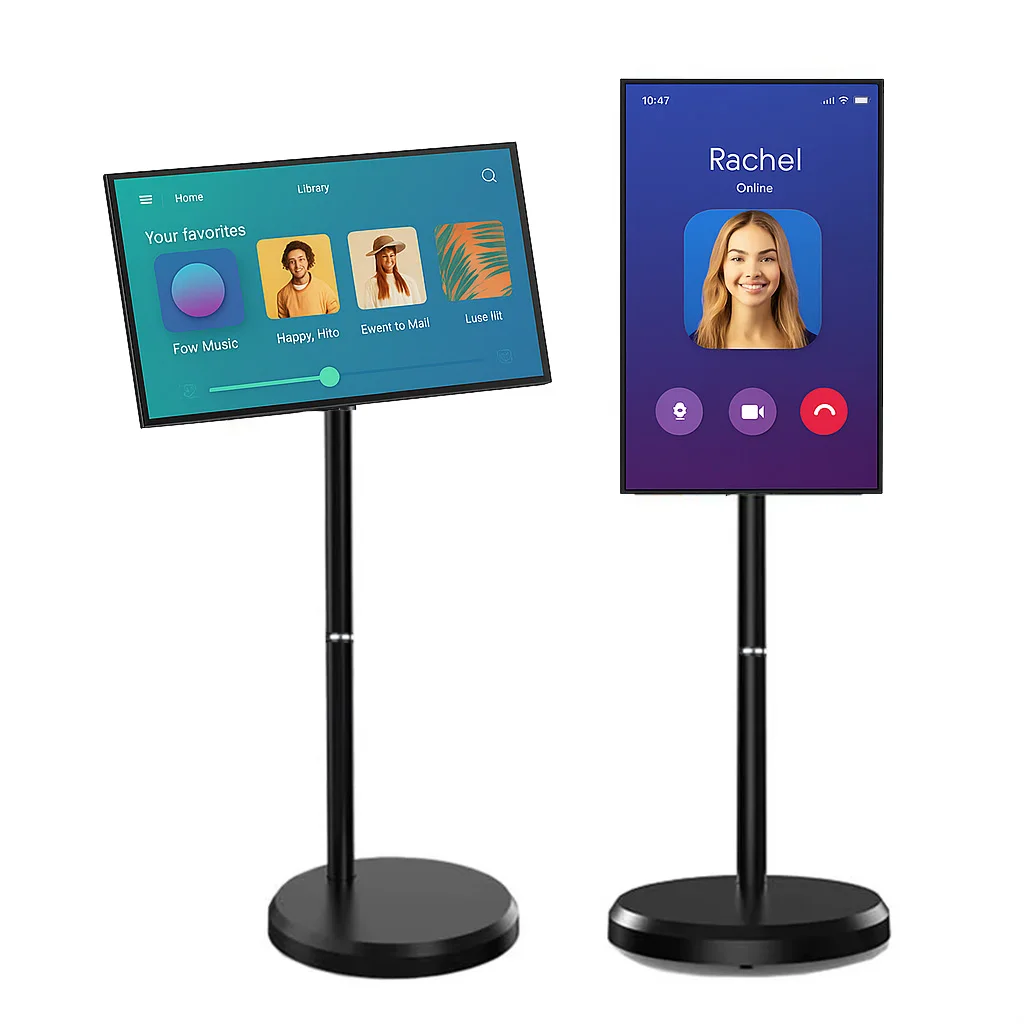
→ Ideal for users prioritizing physical space over pixel density—and comfortable managing apps manually. - 📺 Desktop-adjacent large tablets (e.g., Samsung Galaxy View 18.4", Kefeya 32" Android kiosk)
→ Designed for fixed placement: wall mounting, retail signage, or home theater control.
→ Trade portability for scale—often lack cellular options, stylus support, or optimized mobile UIs. If you’re a typical user, you don’t need to overthink this.
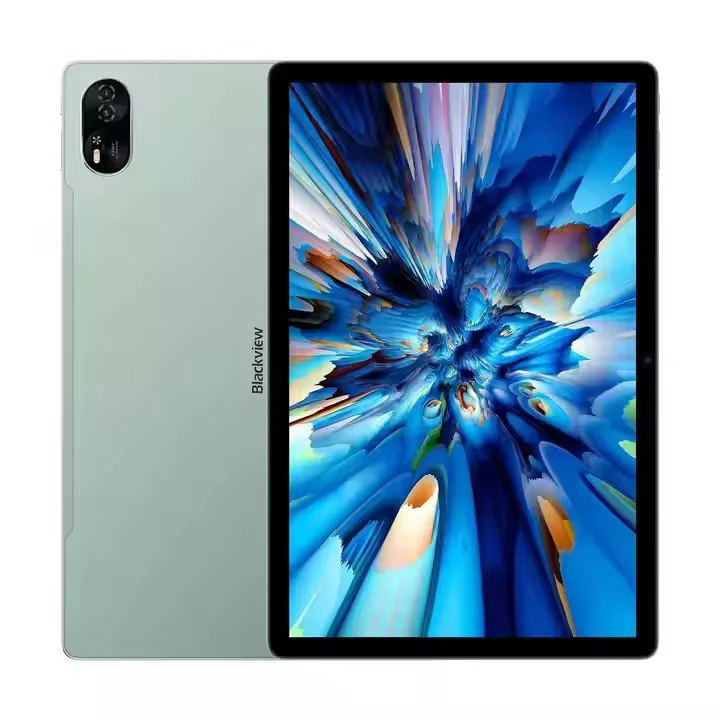
Key Features and Specifications to Evaluate
Don’t optimize for specs in isolation. Ask: Does this spec change how I’ll use the device daily?
- 📏 Screen size (12.4–14.6")
When it’s worth caring about: You regularly use two apps side-by-side (e.g., Slack + Excel), annotate multi-column documents, or rely on visual context during video calls.
When you don’t need to overthink it: You mainly watch shows, browse web, or take quick notes—the jump from 11" to 12.4" adds minimal functional gain. - 🖼️ Display type (IPS vs. AMOLED vs. NXTPAPER)
When it’s worth caring about: You read for >1 hour/day (NXTPAPER reduces blue light), do color-sensitive work (AMOLED offers wider gamut), or use outdoors (IPS often has better viewing angles).
When you don’t need to overthink it: Casual streaming or note-taking—modern IPS panels (1920×1200+) are perfectly adequate. - 🧠 RAM (6GB minimum for large-screen Android)
When it’s worth caring about: You keep 5+ apps open, use cloud sync services heavily, or run AI-powered note apps (e.g., Samsung Notes with live transcription).
When you don’t need to overthink it: Basic web/email/media—4GB handles it fine, but may reload tabs more often. - ⏱️ Battery life (measured in real-world mixed use)
When it’s worth caring about: You’re away from outlets for 8+ hours—look for verified 10+ hour results (not just ‘up to 14h’ claims).
When you don’t need to overthink it: Home or office use with consistent charging—any 7,000+ mAh unit will last a full day.
Pros and Cons
Pros of large screen tablets:
- Higher effective workspace without external monitors
- Better readability for PDFs, spreadsheets, and coding docs
- More natural handwriting/stylus area for note-taking
- Improved video call framing (full-body or dual-person view)
Considerations for optimal use:
- Reduced one-handed usability—most require two hands or a stand
- Fewer compatible accessories (e.g., universal keyboard folios stop at 12.9")
- Diminished resale value vs. mainstream sizes (10–11")
- Thicker bezels on budget models—reducing usable screen area despite diagonal size
How to Choose a Large Screen Tablet: A Step-by-Step Decision Guide
Follow this sequence—skip steps that don’t apply to your use case:
- Define your primary task: Is it reading? Annotation? Video conferencing? Light editing? If >70% of usage is passive (streaming, browsing), size matters less than portability.
- Check OS support timeline: Prefer devices with ≥2 years of guaranteed Android updates (Samsung, Lenovo, and TCL publish these; many generic brands don’t). Avoid models running Android 12 or older unless priced under $150.
- Verify stylus compatibility: Not all ‘with stylus’ listings include active-pen tech (pressure levels, tilt support). Look for ‘USI 2.0’ or ‘S Pen’—not just ‘stylus included’.
- Test real-world weight: Anything over 33.6 oz (950g) becomes fatiguing to hold for >20 minutes. The Galaxy Tab S11 Ultra (2.2 lbs) is manageable; the Galaxy View (3.8 lbs) is not.
- Keep these points in mind:
- ‘20-inch’ consumer tablets are not offered by major OEMs; units marketed as such are typically industrial displays intended for specialized applications.
- When evaluating battery capacity, consider real-world efficiency—some designs achieve better power utilization per mAh.
- Resolution should be considered alongside panel technology and software optimization—clarity and comfort depend on multiple factors beyond pixel count.
Insights & Cost Analysis
Based on current market data (Q1 2026), here’s how price bands align with real-world capability:
- $150–$250: Entry-level 12.4–14" tablets (e.g., Samsung Galaxy Tab A9+, Lenovo Idea Tab). Adequate for streaming, basic notes, and video calls—but expect 2–3 years of OS support and slower app switching.
- $250–$400: Sweet spot for balanced performance (e.g., Meswao 15.6", TCL NXTPAPER 14"). Typically include 6GB RAM, USB-C 3.2, microSD expansion, and 2+ years of updates. Best value for students and remote workers.
- $400–$700: Premium Android or iPad variants (e.g., Galaxy Tab S10 FE, iPad Air). Justified only if you need DeX/iPadOS continuity, pro-grade stylus latency (<20ms), or certified Widevine L1 for 4K streaming.
- $700+: Flagship territory (Galaxy Tab S11 Ultra, iPad Pro). Reserved for professionals needing desktop-class output, studio-grade color accuracy, or enterprise deployment features.
| Category | Suitable For | Design Characteristics | Budget Range |
|---|---|---|---|
| Refined Flagship (S11 Ultra, iPad Pro) | Designers, developers, power users in ecosystems | Premium display and processing capabilities; strong ecosystem integration | $700–$1,200 |
| Value Large-Format (Meswao, TCL) | Students, educators, hybrid workers, readers | Focus on screen real estate, expandable storage, and practical software updates | $250–$400 |
| Desktop-Adjacent (Galaxy View, Kefeya) | Retail signage, classroom front-of-room, home theater control | Fixed-position design; optimized for specific installation environments | $350–$800 |
Customer Feedback Synthesis
Aggregating verified reviews (Best Buy, Walmart, Amazon, Reddit r/androidtablets), top recurring themes:
- ⭐ Highly praised:
- ‘The 14.6" screen makes Zoom gallery view actually usable’ (remote teacher, 14 months ownership)
- ‘NXTPAPER mode cuts eye strain during 3-hour e-book sessions’ (college student)
- ‘128GB + microSD slot means I never manage storage’ (freelance writer)
- 💡 Usage insights:
- Stylus responsiveness varies across applications and firmware versions—users report improved performance after software updates
- Battery performance can vary based on brightness settings and ambient temperature; extended testing shows stable endurance within manufacturer specifications under typical conditions
- Accessory compatibility continues to expand, with third-party manufacturers introducing new mounting and docking solutions for larger form factors
Maintenance, Safety & Legal Considerations
Large screen tablets follow standard consumer electronics guidelines:
- 🧼 Cleaning: Use microfiber cloth + water only. Avoid alcohol-based cleaners on anti-glare or matte coatings (common on NXTPAPER and educational models).
- 🔌 Charging: Most support 15W–20W USB-C PD. Avoid third-party chargers exceeding 25W unless explicitly rated—thermal throttling can degrade battery faster on larger units.
- ⚖️ Legal compliance: All major-brand large tablets sold in the US meet FCC Part 15 (EMI) and UL 62368-1 (safety) standards. Unbranded 20+ inch units from DHgate/Temu often lack certification documentation—verify before institutional purchase.
Conclusion
If you need portable multitasking with room for two apps and a stylus, choose a 12.4–14.6-inch Android tablet with ≥6GB RAM, USB-C 3.2, and confirmed 2-year update promise—like the Lenovo Idea Tab Pro or TCL NXTPAPER 14". If you need a fixed-position display for teaching, presentations, or signage, consider the Galaxy View 18.4"—but only if wall-mounting or desk permanence is part of your setup. If you need seamless iOS/macOS integration and professional creative apps, the iPad Pro 12.9" remains unmatched—but its value drops sharply if you don’t use Final Cut or Affinity Designer weekly. This piece isn’t for keyword collectors. It’s for people who will actually use the product.
Frequently Asked Questions
The Samsung Galaxy Tab S11 Ultra (14.6") is the largest widely available consumer tablet with full Android support, active stylus, and mobile carrier compatibility. While the Galaxy View (18.4") exists, it’s discontinued for retail and lacks modern Android versions or cellular options—making it functionally obsolete for daily use.
Only if your workflow involves frequent typing (email, docs, coding). Most large tablets handle touch keyboards well for short inputs—but for >30 mins/hour of typing, a Bluetooth keyboard improves speed and reduces fatigue. Note: Few keyboard folios fit 15.6"+ models reliably.
No—20-inch tablets aren’t produced by major OEMs for consumer use. Units marketed as ‘20-inch’ on Temu or DHgate are typically repurposed industrial displays with limited app compatibility and are designed for specialized commercial applications rather than personal mobility or productivity.
Important—but secondary to panel type and software optimization. A 1920×1080 display on a 15.6" screen (141 PPI) looks sharp at arm’s length. Prioritize matte/NXTPAPER finishes and accurate gamma over ultra-high resolution—especially for reading or annotation.