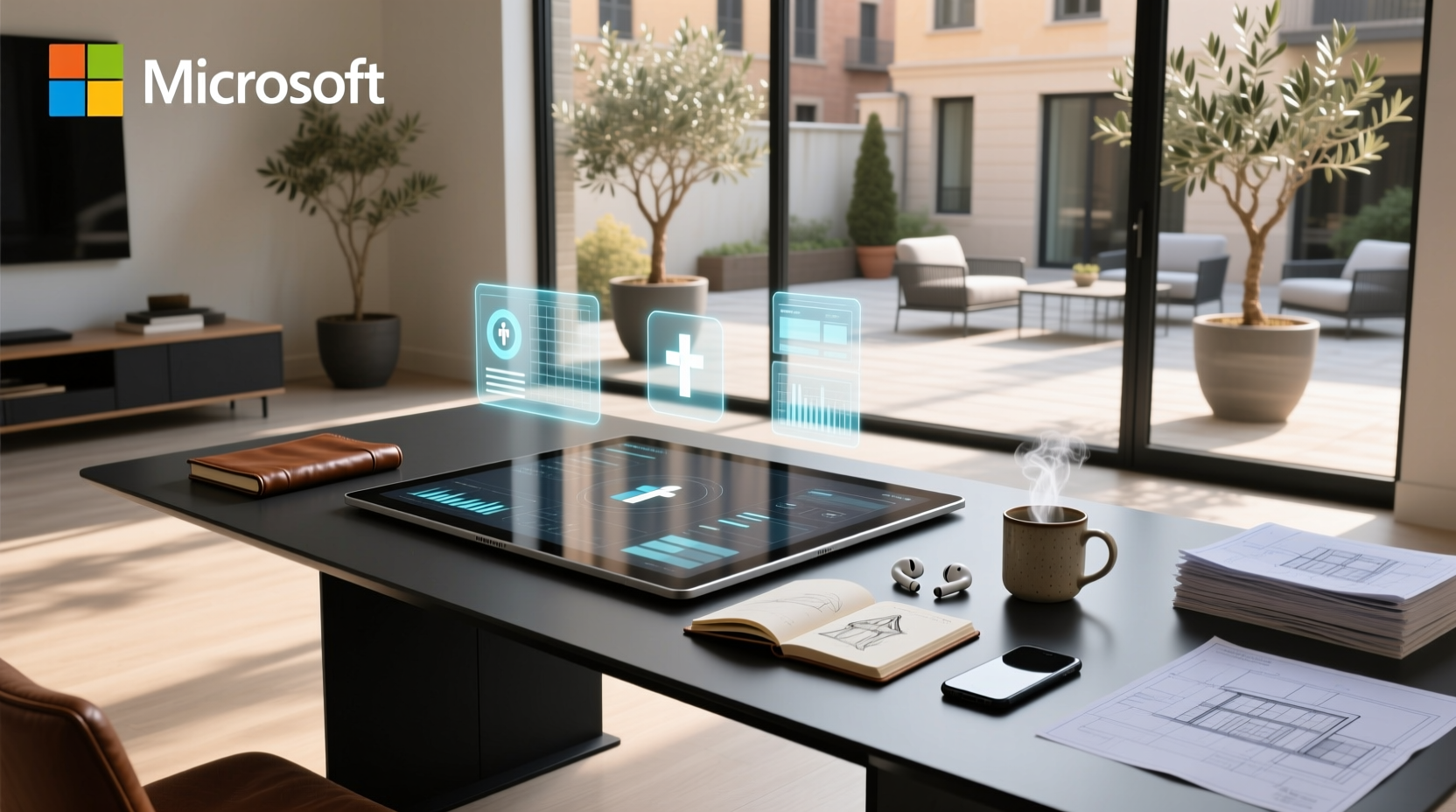
Over the past year, demand for collaborative, touch-enabled horizontal displays has surged—not because of a Microsoft revival, but because enterprise, retail, and smart-space buyers now treat interactive tables as infrastructure, not novelties. If you’re searching for a Microsoft Surface table computer, here’s the direct answer: the original hardware was discontinued in 2013. You won’t find new units—and even refurbished ones lack support, drivers, or security updates. Instead, today’s best choice is a modern 4K interactive coffee table (21.5"–43") for home or lounge use, or a 55"–85" enterprise-grade interactive whiteboard for meetings and classrooms. Both deliver the multi-touch, real-time collaboration, and robust build once promised by PixelSense—but at 5–10% of the original $10,000 price. If you’re a typical user, you don’t need to overthink this.
This piece isn’t for keyword collectors. It’s for people who will actually use the product.
About the Microsoft Surface Table Computer
The Microsoft Surface table computer—first unveiled in 2007 and rebranded as PixelSense in 2012—was never a consumer device. It was a purpose-built, table-form-factor interactive display designed for high-traffic public environments: hotel lobbies, retail showrooms, museum exhibits, and corporate briefing centers1. Unlike tablets or laptops, it featured a horizontal, rear-projection (v1) or LED-backlit (v2) surface capable of detecting fingers, custom RFID tags, and even physical objects placed on screen—enabling gesture-driven navigation, object-aware apps, and multi-user collaboration without peripherals.
Its defining traits were scale, orientation, and environmental resilience: a large, flat, durable surface meant to be shared—not held. That core concept remains relevant. But the execution has shifted entirely: from proprietary, Windows Vista–based hardware to open-platform, Android- or Windows 11–powered displays with capacitive multi-touch, IP-rated waterproofing, and modular connectivity.
Why Interactive Tables Are Gaining Popularity
Interactive tables aren’t trending—they’re being deployed. The surface computing market hit $86.07 billion in 2024 and is projected to grow to $1.89 trillion by 2034, at a 36.2% CAGR2. This isn’t speculative growth. It reflects three concrete shifts:
- 💡 Hybrid work demands better shared surfaces. Teams no longer gather around laptops or projectors. They co-edit documents, annotate floor plans, and manipulate 3D models on large, responsive displays—vertically mounted whiteboards or horizontally oriented tables.
- 🛒 Retail and hospitality prioritize engagement over static signage. A touchscreen table in a showroom lets customers configure products, compare specs, or watch demos—without staff intervention. That drives dwell time and conversion3.
- 🎓 Education needs tactile, group-based learning tools. From STEM labs to language classrooms, educators use interactive tables for collaborative problem-solving, annotation, and real-time feedback—especially where mobility and shared input matter more than individual screens.
If you’re a typical user, you don’t need to overthink this. What matters isn’t nostalgia for the 2008 Surface—it’s whether your use case requires shared, horizontal interaction (coffee table), vertical collaboration (whiteboard), or embedded kiosk functionality (retail).
Approaches and Differences
Today’s “Surface table computer” alternatives fall into three functional categories—not form factors. Each solves distinct problems:
| Category | Key Strengths | Typical Limitations | Budget Range (USD) |
|---|---|---|---|
| Smart Coffee Tables (21.5"–43", horizontal) |
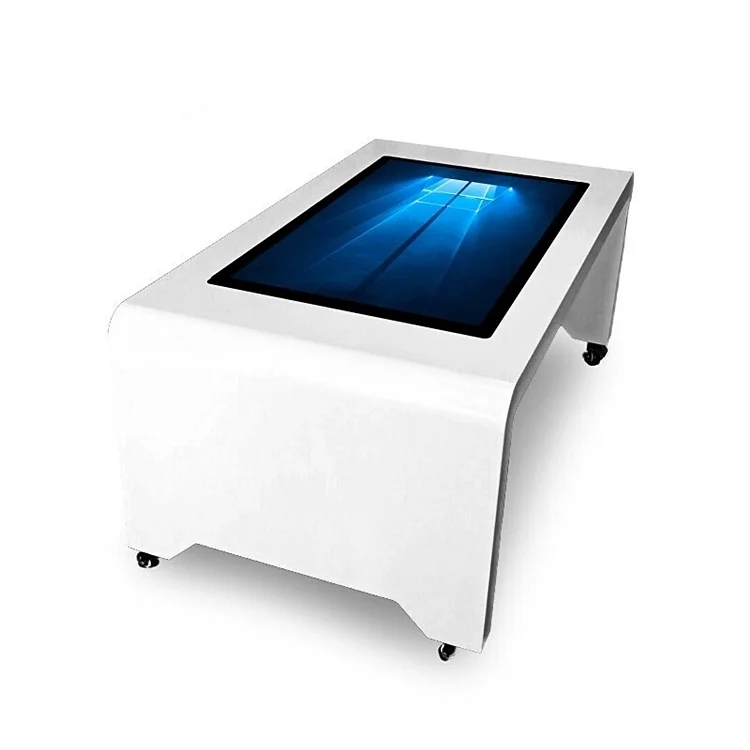
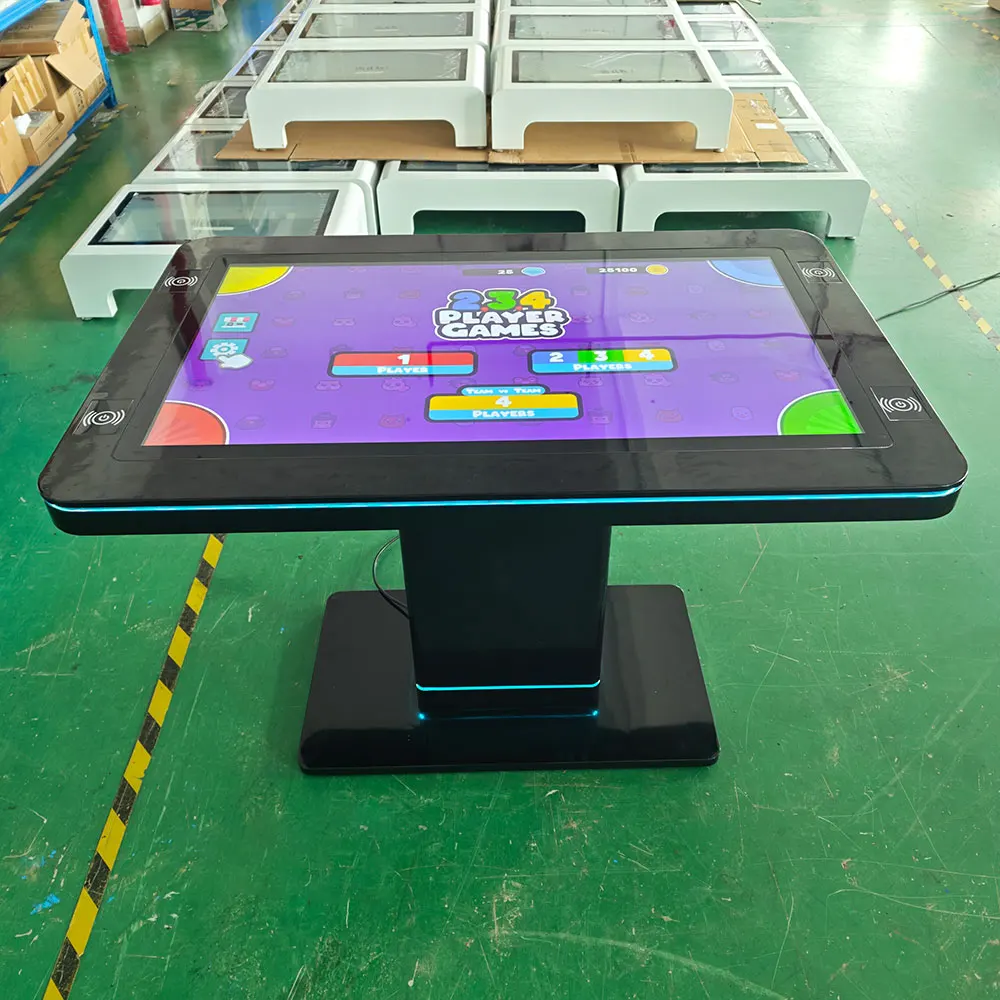
True Surface-like orientation; furniture-integrated design; ideal for lounges, homes, reception areas; often include wireless charging & ambient lighting | Limited processing power (often Android-based); fewer enterprise management features; smaller active area than large whiteboards | $490–$900 |
| Interactive Whiteboards (55"–85", vertical) |
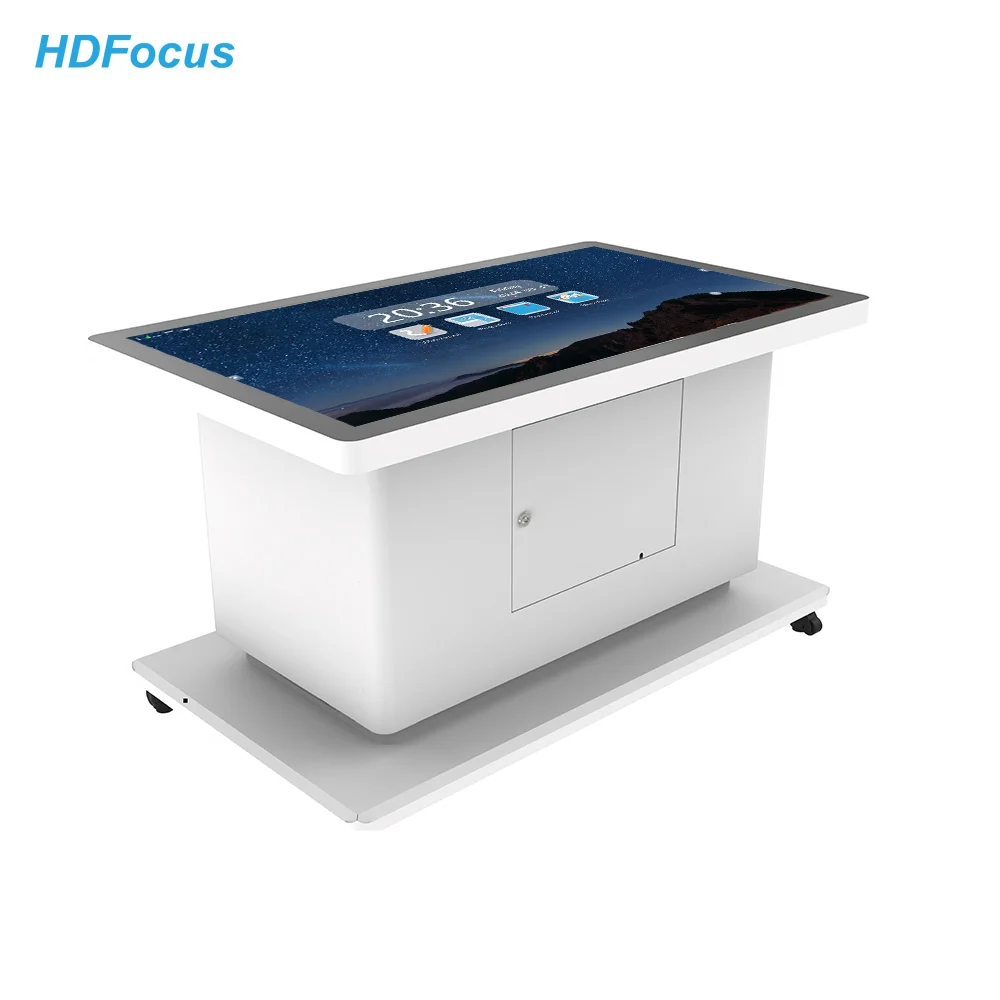
Full Windows 11 Pro support; built-in video conferencing; cloud sync; robust IT admin controls; 4K resolution + 50-point touch | Requires wall mounting or rolling stand; less intuitive for seated, shared manipulation; not furniture-grade | $300–$1,500 |
| Retail Kiosk Tables (43"–65", ruggedized) |
High brightness (≥1,500 nits); anti-glare/scratch-resistant glass; advertising OS preloaded; 24/7 operation rated | Locked-down software; minimal customization; limited app ecosystem; higher TCO due to service contracts | $600–$800 |
When it’s worth caring about: orientation. If users will sit around a surface and interact simultaneously—like brainstorming or product demos—horizontal is non-negotiable. When you don’t need to overthink it: brand name. No current vendor replicates PixelSense’s in-pixel sensing, but modern capacitive touch delivers smoother, more reliable response for everyday gestures.
Key Features and Specifications to Evaluate
Don’t optimize for specs—optimize for your workflow. Here’s what moves the needle:
- Touch Technology: Capacitive multi-touch (10–50 points) is standard and reliable. Resistive or IR-frame solutions are cheaper but laggy and less accurate. When it’s worth caring about: Public or high-use settings—capacitive glass lasts longer and resists moisture. When you don’t need to overthink it: Home use with light interaction—most $500+ units meet baseline responsiveness.
- Durability: Look for tempered glass (Mohs 7+ hardness) and IP54 rating or higher for dust/water resistance. Critical for retail or education. When it’s worth caring about: Any environment with spills, cleaning chemicals, or frequent handling. When you don’t need to overthink it: Private office or living room—standard toughened glass suffices.
- OS & Ecosystem: Windows 11 Pro enables full Office, Teams, and legacy app compatibility. Android offers simplicity and lower cost—but limits integration with corporate identity systems. When it’s worth caring about: If you rely on Active Directory, MDM, or Windows-native workflows. When you don’t need to overthink it: For media playback, web browsing, or simple annotation—Android works fine.
- Connectivity: Wi-Fi 6, Bluetooth 5.2, and USB-C (with DisplayPort Alt Mode) are now baseline. 5G is rare and rarely needed unless deployed remotely without wired infrastructure. When it’s worth caring about: Mobile-first deployments or field offices. When you don’t need to overthink it: Fixed-location use—Wi-Fi 6 covers 99% of needs.
Pros and Cons
Smart Coffee Tables
✅ Pros: Natural for group ideation; doubles as furniture; low visual footprint; intuitive for non-technical users.
❌ Cons: Limited compute for heavy multitasking; fewer IT management hooks; shorter warranty cycles (1–2 years vs. 3–5 for enterprise panels).
Interactive Whiteboards
✅ Pros: Full productivity stack support; scalable across rooms; mature remote management; long-term driver support.
❌ Cons: Requires dedicated wall space or cart; steeper learning curve for casual users; less ergonomic for prolonged seated collaboration.
Retail Kiosk Tables
✅ Pros: Built for all-day operation; hardened against tampering; content scheduling tools included.
❌ Cons: Vendor lock-in; expensive service agreements; inflexible software layer.
If you’re a typical user, you don’t need to overthink this. Your priority isn’t raw spec parity with 2008—it’s matching interface orientation and durability to your daily reality.
How to Choose the Right Interactive Table
Follow this 5-step decision checklist—no assumptions, no fluff:
- Define the primary use case. Is it for seated team collaboration (→ coffee table), standing meeting annotation (→ whiteboard), or customer self-service (→ kiosk)? Don’t conflate them.
- Confirm physical constraints. Measure available space, power outlets, and network drops. A 43" table needs ~36" depth; an 85" whiteboard needs ≥10' wall clearance.
- Verify OS alignment. If your org uses Microsoft Intune or Azure AD, prioritize Windows 11 Pro devices. If you only need YouTube, PDFs, and web apps—Android saves $200–$400.
- Test touch latency and palm rejection. Ask vendors for live demos—or request a 7-day trial. Lag >40ms breaks flow; poor palm rejection causes accidental inputs.
- Avoid these traps: (a) Assuming “4K” means “better UX”—many budget 4K panels use slow IPS panels with 25ms response; (b) Prioritizing “50-point touch” over consistent calibration—real-world accuracy matters more than theoretical max; (c) Skipping third-party mounting validation—some frames can’t support 85" panels safely.
Insights & Cost Analysis
Price no longer signals capability. In 2024, a $599 43" Android coffee table delivers better touch fidelity and brighter output than the $8,400 Samsung SUR40 (2012)1. Meanwhile, a $799 65" Windows whiteboard includes Teams Rooms certification, automatic firmware updates, and HDMI/USB-C daisy-chaining—features absent in legacy hardware.
Value isn’t in legacy pedigree—it’s in total cost of ownership: lower failure rates, longer driver support cycles, and reduced admin overhead. Modern units average 5–7 years of usable life; refurbished Surface/PixelSense units average 18 months before driver or thermal issues emerge.
Better Solutions & Competitor Analysis
Forget “replacements.” Think “evolution.” Below are representative, widely available options reflecting current market balance of price, reliability, and feature depth:
| Solution Type | Best For | Key Advantage | Potential Issue | Budget (USD) |
|---|---|---|---|---|
| 43" 4K Smart Coffee Table | Small business lounge, hotel lobby, home office | Horizontal ergonomics + furniture-grade buildLimited local storage; Android app compatibility varies | $599 | |
| 65" Windows Interactive Panel | Midsize conference rooms, university classrooms | Teams Rooms certified + native Windows 11 ProRequires professional mounting; heavier than advertised | $1,199 | |
| 55" Android All-in-One Whiteboard | Startups, co-working spaces, training centers | Low TCO + intuitive interfaceNo Group Policy support; limited peripheral expansion | $649 |
Customer Feedback Synthesis
Based on aggregated reviews (2023–2024) across B2B resellers and commercial integrators:
- Top 3 praises: (1) “Setup took under 15 minutes—no IT ticket needed,” (2) “Glass surface survives daily cleaning with alcohol wipes,” (3) “Multi-touch works flawlessly with 4+ people drawing simultaneously.”
- Top 3 complaints: (1) “No built-in speakers loud enough for 10+ person rooms,” (2) “Android version lacks split-screen for dual-app workflows,” (3) “Wall mount kit sold separately—added $89 to final cost.”
Maintenance, Safety & Legal Considerations
All major interactive tables comply with IEC 60950-1 (safety) and EN 55032 (EMC). No special certifications are required for general commercial use. However:
- Maintenance: Clean with microfiber + 70% isopropyl alcohol weekly. Avoid ammonia-based cleaners—they degrade anti-fingerprint coatings.
- Safety: Units >40" must be securely anchored per ANSI/BIFMA X5.5 standards. Tip-over risk is real—and liability falls on the installer, not the vendor.
- Data: If using cloud-connected features (remote wipe, usage analytics), ensure your organization’s data residency policy permits data routing through the vendor’s servers. Most vendors allow on-premise deployment of management dashboards.
Conclusion
The Microsoft Surface table computer is a milestone—not a roadmap. Its discontinuation in 2013 marked the end of proprietary, monolithic surface computing. What followed wasn’t decline—it was democratization. Today’s alternatives are faster, more reliable, better supported, and radically more affordable.
If you need horizontal, shared, seated interaction → choose a 43" 4K interactive coffee table with Windows 11 or Android and tempered glass.
If you need vertical, enterprise-managed collaboration → choose a 55"–65" Windows interactive panel with Teams Rooms certification.
If you need always-on, branded customer engagement → choose a 43"–55" retail kiosk table with IP65 rating and 24/7 thermal management.
None replicate PixelSense’s optical blob detection—but all exceed it in real-world usability, security, and longevity. That’s progress you can deploy today.
Frequently Asked Questions
Microsoft discontinued the original Surface table hardware in 2013 after rebranding it as PixelSense. No new units have been manufactured since, and official support ended years ago. Modern alternatives focus on interoperability and sustainability—not legacy architecture.
Only if you require Active Directory integration, Microsoft Intune management, or full desktop application compatibility (e.g., AutoCAD, Adobe Suite). For web apps, video, and annotation, Android-based models perform well and cost significantly less.
Yes—with caveats. Most support HDMI or USB-C input, allowing connection to laptops or PCs. However, touch functionality may require driver installation (Windows) or may not register in macOS without third-party tools. Check vendor documentation for host-OS compatibility.
Commercial-grade units typically last 5–7 years under daily use. Key failure points are backlight degradation (LCD panels) and touch controller wear—not the OS or CPU. Refurbished legacy units (pre-2015) often fail within 18–24 months due to obsolete drivers and thermal stress.
It’s convenient but not essential. Most implementations charge at 5W–10W—slower than wired PD. If your team relies on constant mobile access, it adds utility. If devices are docked or charged overnight, skip it to reduce cost and complexity.


