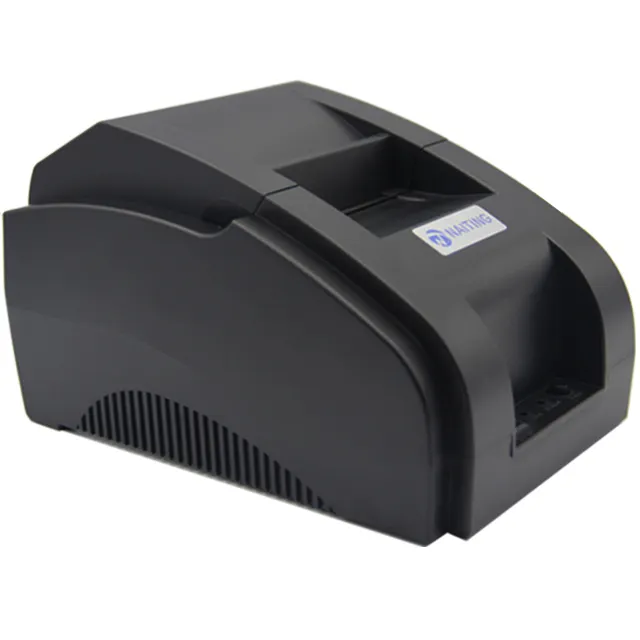
Over the past year, demand for plug-and-play thermal receipt printers has surged among small retailers, food trucks, and pop-up vendors — and with it, a sharp rise in driver-related support queries. If you’re setting up a POS58 thermal printer right now, here’s what matters most: Download the official driver from Xprintertech.com or OCOM for Windows 10/11 first — avoid third-party aggregators. Use USB mode unless your software explicitly requires COM port emulation. And if your OS is Windows 11, skip legacy compatibility modes unless installation fails silently. This piece isn’t for keyword collectors. It’s for people who will actually use the product.
If you’re a typical user, you don’t need to overthink this. You’re not choosing between competing standards — you’re selecting the correct installer for your OS and interface type. Two common false dilemmas dominate search behavior: “Which brand’s driver is safest?” (answer: all three verified sources are manufacturer-authorized) and “Do I need the 20200606 version specifically?” (answer: no — newer builds include backward-compatible firmware layers). The one constraint that *actually* affects outcome? Whether your point-of-sale software communicates via raw ESC/POS commands or expects a Windows GDI print queue. That determines whether you install a generic driver or a vendor-specific PnP package.
About POS58 Thermal Printer Drivers
A POS58 thermal printer driver is software that enables communication between a 58mm thermal receipt printer and an operating system — translating high-level print jobs (e.g., receipts, labels, QR codes) into low-level ESC/POS command sequences the hardware understands. These drivers are not universal: they map specific models (like XP-DT427B, OCPP-58E, or POS-X i580) to supported interfaces — USB, serial (RS-232), Bluetooth, or Ethernet — and define how the OS handles paper feed, cutters, and status reporting.
Typical usage spans retail kiosks, café POS systems, delivery dispatch terminals, and mobile payment setups. Unlike desktop inkjet drivers, POS58 drivers rarely handle graphics rendering or font substitution — their core job is deterministic, byte-level instruction delivery. That’s why stability trumps feature richness: a 2017 driver that reliably prints 10,000 receipts per day remains preferable to a 2023 version with optional LED controls but intermittent timeout errors.
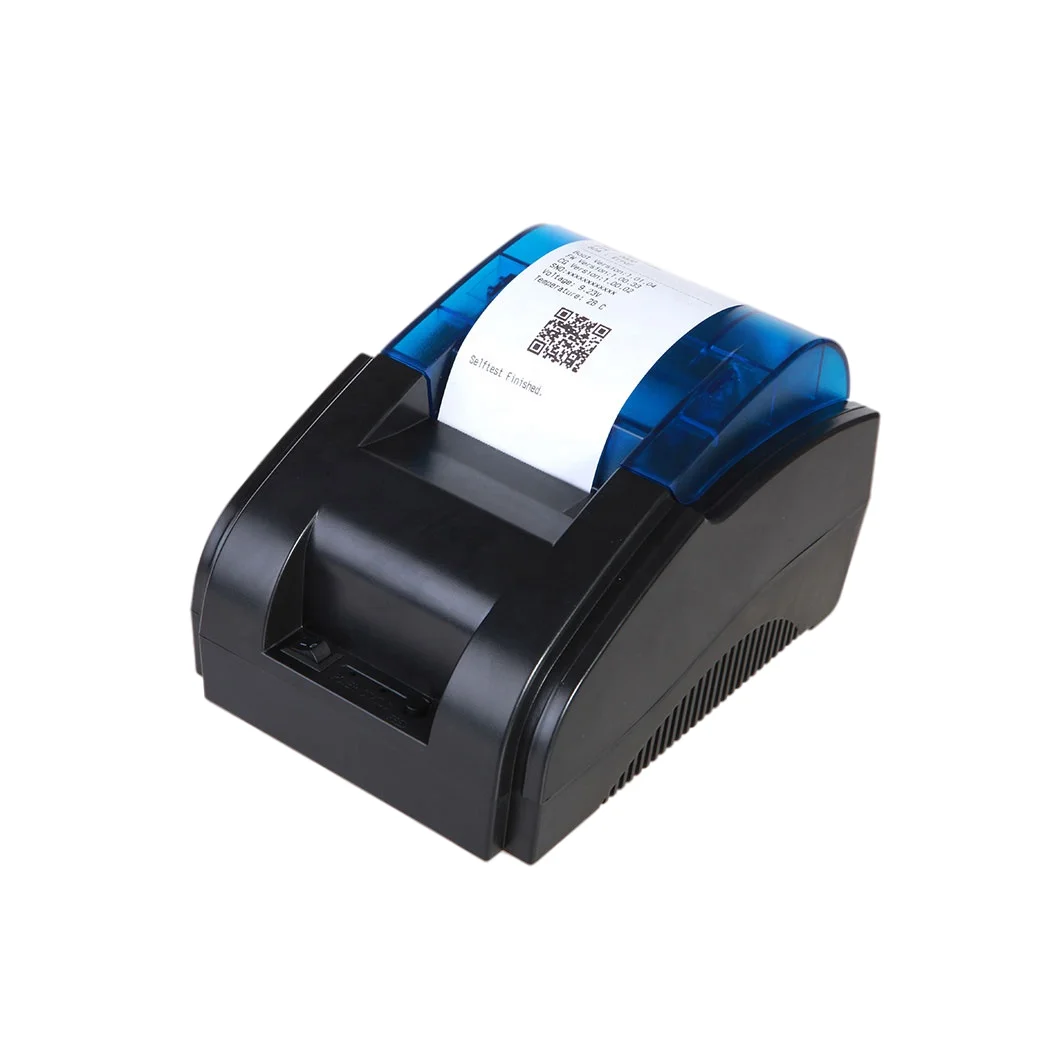
Why POS58 Thermal Printer Drivers Are Gaining Popularity
Lately, two shifts have increased reliance on reliable driver access: First, the proliferation of lightweight, cloud-based POS apps (e.g., Square, Toast Lite, Loyverse) that assume local printer connectivity but provide minimal driver guidance. Second, Microsoft’s deprecation of legacy serial port APIs in Windows 11 22H2+ means older COM-based installations now require manual port mapping or virtual COM drivers — pushing users toward updated, digitally signed packages.
This isn’t about novelty. It’s about operational continuity: when a food truck’s printer stops responding mid-order, the issue is rarely hardware failure — it’s driver mismatch, unsigned code blocking, or incorrect port assignment. Verified driver availability directly correlates with reduced mean time to resolution (MTTR) for frontline staff. That’s why manufacturers like Xprinter and OCOM now host versioned archives with SHA-256 checksums — not just convenience, but traceability.
Approaches and Differences
Three primary approaches exist for obtaining and installing POS58 drivers — each with distinct trade-offs:
- Manufacturer-direct download (e.g., Xprintertech.com, OCOM, POS-X): Offers digitally signed installers, version history, and OS-specific builds. Requires manual selection of model and interface. Best for long-term reliability and auditability.
- OS-built-in generic drivers: Windows includes basic “Generic / Text Only” and “Microsoft XPS Document Writer” options. These lack ESC/POS cutter control, logo upload, or paper-out detection — functional only for plain-text receipts with no formatting.
- Third-party driver aggregators: Sites claiming “all-in-one POS driver packs” often bundle outdated, repackaged, or unsigned executables. No version control, no changelogs, and frequent false positives from antivirus engines.
If you’re a typical user, you don’t need to overthink this. Skip aggregators entirely. Choose manufacturer sources — even if download links look sparse or dated. Their simplicity reflects purpose-built engineering, not neglect.
Key Features and Specifications to Evaluate
When assessing a POS58 driver package, prioritize these five criteria — ranked by real-world impact:
- Digital signature validity: Check Properties → Digital Signatures tab. Unsigned drivers trigger UAC warnings on Windows 10/11 and may fail silently on secure boot systems. When it’s worth caring about: Any deployment where non-admin users operate the terminal. When you don’t need to overthink it: Single-user dev testing on a personal laptop.
- Interface support matrix: Does the installer detect USB automatically? Does it list COM ports for serial adapters? Does it offer Bluetooth pairing instructions? When it’s worth caring about: When using USB-to-serial converters (common with older cash drawers). When you don’t need to overthink it: Direct USB connection with modern Windows — auto-detection usually suffices.
- ESC/POS command coverage: Verify support for GS v 0 (cut), GS (k (print QR), and FS (print bitmap). Missing any breaks receipt formatting. When it’s worth caring about: If your POS app uses advanced features like logo printing or barcode symbologies. When you don’t need to overthink it: Plain-text line-item receipts only.
- OS version labeling: Look for explicit “Windows 11 23H2 compatible” or “Linux ARM64 .deb” notation — not just “Windows compatible.” When it’s worth caring about: Deploying on Raspberry Pi OS or ChromeOS Flex. When you don’t need to overthink it: Standard Windows 10/11 x64 desktop.
- Installation log output: A good installer writes verbose logs to %TEMP% — critical for diagnosing silent failures. When it’s worth caring about: Multi-location rollouts where remote support is limited. When you don’t need to overthink it: One-time setup with physical access.
Pros and Cons
Pros of using official POS58 drivers:
- Guaranteed ESC/POS compliance — avoids receipt truncation or misaligned text
- Native port enumeration — no manual COM port guessing in Device Manager
- Automatic service registration — enables background status polling (paper jam, cover open)
- Consistent uninstall paths — prevents registry bloat across repeated test cycles
Cons to acknowledge:
- No unified installer across brands — Xprinter ≠ OCOM ≠ POS-X binaries
- Minimal GUI — most are silent installers (.exe or .msi), requiring CLI familiarity for automation
- Linux/Android support is often documentation-light — expect shell commands, not wizards
- Legacy model support (e.g., XP-H500B) may rely on Windows 7-era frameworks — incompatible with strict AppLocker policies
How to Choose the Right POS58 Driver: A Step-by-Step Guide
Follow this sequence — skipping steps increases failure risk:
- Identify your exact model: Check label under printer base (e.g., “XP-DT427B”, “OCPP-58E”, “i580”). Do not rely on “POS58” alone — variants differ in command set and voltage tolerance.
- Confirm your OS and architecture: Windows 11 ARM64? Ubuntu 22.04 LTS? Android 12? Match *exactly*. Generic “Windows” labels are insufficient.
- Visit the manufacturer’s dedicated driver page: Prefer Xprintertech.com1, OCOM2, or POS-X3. Avoid search-engine top results labeled “free driver download site.”
- Download the latest stable build: Ignore “beta” or “test” folders. Version numbers like “20200606” indicate release date — newer is safer, unless your POS vendor mandates legacy behavior.
- Run as Administrator: Right-click → “Run as administrator.” Non-elevated installs often complete without error but fail to register services.
- Select interface during setup: Choose “USB” for direct connection; “COM Port” only if using a serial adapter. Do not select “TCP/IP” unless your printer has built-in Ethernet.
- Test with native utility: Most installers add “Printer Test Page” to Start Menu. Print it *before* connecting to POS software — isolates driver issues from app-level bugs.
Avoid these pitfalls: Using Windows Update to find drivers (it rarely surfaces POS-specific packages), enabling “Install driver software from Windows Update” in Group Policy (blocks signed vendor drivers), or assuming macOS support exists (POS58 drivers are overwhelmingly Windows/Linux/Android-focused).
Better Solutions & Competitor Analysis
| Source | Supported OS | Key Advantage | Potential Issue |
|---|---|---|---|
| Xprintertech.com | Windows 7–11, Linux, Android | Most extensive model coverage (XP-DT427B, XP-H500B, XP-Q800) | Linux docs assume CLI proficiency; no GUI config tool |
| OCOM Inc. | Windows 10/11, Android | Clean, single-exe installer; includes OCPP-58E-specific cutter calibration | No Linux support; Android APK requires manual ADB sideloading |
| POS-X | Windows 7–11 | Version 4.64 adds TLS 1.2 support for secure cloud POS integration | Installer lacks ARM64 support; fails on Surface Pro X |
Customer Feedback Synthesis
Based on aggregated forum posts (Reddit r/POS, Stack Overflow, manufacturer support tickets), users consistently praise three traits: fast installation (<5 minutes), consistent cut-and-feed behavior, and silent background operation. The top complaint? Lack of Bluetooth pairing guidance in Windows installers — users expect automatic discovery but must manually configure COM ports via Device Manager. A secondary pain point: PDF manuals shipped with drivers assume English fluency and omit visual port-selection screenshots — a documented barrier for non-native technicians.
Maintenance, Safety & Legal Considerations
Drivers themselves pose no electrical or mechanical risk — they’re software intermediaries. However, improper installation can indirectly affect safety: disabling Windows SmartScreen may expose systems to unsigned malware if users download from unverified sites. Legally, all three recommended sources distribute drivers under standard OEM redistribution terms — no license keys or activation required. No jurisdiction requires driver certification for thermal receipt printers, though CE/FCC marks apply to hardware. Retain installer checksums (SHA-256) for internal IT audit trails — especially in PCI-DSS scoped environments where peripheral software falls under “system component” definitions.
Conclusion
If you need guaranteed ESC/POS compliance and multi-OS support, choose Xprintertech.com — its archive covers the widest range of 58mm models and includes Linux .deb/.rpm packages. If you’re deploying OCPP-58E units on Windows 10/11 with tight timelines, OCOM’s streamlined installer reduces setup variance. If your POS software requires TLS-secured printer status callbacks (e.g., cloud-based inventory sync), POS-X v4.64 is the only verified option. For all cases: verify digital signatures, run elevated, and test before integrating with live POS apps. If you’re a typical user, you don’t need to overthink this.