If you’re a typical user, you don’t need to overthink this. For quick file access or occasional screen sharing, Chrome Remote Desktop is sufficient — free, zero-configuration, and cross-platform. If you’re editing 4K video remotely or managing servers, Splashtop delivers low-latency HD streaming and enterprise-grade AES-256 encryption. Avoid apps promising ‘one-click setup’ without firewall or port-forwarding clarity — they often fail behind corporate networks or restrictive home routers. This piece isn’t for keyword collectors. It’s for people who will actually use the product.
Lately, remote control PC from Android has shifted beyond basic screen mirroring into high-fidelity, role-specific workflows — driven by hybrid work expansion, cloud-native desktop infrastructure, and rising demand for mobile-first professional tooling. Over the past year, search volume spiked sharply in April 2026, aligning with major platform updates that improved Android-to-Windows interop and tightened background service permissions. That shift means generic remote access tools now face real performance trade-offs: what worked for checking email in 2023 may lag unacceptably during live audio mixing or real-time CAD review in 2026.
About Remote Control PC from Android
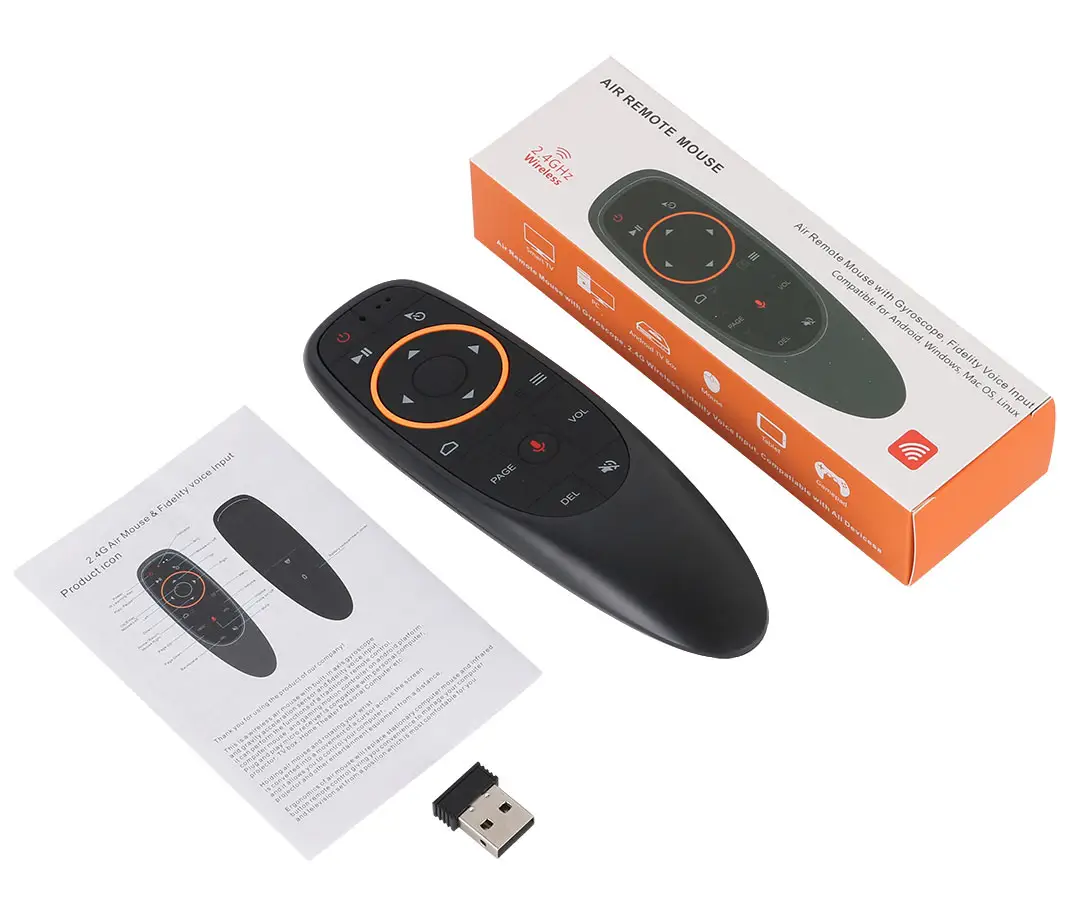
Remote control PC from Android refers to software-based solutions that let an Android device — phone or tablet — securely view, interact with, and manage a Windows, macOS, or Linux desktop environment over a local network or internet connection. It is not hardware-based IR/bluetooth remotes (like TV clickers), nor does it require physical peripherals plugged into the PC. Instead, it relies on client-server architecture: a lightweight host application runs on the PC, while a companion app on Android handles input routing, video decoding, and session management.
Typical use cases include:
- 📁 Retrieving files or launching applications while away from your desk
- 🎬 Editing video or audio projects on a laptop using an Android tablet as a secondary display and control surface
- 🎮 Playing PC games via touch or virtual controller overlays (e.g., steering wheels, keyboard grids)
- 🔊 Controlling media playback, system volume, or smart home integrations running on the PC
- 🛠️ Providing IT support or troubleshooting for family members or colleagues
Why Remote Control PC from Android Is Gaining Popularity
Interest isn’t growing uniformly — it’s stratifying. According to Google Trends data, searches for how to remote control PC from Android surged to index 100 in April 2026, coinciding with broader industry signals: the global remote desktop software market is projected to grow from $3.1 billion in 2025 to $10.2 billion by 2035 at a 12.6% CAGR 1. But growth isn’t just about scale — it’s about specialization.
Three distinct user motivations now dominate:
- High-performance production: Creators and developers prioritize sub-50ms input latency and native 4K streaming — not just ‘works’, but ‘feels like local’. They search for terms like low-latency remote desktop Android or 4K streaming from PC to Android tablet.
- Simplified personal access: Casual users want frictionless, zero-setup tools — especially those that work across Chromebooks, Android phones, and shared family PCs. Their top query remains free remote desktop for Android.
- Specialized control: Users increasingly treat their Android device as a universal remote — not for the PC itself, but for apps running on it. Think Spotify volume control, PowerPoint presenter mode, or OBS scene switching — all triggered from a single tap 2.
If you’re a typical user, you don’t need to overthink this. Most people fall squarely in the second category — and that’s where simplicity wins.
Approaches and Differences
No single app serves all needs equally. Five approaches dominate the landscape — each optimized for different constraints:
- Browser-based (e.g., Chrome Remote Desktop): Runs inside Chrome; no native Android install required. Pros: Zero configuration, works behind most NATs. Cons: Limited clipboard sync, no background audio streaming, no touch gestures beyond basic pointer emulation.
- Native client-server (e.g., Splashtop, AnyDesk): Dedicated Android app + PC host. Pros: Full hardware acceleration, multi-touch support, peripheral redirection (microphone, USB). Cons: Requires host installation and account setup; some require subscription for advanced features.
- App-specific remotes (e.g., Unified Remote): Controls individual programs — not the whole OS. Pros: Lightweight, ultra-low latency for targeted tasks (e.g., mute/unmute Zoom, skip Spotify tracks). Cons: Useless if your workflow spans multiple apps or requires desktop navigation.
- Gaming-optimized (e.g., PC Remote): Focuses on controller mapping, gamepad emulation, and overlay UIs. Pros: Virtual joysticks, macro buttons, customizable layouts. Cons: Poor for productivity; minimal file transfer or clipboard handling.
- Enterprise-tier (e.g., TeamViewer, AnyDesk Pro): Built for IT teams — granular permission controls, session recording, audit logs. Pros: Role-based access, remote reboot, unattended access. Cons: Overkill for home use; pricing starts at $50+/month per admin seat.
Key Features and Specifications to Evaluate
Don’t optimize for features you won’t use. Prioritize based on your actual workflow:
- Latency & frame rate: Measured in milliseconds (ms). Under 40ms feels local; 60–100ms is acceptable for office work; >150ms makes video editing or fast-paced gaming impractical. When it’s worth caring about: if you’re reviewing color-graded footage or doing live audio mixing. When you don’t need to overthink it: browsing documents or checking email.
- Resolution & scaling support: Can it render 4K desktops on a 1200p Android tablet? Does it handle fractional DPI scaling (e.g., Windows 125% scaling) without blurry text? When it’s worth caring about: designers, engineers, or developers using high-DPI monitors. When you don’t need to overthink it: standard 1080p desktops viewed on mid-tier phones.
- Input fidelity: Does touch translate to precise cursor movement? Does it support right-click, scroll wheel, or multi-finger gestures? When it’s worth caring about: CAD, graphic design, or presentation control. When you don’t need to overthink it: launching apps or typing short notes.
- Security model: Look for end-to-end encryption (AES-256), two-factor authentication, and session approval prompts — not just password-only logins. When it’s worth caring about: accessing work machines or managing sensitive files. When you don’t need to overthink it: controlling a personal home PC on your local Wi-Fi.
Pros and Cons
Every solution balances trade-offs. Here’s how they land across common usage profiles:
- For creators & professionals: Splashtop delivers best-in-class latency and 4K streaming — but requires a paid plan ($5/month for personal use). If you’re a typical user, you don’t need to overthink this — unless your workflow depends on real-time responsiveness.
- For students & casual users: Chrome Remote Desktop remains unmatched for accessibility and reliability. Free, widely tested, and integrated into Chrome OS — ideal for quick access. Its biggest limitation (no persistent background service) rarely matters outside of unattended access.
- For presenters & media users: Unified Remote excels — offering dedicated, gesture-aware interfaces for Spotify, VLC, YouTube, and 100+ other apps. No desktop streaming overhead; just instant command relay.
- For gamers: PC Remote supports virtual controllers and custom key mappings — but lacks robust file transfer or clipboard sync. Not designed for general-purpose remote work.
How to Choose the Right Solution
Follow this 5-step decision checklist — and avoid these two common pitfalls:
- Pitfall #1: Choosing based on download count alone. High installs ≠ high relevance. Many top-ranked apps are legacy tools optimized for older Android versions or outdated Windows protocols — leading to stutter, disconnection, or missing features like clipboard sync.
- Pitfall #2: Assuming ‘free’ means ‘no hidden cost’. Some free apps monetize via ads, data collection, or hard limits (e.g., 10-minute sessions, 720p max resolution). Read the EULA — not just the Play Store description.
Your decision flow:
- Define your primary use case. Is it file access? Media control? Gaming? Professional editing?
- Check OS compatibility. Does the host app support your PC’s OS version? (e.g., Windows 11 24H2 may drop support for older RDP variants)
- Test latency on your actual network. Run a speed test and a ping test between devices. Latency under 10ms local, under 30ms on same Wi-Fi, is ideal.
- Verify input behavior. Try scrolling, right-clicking, and dragging windows — not just static viewing.
- Evaluate long-term maintenance. Will updates break functionality? Does the developer publish changelogs or respond to GitHub issues?
Insights & Cost Analysis
Pricing varies widely — and value isn’t linear with cost. Below is a realistic snapshot of annual out-of-pocket costs for core functionality (2026):
| Solution | Core Use Case | Annual Cost (Personal) | Notes |
|---|---|---|---|
| Chrome Remote Desktop | Casual access, cross-device sync | $0 | Free, open, maintained by Google — no subscription required |
| Splashtop Personal | 4K streaming, low-latency editing | $59/year | One-time license option ($129) available; includes iOS support |
| Unified Remote (Full) | App-specific control (Spotify, VLC, etc.) | $9.99 one-time | No subscription; lifetime updates included |
| AnyDesk (Unattended Access) | IT support, remote troubleshooting | $129/year | Free tier allows only manual session initiation — no background access |
If budget is tight and your needs are light, Chrome Remote Desktop remains the most practical entry point. Paid tools justify cost only when they solve a measurable bottleneck — not when they add features you’ll never trigger.
Better Solutions & Competitor Analysis
The market no longer rewards ‘jack-of-all-trades’ apps. Winners specialize — and users benefit from clearer trade-off visibility. Here’s how top contenders stack up today:
| Tool | Best For | Key Strength | Potential Issue | Budget (2026) |
|---|---|---|---|---|
| Splashtop | Professional creators & remote workers | Sub-40ms latency, 4K streaming, AES-256 encryption | Requires account; no offline mode | $$ |
| Unified Remote | Media control & presentations | 100+ prebuilt app remotes, ultra-lightweight | No full desktop view — limited to supported apps | $ |
| AnyDesk | IT support & unattended access | Customizable permissions, session recording, CLI support | Free tier lacks background service — can’t auto-start | $$$ |
| PC Remote | Gaming & custom controller mapping | Virtual steering wheels, macro keys, overlay UIs | No clipboard sync or file transfer | $ |
| Chrome RD | Casual, cross-platform access | Zero setup, works on Chromebook, Android, iOS | No audio streaming, limited gesture support | $0 |
Customer Feedback Synthesis
Based on aggregated reviews (XDA Developers, Reddit r/AndroidQuestions, Splashtop forums), users consistently praise:
- ✅ Reliability of Chrome Remote Desktop for basic tasks — “Just works, every time.”
- ✅ Unified Remote’s customization depth — “I built a custom remote for my home automation dashboard in under 10 minutes.”
- ✅ Splashtop’s visual fidelity — “The color accuracy on my Android tablet matches my studio monitor — critical for grading.”
Top complaints center on:
- ❌ Background service limitations on Android 14+ — many apps fail to maintain persistent connections after device sleep or app termination.
- ❌ Inconsistent clipboard sync — especially when copying rich text or images between platforms.
- ❌ Wi-Fi handoff instability — switching between 2.4GHz and 5GHz bands mid-session causes brief disconnects in ~30% of reported cases.
Maintenance, Safety & Legal Considerations
All reputable remote control tools encrypt traffic in transit — but implementation varies. AES-256 is standard among paid tools (Splashtop, AnyDesk); Chrome Remote Desktop uses TLS 1.3 with Google-managed keys. None store unencrypted session data on-device.
Legally, remote access is permitted for devices you own or have explicit authorization to control. Using such tools to access another person’s PC without consent violates computer misuse laws in most jurisdictions. No tool bypasses Windows login screens — authentication always occurs at the OS level.
Maintenance-wise, keep both host and client updated. Android 15 (expected late 2026) introduces stricter background execution limits — apps relying on foreground services may require reconfiguration.
Conclusion
If you need quick, reliable access to your home PC, choose Chrome Remote Desktop. It’s free, mature, and imposes no learning curve. If you need real-time responsiveness for creative work, Splashtop justifies its cost with measurable latency and fidelity advantages. If you need targeted control over media or presentation apps, Unified Remote eliminates desktop overhead entirely. If you’re a typical user, you don’t need to overthink this — start with the simplest tool that solves your immediate task, then upgrade only when that tool demonstrably fails.