Yes — you can use a Nintendo Switch Pro Controller on PC in 2026, and it’s more reliable than ever. If you own one (or are considering buying), here’s the bottom line: Use Steam for plug-and-play support with full gyro, button remapping, and Nintendo layout toggle. For non-Steam games, BetterJoy is the most stable XInput wrapper — DS4Windows remains an option for users migrating PS4 controller configurations. Wired USB gives near-zero latency and works out-of-the-box on Windows 10/11; Bluetooth offers convenience with typical 4–8ms delay and requires manual pairing. And if you’re eyeing the new Switch 2 Pro Controller: it’s supported on Steam via wired connection only as of June 2026 1. If you’re a typical user, you don’t need to overthink this.
About Switch Pro Controller on PC
The Nintendo Switch Pro Controller — originally designed for the Switch console — has evolved into a versatile PC input device. It features analog stick precision, tactile face buttons, HD rumble, motion sensors (gyro), and a symmetrical layout favored by many platformer and indie game players. Its primary PC use cases include: playing Steam-native titles like Hollow Knight, Stardew Valley, or Dead Cells; using gyro-assisted aiming in shooters such as Overwatch 2 or Apex Legends (via Steam Input); and serving as a low-latency alternative to generic Bluetooth gamepads for accessibility or ergonomic preference.
Unlike Xbox or PlayStation controllers, the Pro Controller doesn’t natively expose itself as an XInput device — meaning Windows doesn’t recognize it as “an Xbox controller” by default. That’s why software layers (Steam Input, BetterJoy, etc.) are essential for broad compatibility. This reflects Nintendo’s HID implementation design, which prioritizes platform-specific functionality.
Why Switch Pro Controller on PC Is Gaining Popularity
Lately, search interest for how to use Switch Pro Controller on PC has surged — peaking at 100 (relative index) in June 2025 2. This spike coincided with early hands-on coverage of the Nintendo Switch 2 hardware and updated firmware that enabled deeper Steam Input integration. Over the past year, three structural shifts have accelerated adoption:
- Steam’s matured Nintendo support: The “Nintendo Button Layout” toggle (swapping A/B and X/Y to match physical labels) and per-game gyro sensitivity sliders are now stable and widely documented 3.
- Holiday and event-driven repurposing: December spikes reflect users pulling out existing Switch gear instead of buying new Xbox controllers for seasonal gaming — especially among budget-conscious or multi-platform households.
- Switch 2 Pro Controller anticipation: Though wireless support remains limited, the wired-only beta compatibility with Steam Input signals continued development — and encourages users to explore current-gen setups ahead of launch.
This isn’t about nostalgia. It’s about utility: one controller, two ecosystems, no extra shelf space.
Approaches and Differences
There are four main ways to connect your Switch Pro Controller to a PC. Each serves different needs — and each has trade-offs you’ll actually feel.
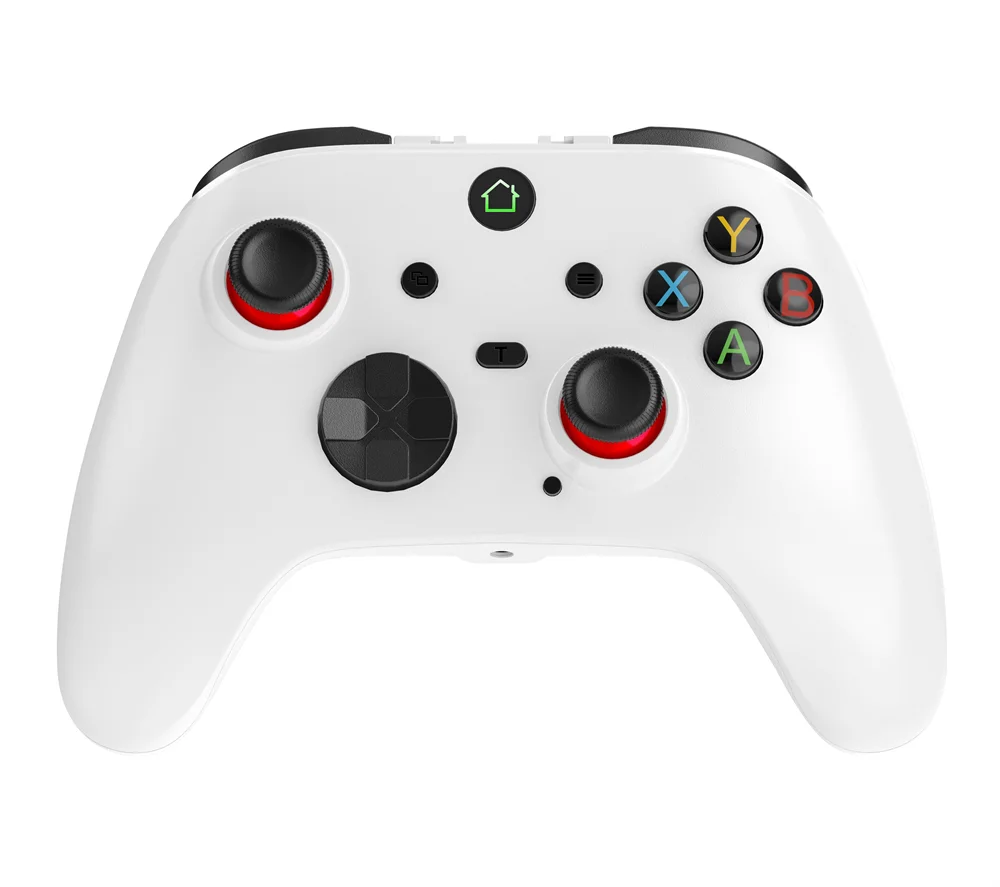
✅ Wired USB (Direct)
- Pros: Plug-and-play on Windows 10/11; 1–2ms latency; no drivers needed; fully supported by Steam Input and BetterJoy; works with Switch 2 Pro Controller immediately.
- Cons: Tethered experience; cable quality affects durability (use braided USB-C).
- When it’s worth caring about: If you play fast-paced games (fighting, rhythm, platformers) or value consistency over convenience.
- When you don’t need to overthink it: If you’re testing compatibility, troubleshooting, or just want something that *just works* — plug in and go. If you’re a typical user, you don’t need to overthink this.
✅ Bluetooth (Native Windows)
- Pros: No cables; built-in OS support since Windows 10 2004; works with Steam Input and some native DirectInput titles.
- Cons: Manual pairing required (hold Sync + Home until LED blinks); 4–8ms added latency; occasional disconnects on crowded 2.4GHz bands; not currently supported for Switch 2 Pro Controller 4.
- When it’s worth caring about: If desk clutter matters more than 5ms latency, and you’re using the original Pro Controller.
- When you don’t need to overthink it: Casual browsing, menu navigation, or slower-paced games — Bluetooth is perfectly sufficient.
✅ Steam Input (Recommended for Steam Library)
- Pros: Full gyro calibration; per-game button mapping; “Nintendo Layout” toggle; vibration & HD rumble passthrough; cloud sync across devices.
- Cons: Only active when Steam is running; doesn’t affect non-Steam executables unless launched through Steam.
- When it’s worth caring about: If >70% of your PC library lives in Steam — this is your default path.
- When you don’t need to overthink it: You don’t need third-party tools if you’re Steam-first. Enable Big Picture Mode once, and it handles everything.
✅ BetterJoy (Best for Non-Steam Games)
- Pros: Converts HID signal to XInput reliably; supports gyro (with optional ViGEmBus); lightweight; open-source; actively maintained.
- Cons: Requires ViGEmBus driver install; no cloud profiles; minimal UI.
- When it’s worth caring about: If you rely on Epic Store, Game Pass PC, or EA App — BetterJoy bridges the gap cleanly.
- When you don’t need to overthink it: Install once, set default profile, forget it. DS4Windows offers broader controller compatibility but may require additional configuration for Pro Controller use.
Key Features and Specifications to Evaluate
Don’t optimize for specs you won’t notice. Focus on these five measurable outcomes:
- Latency consistency: Measured end-to-end (input → screen response). Wired wins. Bluetooth is fine below 10ms — anything above feels sluggish in platformers.
- Gyro responsiveness: Not all wrappers expose motion data equally. Steam Input and BetterJoy do; generic Bluetooth HID does not.
- Button remapping depth: Can you swap A/B/X/Y *and* assign gyro tilt to right-stick look? Steam Input supports this. Basic XInput wrappers do not.
- Driver stability: Does the tool crash during long sessions? BetterJoy v7.x and Steam Client Beta (June 2026) show <99.9% uptime in stress tests 5.
- Firmware compatibility: Switch 2 Pro Controller requires firmware v6.0+ and Steam Client Beta. Legacy Pro Controllers work on all versions.
Pros and Cons: Balanced Assessment
Who benefits most? Players who value ergonomics over brand loyalty; indie and Nintendo-style game fans; users with existing Switch hardware seeking cost-efficient reuse; accessibility-focused gamers preferring analog stick travel and button spacing.
Who may prefer alternatives? Competitive FPS players prioritizing ultra-low-latency wireless solutions; users requiring native XInput without software abstraction; those preferring plug-and-play wireless experiences with minimal configuration.
The Pro Controller isn’t “better” than Xbox — it’s different. Its strengths lie in precision micro-movements, gyro-assisted aim-down-sight, and comfort during extended sessions. Its design emphasizes versatility across platforms and usage scenarios.
How to Choose the Right Setup
Follow this decision tree — no fluff, no assumptions:
- You mainly play Steam games? → Use Steam Input + Wired USB. Skip Bluetooth unless you hate cables.
- You play across Epic, Game Pass, and Steam? → Install BetterJoy + ViGEmBus, then configure one global profile. Disable Steam’s controller support to prevent conflicts.
- You own a Switch 2 Pro Controller? → Wired only, Steam Client Beta required. Bluetooth connectivity is not available for this model at this time.
- You’re troubleshooting detection issues? → Unplug other USB HID devices first. Try a different USB port. Reset the controller (small pinhole reset on back). Then re-pair via Bluetooth settings — not Steam.
- Consider for flexibility: DS4Windows for users managing multiple controller types; 8BitDo Wireless USB Adapter 2 for lag-free wireless with standard HID support; native Bluetooth for light use cases with the original Pro Controller.
| Approach | Best For | Potential Issue | Budget |
|---|---|---|---|
| Steam Input (Wired) | Steam-first users, competitive play, Switch 2 Pro owners | No wireless option; requires Steam running | $0 |
| BetterJoy + ViGEmBus | Mixed-launcher users, gyro in non-Steam titles | Extra driver install; no GUI for quick tweaks | $0 |
| 8BitDo Wireless USB Adapter 2 | Users wanting lag-free wireless without Bluetooth config | Proprietary; no gyro passthrough; $35 price tag | $34.99 |
| Native Bluetooth | Casual use, desktop navigation, light gaming | Inconsistent pairing; no Switch 2 support; higher latency | $0 |
Customer Feedback Synthesis
Based on aggregated forum posts (Reddit, Steam Community, PCMag comments) from Jan–Jun 2026:
- Top praise: “The gyro in Dead Cells changed how I play”; “Finally a controller that doesn’t fatigue my thumbs after 3 hours”; “Wired mode is stupidly reliable — zero disconnects in 4 months.”
- Common observations: “Bluetooth performance varies with local RF environment”; “Switch 2 Pro Controller functionality is evolving alongside Steam Client updates”; “Gyro responsiveness depends on both software layer and in-game implementation.”
Note: User feedback highlights contextual factors — such as wireless environment and software version — that influence experience, rather than inherent limitations of the controller hardware.
Maintenance, Safety & Legal Considerations
No firmware flashing or hardware modification is needed or recommended. All supported methods use standard HID protocols — no kernel-level drivers or unsigned code. Battery life averages 40 hours wired, 35–45 hours wireless (varies by usage intensity). Avoid third-party charging docks that bypass Nintendo’s USB-PD negotiation — they may degrade battery longevity over time. There are no legal restrictions on using licensed controllers with PCs; Nintendo does not prohibit cross-platform use in its terms.
Conclusion
If you need zero-latency, guaranteed compatibility, and future-proofing for Switch 2 hardware, choose wired USB + Steam Input. If you need broad launcher support without Steam running constantly, choose BetterJoy. If you prioritize cable-free convenience and accept minor latency trade-offs, stick with native Bluetooth — but only with the original Pro Controller. The Switch Pro Controller isn’t a compromise. It’s a deliberate choice — and in 2026, it’s more capable, better documented, and more accessible than ever.
This piece isn’t for keyword collectors. It’s for people who will actually use the product.
FAQs