If you need a tablet that accepts HDMI or analog video input — not just output — skip mainstream consumer models. Less than 0.3% of Android tablets ship with native AV-in ports1. Over the past year, demand has sharpened around three clear use cases: automotive headrest displays, rugged vehicle terminals, and portable field monitors for DSLR/FPV work. For typical users seeking plug-and-play HDMI monitor functionality, the Lenovo Yoga Tab 13 remains the only widely available option with micro-HDMI input. If you’re a typical user, you don’t need to overthink this — start there. But if your needs involve vibration, dust, sunlight, or industrial signal integration (RS232/CAN-BUS), shift focus entirely to IP67-rated industrial tablets — not consumer slates.
About Tablets with AV Input
A tablet with AV input is a device equipped with physical hardware to receive external audio/video signals — most commonly via HDMI, composite (RCA), or occasionally SDI or BNC connectors. Unlike standard tablets designed for media consumption or content creation, these devices function as input-capable displays: they accept live feeds from cameras, gaming consoles, dashcams, vehicle infotainment systems, or industrial sensors. This capability is rarely found in Apple iPads, Samsung Galaxy Tabs, or budget Android tablets — all of which prioritize USB-C DisplayPort Alt Mode for output only.
Typical use scenarios fall into three tightly defined categories:
- 🚗 Automotive & Headrest Entertainment: Mounted behind car seats, receiving HDMI from DVD players or backup cameras.
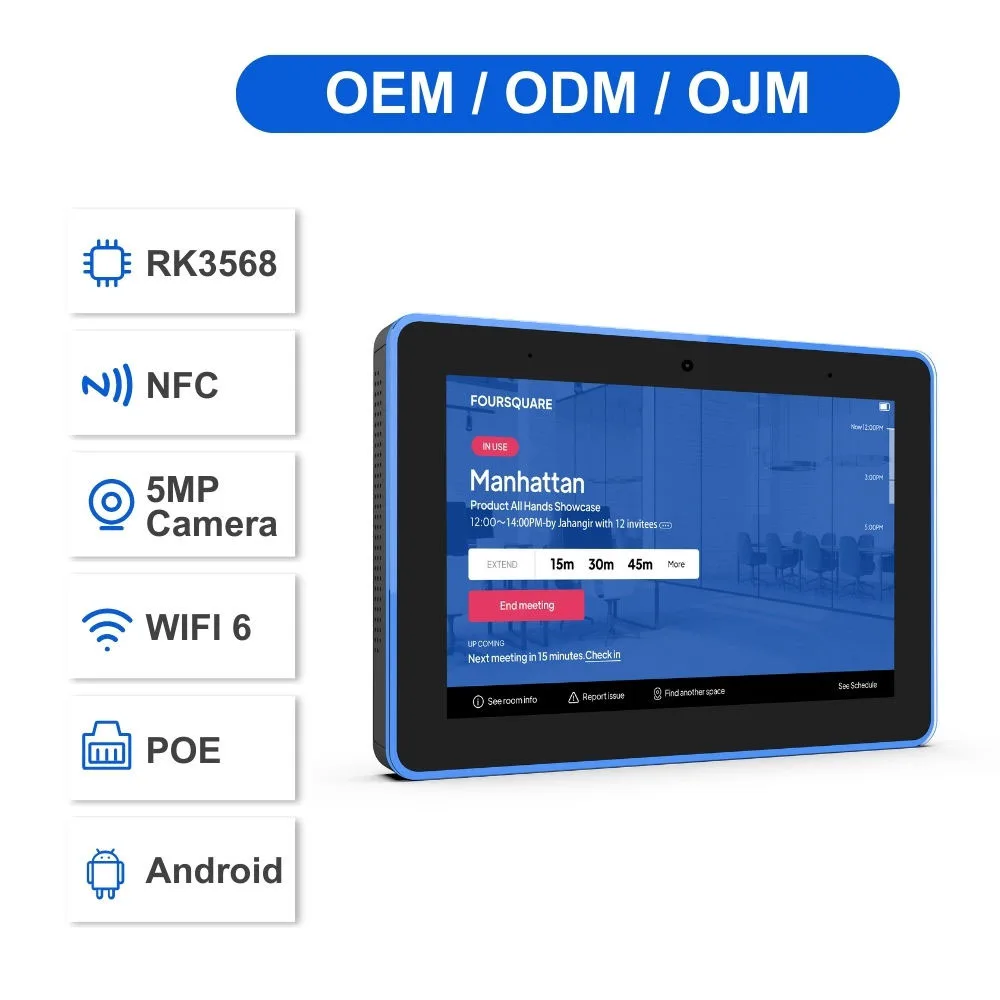
- 🏭 Industrial & Vehicle Terminals: Used in waste collection trucks, agricultural sprayers, or logistics fleets — often requiring IP67 sealing, CAN-BUS compatibility, and high-brightness screens (1000–1500 nits)2.
- 📷 Creative & Field Production: Serving as low-latency field monitors for mirrorless cameras or FPV drones — where HDMI input responsiveness and outdoor visibility matter more than app ecosystem.
Why Tablets with AV Input Are Gaining Popularity
Lately, the convergence of portability, touch interactivity, and embedded video processing has made tablets viable replacements for dedicated monitors in niche applications. This isn’t driven by consumer trends — global tablet market growth stalled at just 0.1% in Q1 20263 — but by functional gaps in specific workflows. Two clear signals explain why this topic matters more now than five years ago:
- Hardware consolidation: Industrial suppliers now integrate AV-in alongside RS232, RJ45, and CAN-BUS on single boards — reducing adapter dependency and failure points4.
- Brightness leap: High-brightness panels (up to 1500 nits) have moved from premium signage into mid-tier rugged tablets — enabling reliable outdoor use in direct sun, a critical requirement for vehicle-mounted and field-monitor applications5.
This isn’t about upgrading convenience — it’s about solving reliability constraints where legacy solutions (dedicated monitors + separate power + mounting hardware) create bulk, cost, and point-of-failure risk.
Approaches and Differences
There are three primary approaches to achieving video input on a tablet — each with distinct trade-offs:
- 📱 Native AV-in tablets: Devices with built-in HDMI or composite inputs. Pros: zero latency, plug-and-play, no driver issues. Cons: limited model selection, higher price, often locked to Android (no iOS support). When it’s worth caring about: You require sub-30ms latency for live camera monitoring or vehicle telemetry. When you don’t need to overthink it: You’re using it for passive playback (e.g., rear-seat movies). If you’re a typical user, you don’t need to overthink this.
- 🔌 USB-C capture dongles: External adapters (e.g., Elgato Cam Link) connected to standard USB-C tablets. Pros: works with many existing tablets; supports 1080p60. Cons: adds latency (50–120ms), requires power delivery negotiation, may conflict with charging or display output. When it’s worth caring about: You already own a capable tablet and need occasional input flexibility. When you don’t need to overthink it: You’re building a permanent installation — dongles increase points of failure.
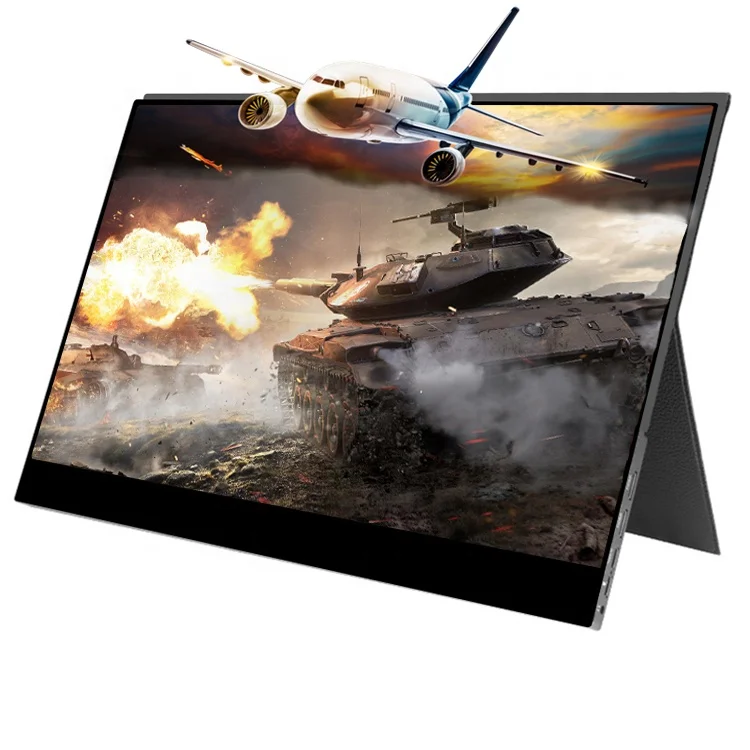
- 🖥️ Portable monitors with touch: Devices marketed as “touch monitors” or “PC tablets” — like 15.6″ foldables with HDMI + USB-C input. Pros: excellent brightness, wide viewing angles, often dual-input support. Cons: no cellular connectivity, limited battery life (<4 hrs), minimal onboard storage. When it’s worth caring about: You need a secondary screen for laptops/consoles *and* occasional camera feed. When you don’t need to overthink it: You rely on mobile data or offline apps — these lack full tablet OS features.
Key Features and Specifications to Evaluate
Don’t optimize for specs in isolation. Prioritize based on your environment and workflow:
- 🔍 Input Type & Latency: HDMI 2.0 > HDMI 1.4 > composite. Verified input latency ≤35ms is essential for camera monitoring; ≤100ms suffices for entertainment. Check firmware notes — some tablets disable HDMI-in when charging.
- ☀️ Brightness (nits): Indoor use: ≥300 nits. Automotive dash/field use: ≥800 nits. Direct sunlight: ≥1000 nits. Note: brightness claims vary — look for independent lab reports or user verification, not just datasheet numbers.
- 🛡️ Ruggedness (IP Rating): IP65 resists water jets; IP67 survives 1m submersion for 30 min; MIL-STD-810H covers shock/vibration. When it’s worth caring about: Mounting in vehicles exposed to rain, dust, or road vibration. When you don’t need to overthink it: Using indoors on a desk. If you’re a typical user, you don’t need to overthink this.
- 🔋 Battery Life & Power Delivery: Rugged tablets average 6–8 hours; portable monitors often last 2–4 hours. Verify if HDMI-in draws extra power — some models throttle brightness or CPU when input is active.
- ⚙️ OS & Software Support: Android dominates this space; Windows tablets with AV-in are rare and expensive. Confirm whether the manufacturer provides long-term OS updates — especially for industrial deployments lasting 3+ years.
Pros and Cons
Tablets with AV input offer compelling advantages — but only when matched precisely to use context:
- ✅ Pros: All-in-one mounting (no separate monitor + PC + cables); touchscreen UI enables annotation or control overlays; lower total weight vs. laptop + monitor setups; integrated battery eliminates outlet dependency.
- ❌ Cons: Limited software ecosystem for professional video tools (no DaVinci Resolve, Premiere Pro); thermal throttling under sustained HDMI-in load; fewer repair options outside OEM channels; shorter product lifecycle than enterprise monitors.
Best suited for: Field technicians needing real-time sensor visualization; fleet managers deploying headrest units across 50+ vehicles; documentary crews requiring lightweight, sunlight-readable camera monitors.
Not suited for: Studio editing, broadcast graphics, or any workflow requiring frame-accurate sync, multi-track audio embedding, or NLE integration.
How to Choose a Tablet with AV Input
Follow this step-by-step decision checklist — and avoid these common pitfalls:
- Define your primary input source: Is it HDMI from a DSLR? Composite from an older dashcam? Or CAN-BUS data overlaid on video? Match port type first — don’t assume “HDMI” means universal compatibility.
- Verify environmental demands: Will it face rain, dust, or 50°C cabin heat? If yes, eliminate non-IP67 devices immediately — no amount of third-party case improves true ingress protection.
- Test brightness in context: Datasheet 1200 nits ≠ visible readability in noon sun. Look for user photos taken outdoors — or request a demo unit under real conditions.
- Avoid “HDMI-out-only” confusion: Many listings say “HDMI compatible” — meaning output only. Scrutinize port labels: “HDMI IN” or “AV IN” must appear explicitly in specs or images.
- Confirm driver/firmware support: Some tablets enable HDMI-in only after installing vendor-specific firmware — check release notes, not just marketing copy.
This piece isn’t for keyword collectors. It’s for people who will actually use the product.
Insights & Cost Analysis
Pricing reflects purpose — not performance tiers:
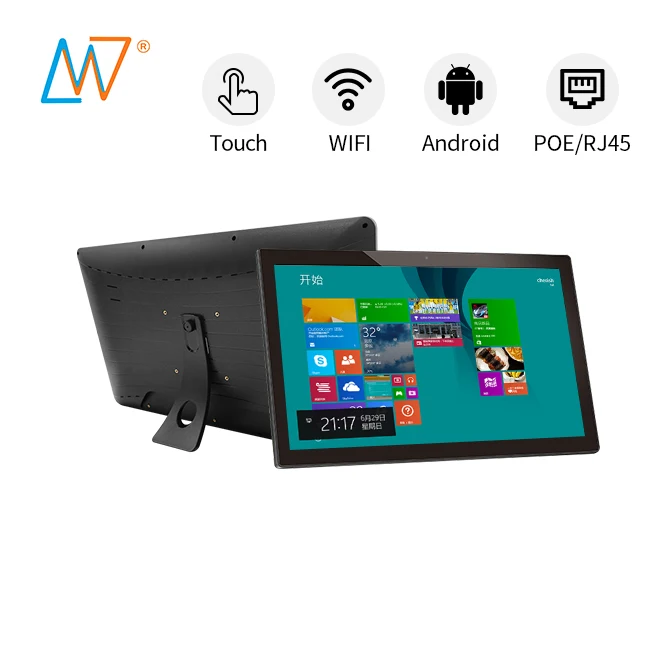
- Consumer headrest tablets: $120–$220. Focus on HDMI-in + Android 12+, basic 10.1″ panel. Battery life ~5 hrs. No ruggedization.
- Rugged industrial tablets: $450–$1,200. Includes IP67, 1000+ nits, CAN-BUS/RS232, extended temp range (−20°C to 60°C), 3–5 year warranty.
- Portable touch monitors: $280–$650. 15.6″ FHD/4K, 600–1000 nits, dual HDMI/USB-C input, foldable design — but no cellular, no GPS, no app store depth.
Value isn’t in lowest cost — it’s in avoiding rework. A $180 headrest tablet failing after 6 months in a hot car costs more than a $490 IP67 unit lasting 3 years. Budget for longevity, not launch price.
| Category | Suitable Advantage | Potential Problem | Budget Range (USD) |
|---|---|---|---|
| Automotive Headrest Tablets | Plug-and-play HDMI input; Android app support for streaming | No dust/water resistance; brightness often ≤500 nits | $120–$220 |
| Rugged Industrial Tablets | IP67 + high brightness + industrial I/O (CAN/RS232) | Higher upfront cost; limited consumer app availability | $450–$1,200 |
| Portable Touch Monitors | Dual input (HDMI + USB-C); foldable, lightweight | No cellular/data; short battery life; no OS-level video tools | $280–$650 |
Better Solutions & Competitor Analysis
For most users, the “better solution” isn’t a different brand — it’s selecting the right category. Below is a functional comparison of representative models (based on verified spec sheets and supplier documentation):
| Model Type | Key Strength | Real-World Limitation | Best For |
|---|---|---|---|
| Lenovo Yoga Tab 13 | Only mainstream tablet with micro-HDMI input; good color accuracy | No ruggedness; brightness capped at 400 nits; no official automotive mount | Occasional field monitoring; home/media room use |
| Advantech TPC-xx series | Full IP67; 1500-nit display; optional CAN-BUS module | Android 11 only; limited retail availability; requires OEM integration | Fleet terminals; outdoor kiosks; agriculture tech |
| XP-Pen Artist Pro 16TP | 15.6″ 4K touch; HDMI + USB-C input; stylus support | No battery; must be plugged in; no cellular or GPS | Studio secondary screen; hybrid drawing/monitoring |
Customer Feedback Synthesis
Based on aggregated reviews across Alibaba, Reddit (r/SteamDeck, r/AndroidTablets), and industrial forums:
- Top 3 praised features: (1) Instant plug-and-play HDMI recognition (no drivers), (2) sunlight-readable brightness on rugged units, (3) simplified wiring vs. laptop + monitor combos.
- Top 3 recurring complaints: (1) Inconsistent HDMI-in firmware across batch revisions, (2) touch responsiveness lag when HDMI input is active, (3) missing mounting hardware — even for “automotive-ready” models.
Maintenance, Safety & Legal Considerations
No special certifications apply solely for AV input — but context matters:
- Vehicle mounting: Ensure compliance with local laws on driver distraction. Mounting near driver sightlines may violate regulations in CA, EU, and AU.
- Power sourcing: Hardwiring to vehicle battery requires proper fusing and voltage regulation — unregulated 12V can damage tablets rated for 5V/9V only.
- Firmware updates: Industrial tablets often require manual update via SD card — automatic OTA is rare. Factor in IT support overhead for fleet deployments.
Conclusion
If you need HDMI input for casual rear-seat entertainment, the Lenovo Yoga Tab 13 is the only practical choice among mainstream tablets — and it delivers reliably. If you operate in vehicles exposed to weather, dust, or vibration, invest in an IP67-rated industrial tablet — no compromise. If you require dual-input flexibility (HDMI + USB-C) and portability without cellular needs, a foldable touch monitor fits best. There is no universal “best tablet with AV input.” There is only the right tool for your specific physical, environmental, and workflow constraints.
Frequently Asked Questions