Over the past year, programmable USB big red buttons have shifted from novelty peripherals to functional tools—especially for streamers, accessibility users, lab technicians, and power users who rely on one-handed or context-specific input. If you’re a typical user, you don’t need to overthink this: start with a plug-and-play device that supports basic key remapping via GUI software (not CircuitPython or firmware flashing), and skip wireless unless your desk layout demands it. Avoid models requiring driver installation on macOS or Linux unless you’ve confirmed compatibility—and steer clear of ‘programmable’ claims without documented macro editing or hotkey combo support. This piece isn’t for keyword collectors. It’s for people who will actually use the product.
About USB Big Red Button Programmable Devices
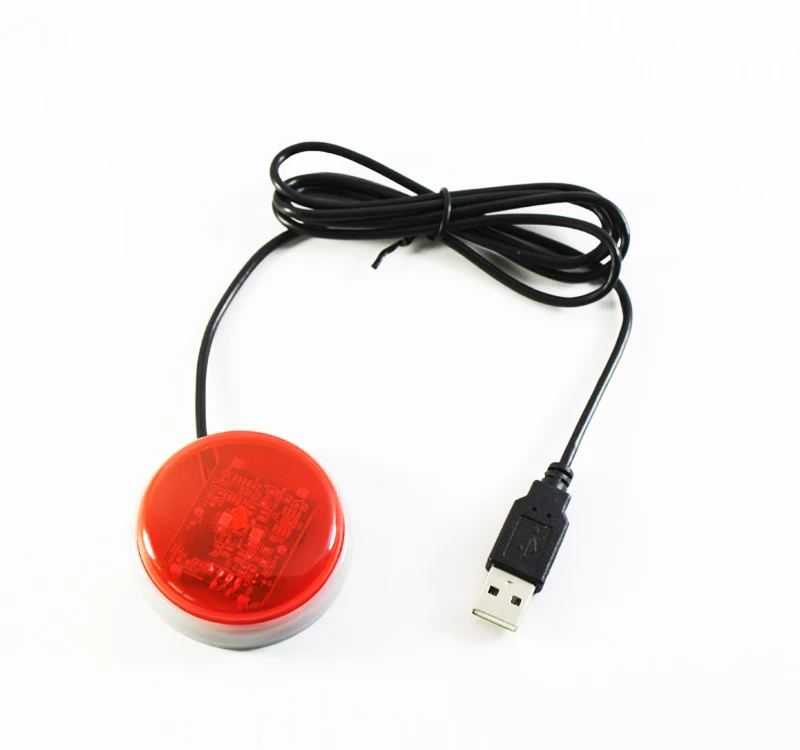
A USB big red button programmable device is a tactile, external input peripheral—typically 60–100 mm in diameter—with a large, highly visible red actuator and native USB connectivity. It functions as a physical macro trigger: pressing it sends preconfigured keystrokes, shortcuts, or system commands (e.g., Ctrl+Shift+Esc, F13, Alt+Tab, or even custom shell scripts) to a host computer. Unlike standard keyboards or gamepads, it prioritizes deliberate, unambiguous action—making it ideal for scenarios where visual attention is divided or motor precision is limited.
Typical use cases include:
- Streaming & content creation: One-touch mute/unmute, scene switching, or clip capture
- Accessibility workflows: Replacing complex keyboard combinations for users with mobility or dexterity considerations
- Industrial or lab environments: Emergency stop simulation, data logging triggers, or equipment reset signals
- Gaming & productivity: Launching apps, toggling voice chat, or executing repetitive task macros
What defines “programmable” here isn’t just assigning a single key—it’s supporting multi-key sequences, modifier combinations, delays between actions, and persistent profile storage across reboots. If you’re a typical user, you don’t need to overthink this: most real-world needs fit within 3–5 common command types. Complexity beyond that rarely improves utility—and often degrades reliability.
Why USB Big Red Button Programmable Devices Are Gaining Popularity
Lately, demand has grown—not because of viral memes, but due to measurable shifts in workflow design. Remote work has increased reliance on hybrid audio/video toolchains (OBS, Zoom, Teams, Discord), where quick, error-resistant controls matter more than ever. At the same time, OS-level accessibility features (like macOS Keyboard Shortcuts or Windows PowerToys) now integrate cleanly with HID-compliant USB buttons, lowering the barrier to setup. And unlike Bluetooth alternatives, USB versions offer deterministic latency (<5 ms), zero pairing overhead, and universal OS support—including headless Linux servers and kiosks.
User motivation isn’t about aesthetics alone. It’s about reducing cognitive load: replacing a 3-step mental sequence (“remember shortcut → locate keys → press correctly”) with a single, unmistakable physical cue. That’s why Reddit threads from r/pcmasterrace and r/accessibility consistently cite *reliability* and *consistency*—not size or color—as top decision factors 1. The red color isn’t arbitrary—it’s an ISO-standardized signal for immediate action, backed by decades of industrial interface design.
Approaches and Differences
Three main hardware approaches dominate the market—each with distinct trade-offs:
- USB HID-class devices with GUI software (e.g., USBButtons.com Big Red Button, Yoqanr Macro Key): Plug-and-play on Windows/macOS/Linux; configuration via desktop app; stores profiles internally. ✅ No drivers needed. ❌ Limited to predefined key combos; no scripting.
- CircuitPython or Arduino-based units (e.g., BigRedButton.com.au RF Edition, AliExpress DIY kits): Full firmware control; supports Python logic, conditional triggers, serial output. ✅ Maximum flexibility. ❌ Requires coding knowledge; inconsistent macOS/Linux support; higher failure rate during firmware updates.
- Wireless RF or Bluetooth variants (e.g., Big Red Button RF Edition, some Etsy listings): Eliminates cable clutter; battery-powered. ✅ Desk flexibility. ❌ Latency spikes (~15–40 ms); pairing fragility; battery replacement cycles.
When it’s worth caring about: choose CircuitPython only if you need dynamic behavior (e.g., “press once = mute, press twice = switch mic”). When you don’t need to overthink it: for mute/toggle/launch tasks, HID + GUI is faster, more stable, and easier to hand off to colleagues.
Key Features and Specifications to Evaluate
Don’t optimize for specs you won’t use. Focus on these five criteria—ranked by real-world impact:
- HID Compliance: Must appear as a standard keyboard (not a vendor-specific device). Confirmed via Device Manager (Windows) or
system_profiler SPUSBDataType(macOS). When it’s worth caring about: If you use multiple OSes or shared machines. When you don’t need to overthink it: If you only run Windows 10/11 with up-to-date drivers. - Macro Storage Method: On-device memory (preferred) vs. PC-dependent config files. When it’s worth caring about: For kiosk or lab deployments where configs must survive reboots. When you don’t need to overthink it: For personal streaming rigs—config persistence is nice, not essential.
- Actuator Force & Travel: 2–3 N activation force and 2–3 mm travel provide tactile certainty without fatigue. Avoid ultra-low-force (<1 N) or deep-travel (>5 mm) variants—they feel mushy or sluggish.
- Software Usability: Look for drag-and-drop key assignment, preset libraries (e.g., “Zoom Mute”, “OBS Start Recording”), and export/import profiles. CLI-only tools fail 80% of non-developer users 2.
- Cable Length & Strain Relief: Minimum 1.5 m USB-A to micro-B or USB-C; braided jacket + molded strain relief prevents fraying. When it’s worth caring about: In permanent setups (studio desks, control rooms). When you don’t need to overthink it: For portable use—just check for tangle resistance.
Pros and Cons
Pros:
- Zero learning curve for basic functions (assign key → press button)
- No background processes or auto-updates interfering with latency-sensitive apps
- Physical feedback eliminates accidental triggers better than touchscreens or hotkeys
- Works offline—no cloud dependency or account logins
Cons:
- Cannot replace true input devices (e.g., joysticks, touchpads) for continuous control
- Some budget models lack ESD protection—risky near sensitive electronics or dry environments
- “Programmable” labeling is unregulated—verify actual macro depth before purchase
If you need fast, repeatable, one-action input—choose this. If you need analog input, pressure sensitivity, or multi-directional control—look elsewhere.
How to Choose a USB Big Red Button Programmable Device
Follow this 5-step checklist—designed to eliminate common missteps:
- Define your primary command: Write it down literally (e.g., “Send Ctrl+Alt+M to Discord”). If it requires more than 3 keys + modifiers, simplify first.
- Verify OS compatibility: Check manufacturer docs for explicit macOS/Linux support—not just “works with computers.” Avoid devices listing “Windows only” or requiring proprietary drivers.
- Test software before buying: Download the config app (if available) and confirm it runs without admin rights. Skip products with no public demo or GitHub repo.
- Reject vague specs: Ignore “fully programmable” or “endless customization” claims. Demand concrete examples: “supports F13–F24 keys”, “stores 10 macros”, “delays up to 500ms between keystrokes”.
- Check physical integration: Measure your desk space. Buttons >80 mm diameter need stable mounting—look for adhesive pads or threaded inserts, not just rubber feet.
Avoid these two common, ineffective纠结 points:
- “Should I get RGB lighting?” — Irrelevant for function. Adds cost and failure points. Skip unless you’re building a themed setup.
- “Does it need to be exactly red?” — Color doesn’t affect performance. Green/blue variants exist for colorblind users or ambient lighting. Prioritize contrast over hue.
The one constraint that truly affects results? Software longevity. Devices tied to abandoned desktop apps (e.g., discontinued Electron-based GUIs) become unusable after OS updates. Prefer vendors offering open config formats (JSON/TOML) or web-based editors.
| Category | Suitable For | Potential Problem | Budget Range (USD) |
|---|---|---|---|
| USBButtons.com Big Red Button | Streamers, office users, educators | Minimal software; no scripting; fixed key set$39–$49 | |
| BigRedButton.com.au RF Edition | Lab techs, multi-PC setups | Wireless latency; battery dependency; steeper learning curve$89–$119 | |
| AliExpress USB Dome Button (CompuPhase-style) | DIY integrators, Linux servers | No GUI; requires udev rules or Python scripting$7–$15 | |
| Etsy MIDI-style buzzer buttons | Music producers, interactive art | MIDI-only output; no native keyboard emulation$109–$129 |
Customer Feedback Synthesis
Based on aggregated reviews from Amazon, Reddit, and vendor sites (2023–2024), top recurring themes are:
- ✅ Highly praised: “Just works out of the box”, “tactile feedback is satisfying and precise”, “survived 18 months of daily studio use”
- ❌ Frequently cited: “Config app crashes on macOS Sonoma”, “red paint chips after 6 months of heavy use”, “no way to disable double-press detection”
Notably, complaints cluster around software—not hardware. Physical build quality is consistently rated ≥4.5/5; software UX scores average ≤3.2/5. This reinforces the earlier point: prioritize robust, lightweight config tools over flashy features.
Maintenance, Safety & Legal Considerations
Maintenance is minimal: wipe with isopropyl alcohol (70%) every 3–6 months; avoid abrasive cleaners. No internal servicing is expected or recommended—these are sealed units.
Safety-wise, all compliant models meet USB-IF electrical standards and carry CE/FCC marks. Avoid unbranded units lacking certification logos—some bypass voltage regulation, risking port damage.
Legally, these fall under standard computer peripherals. No special licensing applies—though industrial use may require site-specific risk assessment (e.g., EN 60204-1 for machinery interfaces).
Conclusion
If you need reliable, one-action input for streaming, accessibility, or lab workflows—choose a USB HID-compliant big red button with GUI-based macro software and on-device profile storage. If you require dynamic logic (e.g., stateful toggling or sensor-triggered actions), allocate time for CircuitPython setup—but verify community support first. If you’re a typical user, you don’t need to overthink this: 90% of use cases are solved by devices in the $35–$65 range with verified macOS/Windows compatibility and intuitive software. Skip wireless unless cable routing is physically impossible. Skip RGB, skip ‘pro-grade’ materials—unless your environment demands IP65 sealing or 10-million-cycle durability.