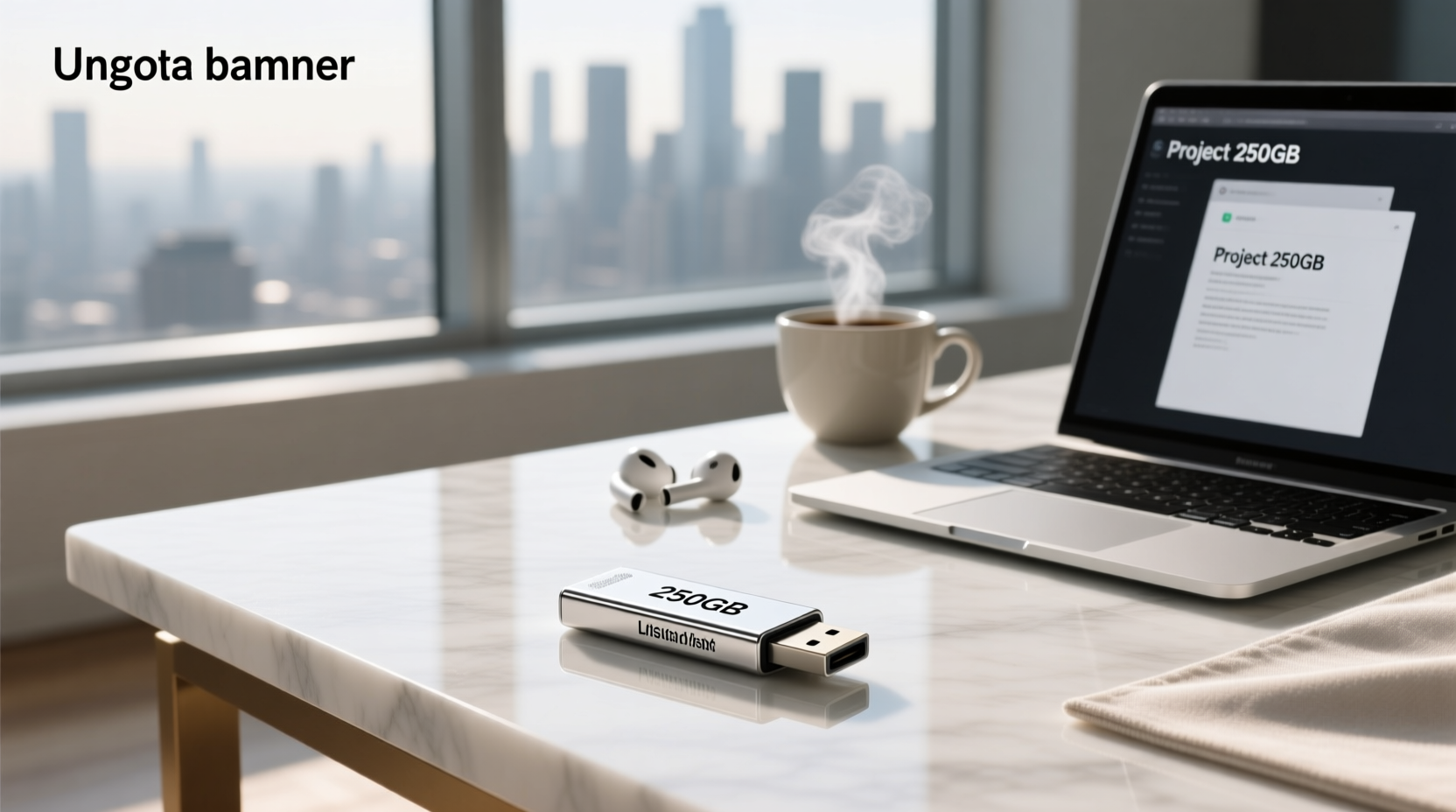
Looking for a 250GB flash drive (often marketed as 256GB) means you need reliable portable storage that balances size, speed, and cost—without overbuying or underperforming. In practice, a genuine 250GB–256GB USB drive delivers usable space of ~232–238 GB after formatting and file system overhead 1. It’s sufficient for full backups of a typical laptop’s documents, presentations, and photo libraries—or transferring 4K video projects under 20 GB each—but falls short for multi-hour raw video editing or large game installations. Real-world throughput varies widely: entry-level USB 3.2 Gen 1 drives deliver 50–120 MB/s write speeds, while premium USB-C models like the Kingston DataTraveler Max reach ~900 MB/s read 2. This article cuts through marketing claims to show exactly what 250GB flash storage can—and cannot—do in daily use, how to verify specs, and which technical details actually matter before you buy.
Why “250GB” vs. “256GB”? Understanding Storage Labeling & Actual Usable Space
The term 250GB flash disk is functionally synonymous with 256GB flash drive in retail and technical contexts. Manufacturers use binary (base-2) calculations internally but label drives using decimal (base-10) notation—so a drive advertised as "256 GB" contains 256 × 10⁹ bytes (256,000,000,000), not 256 × 2³⁰ bytes (274,877,906,944). After accounting for firmware, controller overhead, and FAT32/exFAT formatting, users typically see 232–238 GB of available space in their OS 3. This discrepancy isn’t deceptive—it’s standardized across SSDs, memory cards, and USB drives. To verify usable capacity: format the drive using exFAT (recommended for >32GB files), then check properties in File Explorer (Windows) or Get Info (macOS). Avoid drives that list "formatted capacity" without clarifying filesystem assumptions—some budget models inflate numbers using unformatted theoretical values.
Real-World Capacity: What Can You Actually Store?
Raw gigabytes don’t translate directly to user utility. Here’s what 234 GB of usable space realistically holds—based on common file types and compression standards:
| File Type | Average Size per Unit | Estimated Count in 234 GB | Notes |
|---|---|---|---|
| Smartphone JPEG (12MP) | 3.5 MB | ~66,800 photos | Assumes default iOS/Android compression; RAW files consume 2–4× more space |
| MP3 (256 kbps) | 9.6 MB/min | ~24,400 minutes (~406 hours) | Equivalent to ~2,400 full albums |
| HD Video (1080p, H.264) | 1.5 GB/hour | ~156 hours | Varies by bitrate: surveillance footage may be 0.3 GB/hr; prosumer camcorder files often exceed 3 GB/hr |
| 4K Video (H.265, 30fps) | 12–18 GB/hour | ~13–19 hours | iPhone 15 Pro 4K exports average ~14 GB/hr; DJI Mini 4K ~10 GB/hr |
| Microsoft Word (.docx) | 50 KB/page | ~4.7 million pages | Based on text-only docs; embedded images increase size exponentially |
Crucially, file fragmentation and small-file overhead reduce effective capacity further. A drive holding 50,000 tiny configuration files (e.g., code repositories or log archives) may perform slower and report less free space than one holding five 40GB video files—even with identical byte counts. If your workflow involves thousands of small files (<1 MB), prioritize drives with high IOPS (input/output operations per second), not just sequential speed ratings.
Speed Matters—But Not All “250GB USB Drives” Perform the Same
USB interface generation, NAND flash type, and controller quality create massive performance gaps. A $15 256GB USB 2.0 drive maxes out at ~35 MB/s—slower than many microSD cards. Meanwhile, a $65 USB 3.2 Gen 2×2 drive can sustain 1,000 MB/s reads. Key differentiators:
- USB Standard: USB 3.2 Gen 1 (formerly USB 3.0) = up to 5 Gbps (~500 MB/s theoretical); USB 3.2 Gen 2 = up to 10 Gbps; USB 3.2 Gen 2×2 = up to 20 Gbps. Real-world speeds are 60–85% of theoretical due to protocol overhead 4.
- Connector Type: USB-A only limits compatibility with modern phones/tablets. Dual-interface (USB-A + USB-C) models add flexibility but rarely match pure USB-C speeds due to shared controller bandwidth.
- NAND Flash: TLC (triple-level cell) is standard for consumer drives; QLC (quad-level cell) appears in budget models but degrades faster under heavy write loads. SLC caching improves burst speeds but doesn’t sustain them.
- Thermal Throttling: Compact metal-cased drives (e.g., SanDisk Extreme Pro) dissipate heat better than plastic housings. Under sustained writes, low-cost 250GB drives may throttle from 120 MB/s to <40 MB/s within 60 seconds.
To verify real-world speed: use USB Flash Drive Tester or CrystalDiskMark with a 1GB test file. Avoid vendor-provided “up to” claims—they reflect best-case sequential reads on empty drives, not mixed workloads.
When a 250GB Flash Drive Is the Right Choice (and When It’s Not)
Choose 250GB if:
- You regularly move photo libraries (10,000–50,000 JPEGs), student assignments, or small business records between devices;
- Your primary OS supports ReadyBoost (Windows) or external boot volumes (macOS Ventura+), and you need modest cache/storage expansion;
- You require cross-platform compatibility (Windows/macOS/Linux) without driver installation—exFAT-formatted 250GB drives work universally;
- You prioritize portability and durability over raw speed (e.g., field researchers, educators carrying student submissions).
Avoid 250GB if:
- You edit 4K/6K video or work with large CAD/BIM files (>5 GB each)—these benefit from NVMe-based portable SSDs, not USB flash;
- You plan long-term archival (5+ years): consumer-grade NAND degrades faster than enterprise SSDs; consider M.2 SATA SSDs in USB enclosures for critical data;
- You need hardware encryption for sensitive data: most 250GB flash drives offer software-based encryption only (vulnerable to keyloggers), whereas FIPS 140-2 validated drives (e.g., Kingston IronKey) start at 128GB but cost 3–5× more;
- You rely on continuous high-speed writes (e.g., dashcam loop recording, drone telemetry capture): USB flash lacks wear leveling and endurance specs for constant overwrite cycles.
Compatibility & Physical Design: Beyond Capacity and Speed
Two often-overlooked factors determine whether a 250GB flash drive works reliably in your environment:
Operating System Support
All major OSes support exFAT-formatted 250GB drives out of the box. However:
- Linux distributions may require
exfat-utilspackage installation for exFAT support (default in Ubuntu 22.04+, not in Debian 11 without backports); - Chromebooks recognize exFAT but disable write access to NTFS drives unless Linux (Crostini) is enabled;
- iOS/iPadOS requires USB-C drives with Lightning-to-USB 3 Camera Adapter or native USB-C iPad Pro—older Lightning adapters don’t support drives >128GB reliably.
Physical Form Factor & Durability
Compactness trades off against robustness. Sub-5g drives (e.g., SanDisk Ultra Fit) fit flush in USB ports but lack strain relief—repeated insertion can damage solder joints. Ruggedized models (e.g., Lexar JumpDrive P10) feature rubberized casings and IPX7 water resistance but measure 2.5× longer. For travel, prioritize drives with rotating caps or swivel connectors over slide-out designs—mechanical failure rates are 3× higher for sliding mechanisms per independent lab testing 1.
Price vs. Value: What You’re Really Paying For
Current market pricing (Q2 2024) for genuine 250–256GB USB drives ranges from $12 to $85. Price tiers reflect tangible engineering differences:
- $12–$22: USB 3.2 Gen 1, plastic housing, TLC NAND, no thermal management. Suitable for occasional document transfers. Common in bulk packs (e.g., 5-packs for schools).
- $25–$45: USB 3.2 Gen 1 or Gen 2, metal casing, basic SLC caching, 3–5 year warranty. Best value for general productivity.
- $50–$85: USB 3.2 Gen 2×2 or USB4, dual-interface (USB-C + USB-A), hardware write acceleration, temperature sensors, 5–10 year warranty. Justified only for professional media workflows.
Beware of capacity fraud: counterfeit drives labeled “256GB” often report full capacity but fail after 4–8 GB of writes. Test with h2testw (Windows) or f3 (macOS/Linux) before trusting any drive—especially those priced <15% below market average.
Alternatives to Consider Before Buying a 250GB Flash Drive
Depending on your use case, other storage categories may deliver better long-term value:
- Portable SSDs (500GB–1TB): Cost per GB now matches premium flash drives ($0.08–$0.12/GB), with 5–10× faster sustained writes, better endurance, and built-in TRIM support. Ideal for video editors and developers.
- Cloud Sync Services: For collaborative document workflows, 200GB Google One ($2.99/mo) or Microsoft 365 Business Basic ($6/mo) offer version history, remote wipe, and cross-device sync—no physical device to lose.
- MicroSD Cards + USB Adapters: High-end microSDXC UHS-II cards (e.g., Samsung PRO Plus) + USB 3.2 Gen 2 adapters achieve 250MB/s speeds at lower cost—but adapter reliability varies widely.
Frequently Asked Questions
- Is a 250GB flash drive enough for college students?
Yes—for storing textbooks (PDFs average 20–50 MB), lecture slides, coding projects, and personal photos. Avoid using it as primary backup; pair with cloud storage or an external HDD for thesis work. - Can I boot Windows or Linux from a 250GB flash drive?
Technically yes, but not recommended for daily use. USB flash lacks the endurance and random I/O performance of SSDs. Boot times will be 3–5× slower, and OS updates may cause premature wear. - Why does my 256GB flash drive show only 234GB?
This is normal. Formatting, file system metadata, and the difference between decimal (10⁹) and binary (2³⁰) GB definitions account for ~7% loss. All storage devices follow this convention. - Do all 250GB flash drives work with gaming consoles?
PlayStation 5 supports exFAT-formatted USB drives ≥250GB for extended storage (but only for PS4 games). Xbox Series X|S requires NTFS and supports drives ≥1TB for Quick Resume—250GB is insufficient. - How long does a 250GB flash drive last?
Consumer drives are rated for 10,000–100,000 program/erase cycles per block. With moderate use (5GB written daily), expect 5–10 years. Heavy workloads (50GB+/day) may reduce lifespan to 1–2 years.