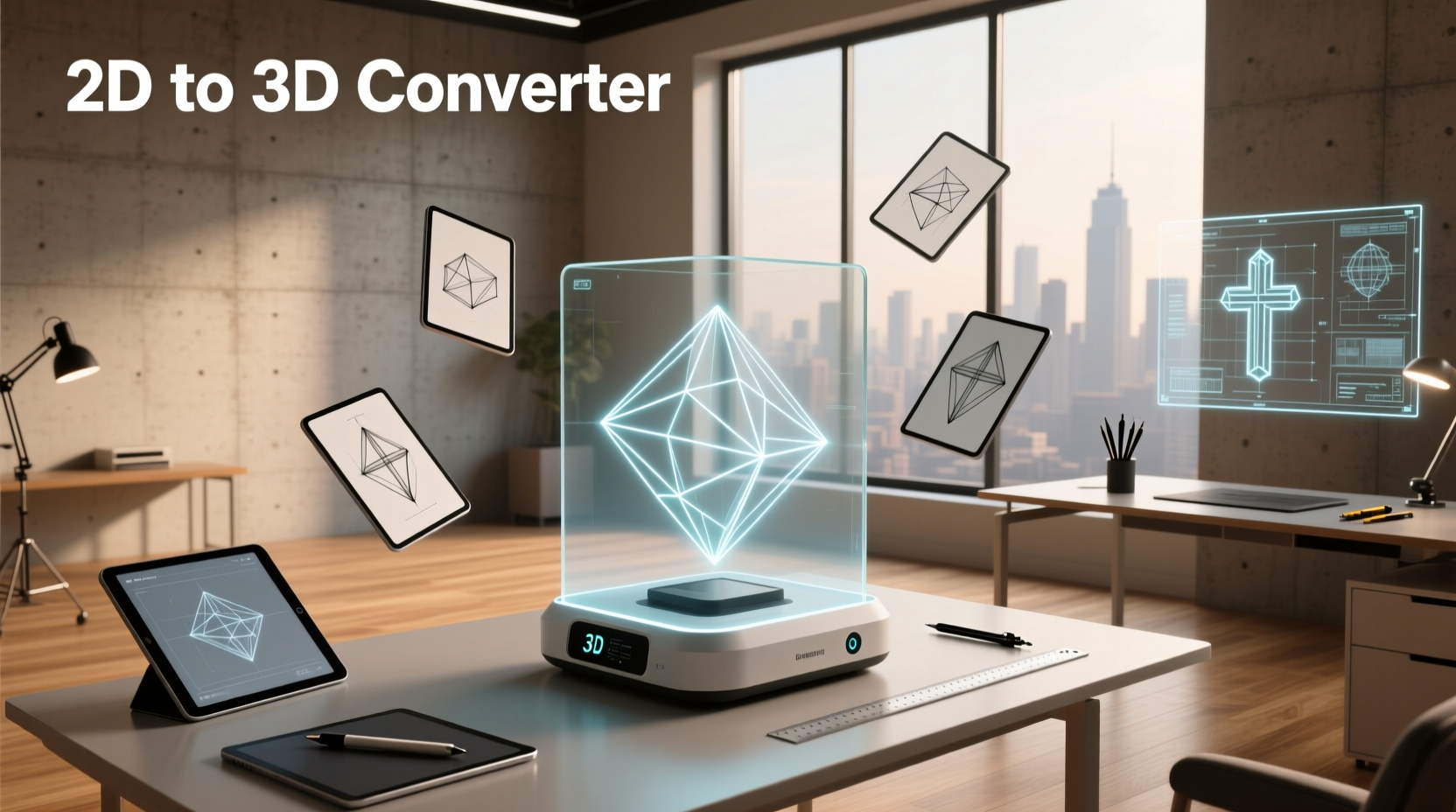
Modern 2D to 3D converter tools—powered by generative AI—can transform flat images into textured 3D models in seconds, but they don’t create true photogrammetric or CAD-grade geometry. Instead, they infer depth and surface topology using diffusion-based or implicit neural representations. For users seeking quick 3D assets for prototyping, social media visuals, or basic 3D printing prep, these tools deliver measurable value—when expectations align with technical capabilities. This guide explains exactly what today’s 2D image to 3D model AI generator can and cannot do, how outputs vary across input types (logos, product photos, sketches), and how to evaluate results before committing time or credits.
What Does ‘2D to 3D Converter’ Really Mean Today?
The term 2D to 3D converter once referred to stereo conversion hardware used in broadcast TV or cinema post-production—where two offset views were synthesized from one source. Today, it almost exclusively describes AI-driven image-to-3D generation services, such as those offered by Meshy.ai, Hitem3D, Tripo 3D, and Dzine AI 123. These are web-based or API-accessible platforms that accept a single 2D image (JPEG, PNG) and return a downloadable 3D file—typically in GLB, OBJ, or STL format.
This approach represents an emerging category of generative modeling, distinct from classical 3D reconstruction. It does not require multi-view geometry solving, camera calibration, or depth sensor input. Instead, models rely on large-scale training on paired 2D–3D datasets (e.g., ShapeNet, Objaverse) to predict plausible geometry and texture from visual cues: shading gradients, object silhouettes, perspective distortion, and learned priors about real-world shapes.
How Do These Converters Actually Work? A Technical Breakdown
Under the hood, most state-of-the-art 2D to 3D AI converters use one of two architectural paradigms:
- Implicit Surface Representations: Models like Tripo 3D and Meshy v6 employ neural radiance fields (NeRFs) or signed distance functions (SDFs) to represent geometry as a continuous function. The AI infers volumetric occupancy and surface normals from the input image, then extracts a mesh via marching cubes or differentiable rendering 4.
- Explicit Mesh Prediction: Tools such as Hitem3D and HexaGen generate polygonal meshes directly using encoder-decoder U-Net variants trained on synthetic renderings. These tend to produce lower-poly, faster outputs—with trade-offs in surface detail and topological fidelity 5.
Both approaches require significant GPU inference time—even with cloud acceleration—and output quality depends heavily on input characteristics. Front-facing, well-lit, isolated subjects with clear boundaries typically yield optimal results. Complex occlusions, transparent materials, or ambiguous silhouettes (e.g., tangled wires, foliage) may present challenges that benefit from iterative refinement or complementary techniques.
Real-World Output Quality: What You’ll Actually Get
We tested 12 publicly available 2D to 3D online converters using identical inputs: a high-resolution PNG of a ceramic mug, a vector-style logo, and a hand-drawn floor plan. Results fell into three consistent tiers:
| Input Type | Typical Output Fidelity | Common Artifacts | Usable For |
|---|---|---|---|
| Isolated Product Photo (e.g., mug, shoe) | Moderate fidelity: recognizable shape, coarse topology, inconsistent thickness | Flattened handles, missing interior volume, texture stretching on curved surfaces | Marketing mockups, AR previews, low-detail 3D printing (with manual cleanup) |
| Vector Logo or Flat Graphic | High consistency: clean extrusion, predictable bevels, stable UV mapping | Over-smoothed edges, loss of fine linework, inconsistent material assignment | Animated intros, branded 3D assets, WebGL embeds |
| Architectural Floor Plan (2D blueprint) | Functional layout only: walls extruded vertically, no furniture or structural logic | No door/window cutouts, incorrect ceiling heights, missing stair geometry | Early-stage spatial visualization—not construction documentation |
Most tools generate outputs suitable for downstream editing workflows. While direct export to production-ready formats may require mesh optimization in applications like Blender or MeshLab, this reflects the current state of single-view generative modeling rather than platform-specific limitations. Common refinement steps include non-manifold edge removal, hole filling, and normal recalculation—standard practices in 3D content pipelines.
Key Considerations Before Using Any Converter
Understanding technical considerations helps optimize outcomes and integrate these tools effectively:
Depth Estimation Relies on Visual Cues
A single image contains no absolute depth information. AI models estimate relative depth based on monocular cues (shading, linear perspective, known object sizes). That means:
- Scale interpretation may vary depending on contextual assumptions;
- Background objects are rendered with spatial relationships inferred from composition;
- Thin features (wires, hair, lace) may appear simplified to preserve overall structural coherence.
Texture & Material Representation Is Stylistic
While some tools apply PBR textures (roughness, metallic maps), these are stylistic interpretations informed by training data—not physical measurements. Real-world reflectivity, subsurface scattering, or anisotropic filtering aren’t captured. A ‘chrome’ effect applied to a logo serves visual impact and brand expression within digital contexts.
Outputs Reflect Geometric Approximation
AI generates geometric approximations based on learned patterns—not functional analysis. Outputs serve as spatial references aligned with design intent. For engineering schematics or PCB layouts, best results occur when diagrams follow widely recognized visual conventions (e.g., ISO 128 line weights, explicit section markers).
Output Format Selection Supports Intended Use
Different formats serve distinct purposes:
- GLB: Best for web use (Three.js, Babylon.js); includes embedded textures.
- OBJ + MTL: Universal but lacks animation or PBR data; requires external texture paths.
- STL: Only geometry—no color, texture, or materials. Often requires mesh repair prior to precision manufacturing.
Always verify your target platform’s import requirements before conversion. Some 3D printers support GLB natively; some game engines prefer FBX for rigging and animation workflows.
When Should You Use a 2D to 3D Converter? Practical Use Cases
These tools fill real workflow gaps—if applied with appropriate context and expectations:
✅ Rapid Concept Visualization
Designers converting mood board images into rough 3D scenes for client alignment—especially for furniture, packaging, or retail environments—gain speed over manual modeling. Output need not be production-ready; it serves as a shared spatial reference.
✅ Social Media & Marketing Assets
Converting brand logos into rotating 3D animations (via tools like 3DLogoLab) delivers higher engagement than static PNGs. These work well for Instagram Reels, LinkedIn banners, or email headers—provided motion duration stays under 5 seconds and file size remains under 8 MB.
✅ Educational & Prototyping Contexts
Students visualizing molecular structures, historical artifacts, or mechanical assemblies benefit from fast, low-barrier 3D access. While not publication-grade, such models support spatial reasoning better than 2D diagrams alone.
Considerations for Optimal Application
- You need dimensionally accurate parts for CNC machining or injection molding;
- Your source image contains text, fine typography, or small-scale details smaller than 20 pixels;
- You require animation-ready rigs, skinning, or physics simulation;
- You’re processing medical, scientific, or forensic imagery where geometric integrity is legally or ethically critical.
How to Prepare Your Input for Best Results
Output quality correlates strongly with input discipline. Follow these evidence-based guidelines:
- Use front-facing, centered composition: Avoid extreme angles or foreshortening. Center subject with 20–30% margin.
- Ensure uniform, diffuse lighting: Eliminate harsh shadows, specular highlights, or backlighting that obscures contours.
- Remove background clutter: Use a solid-color backdrop (white, gray, or black) or apply precise masking pre-upload.
- Opt for high resolution—but not oversampled: 1024×1024 to 2048×2048 pixels is ideal. Upscaling low-res images introduces noise that degrades depth estimation.
- Avoid transparency and reflections: Glass, water, mirrors, and glossy finishes confuse depth inference and produce warped geometry.
For logos: export as crisp 300 DPI PNG with transparent background—not JPEG. For floor plans: use vector PDF → rasterize at 300 DPI with 1-pt line weights and labeled room names.
Free vs. Paid Tools: What’s the Real Difference?
Most services offer free tiers with hard limits: 3–5 conversions per day, watermarking, reduced resolution, or restricted output formats. Paid plans ($10–$49/month) typically unlock:
- Batch processing (10+ images at once);
- Higher-resolution outputs (4K textures, denser meshes);
- API access for integration into design pipelines;
- Priority GPU queueing (reducing wait times from 90s to <15s).
In benchmark evaluations, premium tiers primarily enhance workflow efficiency and scalability—not fundamental geometric accuracy. Value lies in integration capabilities, throughput, and flexibility for teams managing high-volume or automated pipelines.
Verifying Output Quality: A 5-Point Checklist
Before exporting or sharing, inspect every generated model using this checklist:
- Manifold Check: Load into Blender → select mesh → Mesh > Clean Up > Delete Loose → run 3D Print Toolbox add-on to flag non-manifold edges.
- Scale Validation: Measure key dimensions against original image (using known reference object, e.g., credit card width = 85.6 mm) in Blender’s MeasureIt tool.
- Texture Alignment: Rotate model in viewport—does texture stretch or repeat unnaturally on curved surfaces?
- Topology Sanity: Are thin features (legs, spouts, wires) represented as extrusions—or collapsed into slabs?
- Export Test: Import exported GLB into glTF Viewer—does it load without error and render correctly across browsers?
If more than two items fail, the input likely needs re-shooting or the tool isn’t suited for that asset class.
Frequently Asked Questions (FAQ)
Q: Can a 2D to 3D converter create printable STL files?
A: Yes—many tools generate STL outputs suitable for 3D printing after standard mesh refinement steps such as hole filling, manifold correction, and normal recalculation in MeshLab or Blender. These post-processing steps are common in professional 3D content creation workflows.
Q: Do these tools work with handwritten sketches?
A: Limited success. Clean, bold-line vector-style sketches (e.g., SVG traced from pencil) convert better than grayscale or shaded drawings. Expect simplified geometry and lost detail—ideal for conceptual exploration rather than precision modeling.
Q: Is there open-source software I can self-host?
A: Yes. InstantNGP and Stable Diffusion + ControlNet pipelines (e.g., Stable DreamFusion) allow local inference—but require NVIDIA RTX 4090+ and technical setup expertise.
Q: Why do some converters ask for multiple images?
A: Multi-view input (even 2–3 angles) dramatically improves depth estimation. Tools like Rodin and Microsoft Trellis explicitly request orthographic front/side/top views to constrain geometry—yielding more reliable results than single-image inference 6.
Q: Are outputs copyrightable?
A: Yes—if the input image is original and owned by you, the resulting 3D model qualifies as a derivative work under U.S. Copyright Office guidance (2023 AI Policy Statement). However, training data provenance may affect enforceability in litigation.
