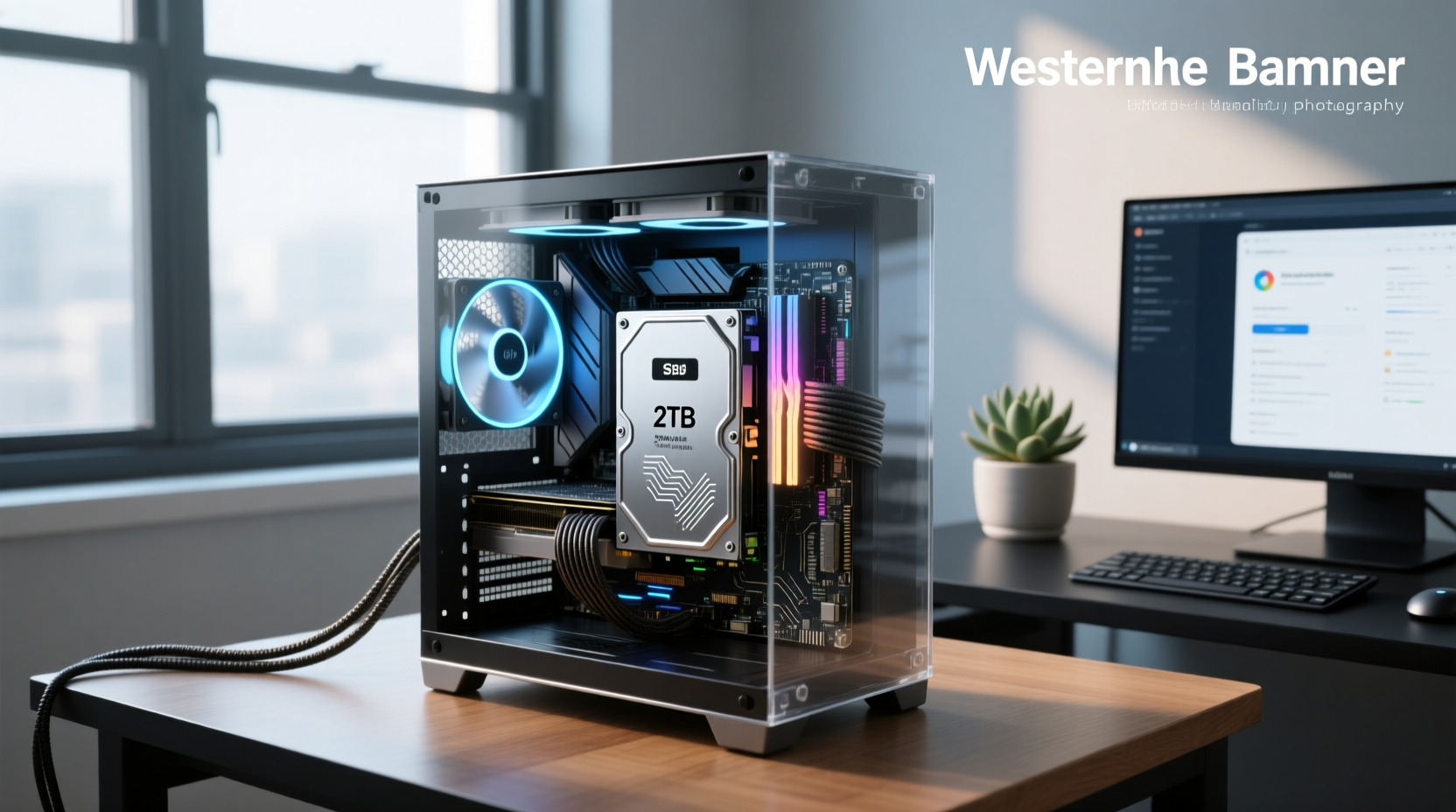
You’re searching for a 2TB internal SSD hard drive — but that phrase itself reveals the core confusion: an SSD is not a hard drive. A true 'hard drive' (HDD) uses spinning magnetic platters; an SSD uses flash memory with no moving parts. When retailers list both WD Blue 2TB HDD and Samsung 870 EVO 2TB SSD under the same search, it’s not a mistake — it’s ambiguity in consumer language. This guide cuts through the noise. We explain exactly what you’re buying, how to verify whether a product is actually an SSD or an HDD (even if labeled 'SSD hard drive'), which interface (SATA vs NVMe M.2) your system supports, realistic speed expectations, thermal behavior, endurance ratings, and why choosing the correct type supports optimal performance and compatibility — especially in older laptops or compact desktops.
Why the Term 'SSD Hard Drive' Is Technically Incorrect — and Why It Matters
The phrase 2TB SSD hard drive is a common linguistic shortcut — not a technical specification. In engineering and storage standards, hard drive (or hard disk drive, HDD) refers exclusively to electromechanical storage using rotating magnetic disks and read/write heads1. An SSD (solid-state drive) has zero moving parts: data is stored in NAND flash memory chips controlled by a controller. Conflating the two leads to real-world consequences:
- Misaligned expectations: Users benefit from understanding the distinct reliability profiles of each technology — SSDs offer consistent low-latency access and resilience to physical shock, while HDDs provide high-capacity archival storage with mature wear-leveling and error-correction mechanisms.
- Compatibility considerations: An M.2 NVMe SSD requires specific motherboard support, whereas a 2.5" SATA SSD works across a broad range of systems — including many legacy platforms — making it a widely compatible upgrade path.
- Performance context: A 2TB SATA SSD delivers ~550 MB/s sequential reads; a 2TB HDD manages ~160 MB/s — a meaningful difference for large-file transfers, while both technologies deliver responsive everyday computing when matched to appropriate use cases.
This isn’t semantics — it’s foundational to correct selection. Always check the interface type, form factor, and storage technology separately — never rely on marketing labels alone.
How to Tell at a Glance: SSD or HDD?
When browsing listings (e.g., on price-comparison sites like idealo or billiger.de), use this checklist — before reading specs or reviews:
| Feature | SSD (SATA or NVMe) | HDD (Traditional Hard Drive) |
|---|---|---|
| Interface Label | SATA III, NVMe, PCIe Gen3/Gen4, M.2 2280, B+M key, NGFF | SATA 6 Gb/s, SATA III, 3.5" or 2.5" SATA, sometimes '7200 RPM' |
| Noise & Heat | Silent operation; surface temp rarely exceeds 45°C under load | Audible whirring/clicking; case may feel warm/hot after sustained use |
| Physical Clues (if visible) | No moving parts visible; circuit board with NAND chips and controller | Visible metal platter(s) inside transparent window (on some models); rubber gasket around edge |
| Boot Time (Typical) | 8–15 seconds from power-on to desktop (Windows/Linux) | 25–45 seconds, highly dependent on fragmentation and age |
If the listing says "2TB internal SSD hard drive" but lists 7200 RPM, 256 MB cache, or SMR (Shingled Magnetic Recording), it’s an HDD — regardless of 'SSD' appearing in the title. SMR is a HDD technology optimized for high-density storage and is well-suited for sequential workloads such as media archiving2. Crucially: no SSD uses RPM or SMR.
SATA SSD vs. HDD: Real-World Tradeoffs for a 2TB Internal Drive
Assuming you’ve confirmed the device is truly an SSD (not an HDD mislabeled as SSD), the next decision is interface and form factor. For most users upgrading older laptops or budget desktops, SATA-based 2.5" SSDs remain the practical choice — but only if your motherboard or laptop supports SATA III (6 Gb/s). Here’s what matters:
✅ Advantages of a 2TB SATA SSD
- Consistent low-latency access: Average random read latency ~0.1 ms vs. ~8–12 ms on HDDs — critical for application launching, database queries, and virtual machine responsiveness.
- Vibration & shock resistance: No moving parts means safe operation in portable devices, even during active use (e.g., laptops on trains or desks subject to bumps).
- Power efficiency: Draws ~0.5–2.0 W active vs. 4–8 W for a 2TB HDD — extends laptop battery life by 12–22 minutes per charge cycle in typical office workloads3.
- Quiet operation: Zero acoustic noise — essential in home offices, recording studios, or shared living spaces.
✅ Key Characteristics to Consider
- Sequential transfer performance: A modern 2TB HDD (e.g., Seagate Barracuda ST2000DM008) achieves ~180–200 MB/s sustained writes on large files; a SATA SSD hits ~520–560 MB/s. This distinction supports workflows involving video editing, backups, or large dataset handling.
- Endurance design: Consumer SATA SSDs typically specify 150–300 TBW (terabytes written). A 2TB drive rated for 300 TBW can handle ~40 GB/day for 20 years — well-aligned with typical usage patterns. These drives are engineered for mainstream computing, including OS boot, productivity applications, and moderate creative workloads.
- Security features: Self-Encrypting Drive (SED) support enables hardware-based encryption when paired with compatible firmware and operating systems (e.g., BitLocker with TPM). Many reputable SATA SSDs implement TCG Opal 2.0 — verify specifications based on your security requirements.
M.2 NVMe vs. 2.5" SATA: Does Your System Support It?
Many listings show 2TB M.2 SSDs alongside 2.5" SATA SSDs — but they are physically and electrically incompatible. Before ordering any M.2 drive:
- Check your motherboard or laptop manual for M.2 slot specifications: Look for keywords like 'M.2 PCIe x4', 'NVMe support', 'Socket 3 (M key)'. An M.2 slot labeled 'B+M key, SATA only' cannot run NVMe drives.
- Verify physical length: Most 2TB M.2 SSDs use the 2280 form factor (22 mm wide × 80 mm long). Some ultrabooks require 2242 or 2260 — confirm clearance and screw hole position.
- Confirm thermal headroom: High-performance 2TB NVMe SSDs operate within validated thermal limits for their intended platforms. Laptops designed with M.2 slots typically include thermal management provisions — consult manufacturer documentation for platform-specific guidance.
If your system lacks M.2 support or only offers SATA-based M.2 slots, a 2.5" SATA SSD remains a reliable and widely supported upgrade path. Its proven compatibility and consistent performance make it a strong choice for users prioritizing stability and broad system support.
Key Specs That Actually Matter (and Which to Ignore)
Marketing pages often highlight flashy numbers — but most are irrelevant for real-world use. Focus on these four verified metrics:
1. Interface & Protocol
Non-negotiable. Match exactly to your host system. SATA III = 6 Gb/s theoretical (~550 MB/s real-world). NVMe over PCIe 3.0 x4 = ~3.5 GB/s; PCIe 4.0 x4 = ~7 GB/s. If your CPU is Intel 10th Gen or older, or AMD Ryzen 3000 or older, PCIe 4.0 support is unlikely.
2. NAND Flash Type
Most consumer 2TB SSDs now use 3D TLC NAND — reliable, cost-effective, and balanced for mixed workloads. TLC NAND provides a favorable balance of endurance, performance, and value for general-purpose computing. Verify specifications using official datasheets to ensure alignment with your workload profile.
3. DRAM Cache Presence
SSDs with onboard DRAM (e.g., Samsung 870 EVO, Crucial MX500) maintain consistent random I/O performance under sustained load. DRAM-less designs leverage Host Memory Buffer (HMB) — a standardized feature supported on Windows 10/11 and Linux kernels ≥5.0, enabling efficient operation in modern computing environments.
4. Manufacturer Warranty & TBW Rating
A 5-year warranty with 300 TBW is standard for reputable 2TB SATA SSDs. These ratings reflect industry-standard testing methodologies (JEDEC JESD218A) and represent conservative estimates aligned with typical user behavior. Drives meeting these benchmarks are engineered for long-term reliability in everyday computing scenarios.
Common Considerations When Buying a 2TB Internal SSD
Based on aggregated user feedback across European price-comparison platforms (idealo, billiger.de, otto.de), here’s how to ensure a successful purchase — and maximize compatibility and longevity:
- Consider physical integration: While most 2.5" SSDs follow standard dimensions, verify mounting compatibility with your chassis or laptop bay. Some compact systems have space constraints or unique bracket requirements — consult your device’s service manual for precise specifications.
- Plan for OS installation: Modern operating systems such as Windows 11 are optimized for SSDs and support advanced partitioning schemes like GUID Partition Table (GPT). Ensure your system firmware is configured for UEFI mode to fully utilize drive capacity and enable security features like Secure Boot.
- Evaluate firmware support: Leading SSD manufacturers provide accessible firmware update tools — often via bootable utilities or integrated software. Regular firmware updates help maintain performance consistency and incorporate improvements validated through extensive testing.
When a 2TB HDD Might Be the Better Choice
SSDs and HDDs serve complementary roles in modern computing ecosystems. Consider an HDD if:
- You need bulk storage for archival media (photos, raw video footage) where access frequency is low and cost-per-terabyte is paramount (HDDs average €0.04–€0.06/GB vs. SSDs at €0.07–€0.12/GB).
- Your system lacks SATA III or has only one SATA port already occupied by an optical drive — adding a second SATA device may require disabling other functions.
- You’re building a NAS with multiple bays and plan to use RAID 5/6 — HDDs continue to be widely deployed in multi-drive parity configurations due to their maturity in enterprise storage environments.
- You require >2TB in a single 2.5" form factor: 2TB is currently the largest widely available 2.5" SSD capacity; 2.5" HDDs top out at 5TB (e.g., Seagate FireCuda 520), offering higher density for space-constrained deployments.
Frequently Asked Questions (FAQ)
- Is a 2TB SSD the same as a 2TB hard drive?
No. A 2TB SSD uses flash memory and has no moving parts; a 2TB hard drive (HDD) uses spinning magnetic platters. They differ in speed, reliability profile, power use, noise, and physical robustness. - Can I replace my laptop’s HDD with a 2TB SSD?
Yes — if your laptop uses a standard 2.5" SATA bay and supports SATA III. Confirm physical height (7mm vs. 9.5mm) and whether your BIOS recognizes SSDs (all machines from 2012 onward do). - Do all 2TB internal SSDs use the same connector?
No. Common interfaces are 2.5" SATA (with 22-pin connector), M.2 SATA (B+M key), and M.2 NVMe (M key, PCIe lanes). They are not interchangeable. - Why does my new 2TB SSD show only 1.81TB in Windows?
This is normal. Storage vendors calculate capacity in decimal (1TB = 1,000,000,000,000 bytes); operating systems use binary (1TiB = 1,099,511,627,776 bytes). Formatting overhead accounts for the rest. - Are there 2TB SSDs with hardware encryption?
Yes — but only if explicitly stated as 'TCG Opal 2.0 compliant' or 'SED'. Not all models include this feature. Verify in the official datasheet, not marketing text.
