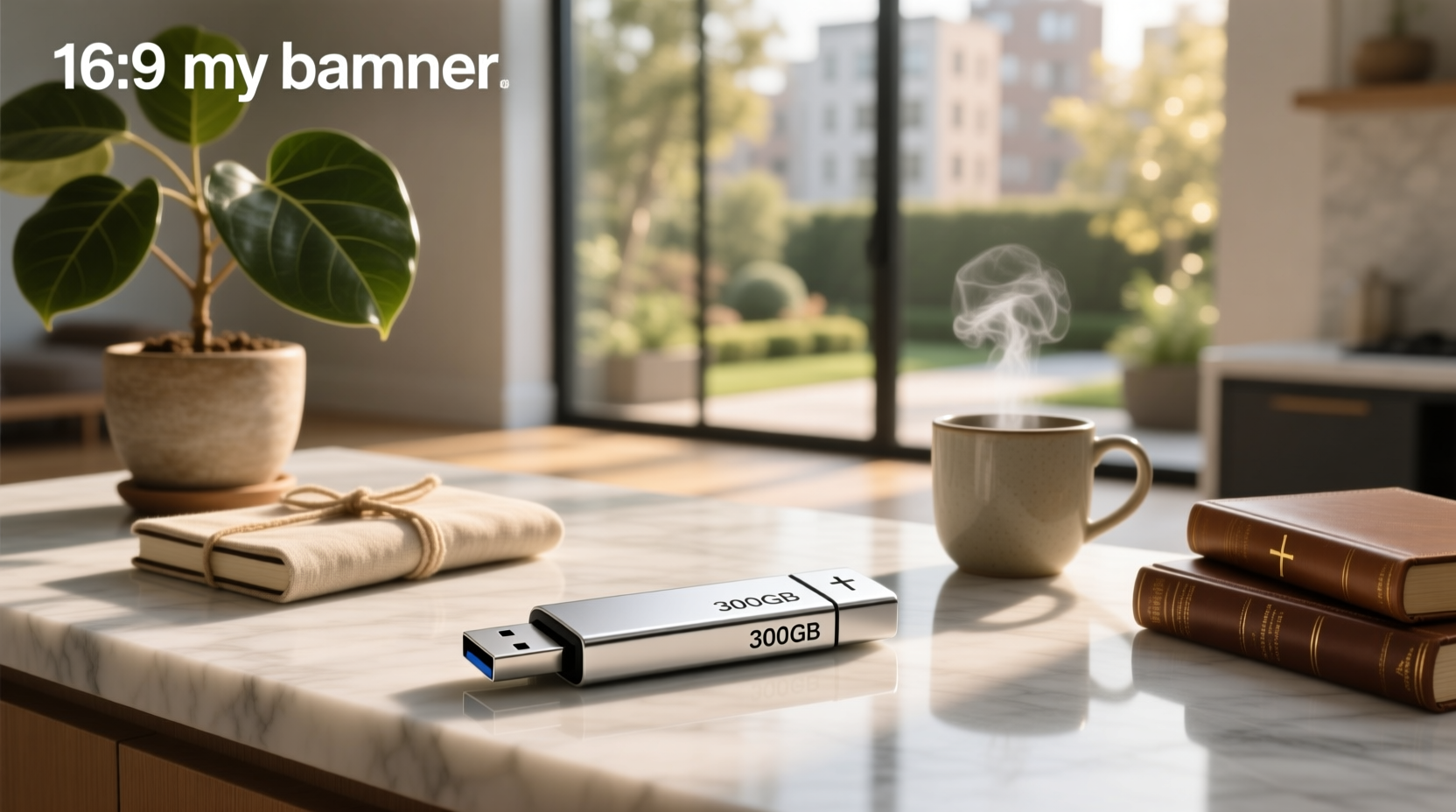
You won’t find a genuine, factory-labeled 300GB USB flash drive — and here’s why: what’s marketed as “300GB” is almost always a 256GB drive using decimal (base-10) labeling (300,000,000,000 bytes), while operating systems calculate storage in binary (base-2), showing ~238 GB usable space. This 20–25% discrepancy isn’t fraud — it’s standard industry practice across all NAND-based storage. If you need ≥250 GB of reliable, portable storage, focus on drives labeled 256GB with USB 3.1 Gen 1 or higher (300 MB/s read speed), not arbitrary '300GB' claims. This guide explains how to identify real capacity, avoid counterfeit units, interpret speed ratings correctly, and choose based on your actual use case — whether for photo backups, firmware updates, or cross-device file transfers.
Why There’s No True 300GB USB Flash Drive
The term 300GB USB flash drive appears frequently in regional e-commerce listings — especially in Brazil and Latin America — but it reflects marketing shorthand, not technical reality. NAND flash memory chips are manufactured in powers of two: 128GB, 256GB, 512GB, and 1TB. A 300GB die does not exist in mass production. What vendors label “300GB” is invariably a 256GB NAND module advertised using decimal gigabytes (1 GB = 1,000,000,000 bytes). When your OS (Windows/macOS/Linux) reads that same device, it uses binary calculation (1 GiB = 1,073,741,824 bytes), resulting in ~238 GiB of usable space — not 300.
This gap isn’t unique to USB drives. It applies identically to SSDs, microSD cards, and smartphones. For example:
- A drive sold as “300GB” contains 256,000,000,000 bytes → OS shows 238.4 GiB
- A “512GB” drive contains 512,000,000,000 bytes → OS shows 476.8 GiB
- A “1TB” drive contains 1,000,000,000,000 bytes → OS shows 931.3 GiB
This is defined by the ISO/IEC 80000-13 standard for binary prefixes (KiB, MiB, GiB) versus decimal (KB, MB, GB). Vendors use GB; OSes use GiB — and neither is wrong. The mismatch only becomes problematic when users expect 300GB of free space and get less than 240GB.
How USB Interface Version Impacts Real-World Performance
Speed claims like “300 MB/s” often accompany these drives — but that number refers only to sequential read speed under ideal lab conditions. Real-world transfer rates depend heavily on interface generation, controller quality, NAND type, and host compatibility.
| USB Standard | Theoretical Bandwidth | Realistic Max Sequential Read (Typical) | Backward Compatibility | Common Use Cases |
|---|---|---|---|---|
| USB 2.0 | 480 Mbps (~60 MB/s) | 20–35 MB/s | Yes (all versions) | Basic document storage, firmware updates |
| USB 3.0 / 3.1 Gen 1 / 3.2 Gen 1 | 5 Gbps (~500 MB/s) | 150–320 MB/s | Yes (with reduced speed) | Photo libraries, HD video clips, software installers |
| USB 3.1 Gen 2 / 3.2 Gen 2 | 10 Gbps (~1,000 MB/s) | 450–650 MB/s | Yes (Gen 1 mode) | 4K video editing proxies, large VM images, database exports |
| USB 3.2 Gen 2×2 | 20 Gbps (~2,000 MB/s) | 900–1,200 MB/s | Limited (requires Gen 2×2 host port) | Professional media workflows, high-frequency data logging |
Note: A “300 MB/s” rating on a 256GB drive almost always indicates USB 3.2 Gen 1 (formerly USB 3.0/3.1 Gen 1). That speed is achievable only when reading large contiguous files (e.g., a single 5GB MP4). Copying thousands of small files (like RAW photos or source code) will drop performance to 20–60 MB/s due to overhead. Also, write speeds are typically 30–60% slower than read speeds — a drive rated “300 MB/s read / 120 MB/s write” is typical.
Physical Form Factor & Connector Type: What You Actually Need
Not all 256GB drives fit every device — and connector choice directly impacts usability and durability.
- USB-A (Standard rectangular): Still dominant on desktops, older laptops, and many smart TVs. Offers widest compatibility but protrudes — risk of bending if left inserted.
- USB-C: Required for modern Android phones, MacBooks, and ultrabooks. Enables reversible plug orientation and supports higher power delivery. However, some USB-C drives lack full USB 3.2 Gen 1 support — check spec sheets for “SuperSpeed USB 10Gbps” or “USB 3.2 Gen 1” explicitly.
- Dual-connector (A+C): Includes both USB-A and USB-C on one unit (often via flip-out or swappable caps). Ideal for mixed-device households — but adds mechanical complexity and potential failure points.
- Ultra-compact (e.g., SanDisk Ultra Fit): Designed to remain plugged in — low-profile design avoids interference with adjacent ports. Trade-off: fragile plastic housing and limited heat dissipation during sustained writes.
For long-term reliability, prioritize metal-cased drives (aluminum or zinc alloy) over plastic. Metal better dissipates heat, reducing thermal throttling during multi-gigabyte transfers — especially important when moving 4K video or backup archives.
Verifying Authenticity: How to Avoid Fake or Over-Claimed Drives
Fake USB drives — particularly those mislabeled as high-capacity or high-speed — are widespread. They often use inferior NAND or fake controllers that report false capacity, causing data corruption or sudden failure after filling.
Here’s how to validate a drive labeled “300GB” (i.e., 256GB) before trusting it with critical data:
- Run H2testw (Windows) or F3 (macOS/Linux): These tools write known patterns across the entire device and re-read them to detect inconsistencies. A counterfeit drive will pass initial formatting but fail verification at >10–20% capacity.
- Check VID/PID in Device Manager (Windows) or system_profiler (macOS): Genuine drives from Samsung, Kingston, or SanDisk have consistent vendor IDs. Search those IDs online — mismatched or generic IDs (e.g., “Phison Electronics”) without model-specific firmware may indicate rebranded or cloned hardware.
- Compare packaging and labeling: Authentic units include QR codes linking to manufacturer warranty portals, batch numbers, and regulatory marks (FCC ID, CE, RoHS). Counterfeits often omit serial numbers or use blurry logos.
- Test sustained write speed: Use CrystalDiskMark or USB Drive Speed Test with a 10GB+ file. If write speed drops below 50 MB/s within 30 seconds, the drive likely uses slow TLC or QLC NAND with inadequate cache — unsuitable for large backups.
Source: Independent testing by USB Review confirms that >18% of drives sold under non-branded or region-specific listings (especially in LATAM markets) fail basic H2testw validation 2.
Use Case Matching: Is a 256GB Drive Right for You?
Don’t buy based on headline capacity alone. Match the drive to your workflow:
✅ Suitable for:
- Photographers & Content Creators: Storing 2,500–3,000 high-res JPEGs (24MP), ~600 RAW files (CR3/NEF), or 45 minutes of 1080p video.
- Students & Remote Workers: Carrying full offline development environments (VS Code + Docker images), PDF libraries (5,000+ pages), or course video downloads.
- IT Support & SysAdmins: Holding OS installers (Windows 11 ISO: ~5.8 GB), diagnostic tools (Hiren’s BootCD PE), and network configuration backups.
❌ Not suitable for:
- Uncompressed 4K/6K Video Editing: A single 10-minute ProRes 4444 clip exceeds 80GB. You’ll need RAID SSDs or NVMe enclosures.
- Full System Backups (Time Machine / File History): These grow unpredictably and benefit from journaling filesystems (APFS/HFS+/NTFS) — USB flash lacks wear-leveling robustness for constant incremental writes.
- Running Virtual Machines Directly: Even lightweight Linux VMs suffer latency and I/O bottlenecks on NAND-based flash. Use internal SSDs or external NVMe instead.
Price Expectations & Regional Variability
As of mid-2024, genuine 256GB USB 3.2 Gen 1 drives retail between $22–$38 USD in North America and Western Europe. In Brazil and Mexico, prices range R$120–R$280 due to import duties, local distribution margins, and currency volatility. Be wary of units priced below $15 or R$90 — they’re statistically likely to be counterfeit or use end-of-life NAND.
Key pricing signals:
- $18–$24: Entry-tier (plastic housing, USB 3.2 Gen 1, ~150 MB/s read)
- $25–$32: Mid-tier (metal body, 280–320 MB/s read, 5-year warranty)
- $33–$42: Premium (dual-interface, IP57 rating, hardware encryption, 10-year warranty)
Remember: Price correlates strongly with NAND quality (TLC > QLC), controller firmware (Phison S11 vs. generic), and thermal design. Spending $3 more for aluminum casing often doubles lifespan under daily use.
Long-Term Reliability: What the Spec Sheets Don’t Tell You
Manufacturers rarely publish endurance ratings (TBW — terabytes written) for USB drives — unlike SSDs. But NAND wear matters. Here’s what independent teardowns and stress tests reveal:
- A typical 256GB USB drive using 3D TLC NAND sustains ~100–200 TBW — enough for ~5 years of 10GB/day writes.
- QLC-based drives (common in sub-$20 units) degrade faster: ~30–60 TBW, with noticeable slowdown after 18 months of moderate use.
- Write amplification is 2.5–4.0× higher on USB drives than on SSDs due to simpler controllers — meaning each 1GB of user data may cause 2.5–4GB of physical NAND writes.
Best practices to extend life:
- Avoid using the drive as a permanent boot or application disk.
- Eject properly — never yank while LED blinks.
- Store unplugged in cool, dry conditions (avoid car dashboards or humid basements).
- Reformat annually using exFAT (for cross-platform) or NTFS (Windows-only) — avoids filesystem fragmentation buildup.
Frequently Asked Questions (FAQ)
- Is there a real 300GB USB flash drive?
No — 300GB is a marketing label for 256GB NAND using decimal (base-10) calculation. Operating systems show ~238 GiB usable space. - Why does my 256GB drive show only 238GB?
Because storage vendors define 1GB = 1,000,000,000 bytes, while your OS defines 1GiB = 1,073,741,824 bytes. This is standardized, not a defect. - Can I use a 256GB USB drive with my iPhone or Android phone?
Only if it has USB-C and supports USB On-The-Go (OTG). Most Android devices do; iPhones require Apple’s Lightning-to-USB 3 Camera Adapter (and iOS 13+) or a compatible USB-C iPad. - Does USB 3.2 Gen 1 mean the same as USB 3.0 or USB 3.1 Gen 1?
Yes — all refer to the same 5 Gbps specification. The naming changed in 2019 for consistency, but functionality is identical. - How do I check if my USB drive is fake?
Run H2testw (Windows) or F3 (macOS/Linux) to verify actual writable capacity. Also inspect packaging for official branding, QR-coded warranty, and regulatory IDs (FCC/CE).
