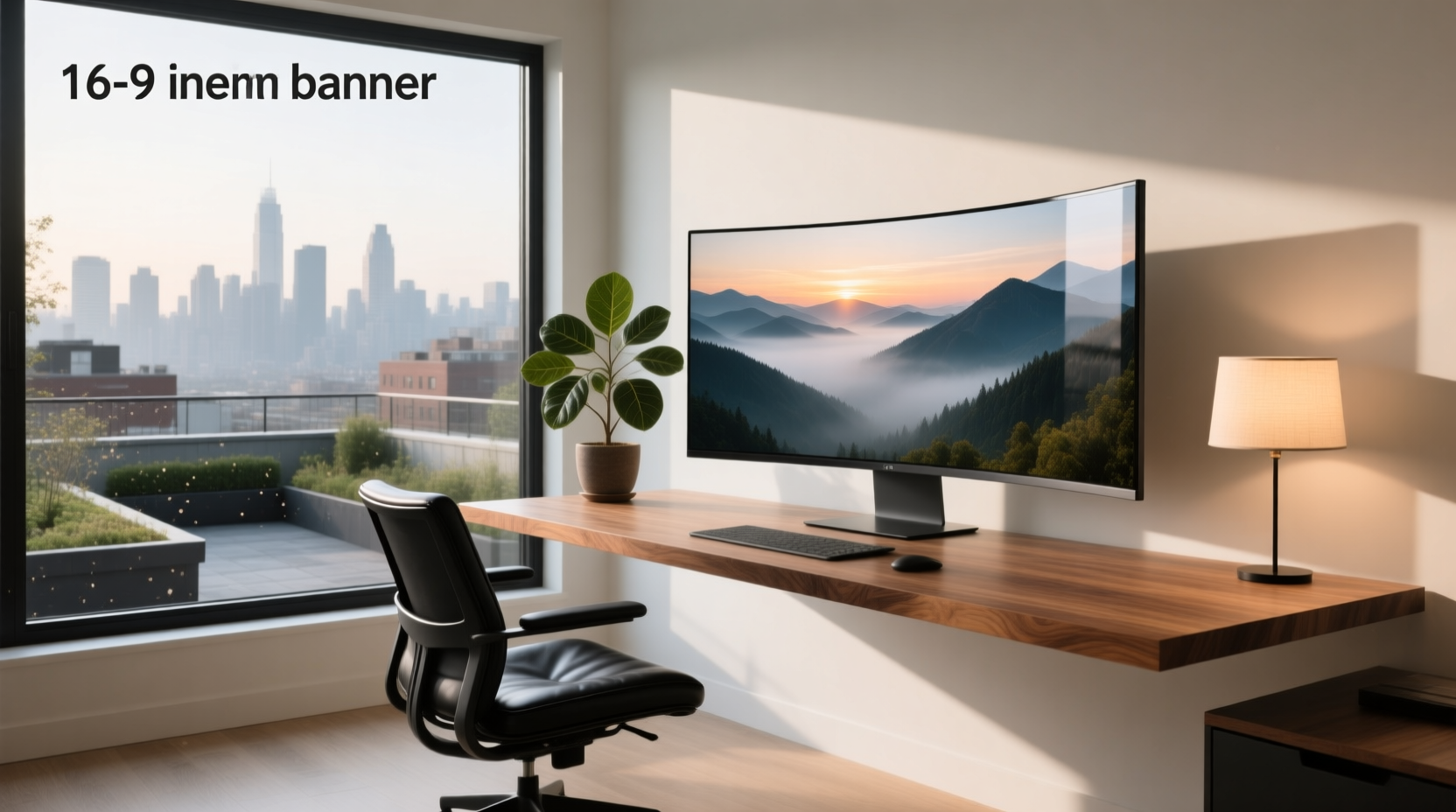
✅ Bottom line upfront: A 49-inch curved ultrawide monitor (typically 32:9 aspect ratio, Dual QHD or 5120×1440 resolution) delivers unmatched horizontal screen real estate for coding, financial dashboards, video editing timelines, and sim racing—if your desk space, viewing distance (90–100 cm / 35–39 in), and GPU output bandwidth support it. It is not optimized for competitive FPS titles, casual streaming, or small home offices. This guide answers the questions users actually ask: Is a 49-inch curved monitor worth it for work? How far should you sit? Does 4K exist at this size? What panel type matters most?
Why This Size Exists—and Why It’s Not Just Marketing
The 49-inch curved form factor emerged to bridge a functional gap: traditional 27–32 inch monitors limit side-by-side window management; dual-monitor setups introduce bezel interruptions and alignment issues; and flat 49-inch displays feel physically overwhelming without curvature. The 1800R or 1000R curve radius (measured in millimeters—the smaller the number, the tighter the curve) gently wraps the display around peripheral vision, reducing eye saccades and improving focus continuity across the horizontal field 1. Unlike 34-inch ultrawides, which often use 1500R–1800R curves, true 49-inch models typically ship with 1000R–1500R—tighter by design to maintain visual coherence at scale.
This isn’t about ‘immersion’ as a buzzword—it’s biomechanical. Studies on visual tracking show that horizontal eye movement across >50° of visual angle increases fatigue over time 2. A 49-inch curved screen at recommended viewing distance subtends ~65–72° horizontally—well within the comfortable range for sustained concentration when curvature aligns with natural gaze rotation. That’s why professionals in data analysis, software development, and audio post-production report measurable gains in task-switching efficiency—not because the screen is ‘cool,’ but because it reduces cognitive load from constant tabbing and window resizing.
Resolution Realities: Dual QHD ≠ 4K (And Why That Matters)
Let’s clarify a persistent misconception: There is no native 4K (3840×2160) 49-inch curved monitor. The term “49-inch 4K monitor” appearing in search results almost always refers to 3840×1080—a stretched 16:9 signal scaled to 32:9, resulting in half the vertical pixel density of true 4K. This resolution (often marketed as “Dual FHD”) delivers only 1080 lines vertically, making text appear softer and UI elements less crisp than on a standard 27-inch 4K display.
The industry-standard resolution for serious 49-inch ultrawides is Dual QHD (5120×1440), also called DQHD. It provides 1440 vertical pixels—matching WQHD (3440×1440) monitors—and 5120 horizontal pixels, giving ~130 PPI at 49 inches. That’s sufficient for sharp text rendering at typical viewing distances, especially with ClearType or font smoothing enabled. Some newer models (e.g., INNOCN 49C1G, Deco Gear 49″ DQHD) use VA panels with high static contrast (3000:1), which further enhances perceived sharpness despite lower PPI than IPS 3.
Avoid models advertising “4K” with 3840×1080 specs—this is a marketing misdirection. If vertical clarity matters for coding, spreadsheet formulas, or timeline scrubbing, prioritize 5120×1440 or higher (e.g., 5120×2160 on rare experimental units). True 5K (5120×2880) at 49 inches would exceed 200 PPI but currently doesn’t exist in consumer curved panels due to bandwidth and cost constraints.
Ergonomics First: Viewing Distance, Mounting, and Desk Requirements
You cannot treat a 49-inch curved monitor like a standard desktop display. Its physical footprint is ~115 cm wide × 45 cm tall × 25 cm deep (excluding stand), requiring a minimum desk depth of 60 cm and clear front clearance of ≥80 cm. More critically: viewing distance directly determines usability.
Too close (<70 cm): You’ll constantly pivot your head or eyes to track content at the far left/right edges. Peripheral distortion increases, and the curve feels exaggerated rather than supportive.
Too far (>120 cm): Central content shrinks perceptually; fine UI details blur; the immersive benefit vanishes.
Optimal range: 90–100 cm (35–39 inches), measured from eyes to screen center 1. This places the display within the human foveal field (central 2–3° of sharpest vision) while keeping edge content comfortably within parafoveal awareness (10–20°). Use a tape measure—not guesswork—to verify.
Mounting is non-negotiable for long-term comfort. Most 49-inch models support VESA 100×100 or 200×200 mounts, but weight ranges from 12–25 kg (27–55 lbs). Verify your arm’s weight rating *and* extension capacity—many articulating arms sag or wobble under this load. A fixed wall mount or heavy-duty desk clamp with dual-gas-spring support is strongly advised over stock stands.
Gaming: Where It Shines—and Where It Fails
Gaming performance hinges on three interdependent factors: resolution scaling, refresh rate synchronization, and game engine support.
- Resolution scaling: Rendering 5120×1440 requires significant GPU headroom. An RTX 4070 Ti or RX 7800 XT is the practical minimum for consistent 144+ Hz in AAA titles at High settings. Older GPUs (e.g., RTX 3060, RX 6700 XT) will struggle—even with DLSS/FSR—resulting in stutter or frame pacing issues.
- Sync tech: Look for certified G-Sync Compatible or FreeSync Premium Pro—not just “FreeSync.” The latter ensures low-framerate compensation (LFC) and strict latency thresholds critical for ultrawide motion fidelity.
- Game support: Only ~15% of Steam’s top 100 games natively support 32:9 aspect ratios. Titles like Microsoft Flight Simulator, Assetto Corsa Competizione, and Starfield offer full ultrawide UI and FOV scaling. Others (e.g., CS2, Valorant, Overwatch 2) either letterbox or stretch—degrading competitive fairness and visual accuracy 4.
In short: A 49-inch curved monitor excels in simulation, strategy, and open-world genres—but adds no advantage (and may hinder) fast-paced, reaction-critical esports.
Panel Technology Deep Dive: VA vs. IPS vs. OLED
Panel choice dictates contrast, color volume, viewing angles, and response consistency—not just “which brand is best.”
| Panel Type | Contrast Ratio | Response Time (GTG) | sRGB Coverage | Viewing Angle Stability | Best For |
|---|---|---|---|---|---|
| VA (most common) | 3000:1–6000:1 | 4–8 ms (varies by zone) | 95–99% | Moderate; gamma shift at >30° | Productivity, media consumption, mid-tier gaming |
| IPS Black | 2000:1–3500:1 | 4–5 ms | 100% (with calibration) | Excellent; minimal shift up to 45° | Color-critical work (photo/video), multi-user setups |
| OLED/QD-OLED | ∞:1 (per-pixel black) | 0.03–0.1 ms | 99–100% DCI-P3 | Outstanding; uniformity degrades slightly at extreme angles | High-end gaming, HDR content creation, dark-room viewing |
Note: OLED panels (e.g., Samsung Odyssey G9 OLED, MSI MPG 491CQP) eliminate backlight bleed and offer perfect blacks—but carry burn-in risk with static UI elements (taskbars, docks, news tickers). If your workflow involves long hours with persistent on-screen controls, VA or IPS Black remain safer choices. Also, OLED brightness peaks (~1000 nits HDR) are impressive, but sustained SDR brightness often sits at 250–300 cd/m²—lower than premium VA (400–600 cd/m²).
Connectivity & Signal Integrity: Don’t Overlook the Basics
A 49-inch ultrawide at 144 Hz + HDR demands robust bandwidth. Here’s what works—and what doesn’t:
- HDMI 2.1: Supports 5120×1440 @ 120 Hz (with DSC compression). Many monitors label HDMI ports as “2.1” but omit DSC—verify spec sheets, not marketing copy.
- DisplayPort 1.4: Native 5120×1440 @ 144 Hz only with Display Stream Compression (DSC). Without DSC, max is 100 Hz. Ensure your GPU supports DSC (RTX 30-series+, RX 6000+, Intel Arc).
- USB-C: Useful for laptops—but rarely carries full 5120×1440 @ 144 Hz. Most deliver 5120×1440 @ 60 Hz or 3840×1080 @ 120 Hz. Check manufacturer documentation.
Using a non-DSC cable or port will force resolution or refresh rate down—often silently. Test with TestUFO’s refresh rate tool and your GPU control panel’s detailed timing info.
Who Should Buy a 49-Inch Curved Monitor? (And Who Should Skip It)
✅ Strong fit if you:
- Work with 3+ full-height applications simultaneously (e.g., IDE + terminal + browser docs + Slack)
- Use timeline-based software (Premiere Pro, DaVinci Resolve, Ableton Live)
- Drive simulators or flight/racing games with native 32:9 support
- Have ≥120 cm (47 in) desk depth and can commit to 90–100 cm viewing distance
- Own an RTX 4070 Ti / RX 7800 XT or better GPU (for gaming) or dual Thunderbolt 4 ports (for laptop docking)
❌ Avoid if you:
- Work in tight spaces (<90 cm depth) or shared desks
- Play competitive shooters or MOBAs regularly
- Rely on legacy GPUs (GTX 10-series, RX 500-series) or older laptops without DP 1.4/DSC
- Prefer touch interaction or frequently rotate between portrait/landscape
- Need precise grayscale linearity for print proofing (OLED’s per-pixel emission varies)
Top 5 Questions Answered
- Are curved monitors actually worth it? Yes—if you prioritize horizontal workspace continuity and have proper ergonomics. No—if you value uniform pixel density, vertical real estate, or plan to use it in a multi-seat environment. Curvature improves focus retention; it does not inherently improve color or sharpness.
- Is a 49-inch curved monitor good for work? Exceptionally so for multitasking-heavy roles (developers, analysts, editors). Less so for single-app workflows (writing, email-only) or roles requiring frequent document zooming (legal review, academic annotation).
- How far should you sit from a 49-inch ultrawide monitor? 90–100 cm (35–39 inches) from eyes to screen center. Measure with a tape; adjust until text is legible without squinting and edge content remains comfortably visible without turning your head.
- Is there a 49-inch 4K monitor? No true 4K (3840×2160) model exists. “49-inch 4K” listings refer to 3840×1080—a stretched 16:9 image. For usable sharpness, choose 5120×1440 (Dual QHD).
- Do 49-inch curved monitors cause neck strain? Only if improperly positioned. The curve reduces lateral head movement—but incorrect height (top of screen above eye level) or tilt (excessive backward lean) causes cervical flexion. Use a monitor arm to set the top bezel at or slightly below seated eye level.
