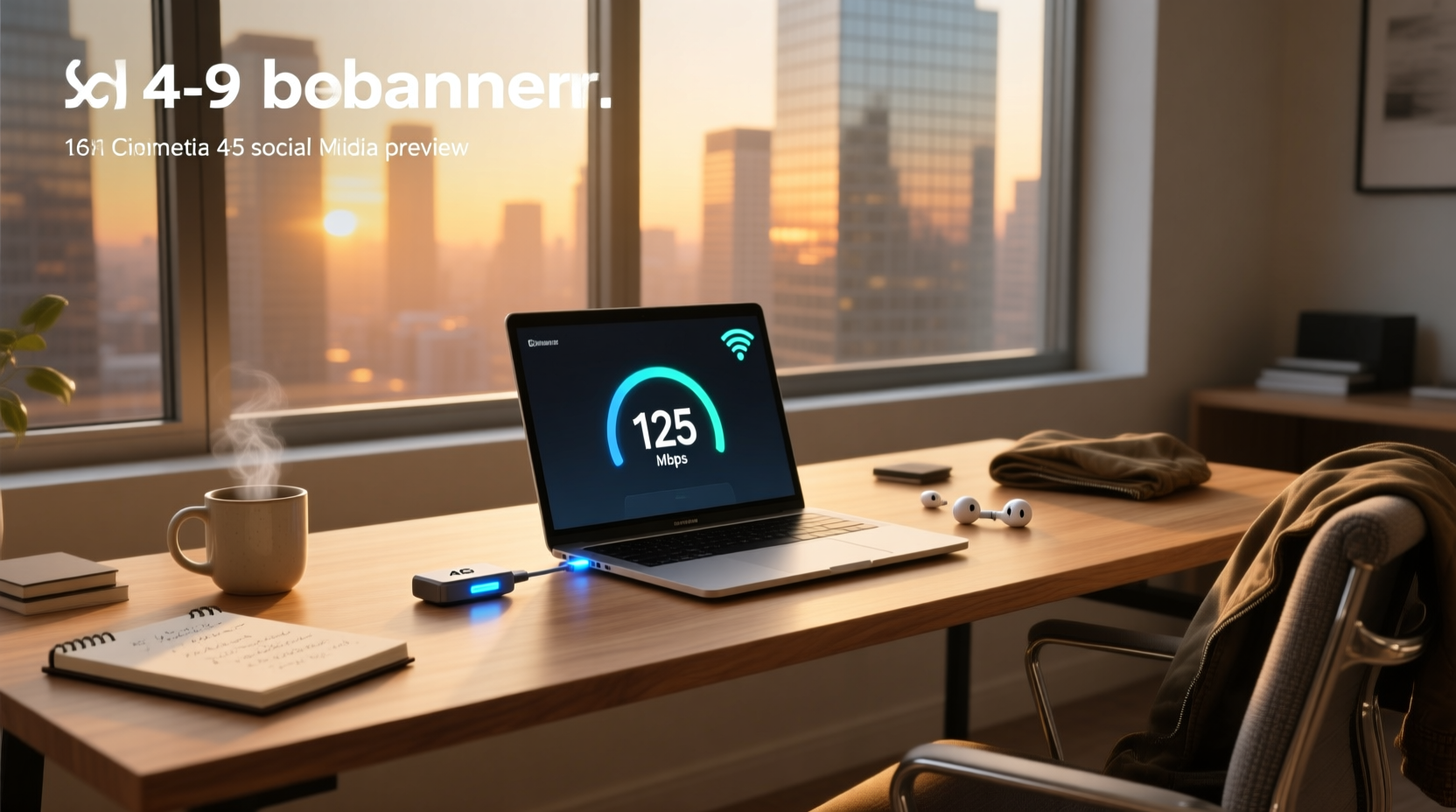
✅ A 4G dongle WiFi is a compact USB-connected device that converts cellular 4G LTE signals into a local Wi-Fi network — enabling multiple devices (laptop, tablet, phone) to share mobile broadband without tethering or smartphone hotspot limits. Unlike basic USB modems that only serve one PC, modern 4G dongle WiFi units function as portable routers with built-in Wi-Fi radios, SIM slots, and web-based management interfaces (typically accessed via 192.168.100.1). They’re ideal for remote workers, students, travelers, and backup internet — but choosing the right one requires understanding frequency bands, throughput realism, power requirements, and regional carrier compatibility. This guide cuts through marketing claims to deliver actionable, vendor-neutral criteria you can verify before purchase.
🔍 What Exactly Is a 4G Dongle WiFi? (Beyond the Buzzwords)
A 4G dongle WiFi — also marketed as a 4G LTE USB Wi-Fi router, mobile broadband dongle with Wi-Fi, or pocket hotspot modem — is a hybrid device combining three core functions in one small form factor:
- 📡 Cellular modem: Receives 4G LTE (and sometimes 3G fallback) signals from a mobile carrier using an embedded radio and antenna.
- 🖥️ Router & DHCP server: Assigns local IP addresses, manages traffic between connected devices and the internet, and handles NAT/firewall rules.
- 📶 Wi-Fi access point: Broadcasts a private 2.4 GHz (and occasionally dual-band 2.4/5 GHz) wireless network — supporting up to 10 concurrent clients in most consumer models.
Crucially, it is not the same as a standard Wi-Fi USB adapter (which only adds Wi-Fi capability to a non-WiFi laptop) 1. Nor is it identical to a smartphone’s built-in hotspot — though both provide shared Wi-Fi. The dongle operates independently: no phone battery drain, no app dependency, and often better thermal management and signal reception due to dedicated antennas.
⚡ How Does a 4G Dongle WiFi Actually Work?
Operation follows a simple four-step sequence:
- Insert a compatible micro-SIM or nano-SIM card (with active data plan) into the designated slot — usually behind a rubber cover on the device body.
- Plug the dongle into a powered USB port (on a laptop, desktop, or USB power bank). Some models include a DC-in jack for vehicle or wall adapters.
- Wait 15–60 seconds for the device to register on the cellular network (LED indicators typically shift from red → amber → green).
- Connect any Wi-Fi-enabled device to the SSID broadcast by the dongle (e.g., “ZTE-MF833V-XXXX”) using the default password printed on the label or in the manual.
Once connected, users access a web interface at http://192.168.100.1 (or similar) to configure APN settings, change Wi-Fi credentials, monitor data usage, set bandwidth limits, or update firmware 2. No driver installation is required on modern Windows/macOS/Linux systems — plug-and-play USB CDC ECM class support handles connectivity automatically.
📊 Key Technical Specifications You Must Verify (Not Just Trust the Box)
Marketing labels like “300Mbps” or “Ultra-Fast LTE” are misleading without context. Here’s what actually matters — and how to validate each:
🔹 LTE Band Support (The #1 Dealbreaker)
4G networks operate across dozens of frequency bands globally. A dongle sold in Mexico may support bands B1/B3/B7/B20 (common for Telcel, Movistar, AT&T México), but fail completely on U.S. T-Mobile (B2/B4/B12/B66) or UK EE (B3/B7/B20/B28). Always cross-check:
- Your carrier’s official published LTE band map (e.g., Telcel’s coverage page)
- The dongle’s spec sheet — look for explicit band numbers (B1, B3, B5, B7, B8, B20, B28, B38, B40, B41), not vague terms like “global LTE”
- Real user reviews mentioning signal strength in your specific city or rural area
⚠️ Warning: “Worldwide” or “EU/Asia compatible” labels often mean the device supports common bands — but not necessarily your carrier’s primary bands. Band mismatch = weak/no signal, even with full bars displayed.
🔹 Real-World Speed vs. Advertised Peak
“150Mbps DL / 50Mbps UL” refers to theoretical maximums under lab conditions. In practice, expect:
- Download: 10–45 Mbps in urban areas; 3–15 Mbps in suburban/rural zones
- Upload: 2–12 Mbps (often asymmetrical and more variable)
- Latency: 35–90 ms — higher than fiber/cable, but acceptable for video calls, cloud apps, and web browsing
Speed depends heavily on tower proximity, congestion, weather, and whether the dongle uses single-input single-output (SISO) or 2x2 MIMO antennas. Devices with external antenna ports (TS9 or SMA) allow upgrading to high-gain directional antennas — a critical upgrade for permanent home/office use 3.
🔹 Power Requirements & Portability
Most USB dongles draw 500–900mA at 5V. That’s fine for laptops — but problematic for:
- USB-C-only tablets (e.g., iPad Pro, Surface Go): May require a powered USB hub or OTG adapter with external power
- Low-power USB ports (some car stereos, older desktops): Can cause disconnects or unstable operation
- Extended battery-powered use: A 20,000mAh power bank provides ~8–12 hours — not days
If you need all-day field use, prioritize models with built-in batteries (e.g., MiFi-style variants) — though these sacrifice the “true dongle” form factor.
⚖️ 4G Dongle WiFi vs. Smartphone Hotspot vs. Dedicated Mobile Hotspot: Which Fits Your Use Case?
Understanding functional overlap helps avoid overpaying or under-provisioning:
| Feature | 4G Dongle WiFi | Smartphone Hotspot | Dedicated Mobile Hotspot (MiFi) |
|---|---|---|---|
| Power source | USB bus-powered (or optional DC adapter) | Phone battery (drains rapidly) | Internal rechargeable battery (6–24 hrs) |
| Simultaneous devices | Typically 5–10 | Usually capped at 5–8 (varies by OS/carrier) | 5–15 (higher-end models) |
| Data throttling | No carrier-imposed limits beyond plan | Often throttled after 5–10GB (especially on unlimited plans) | Same as dongle — depends on SIM plan |
| Signal quality | Better than phone (dedicated antennas, no metal chassis interference) | Worse — phone body blocks signal; antenna placement suboptimal | Best — optimized RF design, larger antennas, external port options |
| Management interface | Web UI (192.168.100.1); some support SMS commands | OS settings menu only; limited visibility into signal metrics | Web UI + companion app; detailed diagnostics (RSRP, SINR, PCI) |
When to choose a 4G dongle WiFi:
- You primarily use a laptop/desktop and want plug-and-play internet without draining your phone
- You need stable, long-duration connections for remote work (Zoom, Teams, cloud IDEs)
- You’re deploying multiple units in a small office or classroom (centralized management possible)
- You require consistent APN configuration across devices (e.g., enterprise IoT deployments)
Avoid it if:
- You rely on battery-only operation >4 hours without external power
- Your carrier uses uncommon LTE bands not listed in the dongle’s spec sheet
- You need advanced features like VLANs, QoS prioritization, or OpenWrt support (most consumer dongles lack this)
🔧 Setup & Configuration: Step-by-Step (No Tech Degree Required)
Most dongles work out-of-box — but APN misconfiguration is the #1 cause of “no internet” errors. Follow this verified workflow:
- Insert SIM and power on. Wait until the status LED shows solid green (network registered).
- Connect to its Wi-Fi network. Default SSID/password are on the device label or quick-start guide.
- Open a browser and go to
http://192.168.100.1. Log in with default credentials (admin/adminoradmin/1234— check manual). - Navigate to Network Settings > APN Configuration. Enter values provided by your carrier — e.g., for Telcel México:
apn: internet.itelcel.com,username: webgprs,password: webgprs2002. - Save and reboot. Wait 60 seconds. Check signal strength (RSRP/SINR values if shown) and test speed via speedtest.net.
If connection fails: confirm SIM is activated and has data balance; try alternate APNs (many carriers list 2–3); verify band lock settings (some devices default to EU bands only).
🌍 Regional Considerations: Why a “Global” Dongle Might Not Work Where You Live
Hardware certification varies by market:
- Mexico: Devices must comply with IFT (Instituto Federal de Telecomunicaciones) homologation. Look for “Homologado IFT” marking. Unapproved imports may be blocked from registering on Mexican networks.
- USA: FCC ID required. Avoid “grey market” units lacking FCC ID — they risk non-compliance and poor RF performance.
- EU/UK: CE marking + RED directive compliance essential. Band support differs significantly between EE, Vodafone, and Three.
Always verify regulatory markings *before* purchase — not just aesthetics or price. A $25 dongle without proper certification may cost more in frustration and downtime than a certified $45 model.
❌ Common Misconceptions (and Why They Matter)
- “More Mbps = faster real-world speed.” False. Throughput depends on signal quality (RSRP > -100 dBm, SINR > 15 dB), not just chipset rating. A 150Mbps dongle with -115 dBm RSRP will be slower than a 100Mbps unit at -95 dBm.
- “All ‘4G LTE’ dongles support VoLTE or voice calling.” Incorrect. These are data-only devices. Voice requires IMS registration — unsupported in consumer-grade dongles.
- “Wi-Fi range equals cellular coverage.” No. Wi-Fi broadcast (10–30m indoors) is independent of cellular signal strength. Weak LTE signal still delivers weak Wi-Fi — just with more local devices connected.
🛠️ Troubleshooting Checklist (Before You Return It)
If your 4G dongle WiFi isn’t connecting:
- ✅ Confirm SIM is inserted correctly (gold contacts facing down, fully seated)
- ✅ Check carrier coverage map for your exact address — don’t rely on “nearby tower” estimates
- ✅ Try a different USB port (preferably USB 3.0 on desktop/laptop)
- ✅ Reset to factory defaults (usually a pinhole button + 10-sec hold)
- ✅ Test SIM in another device (e.g., phone) to rule out account suspension or plan issues
- ✅ Monitor signal metrics in the web UI — RSRP below -110 dBm or SINR below 5 dB indicates poor radio conditions
❓ Frequently Asked Questions
- Can I use a 4G dongle WiFi with a desktop PC that has no Wi-Fi? Yes — it creates its own Wi-Fi network. Your desktop connects wirelessly (if it has Wi-Fi) or via Ethernet if the dongle has an RJ45 port (rare in USB-only models).
- Do I need a special data plan for a 4G dongle WiFi? No — any standard mobile data SIM works. However, some carriers throttle hotspot/dongle traffic on consumer plans. Check terms or opt for business/IoT plans if heavy usage is expected.
- Is a 4G dongle WiFi secure? Yes, when configured properly. Enable WPA2/WPA3 encryption, change default admin credentials, disable remote management, and keep firmware updated. Avoid public SSIDs or default passwords.
- Can I use it in a car? Yes — but mount near a window for best signal. Use a powered USB hub or 12V-to-USB adapter. Note: vibration and temperature extremes may affect longevity.
- Does it work with gaming consoles or smart TVs? Yes — any device with Wi-Fi client capability can connect. Latency is suitable for turn-based or casual games; competitive FPS may suffer vs. wired broadband.