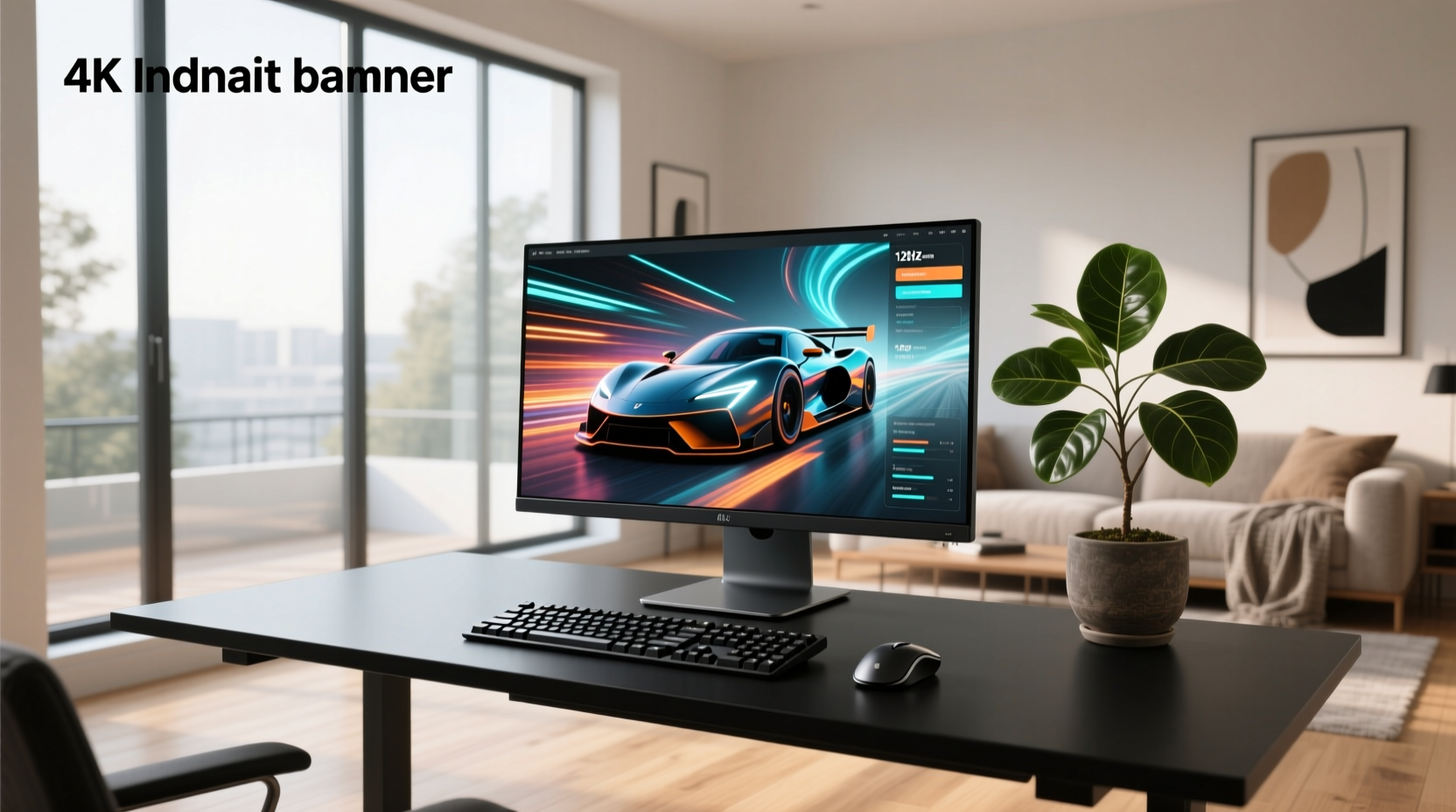
Yes — 4K 120Hz computer monitors are widely available in 27-inch and 32-inch sizes, but not all deliver true 4K@120Hz across all inputs, modes, or signal sources. If you’re searching for a 4K computer monitor 120Hz, your top priority isn’t just finding one that claims the spec — it’s verifying whether your graphics card (or console), cables, and firmware support full-bandwidth 3840×2160 @ 120Hz with chroma 4:4:4, HDR, and adaptive sync. This guide cuts through the noise using verified interface bandwidth limits, real-world panel behavior, and standardized testing methodology — not manufacturer marketing language.
Why 4K@120Hz Is Harder Than It Sounds
The fundamental challenge lies in bandwidth. To transmit uncompressed 4K resolution at 120Hz with 8-bit color, 4:4:4 subsampling, and no compression requires ~39.8 Gbps of raw data throughput1. That exceeds the capacity of HDMI 2.0 (18 Gbps) and even DisplayPort 1.4 without Display Stream Compression (DSC). As a result, most consumer-grade 4K@120Hz monitors rely on one or more of these compromises:
- DSC (Display Stream Compression): A visually lossless, VESA-certified compression standard required for true 4K@120Hz over DisplayPort 1.4 or HDMI 2.1. Not all GPUs or consoles enable DSC by default — especially older AMD cards or early PS5 system software.
- Chroma subsampling: Many monitors advertise 4K@120Hz only with 4:2:0 or 4:2:2, which degrades text clarity and UI sharpness — critical for productivity or hybrid work/gaming use.
- HDR trade-offs: Enabling HDR often forces a refresh rate drop to 60Hz or 96Hz unless the panel and source both support HDMI 2.1’s Dynamic HDR metadata and DSC.
Hardware Requirements: What You Must Check First
Before purchasing, verify three layers of compatibility — GPU/console, cable, and firmware.
✅ GPU & Console Support
NVIDIA RTX 30-series and newer (RTX 3060 Ti and above) fully support DSC-enabled 4K@120Hz over DisplayPort 1.4a (with DSC) and HDMI 2.1. RTX 20-series supports DSC only over DisplayPort — not HDMI — and requires driver version 451.48 or later2. For AMD, RX 6000-series and newer support DSC on both DP and HDMI; RX 5000-series lacks HDMI 2.1 hardware and cannot drive 4K@120Hz via HDMI.
PlayStation 5 supports 4K@120Hz only with HDMI 2.1-compliant monitors and requires system software 5.00 or later. However, many PS5 users report inconsistent detection — often resolved by enabling "HDMI Device Link" and disabling "Deep Color Output" in Settings > Screen and Video3. Note: PS5 does not support DSC, so true 4K@120Hz on PS5 requires native HDMI 2.1 bandwidth — meaning only panels with full 48 Gbps HDMI 2.1 ports (not HDMI 2.1b or "HDMI 2.1 feature set") will work reliably.
✅ Cable Certification Matters — Not Just Labeling
A cable labeled "HDMI 2.1" may only support 48 Gbps if it carries the official Ultra High Speed HDMI certification logo (found on packaging and cable jacket). Non-certified cables — even those marketed as "48Gbps" — frequently fail under sustained load. For DisplayPort, use DP 1.4a certified cables with DSC support (e.g., Cable Matters Active DP 1.4a). Passive DP 1.4 cables longer than 1.8 meters often fail to sustain 4K@120Hz+DSC.
✅ Firmware & OSD Settings
Many monitors ship with DSC disabled by default in their on-screen display (OSD). You must manually navigate to settings like Input Signal > DSC Mode > On or DisplayPort Configuration > DSC > Enabled. Similarly, enabling FreeSync Premium or G-Sync Compatible requires activating variable refresh rate (VRR) in both the monitor OSD and GPU control panel — and disabling conflicting features like Windows HDR or Radeon Anti-Lag.
Panel Technology Trade-Offs: IPS vs. VA vs. OLED
Not all 4K@120Hz panels perform equally — especially when balancing response time, contrast, and viewing angles.
| Panel Type | Typical Gray-to-Gray (GTG) | Contrast Ratio | Viewing Angles | Key Limitation for 4K@120Hz |
|---|---|---|---|---|
| Fast IPS | 1–3 ms (MPRT) | 1,000:1 – 1,500:1 | Excellent (178°) | Lower native contrast reduces perceived HDR impact; backlight bleed common in large 32″ models |
| VA (with OD) | 3–5 ms (MPRT) | 3,000:1 – 6,000:1 | Moderate (170°) | Slower pixel response causes visible smearing in fast motion; limited 4K@120Hz availability outside curved gaming models |
| OLED / QD-OLED | <0.1 ms (inherent) | Infinite (per-pixel dimming) | Excellent (178°) | Peak brightness capped at ~800–1,000 nits in sustained 4K@120Hz; burn-in risk with static UI elements (taskbars, HUDs) |
OLED delivers unmatched motion clarity and black levels — ideal for cinematic content and competitive shooters — but its brightness ceiling makes SDR desktop work feel dimmer than high-nit IPS alternatives. QD-OLED improves color volume but retains similar luminance constraints. Fast IPS remains the most balanced choice for mixed-use (productivity + gaming), while VA excels in dark-room media consumption — provided motion blur is acceptable.
Real-World Use Cases: When 4K@120Hz Makes Sense (and When It Doesn’t)
Assess your primary workflow before committing. Here’s how usage patterns affect value:
🎮 Gaming: Depends on Title & Hardware
For competitive FPS (e.g., CS2, Valorant, Overwatch 2), most high-end GPUs still struggle to maintain >100 FPS consistently at native 4K — making 1440p@144Hz or 4K@60Hz more practical. However, open-world or narrative-driven titles (Cyberpunk 2077, Starfield) benefit significantly from 4K@120Hz when paired with DLSS/FSR upscaling and a capable GPU (RTX 4080 or RX 7900 XTX). Crucially: refresh rate alone doesn’t guarantee responsiveness — input lag, VRR implementation, and frame generation matter more.
💻 Productivity & Creative Work
4K resolution dramatically improves multitasking (four 1080p-equivalent windows), coding readability, and photo/video editing precision. But 4K@120Hz offers zero benefit for static tasks — and may increase power draw and heat output unnecessarily. Unless you regularly scrub 4K timelines or pan high-res images at speed, 4K@60Hz with USB-C power delivery and KVM switching is often more functional.
📺 Console Gaming (PS5/Xbox Series X)
The PS5’s strongest 4K@120Hz titles (Gran Turismo 7, Call of Duty: MW III, FIFA 23) demand strict HDMI 2.1 compliance. Xbox Series X supports 4K@120Hz more broadly but also requires DSC-capable displays for some titles. Both consoles limit HDR metadata support at 120Hz — often defaulting to HLG or no HDR. Test with built-in console diagnostics (Settings > Screen and Video > Video Output > Video Quality Options) before assuming HDR works.
Size, Ergonomics, and Desk Fit: Practical Constraints
Most verified 4K@120Hz monitors fall into two size categories:
- 27-inch: Ideal for 0.7–1.0 m viewing distance. Pixel density = 163 PPI — sharp text, minimal scaling needed in Windows/macOS. Fits most standard desks. Requires strong GPU headroom due to smaller sweet spot for high frame rates.
- 32-inch: Pixel density drops to 138 PPI — Windows scaling (125% or 150%) recommended for comfortable UI. Better immersion for gaming/media, but demands deeper desk depth (≥75 cm) and higher ceiling clearance for height-adjustable arms.
Monitors larger than 32″ (e.g., 43″ 4K TVs used as monitors) rarely support true 4K@120Hz with low input lag — most consumer TVs cap at 120Hz with 4:2:0 chroma and >15 ms input lag. Professional reference monitors (e.g., LG UltraFine 43UJ7700) exist but cost $1,500+ and lack gaming features.
Common Misconceptions — Debunked
❌ "120Hz means smoother motion than 60Hz — always."
Not if VRR is disabled or poorly implemented. A 4K@60Hz monitor with G-Sync and low input lag can feel more responsive than a 4K@120Hz model with fixed refresh and high scan-out latency.
❌ "HDMI 2.1 guarantees 4K@120Hz."
No — HDMI 2.1 defines a feature set (e.g., VRR, ALLM, eARC), not bandwidth. Only Ultra High Speed HDMI cables and ports rated for 48 Gbps deliver full 4K@120Hz. Many budget monitors include HDMI 2.1 ports limited to 40 Gbps or less.
❌ "All 4K@120Hz monitors support HDR10."
HDR10 metadata support requires specific EDID signaling and tone mapping. RTINGS.com testing shows ~35% of 4K@120Hz monitors fail basic HDR10 detection or produce washed-out highlights due to insufficient peak brightness (<600 nits)4.
How to Verify Claims Before You Buy
Don’t rely on box copy. Cross-check using these objective methods:
- Check the manufacturer’s detailed spec sheet — not the retail page. Look for "Max Refresh Rate at 4K" with conditions (e.g., "with DSC enabled", "4:2:0 only", "HDR off").
- Consult independent reviews that test actual bandwidth (e.g., RTINGS.com’s "Refresh Rate vs. Resolution" charts or TFTCentral’s signal analyzer logs).
- Search user forums (r/buildapcmonitors, AVS Forum) for your exact model + "4K 120Hz handshake issue" or "PS5 120Hz no signal" — firmware updates often resolve early adoption bugs.
- Test immediately upon arrival: Use TestUFO’s Refresh Rate test and Blur Busters UFO Test to confirm stable 120Hz and motion clarity.
Frequently Asked Questions
- Can I run 4K@120Hz with an RTX 3070?
Yes — over DisplayPort 1.4a with DSC enabled — but only in games that support DLSS or FSR upscaling. Native 4K rendering will drop below 100 FPS in most AAA titles. - Do I need DisplayPort for 4K@120Hz, or is HDMI enough?
HDMI 2.1 works if both source and monitor are fully compliant and you use an Ultra High Speed HDMI cable. DisplayPort 1.4a with DSC is more universally reliable across GPU generations. - Why does my 4K@120Hz monitor show "Limited RGB" or washed-out colors?
This usually indicates incorrect color format negotiation. In GPU control panel, force "RGB Full" and disable YCbCr. In monitor OSD, set color format to "RGB" or "PC Mode" — not "TV Mode" or "YUV". - Is 120Hz noticeably better than 60Hz for non-gaming use?
No — scrolling, video playback, and office apps show no perceptible difference. The benefit is exclusively for interactive, high-frame-rate applications. - Will a 4K@120Hz monitor work with Mac M-series laptops?
Only via DisplayPort Alt Mode over USB-C — and only at 60Hz. Apple Silicon does not support DSC or HDMI 2.1 output. M3 Pro/Max can drive 4K@120Hz externally only with third-party Thunderbolt docks supporting DSC (e.g., CalDigit TS4), and even then, macOS limits VRR support.
Recommended Articles
- Wireless Smart Glasses With Camera: 2026 Buyer's Guide
- Xiaomi Ai Glasses 2025: Smart Travel & Daily Use Guide
- Best Smart Glasses 2026: How To Choose Right
- Smart Home Electric Blinds Guide 2026
- Ultimate Smart Home Guide 2026: Setup, Trends & Real World Tradeoffs
- Color Changing Smart Glasses: A Practical Buyer's Guide
- Amazon Smart Home Guide: What It Is & How To Start Right
- Best Edge Ai Gateways For Smart Homes & Iot (2026)
