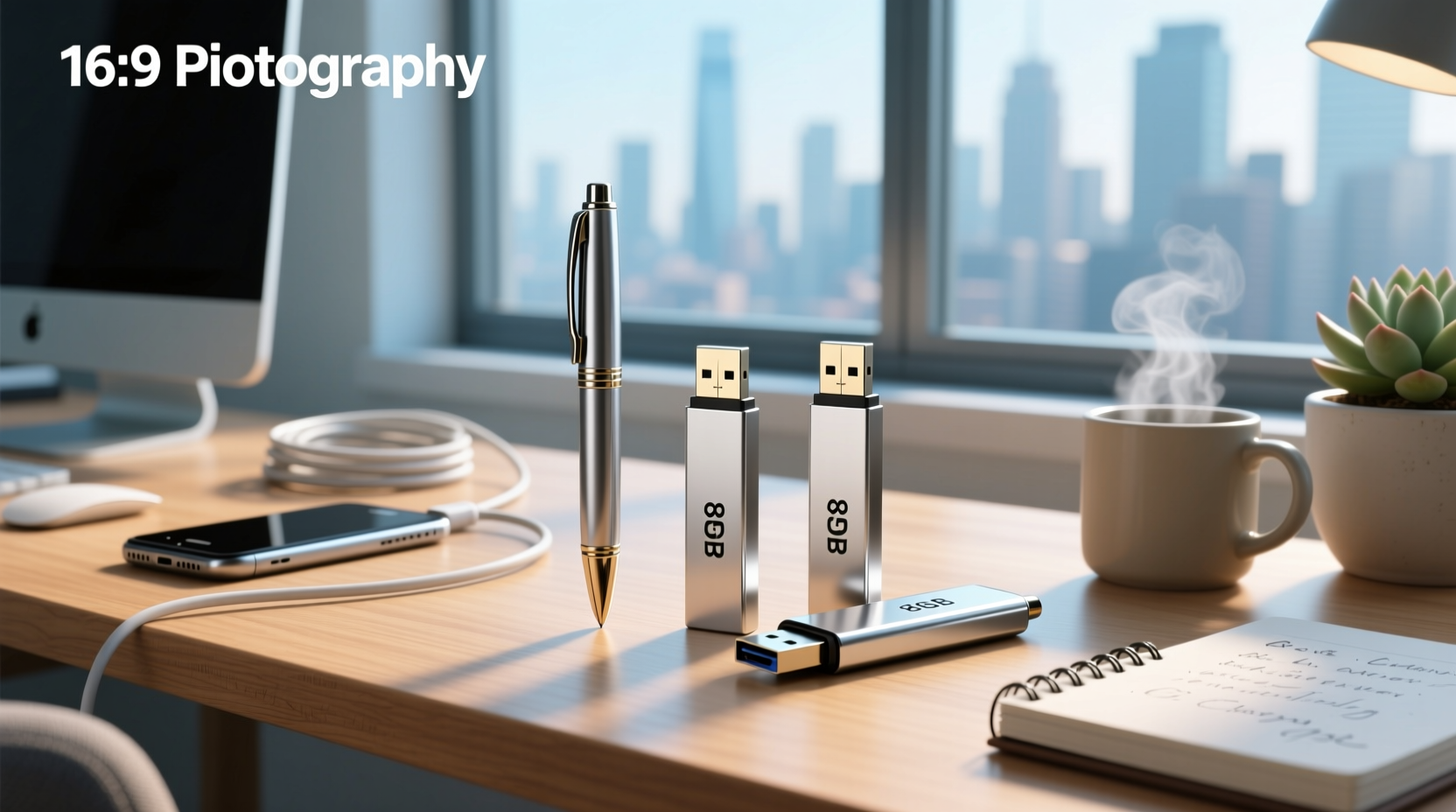
For most everyday tasks—transferring a PowerPoint presentation, backing up a few dozen photos, creating a Windows 10 bootable installer, or carrying school assignments—an 8GB USB flash drive remains a practical, widely compatible, and cost-effective storage solution. Despite growing availability of higher-capacity drives, 8GB USB flash drives continue to dominate bulk procurement, education deployments, IT labs, and promotional gifting due to their balance of affordability, plug-and-play simplicity, and sufficient space for lightweight, portable workflows. This guide answers the questions users actually ask—not just what’s cheapest, but what’s reliably functional, compatible with older systems, and fit for purpose across common scenarios like classroom use, firmware updates, or cross-platform file sharing.
Why 8GB Still Matters in 2024 — And When It Doesn’t
An 8GB USB flash drive holds approximately 6,700 photos (12MP), 2,600 MP3 songs (3MB each), or ~1,500 pages of text documents1. That’s enough for a semester’s worth of lecture slides, a full Windows 10 ISO (4–5GB), or a small software development toolkit. But it’s not enough for raw video editing, large database exports, or multi-gigabyte game installers. The key insight isn’t capacity alone—it’s use-case alignment. If your workflow involves moving single files under 500MB (PDFs, ZIP archives, .exe installers), 8GB is more than adequate—and often more reliable than ultra-cheap high-capacity alternatives that misreport capacity or fail after minimal write cycles.
USB 2.0 vs. USB 3.0: Does Speed Matter for 8GB?
Most 8GB USB flash drives on the market are still USB 2.0, with typical read speeds of 10–15 MB/s and write speeds of 3–8 MB/s. A USB 3.0–rated 8GB drive may advertise “up to 100 MB/s,” but in practice, its real-world performance rarely exceeds 20 MB/s—and often matches or falls short of mid-tier USB 2.0 models due to controller and NAND quality constraints at this capacity point2. Why? Because manufacturers prioritize cost efficiency over speed scaling for sub-16GB units. Unless you’re repeatedly writing hundreds of small files (e.g., logging sensor data), the difference between 5 MB/s and 15 MB/s is imperceptible for typical user actions like copying a 200MB PDF or launching portable apps. More importantly: a USB 3.0 drive inserted into a USB 2.0 port performs identically to a native USB 2.0 drive. So unless your host device has USB 3.0 ports *and* you regularly move >1GB batches, paying extra for “USB 3.0” on an 8GB unit offers negligible return.
Physical Design: Swivel, Capless, Keychain — What Actually Improves Durability?
Design features marketed as “premium” often reflect trade-offs—not upgrades. A swivel mechanism eliminates cap loss but introduces mechanical wear; after ~500 rotations, some units develop loose hinges or inconsistent USB alignment. A capless sliding design avoids caps entirely but exposes the connector to lint and pocket debris, increasing corrosion risk over time. A keychain ring improves portability but adds stress to the USB-A interface during jostling—especially if the drive lacks internal strain relief. Independent teardown analyses show that metal-body 8GB drives (e.g., aluminum or zinc alloy) consistently outlast plastic-bodied units in drop tests and long-term insertion cycles, regardless of swivel or cap style3. However, metal bodies also conduct heat—potentially accelerating NAND degradation during sustained writes. For most users, a compact, rigid plastic body with reinforced USB connector (e.g., molded-in reinforcement ribs) delivers the best balance of longevity and thermal stability.
The Hidden Risk: Counterfeit & Capacity Fraud
Because 8GB is a low-margin, high-volume category, it’s disproportionately targeted by counterfeiters. Common red flags include:
- Price significantly below $4.50 per unit in bulk (e.g., 10-packs under $30) — indicates likely reprogrammed NAND or fake capacity reporting;
- No visible brand logo or inconsistent packaging typography — many fakes mimic SanDisk, Verbatim, or Kingston but omit model numbers or regulatory markings (FCC ID, CE mark);
- “USB 3.0” labeling on drives without blue inserts or SS branding — genuine USB 3.0 connectors have blue plastic inside the port; absence suggests false labeling;
- Failure in H2testw or F3 verification tools — a legitimate 8GB drive will report exactly 7.4–7.6 GiB usable space (due to binary vs. decimal calculation); anything above 7.7 GiB warrants suspicion.
Bulk Purchasing: When 10-Pack Deals Make Sense (and When They Don’t)
Many users search for “8gb usb flash drive 10 pack” because they need consistent units for classrooms, conferences, or employee onboarding. Bulk pricing drops sharply: verified genuine 8GB USB 2.0 drives from reputable OEMs (e.g., Verbatim Store ‘n’ Go, Centon DataStick) cost $3.80–$4.30/unit in 10-packs. But beware of “10-pack” listings with no manufacturer name, no warranty statement, or vague specs like “high speed” without measured throughput. These often contain mixed-grade NAND from multiple fab lots—leading to inconsistent failure rates across the same batch. For mission-critical deployments, request sample units and test write endurance using a tool like USB Tester, which cycles write/read operations and logs error rates. If >1 of 10 units fails before 5,000 cycles, the lot is unsuitable for daily-use environments.
Compatibility: Windows 10, macOS, Linux, and Legacy Systems
All modern 8GB USB flash drives use FAT32 or exFAT formatting out-of-the-box—ensuring native read/write support on Windows 10/11, macOS 10.13+, and most Linux distributions (with vfat or exfat-utils installed). However, two edge cases matter:
- FAT32 cannot store individual files larger than 4GB — so while a Windows 10 ISO fits, a 5GB macOS installer or 6GB VM image will not. Reformatting to exFAT resolves this but reduces compatibility with older embedded systems (e.g., car stereos, photocopiers).
- Some BIOS/UEFI firmware only recognizes USB drives formatted with MBR partition tables and legacy boot sectors — particularly for creating bootable media. If your system fails to detect the drive during startup, try Rufus with “MBR partition scheme for BIOS or UEFI-CSM” selected, not GPT.
Security & Data Wiping: What “Password Protected” Really Means
“Password protected” 8GB USB drives fall into two categories: software-based encryption (e.g., AES-128 via vendor app) and hardware-based encryption (dedicated crypto controller). Most sub-$10 units use software encryption—meaning the password unlocks a virtual container, but raw NAND data remains recoverable with forensic tools if the drive is physically accessed. True hardware encryption is rare at 8GB; when present, it’s usually found in enterprise-oriented lines (e.g., Kingston IronKey D300) and carries a $25+ price tag. For casual users, full-disk encryption via BitLocker (Windows), FileVault (macOS), or LUKS (Linux) is more reliable and free. To wipe an 8GB drive securely: use diskutil secureErase 4 /dev/diskX (macOS), cipher /w:X: (Windows), or shred -v -n 1 /dev/sdX (Linux). Avoid “quick format”—it only deletes the file table, leaving all data intact.
Environmental & Long-Term Storage Considerations
Flash memory degrades with time and usage. An 8GB drive stored powered-off at room temperature retains data for ~10 years—assuming no more than 100 full-write cycles per block4. But frequent rewrites accelerate wear: copying 1GB of files daily will exhaust most consumer-grade 8GB drives in 1–2 years. For archival purposes, treat 8GB drives as transport media, not long-term repositories. Never rely on them for irreplaceable originals—always maintain at least two copies on separate physical media (e.g., external SSD + cloud backup). Also note: extreme temperatures (>60°C or <−20°C), humidity >80% RH, and direct UV exposure degrade NAND faster. Keep drives in anti-static bags when unused for >6 months.
When to Skip 8GB Entirely
Choose a larger capacity if you routinely handle:
- Raw photo/video files (even smartphone HEIC/HEVC can exceed 5MB per frame);
- Virtual machines or Docker images (>2GB each);
- Multiple bootable OS installers simultaneously;
- Encrypted containers or full-disk backups of laptops.
Frequently Asked Questions
- Can I use an 8GB USB flash drive to install Windows 10?
Yes—Windows 10 ISOs are ~4.5–5.2GB, leaving ample space for drivers and utilities. Use Rufus or Microsoft’s Media Creation Tool to create bootable media. - Why does my 8GB USB drive show only 7.4GB in Windows?
This is normal. Storage manufacturers use decimal (base-10) GB (1GB = 1,000,000,000 bytes), while operating systems use binary (base-2) GiB (1GiB = 1,073,741,824 bytes). 8,000,000,000 ÷ 1,073,741,824 ≈ 7.45 GiB. - Are USB-C 8GB flash drives worth buying?
Only if your primary devices use USB-C exclusively and lack USB-A ports. Most USB-C 8GB drives are USB 2.0 internally—speed and capacity benefits are identical to USB-A versions. Adapter cables add cost and failure points. - Do 8GB flash drives work with Chromebooks?
Yes—ChromeOS supports FAT32/exFAT natively. Mounting is automatic; no extensions or permissions needed for basic file access. - How do I know if my 8GB USB drive is counterfeit?
Run H2testw. If it reports >7.7 GiB usable space or fails verification, it’s counterfeit. Also check for missing FCC ID, inconsistent branding, or unusually low price per unit.
