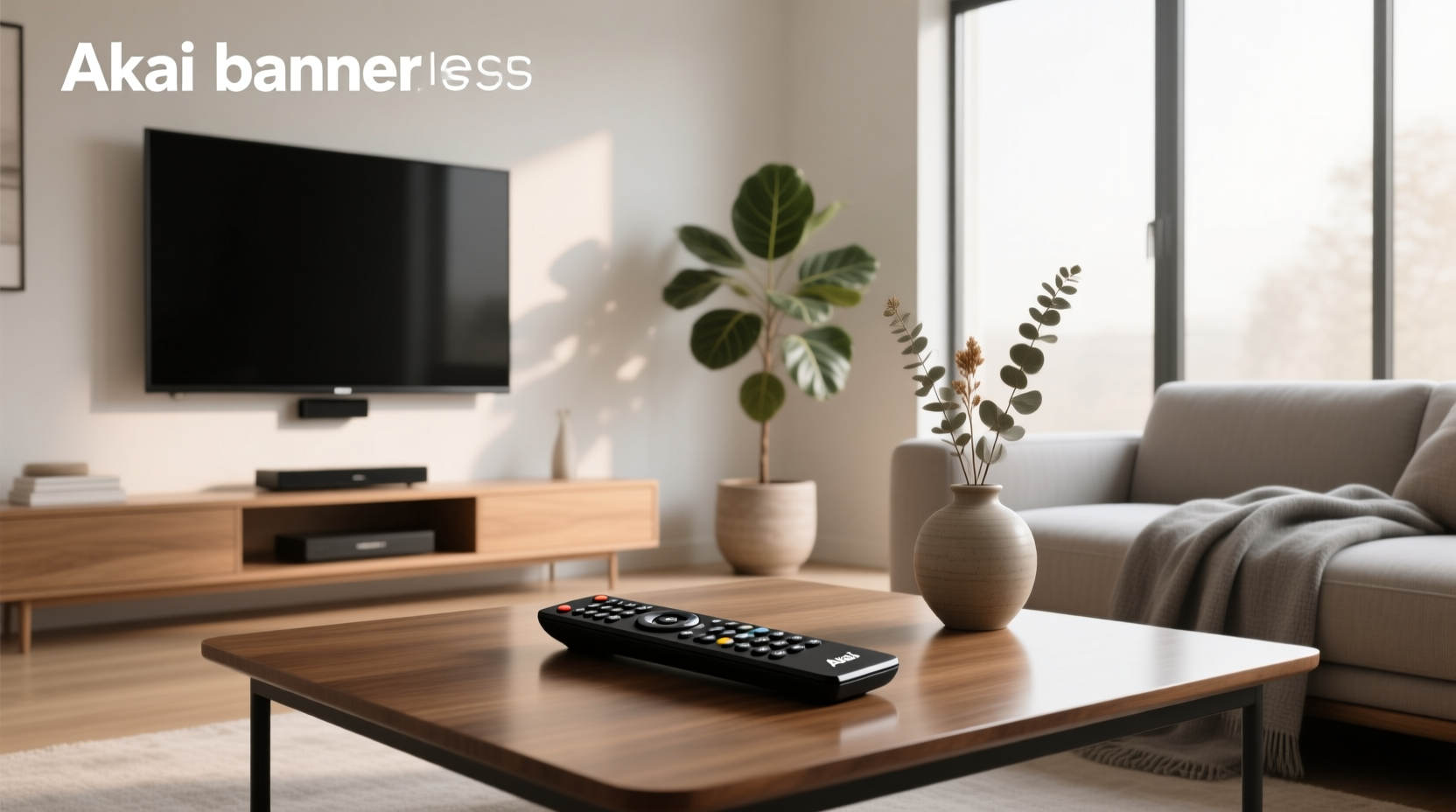
Looking for a reliable remote control for Akai TV? Start here: Most Akai TVs—especially models from the 2010s–2020s like AKTV3210, AKTV505T, LES-40D88M, or CTV5584—require infrared (IR) remotes with exact code sets. Universal remotes can work—but only if programmed correctly using the right setup codes (e.g., 0079, 0756, or 0178). Original OEM remotes (e.g., part #790-002517-A1 or RC-G57) offer guaranteed compatibility and full function support—including Netflix, volume sync, and input switching—while third-party replacements may vary in feature coverage depending on design specifications.
Understanding Remote Compatibility for Akai TV
Akai-branded TVs have been manufactured under license by multiple OEM partners—including Shownic (China), TCL (for select U.S. models), and various white-label factories across Asia. As a result, IR protocol implementation can vary across production batches, regions, and firmware revisions. Unlike some consumer electronics brands, Akai does not publish public IR code databases or developer SDKs. This means native remote support in platform-level apps such as Google TV is not available. Many Android apps labeled “Akai TV Remote” on Google Play are developed by independent creators and may offer varying levels of functionality depending on device configuration and IR hardware availability. Smartphone-based remote solutions require compatible hardware—specifically a built-in IR blaster—which is present in select legacy Android devices but not in most modern iPhones or recent flagship Android phones 1.
Step 1: Identify Your Exact Akai TV Model (Before You Buy Anything)
You cannot reliably match a remote without knowing your TV’s precise model number—not just “Akai LED” or “Akai Smart TV.” The model appears on a physical label located on the back panel, typically near the AV ports or stand mount. Look for a sticker containing alphanumeric strings like AKTV503, LES-32D85M, AK-3218HD, or LT-3225HD. Avoid relying on packaging, receipt, or memory—manufacturers reused model names across generations with different remote requirements. For example, the AKTV3210 was produced in multiple hardware revisions (2015, 2017, and 2019), each with distinct IR command timing. If the label is worn or inaccessible, check the TV’s system menu: navigate to Settings > Device Info > Model Number (exact path varies; some older Akai units list it under Support > About This TV). Screen size or year alone are not reliable indicators of remote compatibility—two 42-inch Akai TVs from the same year may use different remote ICs.
Step 2: Confirm Infrared (IR) vs. RF or Bluetooth Support
Over 95% of Akai TVs released before 2022 use infrared-only remotes. If your original remote had a visible red LED that glowed when buttons were pressed—and required line-of-sight—it’s IR-based. No Akai consumer TV uses Bluetooth or Wi-Fi for primary remote control; any “smart remote” claiming native Bluetooth pairing is designed for secondary functions (e.g., voice search via companion app). Some high-end Akai models (e.g., CTV5584 UHD SMART CURVED) include HDMI-CEC support, enabling limited control via compatible soundbars or game consoles—but this does not eliminate the need for a working IR remote to access settings, firmware updates, or input selection. Important: Many third-party “universal” remotes sold as “for Akai TV” are RF-based (requiring a USB receiver) and will not function unless explicitly stated as IR-compatible. Always verify the product description includes “infrared,” “IR,” or “line-of-sight operation”—and cross-check against your original remote’s behavior.
Step 3: Original vs. Replacement vs. Universal — What Actually Works?
Three main options exist—each with distinct characteristics:
- Original OEM remotes (e.g., Akai 790-002517-A1, KK-Y261G, or RC-700): Designed specifically for Akai TVs, offering full button mapping, consistent IR pulse width, and optimized ergonomics. Availability may be limited as some models are discontinued; pricing on secondary markets reflects supply-demand dynamics 4. Authentic units typically include branding elements such as embossed logos or holographic verification features.
- High-quality replacements (e.g., brands like Duremote or General Electric): Engineered using certified IR components and matching OEM pinouts. Typically cost $35–$65. These units are model-specific—no “one-size-fits-all” solution covers all Akai variants. Check seller documentation for listed compatible models; listings that specify exact model numbers demonstrate greater technical alignment.
- Programmable universal remotes (e.g., Logitech Harmony Elite or One For All URC-7935): Require manual setup using device codes. Verified working codes for certain Akai series include 0079 (for AKTV series), 0756 (for LES/LEA series), and 0178 (for older plasma models like PDP4247FA). Compatibility depends on firmware version and hardware generation; newer Akai smart TVs may respond differently to legacy codes. Setup success is enhanced with user familiarity with multi-step programming workflows.
When evaluating universal remotes, consider whether the unit supports model-specific command structures—particularly for features such as “Source,” “Menu Lock,” or “Input Toggle”—which may differ across Akai hardware generations.
Step 4: Troubleshooting a Non-Working Remote (Before Replacing)
Before assuming the remote is dead, rule out simple causes:
- Battery polarity & contact corrosion: Remove batteries and inspect terminals. Akai remotes may experience alkaline leakage over time, which can affect spring contacts. Cleaning with isopropyl alcohol and a cotton swab helps restore conductivity. Ensure new batteries (CR2025 or AAA, depending on model) are inserted with correct +/− orientation—proper polarity ensures optimal signal transmission 5.
- IR emitter test: Use a smartphone camera (not selfie cam) to view the remote’s IR LED while pressing buttons. A faint purple or white light indicates normal operation; absence suggests the emitter diode may require replacement.
- TV IR receiver blockage: Dust, glare, or plastic film over the TV’s IR sensor (usually a small dark window near the bottom bezel) blocks signals. Wipe gently with a microfiber cloth.
- Firmware lockout: Some Akai TVs enter “remote learning mode” after repeated failed pairing attempts. Power-cycle the TV (unplug for 60 seconds), then retest.
If all tests pass but the remote still fails, internal circuit diagnostics may be needed—especially for units older than 7 years.
Step 5: Key Considerations When Buying Online
Online marketplaces list numerous “Akai TV remote” options—with varying degrees of compatibility assurance. To support informed decisions:
- Model-specific listings: Reputable sellers provide explicit compatibility details, such as “For AKTV505T, AKTV4620, ATE-55B5514K only.” Listings using vague phrasing like “fits all Akai TVs” do not indicate technical specificity.
- Hardware requirements for smartphone apps: Apps requiring no external hardware rely on network-based control protocols, which Akai TVs do not support. These apps simulate on-screen button presses and cannot power on/off the TV without compatible IR hardware.
- Component quality considerations: IR encoder chips, emitter diodes, and PCB construction influence performance consistency. Units priced significantly below average often reflect differences in component sourcing and manufacturing standards.
- Authentication markers: Authentic Akai remotes commonly include verification features such as holographic stickers or embossed logos. Visual inspection of packaging and labeling aids authenticity assessment.
Regional Variations & Firmware Impact
Akai TV firmware differs across regions—especially between North America, Latin America, and Southeast Asia. Units sold in Brazil (e.g., AKTV190) may run customized Android TV builds with IR command mappings distinct from identical-looking models sold in the U.S. Carrier-branded Akai TVs (e.g., those bundled with Comcast or Spectrum) may include firmware configurations optimized for specific service environments. While there is no public Akai firmware version database, regional origin can often be inferred from model suffixes: “-US” or “-NA” indicates North American firmware; “-BR” or “-LATAM” suggests Latin American tuning; no suffix often corresponds to Asian-market firmware. International purchases benefit from confirmed regional variant alignment or written compatibility verification from the seller.
Verifying Compatibility Before Purchase
Supplement listing information with these verification steps:
- Compare button layout: Match your original remote’s physical layout (especially power, source, and menu buttons) to the replacement photo. Layout alignment increases likelihood of functional correspondence.
- Check IR frequency specs: Akai remotes operate at 38 kHz. Confirmation of “38 kHz IR carrier frequency” in product documentation supports synchronization readiness.
- Review return policy: Reputable sellers offer flexible return windows—for example, at least 30 days—for non-working remotes. Policies indicating “all sales final” may limit post-purchase resolution options.
- Search for video reviews: Look for unboxing or setup videos showing the exact model number being used with an Akai TV—not generic demonstrations.
Long-Term Reliability Considerations
Original remotes provide long-term reliability through design alignment with Akai hardware specifications. Higher-tier replacements (e.g., those from Duremote or Redi Remote) incorporate features such as gold-plated contacts and reinforced PCB traces, supporting extended operational life under typical usage conditions. Keypad material choice influences longevity—rubberized keypads may exhibit faster wear in humid environments, while molded plastic variants maintain tactile feedback longer. Ergonomic dimensions matter too: Akai remotes average 152 mm × 42 mm; oversized universal units may impact comfort during extended use. For users managing multiple Akai devices (e.g., TV + DVD player), dual-device learning capability—available in select premium replacements—offers added convenience.
Frequently Asked Questions (FAQ)
- Can I use my iPhone or Android phone as a remote for my Akai TV?
Only if your phone has a built-in IR blaster (e.g., older Samsung Galaxy S4–S6, Huawei Mate 20 Pro, or Xiaomi Mi Note series). Most current iPhones and flagship Android phones (Pixel 8, Galaxy S24, OnePlus 12) lack IR hardware. Apps like “Smart Akai TV Remote” require an external IR dongle connected via USB-C or Lightning—and even then, support depends on hardware compatibility 1. - Will a universal remote work with any Akai TV model?
Universal remotes require correct setup codes and IR timing alignment. Akai lacks standardized codes across models—so success depends on matching both hardware generation and firmware version. Verified codes exist for a subset of known Akai models, and compatibility testing is recommended prior to full deployment. - Why did my Akai TV remote stop working after changing batteries?
Most commonly due to battery terminal corrosion or reversed polarity. Akai remotes are sensitive to contact resistance; even slight oxidation prevents signal transmission. Clean terminals thoroughly before inserting new batteries. - How do I find the model number if the label is missing?
Access the TV’s service menu: Press and hold Source + Volume Up + Menu (or Power + Mute + Vol+) for 8 seconds while powering on. Navigate to “Info” or “Board Info” to display the full model string. If this fails, contact Akai’s regional support with the serial number (found on the same label area). - Are Akai TV remotes interchangeable between LED, LCD, and Plasma models?
Plasma models (e.g., PDP4247FA) use longer IR pulse trains than LED/LCD units. Using a plasma remote on an LED TV may produce inconsistent responses—such as unintended channel or volume changes—due to protocol mismatch.
