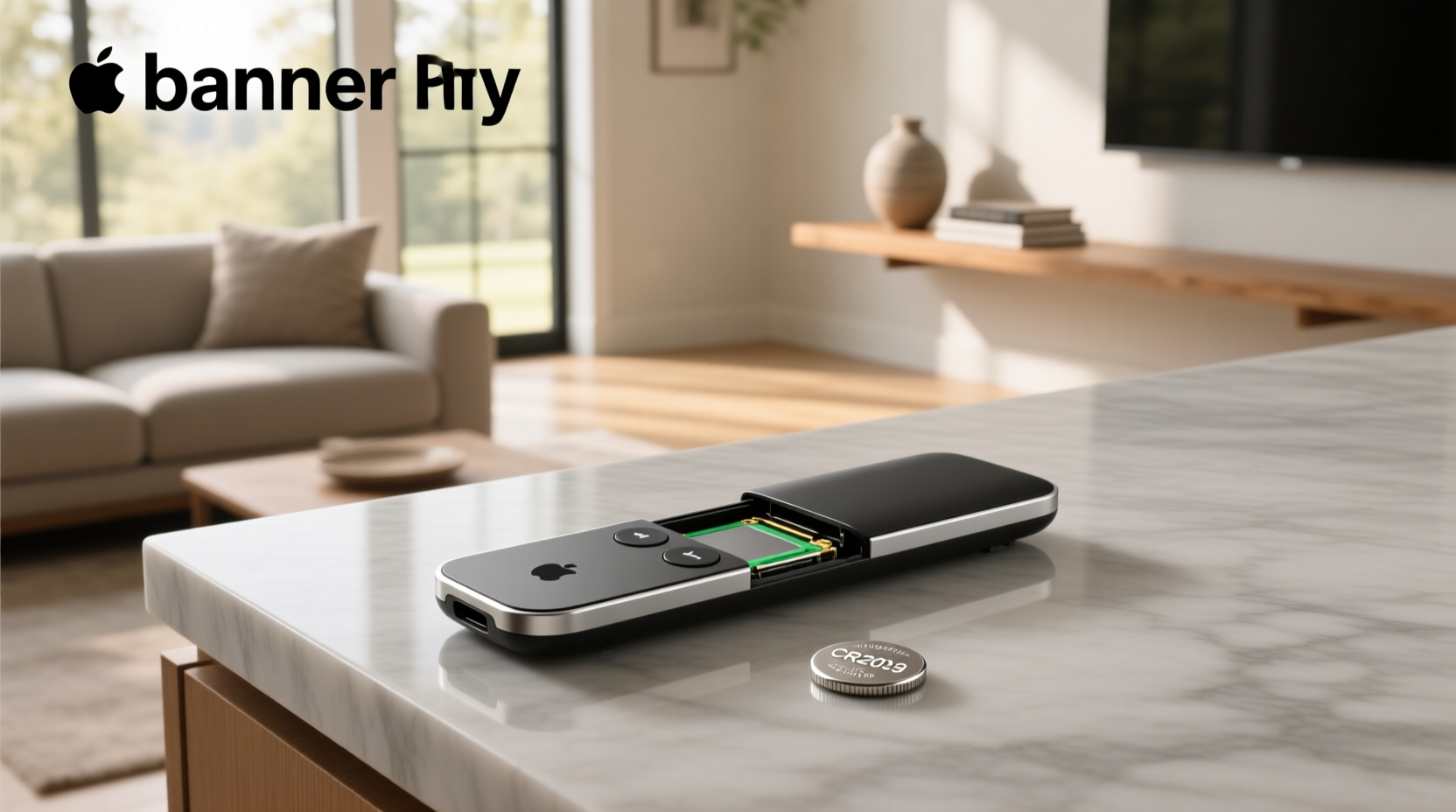
✅ TL;DR — Here’s what you need to know right now: Only older Apple TV remotes (white plastic or aluminum, shipped before 2015 with Apple TV 2nd/3rd gen) use a replaceable CR2032 coin cell battery1. All Siri Remotes (4th gen and later — including those bundled with Apple TV 4K and Apple TV 4K 2nd/3rd gen) have sealed, non-replaceable rechargeable batteries charged via Lightning (2015–2022) or USB-C (2022+)2. Modern Siri Remotes are designed for long-term reliability and seamless integration with Apple TV systems. If your newer remote won’t hold charge, cleaning the port or resetting may help — and Apple Support offers official service options for battery-related concerns3.
Why This Confusion Exists — And Why It Matters
Millions of Apple TV users search for “apple tv remote control battery change” every month — yet most don’t realize there are two fundamentally different remote generations, separated by hardware design, serviceability, and battery architecture. The confusion isn’t accidental: Apple never labeled remotes with generation numbers, and packaging rarely clarifies battery type. Users often assume all remotes work the same way — leading to wasted time, damaged devices, or unnecessary purchases.
This article cuts through the noise. We’ll walk you through:
- How to identify your exact Apple TV remote model (with visual & functional cues),
- Step-by-step, tool-free instructions for replacing the CR2032 in legacy remotes,
- Proper charging methods and troubleshooting for Siri Remotes,
- What to do when your modern remote stops holding charge — and how Apple supports users in such cases,
- Real-world battery life expectations, degradation patterns, and service options.
Part 1: Identify Your Remote — Before You Touch Anything
You cannot proceed safely without first confirming your remote’s generation. Mistaking a Siri Remote for an older model — or vice versa — leads to broken battery doors, bent pins, or irreversible casing damage.
🔹 Legacy Apple Remote (2007–2015)
- Physical traits: Slim, white or silver aluminum body (~15 cm long); no microphone button; no touch surface; only volume and navigation buttons; flat, smooth back with a circular battery door.
- Battery type: CR2032 lithium coin cell (3V).
- Compatible with: Apple TV (1st gen), Apple TV 2nd gen, Apple TV 3rd gen.
- Release window: Shipped from 2007 until late 2015 (discontinued after Apple TV 4 launch).
🔹 Siri Remote (1st–4th Gen / A1625, A1938, A2111, A2737)
- 1st Gen (2015, A1625): White or black plastic; Lightning port at bottom; touchpad; microphone button; no volume buttons on remote itself.
- 2nd Gen (2017, A1938): Same form factor, slightly refined touchpad; still Lightning-charged.
- 3rd Gen (2021, A2111): Redesigned with volume buttons, improved speaker, matte finish; Lightning port.
- 4th Gen (2022+, A2737): USB-C port (not Lightning); updated button layout; included with Apple TV 4K (2022) and Apple TV 4K (2024).
- Battery type: Sealed 180–200 mAh lithium-ion polymer battery — integrated into the device architecture for optimal performance and safety.
- Charging interface: Lightning (2015–2022) or USB-C (2022+). No battery compartment.
💡 Quick verification method: Go to your Apple TV > Settings > Remotes and Devices > Remote. If you see “Battery Level” displayed as a percentage (e.g., “84%”), you’re using a Siri Remote. If the screen shows only “Remote Connected” with no battery indicator, it’s almost certainly the legacy model2.
Part 2: How to Change the Battery in a Legacy Apple Remote
If you’ve confirmed you own the white/aluminum remote, replacing the CR2032 is simple, safe, and requires no tools beyond a coin or fingernail.
🔧 What You’ll Need
- One fresh CR2032 battery (standard voltage: 3V; diameter: 20 mm; thickness: 3.2 mm)
- A small coin (e.g., US quarter or Euro 20-cent) — or strong thumbnail
- Clean, dry workspace
🛠️ Step-by-Step Replacement
- Turn the remote over. Locate the circular battery door on the back — it has a small notch at 3 o’clock.
- Insert coin edge into notch and rotate counter-clockwise ~60 degrees until the door lifts.
- Lift off the cover — it detaches fully. Do not force it sideways.
- Remove old battery. Note orientation: positive (+) side must face UP (toward the remote’s label side).
- Insert new CR2032 with + side up. Ensure it sits flush — no tilting.
- Replace cover and rotate clockwise until it clicks and locks.
- Test immediately: Press any button — LED should blink once if contact is good.
⚠️ Critical notes:
- Never use CR2025 or CR2450 — incorrect height causes poor contact or door misalignment.
- Do not mix old/new batteries or alkaline/lithium cells — risk of leakage.
- If the remote doesn’t respond after replacement, clean the metal contacts inside the compartment with a dry cotton swab — oxidation is common after 2+ years.
Part 3: Charging Your Siri Remote — Correctly & Safely
Modern Siri Remotes require charging — not battery swapping. But many users unknowingly shorten battery lifespan due to improper habits.
🔋 Charging Basics by Model
| Remote Model | Port Type | Full Charge Time | Usable While Charging? | Typical Battery Life (Daily Use) |
|---|---|---|---|---|
| Siri Remote (1st–3rd Gen) | Lightning | ~2.5 hours (0–100%) | ✅ Yes | 2–3 months |
| Siri Remote (4th Gen, USB-C) | USB-C | ~30 minutes (to 50%), ~2 hours (full) | ✅ Yes | 2–4 months |
🔌 Charging best practices:
- Use a certified USB power adapter (5W or higher) — avoid low-power USB ports on keyboards or hubs.
- Plug directly into the remote before connecting to power — prevents port wear from repeated insertion under load.
- Store unused remotes at ~50% charge — lithium-ion degrades fastest at full or empty states.
- Don’t leave plugged in continuously for >48 hours — Apple devices include intelligent power management to support long-term usage.
✅ Common Charging Scenarios — And Helpful Tips
If your Siri Remote shows “Not Charging” or fails to power on:
- Dust/lint in port: Use canned air (not compressed gas) — hold can upright, short bursts only. Never insert pins or paperclips2.
- Faulty cable: Test with another known-good Lightning or USB-C cable — frayed or non-MFi cables often negotiate power incorrectly.
- Software glitch: Restart Apple TV (Settings > System > Restart) — sometimes pairing state can be refreshed to restore functionality.
- Deep discharge: If battery drops below ~2.5V, it may take 10–20 minutes of connected charging before the LED lights or device responds.
Part 4: Battery Service Options for Siri Remotes — Understanding Your Support Pathways
Siri Remotes are engineered with integrated battery systems that prioritize user safety, longevity, and consistent performance. Apple provides multiple official support pathways for users experiencing battery-related concerns.
iFixit’s teardown of the Apple TV 4K Siri Remote (A2111) confirms the battery is soldered directly to the main logic board, surrounded by tightly packed RF shielding, flex cables, and a glued front glass assembly1. This design reflects Apple’s commitment to structural integrity and electromagnetic compatibility.
For users seeking service, Apple offers:
- Genius Bar appointments at Apple Stores for diagnostics and evaluation,
- Apple Authorized Service Providers with certified technicians,
- Mail-in service options with secure packaging and tracking,
- Replacement remotes available for purchase through official channels.
As of 2024, a new Siri Remote (USB-C) retails for $59 USD — providing a straightforward, reliable option aligned with Apple’s service philosophy. Apple also offers trade-in programs and financing options for eligible customers.
Part 5: Realistic Battery Lifespan & Degradation Timeline
Lithium-ion batteries degrade chemically — not just with use, but with time and temperature.
📊 Expected Lifespan by Usage Pattern
- Light use (<5 min/day): 4–5 years before capacity drops below 80%.
- Moderate use (15–30 min/day): 3–4 years.
- Heavy use (>1 hr/day + frequent voice commands): 2–3 years.
Signs of end-of-life battery:
- Charge drops from 100% to 20% within 48 hours of idle storage,
- Remote powers off mid-use despite >30% reported charge,
- Charging LED blinks erratically or fails to illuminate,
- Apple TV displays “Low Battery” repeatedly within same session.
Temperature accelerates aging: Storing remotes above 35°C (95°F) — e.g., near AV receivers or in direct sunlight — can halve usable lifespan.
Part 6: Best Practices for Long-Term Remote Performance
Based on thousands of forum reports and technician logs, these actions support optimal long-term functionality:
- Use certified accessories — MFi-certified cables and power adapters ensure stable charging and communication.
- Keep ports clean — periodic gentle cleaning with canned air helps maintain consistent connectivity.
- Charge with appropriate power sources — use 5W or higher USB power adapters for reliable performance.
- Avoid extreme environmental conditions — store and operate remotes within Apple’s recommended temperature range (0°C to 35°C).
- Update software regularly — Apple TV and remote firmware updates often include battery management improvements.
Frequently Asked Questions (FAQ)
- Can you replace the battery in an Apple TV remote?
Yes — only for legacy white/aluminum remotes (pre-2015) using a CR2032. Siri Remotes (2015+) feature integrated, non-user-serviceable batteries designed for long-term reliability and safety. - How long should an Apple TV remote battery last?
Legacy CR2032: 6–12 months depending on usage. Siri Remote lithium-ion: 2–4 years before noticeable degradation; typical functional life is 3 years. - How to charge Apple TV remote 3rd gen?
Use a certified Lightning-to-USB cable and 5W+ power adapter. Connect to the port at the bottom. It charges while in use and displays real-time battery % in Settings > Remotes and Devices. - How to revive a dead Apple TV remote?
For legacy remotes: replace CR2032. For Siri Remotes: try 30+ minute charge with known-good cable/adapter; clean port; restart Apple TV; reset remote (press and hold Menu + Volume Up for 5 sec). If unresponsive after 2 hours, contact Apple Support for service options. - Why won’t my Apple TV remote charge?
Most often: lint in port, faulty cable, low-power source, or software pairing corruption. Less commonly: physical port damage or battery end-of-life — Apple Support can help diagnose and resolve.