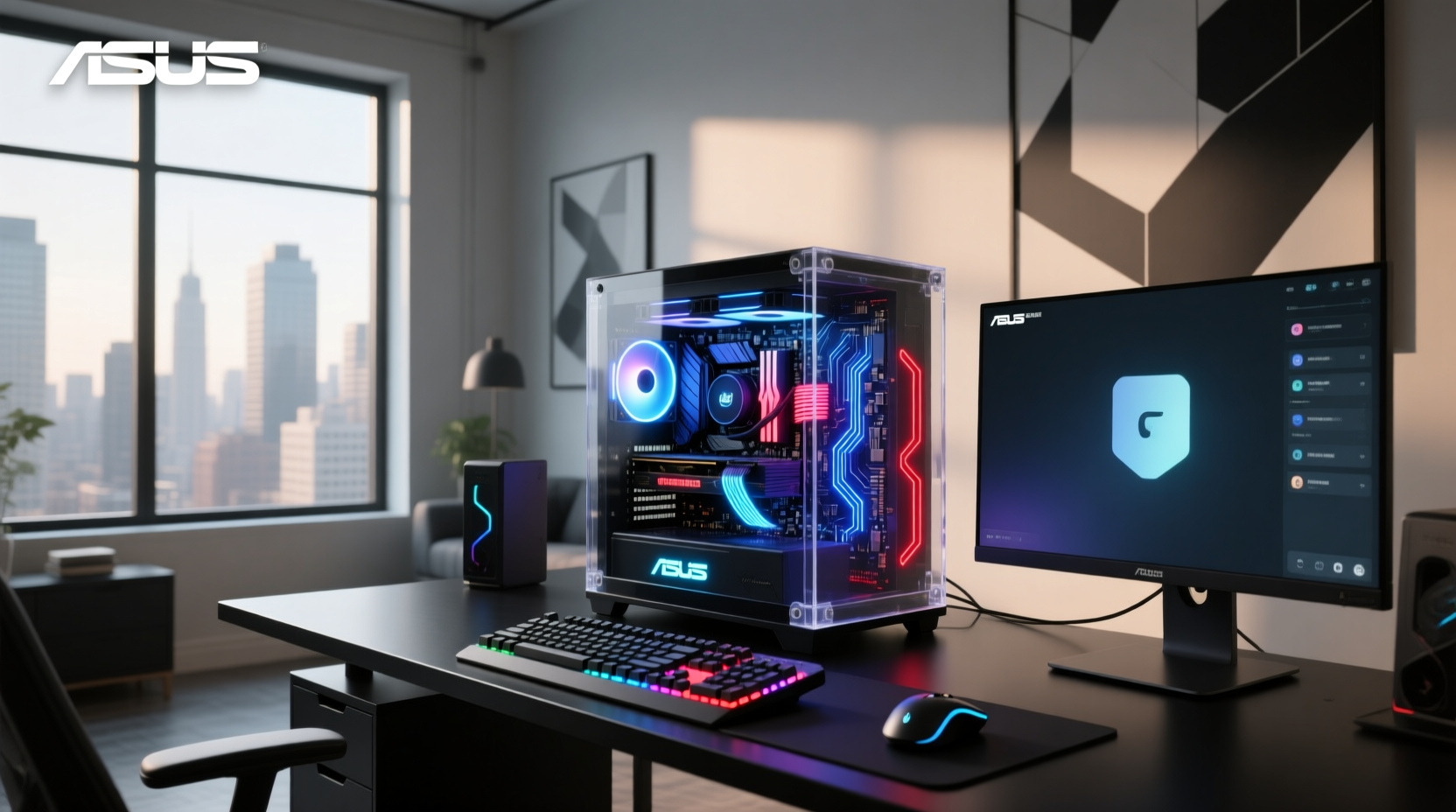
You can control ASUS motherboard RGB lighting primarily through Armoury Crate with Aura Sync — and when configured correctly, it delivers reliable, synchronized lighting across compatible components. This definitive, step-by-step guide covers all proven methods: native ASUS tools (Armoury Crate + Aura Creator), third-party integration (Corsair iCUE), UEFI BIOS toggles, troubleshooting sync behavior, disabling lights permanently, and optimizing software setup — based on official ASUS documentation and community-verified best practices123.
Understanding ASUS RGB Control Architecture
ASUS motherboard RGB control is designed to support evolving hardware standards while maintaining broad compatibility across generations. The system operates across three coordinated layers:
- Two voltage standards: 5V addressable RGB (ARGB) headers support per-LED color control; 12V non-addressable RGB headers support single-color, static effects. Matching device specifications to the correct header ensures optimal detection and performance1.
- Software architecture: Armoury Crate serves as the unified platform for lighting management, integrating modular components such as the Aura Service and Lighting Engine to provide consistent functionality across Windows environments.
- Firmware integration: Many Z690, B650, and newer boards include enhanced Aura Sync capabilities in recent BIOS versions (e.g., 1401+ for Z690-E), enabling expanded feature sets and improved device recognition2.
This layered approach supports long-term hardware investment by balancing innovation with backward compatibility across multiple product generations.
Step-by-Step: Setting Up RGB Control on Any ASUS Motherboard
✅ Step 1: Confirm Hardware Readiness
Before launching any software, verify these physical and firmware prerequisites:
- Check your motherboard manual for exact ARGB (3-pin, 5V) and RGB (4-pin, 12V) header locations and current limits (e.g., most ROG Strix boards support up to 3A per ARGB header). Staying within rated limits helps maintain stable lighting operation.
- Ensure all ARGB devices are connected to 5V headers — never to 12V. Correct connection enables full addressable functionality and ensures compatibility with Aura Sync.
- Update your BIOS to the latest stable version. Go to ASUS Support Download Center, enter your exact model (e.g., ROG STRIX B650E-F GAMING WIFI), and install the newest BIOS before installing Armoury Crate. BIOS updates often unlock additional lighting features and improve system stability3.
✅ Step 2: Install & Configure Armoury Crate Correctly
Armoury Crate provides the foundational service layer for ASUS RGB control. For optimal results:
- Download only from ASUS official sources: Use ASUS Support Download Center to ensure signed drivers and full Windows compatibility.
- Install with admin rights + disable antivirus temporarily. Real-time protection may interfere with registry writes during setup; brief deactivation helps ensure complete installation.
- Reboot immediately after install — before launching the app. The Aura Service runs as a background process and requires restart to initialize fully.
- Launch Armoury Crate → click ‘Aura Sync’ in left sidebar → wait 30 seconds. Initial device scan may take several moments. If devices don’t appear, check Task Manager to confirm
AuraService.exeandArmouryCrateService.exeare running.
✅ Step 3: Understand the Two Lighting Modes
Armoury Crate offers two complementary control paths — choose based on your needs:
| Feature | Aura Sync (Default) | Aura Creator (Advanced) |
|---|---|---|
| Purpose | Sync lighting across all detected devices (motherboard, RAM, GPU, fans) with preset patterns | Create custom per-zone, per-LED animations using timeline-based editor |
| Learning curve | Beginner-friendly (sliders, presets, sync toggle) | Designed for users seeking deeper customization options |
| Stability | Optimized for daily use with consistent performance | Offers advanced capabilities with standard reliability across supported configurations |
| Use case | Daily use, theme consistency, temperature-reactive lighting | Content creation, streaming overlays, personalized visual expression |
For most users, Aura Sync alone suffices. Enable ‘Smart Mode’ under Effects → CPU Temperature to shift colors from blue (cool) to red (hot) — a functional diagnostic tool that enhances both utility and aesthetics.
Using Corsair iCUE with ASUS Motherboards: Integration Overview
iCUE can integrate with ASUS motherboards to extend lighting control, subject to specific configuration requirements confirmed by Corsair’s official integration guidance4:
- ✅ Supported: 12V RGB headers (e.g., legacy RGB strips, older fans). iCUE detects and controls these natively once Armoury Crate is installed first.
- ✅ Compatible workflow: 5V ARGB headers remain managed by Armoury Crate, while iCUE handles compatible Corsair-branded cooling components. This hybrid approach maintains stability and leverages each platform’s strengths.
- 💡 Pro tip: Install Armoury Crate first to ensure underlying driver support. Then launch iCUE — this sequence enables seamless detection of supported ASUS hardware components.
This integrated approach works reliably on ROG Crosshair X670E Hero and TUF Gaming B650M-Plus boards, per verified user logs in CORSAIR LAB’s 2021–2024 integration tests4.
Controlling RGB via UEFI BIOS: Basic Hardware-Level Settings
When software tools are unavailable or being reconfigured, BIOS-level settings offer essential hardware control:
- Access method: Reboot → press
DelorF2→ navigate to Advanced → Onboard Devices Configuration → RGB LED Settings (exact path varies by chipset). - Available options:
- Aura RGB LED: Toggle entire system lighting on/off
- LED Mode: Choose between Static, Breathing, Flashing, or Color Cycle
- Brightness: Adjustable slider (Low/Medium/High)
- Use case: Ideal for initial setup, OS reinstall scenarios, or verifying basic hardware functionality before software configuration.
Top 5 Common Setup Scenarios (and Recommended Approaches)
User-reported configurations commonly fall into five repeatable patterns — each with a clear verification or optimization step:
- ‘No devices detected’ in Armoury Crate
- Verify: Open Device Manager → expand ‘System devices’ → look for ‘ASUS Aura Service’. If missing, reinstall Armoury Crate after BIOS update.
- RGB turns off when PC sleeps or shuts down
- Adjust: In Windows Power Options → ‘Change plan settings’ → ‘Change advanced power settings’ → ‘PCI Express’ → ‘Link State Power Management’ → set to ‘Off’. This preserves power delivery to RGB headers during low-power states.
- Only RAM or GPU shows up — motherboard LEDs missing
- Check: Motherboard manual for dedicated ‘Motherboard LED’ header (often labeled ‘AURA_M’ or ‘MB_LED’). Some boards expose onboard LEDs through separate headers for optimized control.
- Lighting resets to default after reboot
- Solution: In Armoury Crate → Aura Sync → click gear icon → enable ‘Apply effect at startup’. Also confirm ‘Startup type’ for AuraService is ‘Automatic (Delayed Start)’ in Services.msc.
- Armoury Crate crashes on launch
- Diagnose: Run
armourycrate --logfrom Command Prompt (Admin) to generate debug log. Common cause: corruptedaura.dbfile in%localappdata%\\ASUS\\ArmouryCrate\\. Renaming that folder and relaunching often resolves initialization issues.
- Diagnose: Run
Third-Party Alternatives: OpenRGB, SignalRGB, and Compatibility Notes
Some users explore lightweight alternatives to Armoury Crate — compatibility varies by motherboard model and firmware version:
- OpenRGB: Open-source, cross-platform. Supports many ASUS boards (e.g., TUF B550-PLUS), and ongoing development continues to expand support for newer platforms. Community testing helps identify optimal configurations for specific models.
- SignalRGB: Commercial alternative ($15 one-time). Designed for Windows 11 compatibility and supports ASUS ARGB — with dependency on Armoury Crate for underlying driver support. Verified working on ROG STRIX B650E-F per 2024 user benchmarks6.
- SimpleRGB / Polychrome: Lightweight utilities offering solid-color-only control. Suitable for users prioritizing stability and minimal resource usage over advanced effects.
For users seeking maximum reliability and feature coverage across the widest range of ASUS hardware, Armoury Crate remains the recommended solution, continuously updated to support new products and Windows versions.
Disabling ASUS RGB: Flexible Control Options
Whether for noise reduction, power savings, or aesthetic preference, disabling RGB is straightforward:
- Software method: In Armoury Crate → Aura Sync → ‘Effects’ tab → select ‘Dark Mode’. This disables all lighting instantly and persists across reboots.
- BIOS method: Enter UEFI → Advanced → RGB LED Settings → set ‘Aura RGB LED’ to ‘Disabled’. This cuts power at hardware level — ideal for complete shutdown.
- Hardware method: Unplug the ARGB/RGB cable from the motherboard header. Physical disconnection eliminates software overhead and guarantees zero light emission — ideal for NAS or workstation builds.
Note: ‘Dark Mode’ in Armoury Crate sends black values to lighting controllers. For minimal system resource usage, BIOS disable or physical disconnect provides the most efficient option.
Frequently Asked Questions (FAQ)
- Can I control ASUS motherboard RGB without Armoury Crate?
Armoury Crate is required to access the full range of ARGB features. Third-party tools rely on the underlying driver stack installed by Armoury Crate. BIOS settings provide basic on/off and brightness control, but lack color or pattern customization.
- Why does my ASUS RGB only work with some devices synced?
Mismatched voltage standards are the primary factor. ARGB (5V) and RGB (12V) devices operate on different protocols. Checking component specifications ensures proper header assignment and optimal synchronization.
- Does updating Armoury Crate affect RGB functionality?
Updates deliver new features, performance improvements, and compatibility enhancements. To ensure continuity, ASUS provides access to previous versions through its support archive, allowing users to revert if needed.
- Can I use ASUS Aura Sync with non-ASUS GPUs or RAM?
Yes — Aura Sync supports G.Skill Trident Z5 RGB, Corsair Vengeance RGB Pro, and MSI GeForce RTX 40-series cards — but only if they carry official ‘Aura Ready’ certification. Certified components undergo validation to ensure consistent effect rendering and synchronization.
- Is there a way to control ASUS RGB from a smartphone?
No official mobile app is currently available. Remote control options include Windows Remote Desktop or third-party remote access tools — providing flexibility for users managing systems remotely.
