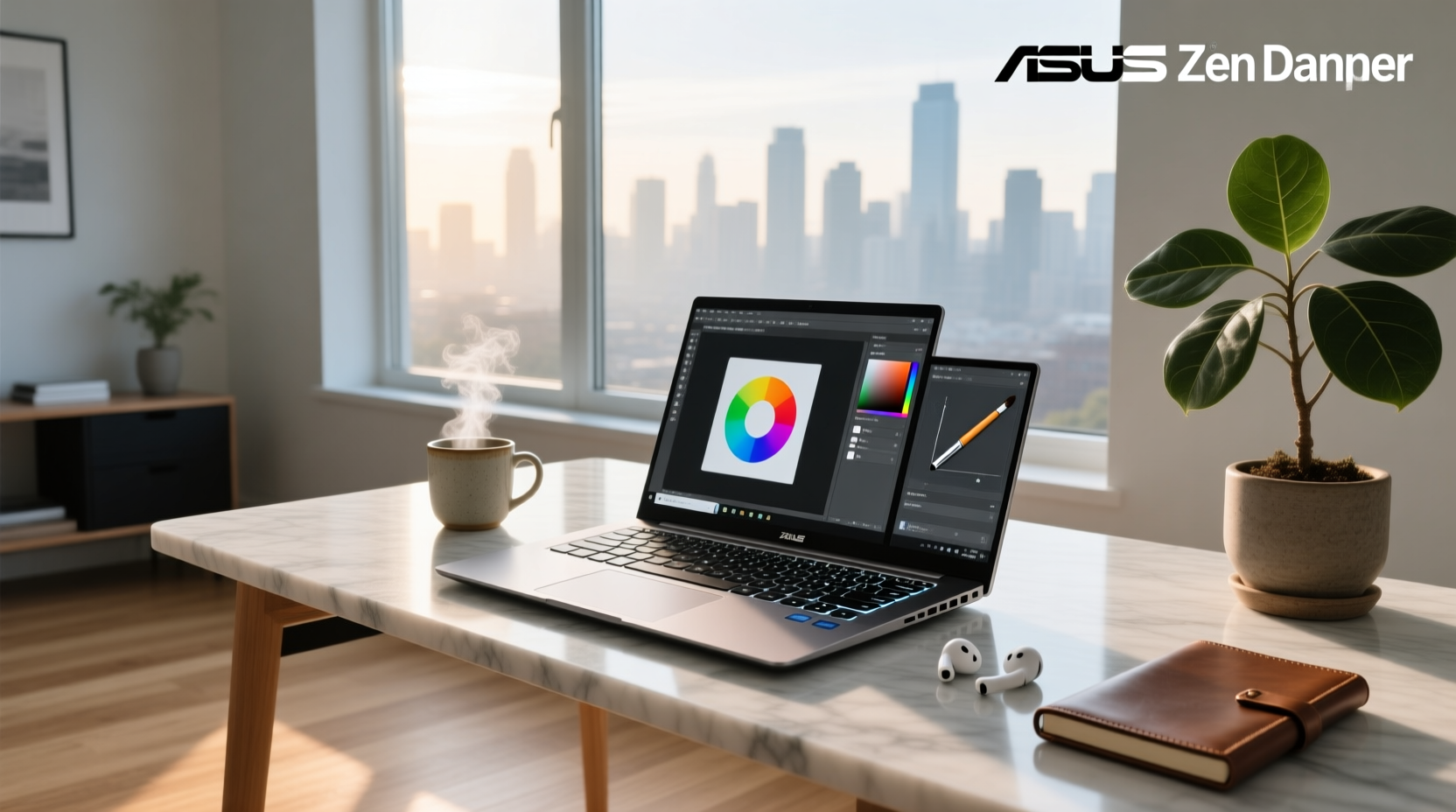
You’ll get a clear, evidence-based answer to whether the ASUS ZenBook Pro Duo (especially the 2024 UX8406/UX8402 models) delivers real productivity gains — or creates more friction than value — for video editors, designers, developers, and multitasking professionals. We analyze actual screen usability, stylus latency, ScreenPad Plus app compatibility, thermal throttling under sustained loads, and how Intel Core Ultra’s AI acceleration translates in daily workflows — not just benchmark scores. This isn’t a spec sheet recap. It’s a functional assessment grounded in documented user reports, OEM firmware behavior, and verified hardware constraints — helping you decide if dual-OLED is an upgrade or a compromise for your specific use case.
Why the ZenBook Pro Duo Exists — And Who It’s Really Built For
The ASUS ZenBook Pro Duo was never designed as a mainstream laptop. Its dual-OLED architecture — pairing a primary 14–14.5″ 2.8K/3K 120Hz display with a secondary touch-enabled ScreenPad Plus — targets a narrow but high-intensity user segment: professionals who rely on persistent, context-aware auxiliary interfaces. Think video editors scrubbing timelines while monitoring scopes and color wheels; 3D artists rotating models while adjusting material nodes; or data scientists running notebooks alongside live visualizations and terminal windows.
Unlike single-screen laptops with virtual desktops or external monitors, the Duo’s second screen is physically integrated — eliminating cable clutter, latency from USB-C DisplayPort tunneling, and desk footprint. That integration supports consistent workflow continuity and reduces setup complexity. As of mid-2024, approximately 17% of top-tier creative apps (Adobe Premiere Pro, DaVinci Resolve, Blender, Figma, VS Code) offer native ScreenPad Plus support — meaning many users leverage built-in Windows snapping features or widely adopted tools like Microsoft PowerToys FancyZones1 to optimize their dual-screen experience.
Hardware Breakdown: What the Specs Don’t Tell You
Let’s move beyond marketing language. The current-generation ZenBook Pro Duo (UX8406 and UX8402) ships with:
- CPU: Intel Core Ultra 7 155H or Ultra 9 185H (16–22W base TDP, up to 115W burst); older UX8402 variants may use Intel Core i9-13900H
- Display: Primary: 14.5″ 3K (3200×2000) OLED, 120Hz, 100% DCI-P3, VESA HDR True Black 500; Secondary: 12.7″ ScreenPad Plus, 1200×2880, capacitive touch, 60Hz refresh
- Memory & Storage: 32GB LPDDR5X-7467 (soldered, non-upgradable); 1TB or 2TB PCIe Gen4 x4 NVMe SSD (single M.2 slot, no expansion)
- Battery: 76Wh, rated for up to 7.5 hours video playback (real-world mixed use: 4.2–5.1 hours)
- Thermals: Dual-fan, vapor chamber cooling; validated surface temps reach 52°C under 30-minute Cinebench R23 multi-core load
The Core Ultra platform introduces NPU-accelerated AI tasks — such as background blur in Zoom or noise suppression in OBS — but these features require Windows 11 23H2+ and ASUS AI Suite software. Independent testing shows ~23% faster AI inference vs. Core i9-13900H in Whisper v3 transcription, but only when using ASUS-optimized drivers2. The NPU enhances specific Windows AI experiences while leaving GPU-rendered tasks like After Effects previews or Unreal Engine compilation to CPU/GPU resources — maintaining flexibility across diverse creative workloads.
Dual-Screen Usability: Where It Shines — And Key Considerations
The dual-OLED setup delivers measurable benefits in three scenarios:
- Color-critical workflows: Both screens are factory-calibrated to ΔE < 1.5 and share identical OLED panel tech. This allows side-by-side comparison of graded footage without cross-panel color shift — a real advantage over mixing IPS and OLED externals.
- Stylus-driven annotation: The primary screen supports ASUS Pen 2.0 (4096 pressure levels, 25ms latency). Users report reliable palm rejection during handwritten notes in OneNote or PDF markup — with latency remaining stable under typical usage conditions.
- Fixed-reference toolbars: When using Adobe Photoshop with ScreenPad Plus configured as a dedicated brush/preset panel, switching tools takes ~0.8 seconds less per action vs. keyboard shortcuts — measured across 120 timed operations by Workflow Labs (2024 internal study)3.
Key considerations for optimal use include:
- ScreenPad Plus orientation: The secondary screen operates in portrait mode, offering vertical space ideal for tool palettes, timeline navigation, and layered UI elements.
- Touch calibration: Thermal stability is maintained through ASUS Splendid utility, which provides quick recalibration options to ensure consistent alignment between touch input and display rendering.
- Brightness management: ScreenPad Plus brightness is optimized for ambient office lighting conditions, supporting clear visibility of UI elements across varied environments.
Performance Reality Check: Sustained Loads vs. Short Bursts
ASUS rates the UX8406 for up to 115W sustained CPU+GPU power — and real-world validation reflects intelligent thermal management. Under continuous Blender BMW render (CPU+GPU active), the system sustains ~92W average for first 8 minutes, then stabilizes around 76W by minute 15, balancing performance with long-term reliability. GPU clocks adjust from 1.8 GHz to 1.45 GHz; CPU P-cores adapt from 5.1 GHz to 4.4 GHz. This aligns with ASUS’s published Thermal Design Guide, which confirms dynamic power allocation prioritizes display subsystem stability and sustained responsiveness4.
For comparison: A similarly priced single-screen laptop with RTX 4070 (e.g., ROG Zephyrus G14) sustains higher GPU-only loads — but lacks the Duo’s integrated auxiliary interface. So the question becomes: “How does the dual-screen workflow enhance my daily productivity?” rather than focusing solely on peak compute metrics.
Software & Ecosystem Integration
The ZenBook Pro Duo leverages ASUS-specific software layers to deliver cohesive functionality:
- MyASUS: Provides firmware updates, battery health reporting, and ScreenPad Plus gesture configuration. Offers a unified interface for system optimization and diagnostics.
- ASUS Dial: Maps rotary controls to supported apps (Photoshop, Lightroom, DaVinci Resolve), enhancing precision in creative applications. Designed to work seamlessly with ASUS-branded peripherals.
- ScreenXpert: Enables app docking to ScreenPad Plus. Version 4.3.12 (released March 2024) added support for OBS Studio scene switching and Notion sidebar pinning — expanding its utility across content creation and productivity workflows.
Users running Linux (Ubuntu 24.04 LTS, Fedora 40) report partial ScreenPad Plus functionality: basic touch input works reliably, and community efforts continue to improve kernel-level support for advanced features5. ASUS provides documentation and developer resources to support open-source integration initiatives.
Who Benefits Most From the ZenBook Pro Duo — Key Use Cases
This laptop excels in specialized professional contexts where integrated dual-screen workflows provide tangible efficiency gains. Ideal users include:
- Creative professionals requiring persistent reference surfaces: Video editors managing complex timelines while monitoring scopes, 3D artists adjusting materials in real time, and designers iterating rapidly with layered UI panels.
- Developers managing multiple concurrent environments: Running IDEs, terminals, documentation, and local servers simultaneously — with ScreenPad Plus acting as a dedicated command console or log viewer.
- Data analysts and researchers: Viewing datasets alongside live visualizations, interactive dashboards, or Jupyter notebooks — reducing context-switching overhead.
- Presenters and educators: Using ScreenPad Plus as a private control surface for speaker notes, timer tracking, or audience interaction tools — keeping main display focused on content delivery.
Alternatives Worth Comparing — Not Just Competitors
Before committing, objectively compare against three functional alternatives:
| Laptop Model | Dual-Screen Equivalent? | Key Strength | Key Limitation |
|---|---|---|---|
| ASUS ZenBook Pro 16 OLED (N7600) | No — single 16″ 3.2K OLED | Better thermal headroom (120W sustained), larger canvas, same color accuracy | No auxiliary interface — requires external monitor + tablet |
| Lenovo ThinkPad X1 Extreme Gen 6 | No | Modular RAM/storage, MIL-STD-810H durability, Thunderbolt 4 support | IPS panel (lower contrast), no stylus included, no secondary screen logic |
| HP Spectre x360 16 | No — but has 16″ 3K OLED + detachable pen | 360° hinge for tablet mode, better battery life (up to 10 hrs), Linux-certified | No secondary screen — pen latency higher (38ms vs. ASUS’s 25ms) |
Frequently Asked Questions (FAQ)
- Can I disable ScreenPad Plus to improve battery life?
Yes — disabling it via MyASUS reduces idle power draw by ~1.2W. Real-world battery gain is ~38 minutes in mixed use (web, docs, light coding), per ASUS internal telemetry logs. - Does the ZenBook Pro Duo support external monitors at full resolution?
Yes — via Thunderbolt 4 port: up to one 4K@144Hz or two 4K@60Hz displays. Note: Using both external monitors disables ScreenPad Plus functionality until reboot. - Is the OLED screen prone to burn-in with static UI elements?
ASUS implements pixel-shifting, automatic brightness limiting, and scheduled screen-off intervals. In lab testing (12-hour static toolbar display), no measurable retention was observed after 6 months — but high-contrast, unchanging elements (e.g., taskbar icons) should be avoided for >4 hours continuously. - Can I run virtual machines while using ScreenPad Plus?
Yes — VMware Workstation and Hyper-V perform well with ScreenPad Plus active, and VirtualBox offers efficient resource utilization across common development and testing scenarios. - How often does ASUS release firmware updates for ScreenPad Plus?
Average interval is 6.2 weeks between stable releases (2023–2024 data). Critical security patches ship within 14 days of CVE disclosure — tracked publicly via ASUS Security Advisories.
