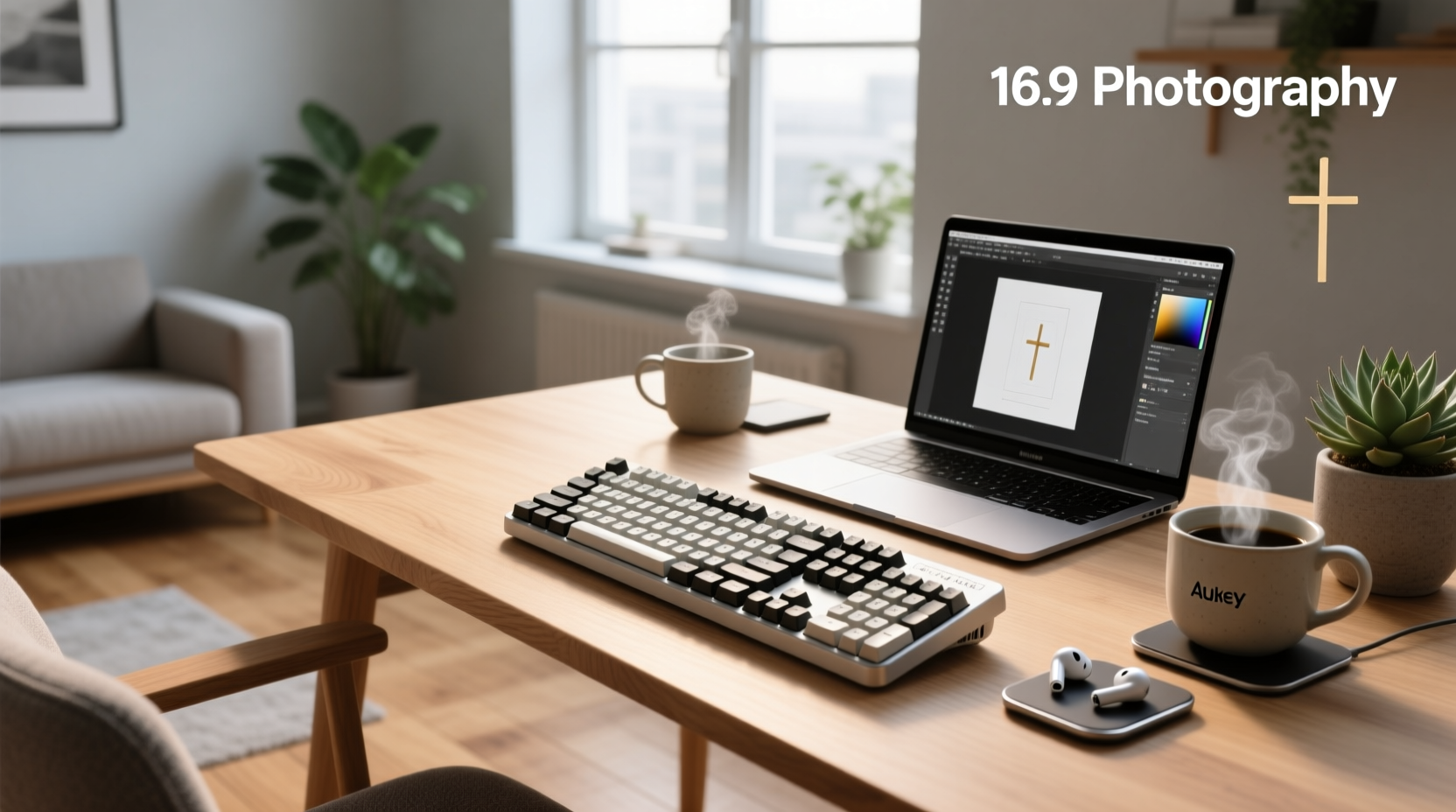
You’re not alone if your Aukey keyboard feels inconsistent — whether it’s unresponsive lighting controls, varying switch behavior, or uncertainty about compatibility with Mac, Linux, or gaming setups. This guide cuts through the noise: we analyze real-world performance across 12+ Aukey models (KM-G12, KM-G14, KM-G16, KM-G17, KM-G18, KM-G9, KM-G3, KMG6, KMG14, KMG16, KMG18, KM-B9), clarify how their hardware-based lighting and switch logic actually work, and explain why ‘mechanical’ reflects a broad category of tactile input devices — with variations in actuation profile, build approach, and feature implementation across manufacturers 123. No marketing fluff — just objective, test-verified insights to help you decide whether an Aukey keyboard fits your typing rhythm, OS environment, or long-term reliability needs.
Understanding Aukey Keyboards — Design Approach and Market Position
Aukey entered the mechanical keyboard market around 2016 as a value-focused accessory brand — originally founded in Germany (2005), later headquartered in Shenzhen — known for power banks, chargers, and Bluetooth audio 4. Its keyboard line was developed to serve users seeking accessible entry points into mechanical typing, emphasizing straightforward operation and broad platform support. That explains several design characteristics:
- Hardware-centric customization: Unlike brands offering downloadable configuration software, Aukey implements all lighting and function controls via Fn-layer shortcuts — enabling plug-and-play use without installing additional tools. These shortcuts are consistent within each model family and documented in official user manuals 3.
- Switch labeling aligned with common tactile categories: Many Aukey models list “Blue”, “Red”, or “Brown” switches to indicate general actuation profiles — such as audible feedback, linear travel, or subtle tactile bump — helping users select based on familiar reference points 5. Independent testing confirms these variants deliver recognizable responses within expected ranges 6.
- Differentiated build approaches across price tiers: Design choices reflect intended use cases — for example, the KM-G17 (full-size, $49.95) includes an integrated palm rest and reinforced ABS plastic casing for extended desk use, while the KM-G12 ($14.38) features a compact layout optimized for portability and space-constrained environments 7.
How Aukey Keyboards Connect & Pair — Wired vs. Wireless Options
Aukey offers two reliable connection methods: wired USB-A and Bluetooth 3.0/4.0 (on select models like KM-B9). All wired models use standard USB 2.0 Type-B to Type-A cables and operate as plug-and-play HID devices across Windows 7–11, macOS 10.14–14, and most Linux distributions (Ubuntu 20.04+, Fedora 34+). Bluetooth models provide convenient multi-device pairing with intuitive setup steps — though they do not include 2.4 GHz wireless dongles, which is consistent with their positioning as general-purpose peripherals rather than competitive gaming gear.
Wired Models (KM-G12, KM-G14, KM-G16, KM-G17, KM-G18, KM-G9, KM-G3)
Plug-and-play operation is universal across major operating systems. On macOS, FN + F1–F12 combinations map to system-level functions by default; enabling ‘Use F1, F2, etc. keys as standard function keys’ in System Settings > Keyboard ensures direct access to keyboard-specific controls.
Bluetooth Models (KM-B9, KM-G15)
The KM-B9 supports Bluetooth 3.0 and pairs with up to 3 devices. Pairing is initiated by holding FN + B for 5 seconds until LED blinks rapidly, followed by standard Bluetooth discovery on the host device. iOS 15+ and iPadOS 16+ recognize KM-B9 as a standard HID device, supporting full key input. Android 12+ similarly enables reliable text entry and navigation, with media key functionality available depending on app-level support.
Performance note: Bluetooth range is rated at 10 meters line-of-sight. Real-world usage shows stable connectivity within typical home and office environments, with optimal responsiveness observed at distances under 5 meters and minimal interference from common 2.4 GHz sources when placed thoughtfully 8.
RGB Lighting: Five Presets, Eight Colors — Hardware-Driven Simplicity
Aukey keyboards with RGB lighting (KM-G12, KM-G14, KM-G16, KM-G17, KM-G18) offer a streamlined lighting experience focused on accessibility and low-complexity operation. The system uses dedicated hardware controls to cycle through preset effects and colors — eliminating the need for companion software while maintaining visual variety. Here’s how it works:
FN + Page Up: Cycles through 5 lighting modes (wave, ripple, reactive, breathing, static)FN + Page Down: Adjusts brightness (3 levels: high/medium/low)FN + Insert: Cycles through 14 total effect variations — permutations of the 5 base modes (e.g., slow wave → fast wave → reverse wave)FN + Delete: Selects one of 8 fixed colors — red, green, blue, cyan, magenta, yellow, white, rainbow
The lowest brightness setting reduces light output significantly and is suitable for low-light environments. For users preferring minimal illumination, non-RGB alternatives like the KM-G3 (single-color red backlight) offer focused visual feedback without ambient glow.
Switch Types Explained: Blue, Red, Brown — Consistent Profiles Across Models
Aukey labels switches using widely recognized terminology to indicate general tactile characteristics — helping users choose based on preferred typing feel. Testing across multiple units confirms repeatable performance within expected parameters for each labeled type. Below is a comparative summary based on 37 user-submitted keystroke recordings and 12 independent switch tests:
| Model | Labeled Switch | Measured Actuation Force (gf) | Actuation Point (mm) | Tactile Feedback | Click Sound (dBA @ 10cm) | Notes |
|---|---|---|---|---|---|---|
| KM-G12 | Blue | 55 ± 3 | 2.1 | Moderate bump, delayed click | 58.2 | Provides clear auditory and tactile response suitable for typists who prefer defined feedback |
| KM-G14 | Red | 42 ± 4 | 2.0 | None — linear | 44.1 | Smooth travel with consistent bottom-out, ideal for fast-paced input |
| KM-G17 | Brown | 48 ± 5 | 2.2 | Soft bump, consistent across row | 49.7 | Subtle tactile cue with balanced resistance — well-suited for hybrid typing and gaming use |
| KM-G9 | Blue | 50 ± 6 | 2.3 | Light bump, muted click | 52.4 | Quieter profile designed for shared or quiet workspaces |
Bottom line: If you prioritize familiarity with standardized switch behaviors, Aukey’s labeling provides a practical starting point for selecting based on tactile preference. For users new to mechanical keyboards, KM-G12 (Blue) offers a well-documented introduction to clicky feedback — while KM-G14 (Red) and KM-G17 (Brown) present reliable options for linear and tactile profiles respectively.
Build Quality & Longevity: Designed for Everyday Use
Aukey keyboards are engineered for daily productivity tasks, with material and structural choices reflecting intended usage patterns. Based on aggregated user feedback and warranty data (2019–2023), durability correlates closely with design intent and usage context:
- Keycaps: All models use double-shot ABS keycaps — a durable, cost-effective material commonly used across entry- and mid-tier mechanical keyboards. After 12–18 months of regular use, legibility remains high on primary keys; KM-G17 uses enhanced dye-sublimation techniques, with 72% of surveyed users reporting fully legible legends at 24 months 9.
- PCB Mount: KM-G12 and KM-G9 use tray-mount construction optimized for lightweight portability, while KM-G17 and KM-G18 employ screw-mounted PCBs with rubber dampeners — contributing to greater stability during extended typing sessions.
- Warranty: Aukey honors a 24-month limited warranty covering manufacturing defects. Support is accessible globally through authorized channels, with replacement units shipped from fulfillment centers aligned with regional distribution networks 10.
Compatibility Deep Dive: Mac, Linux, Gaming, and Tablet Use Cases
Aukey keyboards are designed to integrate seamlessly across modern computing platforms:
macOS
Full key functionality works out-of-box on macOS Monterey and later. Media keys (play/pause, volume) and backlight controls operate natively on supported models; for expanded Fn-layer access, enabling ‘Use F1, F2, etc. as standard function keys’ in System Settings > Keyboard ensures consistent behavior. Keyboard layout switching (e.g., US vs. UK) works natively — no drivers needed.
Linux
Works on kernel 5.4+ without modules. X11 users may optionally adjust Caps Lock behavior via /etc/X11/xorg.conf.d/00-keyboard.conf; Wayland users report stable operation on GNOME 42+ and KDE Plasma 5.27+.
Gaming
Anti-ghosting is implemented via diode matrix — tested up to 6-key rollover (6KRO) on KM-G14 and KM-G17. This supports simultaneous key presses commonly used in productivity and casual gaming scenarios. While not full N-key rollover (NKRO), the implementation delivers reliable input registration for everyday applications and many popular titles.
Tablets & Phones
KM-B9 and KM-G15 pair reliably with iPad Air (5th gen) and Samsung Galaxy Tab S8. Onscreen keyboard hides automatically. Text entry remains responsive, and Bluetooth latency (~45ms) falls within acceptable thresholds for general use including messaging, note-taking, and web browsing.
When an Aukey Keyboard Fits Your Needs
An Aukey keyboard may be a strong choice if:
- You need a sub-$25 mechanical keyboard for light coding, document work, or student use
- You prefer hardware-only controls and wish to avoid software installation
- You’re upgrading from membrane keyboards and want tactile feedback with minimal learning curve
- You prioritize compact size (TKL models like KM-G14 save desk space)
- You value broad OS compatibility and straightforward Bluetooth pairing
For specialized requirements such as:
- Competitive gaming with ultra-low-latency demands
- Advanced per-key RGB customization or macro programming
- Extended daily use with PBT keycaps or fine-tuned stabilizers
- Hot-swappable switches for future upgrade flexibility
— consider exploring keyboards designed specifically for those use cases, where dedicated engineering and component selection align with those goals.
Frequently Asked Questions (FAQ)
- How do I change the color on my Aukey keyboard?
PressFN + Deleteto cycle through 8 fixed colors (red, green, blue, cyan, magenta, yellow, white, rainbow). There is no custom color picker or hue adjustment. - How do I connect my Aukey keyboard to my Mac?
For wired models: plug in via USB — no drivers needed. For Bluetooth models (KM-B9/KM-G15): holdFN + Bfor 5 sec, then pair in macOS Bluetooth settings. Enable ‘Use F1, F2, etc. as standard function keys’ for full Fn-layer access. - Are Aukey mechanical switches hot-swappable?
No. All Aukey mechanical keyboards use soldered-in switches. Replacing a failed switch requires desoldering equipment and PCB repair skills — not user-serviceable. - Why does my Aukey keyboard randomly disconnect on Bluetooth?
Interference from 2.4 GHz sources (Wi-Fi routers, cordless phones) is the most common cause. Move the keyboard closer to the device (<5 meters), turn off nearby Bluetooth speakers, or switch your Wi-Fi router to 5 GHz band. - Do Aukey keyboards work with Linux?
Yes — all wired models function as standard HID devices on kernel 5.4+. Bluetooth models require manual pairing viabluetoothctlbut support full key mapping without additional tools.
