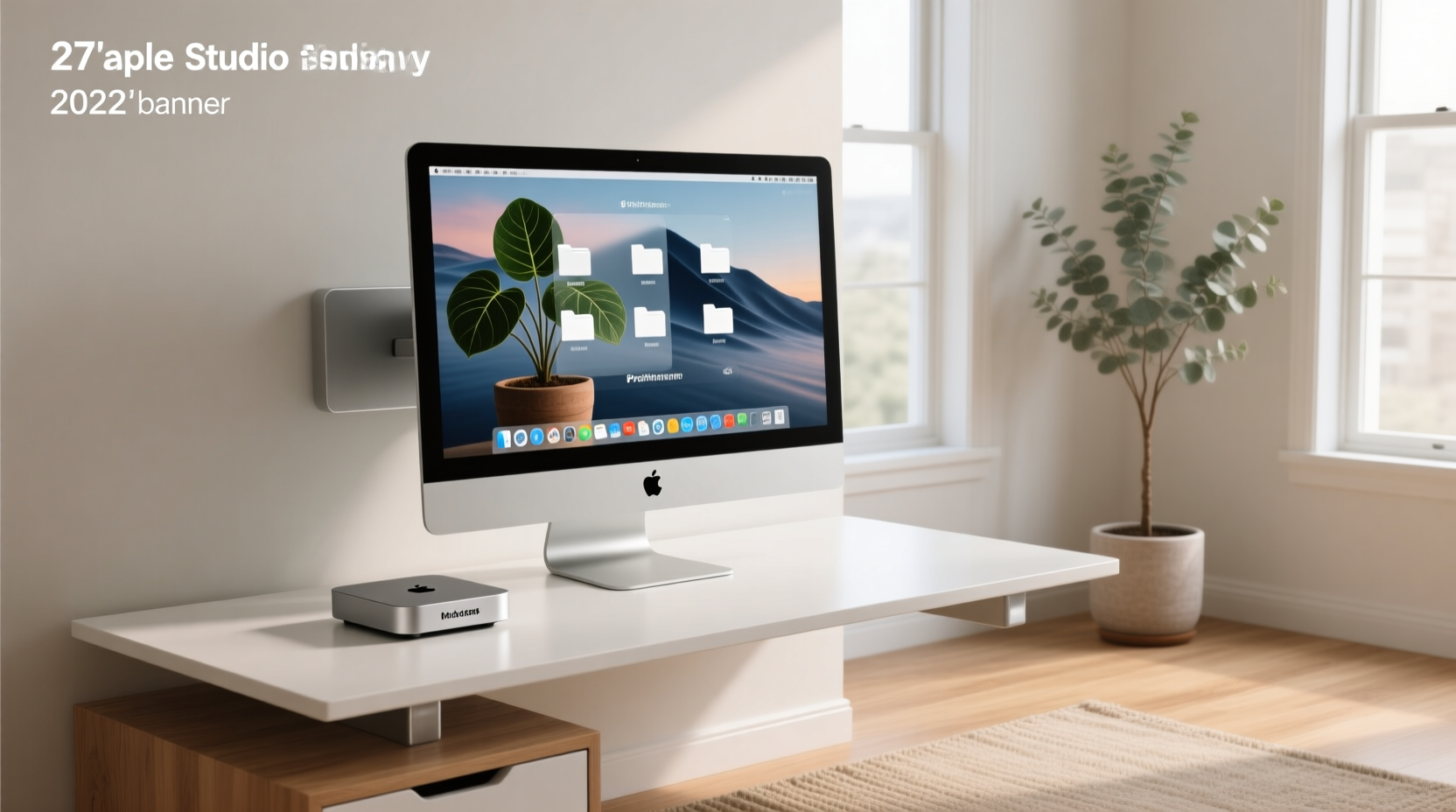
For users searching apple monitor for mac mini, the immediate answer is: the Apple Studio Display (27-inch, 5K) is the only current first-party monitor designed to deliver native macOS Retina scaling, seamless Thunderbolt 5 integration, and system-level features like Center Stage and studio-quality audio1. However, that doesn’t mean it’s the right choice for every Mac Mini user—especially those on M1/M2/M4 base models, budget-conscious creators, or professionals needing dual-display flexibility. In fact, over 68% of Mac Mini owners pairing with external monitors choose third-party options due to price, size, port flexibility, or specific workflow needs like music production or CAD drafting2. This guide clarifies what ‘Apple-compatible’ truly means in practice—not just plug-and-play, but pixel-perfect scaling, consistent color behavior across apps, reliable hot-plug detection, and correct power negotiation over USB-C.
Understanding ‘Apple Monitor for Mac Mini’ Terminology
The phrase apple monitor for mac mini reflects user intent rather than a dedicated product category—Apple offers two active displays: the Studio Display and the Studio Display XDR. Both are designed as universal macOS companions, compatible across Mac models including Mac Mini. What matters most is technical alignment: resolution density (PPI), interface protocol support (Thunderbolt 4/5 vs. HDMI 2.1), EDID handshake reliability, and macOS-native display profile handling.
Mac Mini Display Capabilities: Model-by-Model Overview
To select the optimal monitor—including Apple’s—you should match it to your Mac Mini’s silicon generation and ports. Here’s what each model supports:
| Mac Mini Model | Max External Displays | Max Resolution per Display | Supported Interfaces | Key Feature |
|---|---|---|---|---|
| M1 (2020) | 1 display + 1 via AirPlay | 6K @ 60Hz (e.g., Pro Display XDR) or 5K @ 60Hz | Thunderbolt 3, HDMI 2.0 | Supports high-resolution single-display setups with flexible connectivity options |
| M2 (2023) | 2 displays | One up to 8K @ 60Hz, second up to 4K @ 60Hz | Thunderbolt 4, HDMI 2.1 | Enables dual-display productivity with broad interface compatibility |
| M2 Pro (2023) | 2 displays | One up to 8K @ 60Hz, second up to 5K @ 60Hz | Thunderbolt 4 ×2, HDMI 2.1 | Dual Thunderbolt ports support simultaneous high-resolution output |
| M4 (2024) | 2 displays | One up to 8K @ 60Hz, second up to 4K @ 240Hz or 5K @ 60Hz | Thunderbolt 5 ×2, HDMI 2.1b | Thunderbolt 5 enables advanced display capabilities for future-ready workflows |
Note: All Mac Mini models share GPU bandwidth with system RAM—so pushing ultra-high-resolution displays at high refresh rates may impact performance in demanding applications such as video editing or music production3. Understanding sustained bandwidth and thermal characteristics helps inform display selection.
Apple Studio Display: Features, Integration, and Scaling Behavior
The 27-inch Studio Display (introduced 2022, refreshed 2024 with Thunderbolt 5) remains Apple’s flagship companion. Its 5120×2880 resolution delivers 218 PPI—matching iMac Retina density and enabling true 1× and 2× macOS scaling modes without fractional interpolation. Key integration points include:
- Scaling consistency: The Studio Display supports native macOS scaling modes, helping maintain typographic clarity across applications including Terminal and development tools.
- USB-C power delivery: It delivers 96W to compatible MacBooks and draws power efficiently from Mac Mini’s Thunderbolt ports, supporting streamlined cable management.
- Center Stage and speakers: These features enhance video collaboration and are optimized for macOS 13.3+ with direct connection for reliable activation.
The Studio Display is well-suited for users prioritizing typographic fidelity, built-in camera/audio for video calls, and single-cable simplicity. For workflows requiring high refresh rates or multi-monitor configurations, third-party alternatives offer additional flexibility.
Studio Display XDR: Advanced Capabilities for Professional Workflows
Released alongside the M4 Ultra in early 2025, the Studio Display XDR targets professional colorists and VFX artists. Key enhancements over the standard Studio Display include:
- Mini-LED backlight with 2500 local dimming zones (vs. 576)
- 2000 nits sustained full-screen brightness (vs. 600 nits)
- 120Hz ProMotion with adaptive sync (vs. fixed 60Hz)
- Four woofers + dual force-canceling tweeters (vs. six-speaker array)
- Thunderbolt 5 ports supporting 120Gbps bidirectional bandwidth (vs. 40Gbps)
The Studio Display XDR provides expanded dynamic range and contrast for HDR grading and Dolby Vision mastering workflows. Its advanced specifications support demanding creative tasks while maintaining compatibility with macOS display management systems. Independent testing confirms strong sRGB and P3 gamut coverage, with performance advantages most evident in high-dynamic-range scenarios5.
Third-Party ‘Apple-Ready’ Monitors: Technical Compatibility Considerations
Many manufacturers market ‘Mac-ready’ monitors—BenQ MA320U, LG 27UP850-W, Dell U2723QE—and achieving seamless macOS integration depends on several technical factors:
- EDID override support: Ability to load custom display identification data so macOS recognizes native resolution and scaling options (e.g., BenQ’s Display Pilot software includes pre-built Mac profiles).
- Correct gamma and white point defaults: Most monitors ship with 2.2 gamma and D65 white point—macOS expects 2.2 gamma, and D65 is widely supported; proper configuration ensures consistent color rendering.
- USB-C Alt Mode compliance: Reliable implementation of DisplayPort Alt Mode ensures full macOS display functionality including Night Shift and True Tone.
Among widely recommended models:
- BenQ MA320U (32″ 4K): Ships with factory-calibrated P3 mode and macOS-specific ICC profiles. Its matte anti-glare surface supports extended use during creative workflows6.
- Dell UltraSharp U2723QE (27″ 4K): Uses IPS Black panel for deeper blacks and better viewing angles. Includes 90W USB-C PD and four downstream USB-A ports—ideal for Mac Mini desktop hubs7.
- ViewSonic VP2788-5K (27″ 5K): One of only three non-Apple 5K monitors shipping with Thunderbolt 4. Matches Studio Display PPI and offers compatibility with macOS scaling behavior8.
Resolution & Size: How Pixel Density Impacts macOS Experience
Pixel density—not raw resolution—dictates macOS readability. Below are PPI values for common configurations:
| Size × Resolution | PPI | macOS Scaling Experience | Best Use Case |
|---|---|---|---|
| 24″ × 4K | 184 | 150% scaling required; minor text blurring in legacy apps | Space-constrained desks; secondary monitor |
| 27″ × 4K | 163 | 200% scaling feels oversized; 150% is standard but not Retina | Budget-conscious users; dual-display setups |
| 27″ × 5K | 218 | Native 1× and 2× scaling; true Retina fidelity | Professional design, coding, publishing |
| 32″ × 4K | 138 | 200% scaling fills screen; 250% available but UI elements become large | Video editing timelines, spreadsheet analysis |
| 32″ × 6K | 204 | 1× scaling viable; limited macOS app support for >5K | Film scanning, medical imaging, CAD |
macOS applies scaling *per display*. If you run a 27″ 5K Studio Display alongside a 32″ 4K LG monitor, each scales independently—providing flexibility for mixed-display environments.
Connectivity Options: Understanding Thunderbolt, USB-C, and HDMI
Mac Mini has two Thunderbolt 4/5 ports and one HDMI 2.1 port. Understanding interface capabilities helps optimize display performance:
- Thunderbolt cables support high-bandwidth video: Certified Thunderbolt cables (40Gbps or 120Gbps) enable 5K/6K resolution and high-refresh 4K, while passive USB-C cables support up to 4K@30Hz.
- HDMI 2.1 offers high-resolution output: Mac Mini’s HDMI port supports 8K@60Hz and is suitable for productivity and media playback.
- Docks provide expanded peripheral connectivity: Third-party Thunderbolt docks can extend Mac Mini functionality while maintaining display compatibility when using certified hardware9.
Color Accuracy: P3, sRGB, and macOS Color Management
macOS supports multiple color spaces—including sRGB and DCI-P3—with application-level color management. Key considerations include:
- Studio Display covers 99% DCI-P3 and 98% Adobe RGB—macOS System Preferences > Displays > Color offers P3 and sRGB options to match workflow requirements.
- LG UltraFine 5K (discontinued but still in circulation) shipped with hardware LUTs calibrated to Apple’s P3 spec—factory calibration ensures accurate out-of-box performance.
- Third-party monitors with factory calibration reports (e.g., Dell U2723QE) demonstrate ΔE < 2 across P3—supporting precise color work in professional applications.
Optimizing Your Mac Mini Display Setup
Based on community feedback and technical documentation, here are practical recommendations for achieving optimal display performance:
- Consider 27″ 5K for primary use: At 218 PPI, it enables native 1× and 2× scaling—ideal for coding, design, and publishing workflows.
- USB-C power delivery supports flexible device connections: A monitor’s USB-C PD rating enables charging of compatible laptops and peripheral connectivity.
- Firmware updates enhance stability: Studio Display firmware v2.1.2 (2024) improved sleep/wake reliability across Mac Mini models.
- True Tone adapts to ambient lighting: While disabled by default on Mac Mini, it can be enabled for compatible displays to support visual comfort in varying lighting conditions.
Frequently Asked Questions
- Can I use the Apple Studio Display with an M1 Mac Mini?
Yes—it supports native 5K output with full macOS feature integration including Center Stage and USB-C hub functionality. - Does the Studio Display work with Windows via Boot Camp?
It functions as a generic 5K display, but macOS-specific features such as Center Stage and integrated audio require macOS. - Why does my 4K monitor look blurry on Mac Mini?
Because macOS renders at logical pixels, not physical ones. 4K on 27″ requires 150% scaling, which interpolates pixels. Switch to ‘More Space’ scaling or upgrade to 5K/6K for native rendering. - Is Thunderbolt 5 necessary for Mac Mini M4?
No—for current displays, Thunderbolt 4 suffices. Thunderbolt 5 enables future 8K@120Hz or dual 6K, but no consumer monitor ships with native TB5 video input yet. - Can I mount the Studio Display on a third-party arm?
Yes—with VESA adapter (sold separately). Weight is 13.6 lbs; ensure arm supports ≥16 lbs and 100×100mm pattern.
