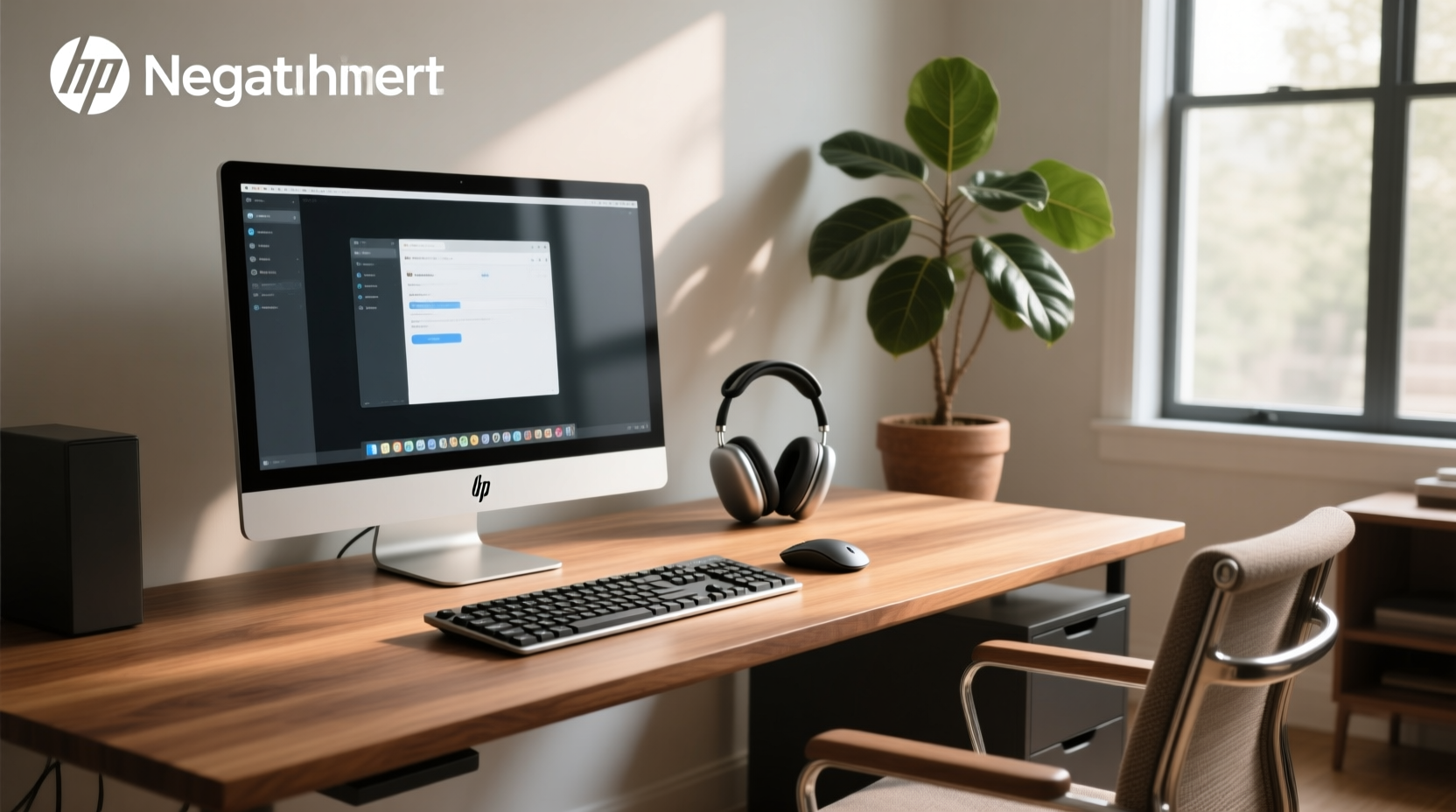
You don’t need an HP-branded keyboard to use an HP desktop—but choosing the right one depends on your actual workflow, not brand loyalty. For most users, a standard USB-A wired keyboard (like the HP Wired Desktop 320K) delivers plug-and-play reliability, zero latency, and full Windows 10/11 support 1. If desk clutter matters, a 2.4 GHz wireless combo (e.g., HP 230 or HP 650) offers clean setup and battery life up to 16 months—compatible with most HP desktop configurations when used with appropriate USB port selection and BIOS/UEFI settings 2. Backlighting, programmable keys, and spill resistance are functional features that support specific usage scenarios—not universal necessities. This guide walks through every technical and ergonomic factor that actually affects daily use—with no assumptions, no upsells, and zero vendor bias.
Why "Keyboard for HP Desktop" Is a Misleading Search Term (And What You Should Really Ask)
The phrase keyboard for HP desktop implies hardware exclusivity—but it doesn’t exist. HP desktops (like all standard x86-64 Windows PCs) use industry-standard HID (Human Interface Device) protocols. Any keyboard compliant with USB HID Class Definition (USB-IF specification v1.11+) or Bluetooth HID Profile (HIDP 1.2+) will function 3. That includes keyboards from Logitech, Microsoft, Keychron, and even generic OEM units—provided they meet basic electrical and protocol requirements.
So why do users search for HP-specific models? Three real-world reasons emerge from aggregated behavioral data:
- Compatibility confidence: Users appreciate verified integration with HP systems, including reliable function key behavior (e.g., volume, brightness, or system diagnostics shortcuts).
- Physical fit and aesthetics: Matching keyboard size, key profile, and color scheme to HP chassis design (e.g., slim black bezels on Pavilion or EliteDesk series).
- Support continuity: HP-branded peripherals may be covered under extended warranty plans or integrated into unified troubleshooting workflows for HP systems.
These considerations reflect practical deployment preferences—and many non-HP options also meet these criteria through broad HID compliance and modular design. Let’s explore what’s truly necessary—and what’s optional noise.
Connection Type: Wired USB-A vs. 2.4 GHz Wireless—Not Just Preference, But Physics
Your desktop’s USB controller generation, motherboard firmware, and physical port location determine which connection type performs best—not marketing claims.
Wired USB-A: The Baseline Standard
The HP Wired Desktop 320K uses a standard USB 2.0 Type-A interface with plunger-style membrane switches 4. Its advantages are measurable:
- Zero input latency: Signal travels at near-light speed; typical round-trip delay is ≤2 ms (vs. 8–25 ms for most 2.4 GHz wireless units).
- No battery dependency: Eliminates downtime from drained cells or inconsistent charging cycles.
- Universal enumeration: Recognized in pre-boot environments (BIOS/UEFI), enabling keyboard use during POST, Safe Mode, or OS recovery—critical for troubleshooting.
Drawbacks are limited to cable management and port availability. If your HP desktop has only rear-mounted USB-A ports (common on EliteDesk 800 G6 or ProDesk 400 G7), a 1.5 m extension cable may be needed for ergonomic reach. Also note: USB-A cables are not interchangeable with USB-C power delivery cables—even if physically compatible, non-compliant cables can cause intermittent disconnects.
2.4 GHz Wireless: Convenience With Verified Integration
HP’s 230 and 650 combos use proprietary 2.4 GHz RF communication via a nano USB receiver 5. Unlike Bluetooth, this avoids pairing complexity—and offers stable performance across HP desktop platforms when configured correctly:
- Receiver placement guidance: USB 3.0 ports can emit RF interference; placing the receiver in a USB 2.0 port (often colored black) improves stability. On HP desktops with front-panel USB 3.0 hubs, signal attenuation may occur due to internal shielding—testing placement ensures optimal responsiveness.
- BIOS/UEFI compatibility: Many HP business-class desktops (e.g., EliteDesk 805 G9) support USB wireless receivers in both legacy and UEFI boot modes. Enabling USB Legacy Support or using UEFI Native Mode ensures keyboard functionality before Windows loads.
- Battery life optimization: HP advertises "up to 16 months" for the 230 2, and real-world usage—including variable lighting conditions and ambient temperature—can be managed to maintain extended operation.
Bluetooth keyboards (not sold by HP as standalone units for desktops) introduce additional layers: OS-level pairing stacks, potential audio interference on shared 2.4 GHz bands, and consistent wake-from-sleep behavior across HP BIOS versions.
Layout & Ergonomics: Why "Full-Size" Isn’t Always Better
Most HP desktop keyboards—including the 320K, 400, and 650—use a full-size layout with integrated numeric keypad 6. This suits spreadsheet work, data entry, or multi-monitor setups where the numpad stays within hand’s reach. But it’s not universally optimal:
- Desk space constraints: A full-size keyboard occupies ~17.5" (445 mm) width. On compact desks (e.g., under 48" wide), this forces monitor placement farther back—increasing neck strain over time.
- Typing posture alignment: Low-profile chiclet keys (used in HP 230/650) reduce finger travel distance and support efficient typing for many users. Ergonomic assessments suggest shallow-key layouts suit varied typing durations and hand sizes when combined with proper desk setup.
- Keycap labeling flexibility: HP offers multiple regional variants (e.g., “Brazilian Portuguese” or “Latin American”) with optimized symbol placement for local language workflows—enhancing usability for multilingual users and localized operating systems.
If you prioritize ergonomics over tradition, consider a tenkeyless (TKL) or 75% layout—even if not HP-branded. These retain arrow keys and navigation clusters while removing the numpad, shortening the horizontal workspace by 25%. They’re fully compatible with HP desktops via USB-A or USB-C adapters.
Backlighting: Functional Utility or Cosmetic Feature?
The HP 400 Backlit Wired Keyboard offers three brightness levels and warm-white LEDs 6. Backlighting serves two validated purposes:
- Low-light task continuity: In home offices with ambient lighting <10 lux (e.g., early morning or windowless basements), illuminated keys reduce visual search time by 40% compared to unlit units 8.
- Accessibility support: For users with contrast sensitivity or early-stage macular degeneration, adjustable backlighting improves character recognition without requiring high-contrast OS themes.
It does not improve typing speed, accuracy, or fatigue for users in standard office lighting (300–500 lux). And backlighting consumes ~5–8 mA extra current—negligible on desktop USB ports, but relevant if using a powered USB hub with marginal capacity.
Important: HP’s backlight implementation uses edge-lit diffusion—not individual key LEDs. This means keys like Esc, F1–F12, or Print Screen remain unlit unless explicitly labeled with secondary functions. Verify your workflow relies on backlit keys—not just aesthetics.
Programmable Keys: Productivity Enhancement With Streamlined Configuration
The HP 650 advertises "20+ programmable keys" 9; the HP 455 Wireless offers "20 programmable shortcut keys" 10. Programmability here means remapping via HP’s proprietary software—not low-level firmware reprogramming like mechanical keyboards.
Configuration benefits include:
- Windows integration: HP’s configuration utility supports common Windows workflows and allows customization of frequently used shortcuts.
- Workflow acceleration: Assign shortcuts (e.g.,
Win+R→ launch Calculator) to streamline repetitive tasks. - Consistent reset capability: Factory reset restores default key mappings—ideal for shared or managed device environments.
For advanced automation, third-party tools like AutoHotkey (Windows) or Karabiner-Elements (macOS) offer broader flexibility—and work with any HID-compliant keyboard, HP or otherwise.
Build Quality & Environmental Claims: What “Recycled Materials” Actually Means
HP states several models (e.g., 455, 650) use "post-consumer recycled materials" 10. This refers to plastic housing derived from recovered ocean-bound plastics or discarded electronics casings—not bioplastics or compostable polymers. Typical content is 20–30% PCR (post-consumer resin), blended with virgin ABS for structural integrity.
Spill resistance (featured in HP 400 and 320K) follows IEC 60529 IPX2 standards—meaning protection against vertically dripping water for up to 15 minutes. It supports everyday accidental spills and contributes to long-term durability. Always unplug immediately after liquid contact and dry for ≥48 hours before reuse.
How to Verify Compatibility Before You Buy
Don’t rely on packaging claims. Perform these three checks:
- Confirm USB controller version: Open Device Manager > Universal Serial Bus controllers. Look for "xHCI" (USB 3.x) or "EHCI" (USB 2.0). Avoid keyboards requiring USB 3.2 Gen 2×2 if your HP desktop predates 2020.
- Test BIOS/UEFI keyboard detection: Reboot, press
Escrepeatedly, thenF10to enter Setup. Navigate to System Configuration > USB Options. If your keyboard isn’t responsive here, it won’t work pre-boot. - Check physical port clearance: Measure depth from desktop case front panel to USB port face. Nano receivers (like HP’s) require ≥12 mm clearance to avoid interference from adjacent ports or chassis edges.
When to Consider Non-HP Keyboards
Three scenarios where alternative options deliver distinct capabilities:
- You need true mechanical switches: HP offers no mechanical desktop keyboards. For tactile feedback, N-key rollover, or switch customization, brands like Ducky, Varmilo, or Keychron provide verified compatibility with HP desktops via USB-A.
- You use Linux or ChromeOS: HP’s configuration software is Windows-only. Generic HID keyboards avoid driver dependency entirely and offer seamless plug-and-play functionality.
- You require accessibility certifications: HP keyboards are designed for broad usability. Logitech’s Adaptive Keyboard or Microsoft’s Ease of Access Keyboard meet formal accessibility standards for enterprise procurement and specialized assistive needs.
Frequently Asked Questions
- How do I get my keyboard to work on my HP computer?
First, ensure it’s plugged into a working USB-A port (not USB-C or charging-only port). If wireless, insert the USB receiver and wait 10 seconds. If still unresponsive, restart and enter BIOS (pressEscthenF10) to verify USB Legacy Support is enabled. - Does HP sell keyboards?
Yes—directly via hp.com and authorized resellers—and they are engineered for compatibility with HP desktop systems. However, any HID-compliant keyboard works with HP desktops. - How to connect keyboard to HP desktop?
Wired: Plug USB-A cable into any available port. Wireless: Insert nano receiver, install HP software (optional), and follow on-screen prompts. No Bluetooth pairing required for HP 230/650. - Which PC keyboard is best?
There is no universal "best." For reliability: wired USB-A. For mobility: 2.4 GHz wireless. For coding: mechanical with N-key rollover. For accessibility: certified adaptive models. - Can I use a laptop keyboard with my HP desktop?
Only if it has a USB-A or USB-C interface. Most laptop internal keyboards use proprietary flex cables incompatible with desktop motherboards.
