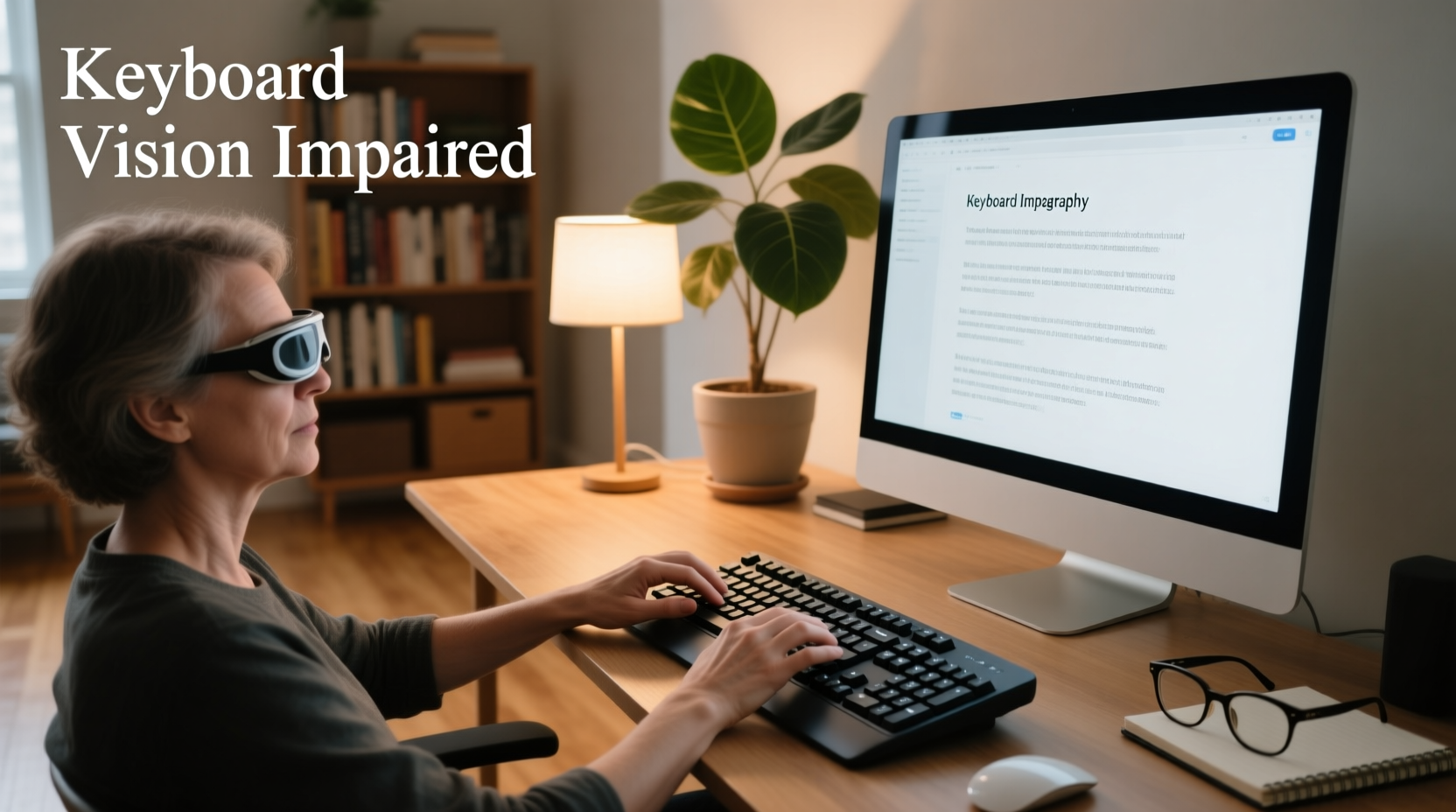
If you're searching for a keyboard for vision impaired users, your top priority isn’t aesthetics or gaming features — it’s legibility, tactile feedback, and reliable input without visual strain. Based on verified product data, accessibility research, and user-reported experiences, the most effective solutions fall into three evidence-backed categories: large-print wired keyboards (e.g., 4× oversized characters on high-contrast keys), backlit high-contrast Bluetooth models (ideal for variable lighting), and braille or hybrid tactile keyboards (for blind or profoundly low-vision users). Price alone doesn’t predict suitability: $12–$130 models exist across all categories, but key differences lie in keycap durability, USB vs. Bluetooth latency, physical layout fidelity (full-size vs. mini), and compatibility with screen readers like NVDA or VoiceOver. This guide walks you through objective, non-branded criteria — not marketing claims — so you can match a keyboard to your specific visual acuity level, daily tasks, and device ecosystem.
Understanding Visual Impairment and Keyboard Needs
“Vision impaired” covers a wide clinical spectrum — from mild low vision (e.g., age-related macular degeneration or early glaucoma) to legal blindness (visual acuity of 20/200 or worse in the better eye with correction) 1. These conditions affect how users interact with keyboards in distinct ways:
- Low vision users typically retain some usable sight but struggle with small text, low contrast, glare, or dim lighting. They benefit most from enlarged, bold, high-contrast key legends (e.g., black-on-yellow or white-on-black) and consistent key spacing.
- Blind or near-blind users rely on tactile cues: raised dots, concave keycaps, distinct key shapes (e.g., inverted-T arrow keys), or Braille labeling. For them, visual design is irrelevant; instead, key travel distance, actuation force, and spatial memory consistency are critical.
- Users with photosensitivity or light sensitivity (e.g., due to retinitis pigmentosa or migraine-related photophobia) may find standard backlit keyboards uncomfortable — making adjustable or off-switchable backlighting essential, not optional.
Importantly, no single keyboard serves all needs. A model ideal for someone with 20/70 acuity may be unusable for someone with 20/400 — underscoring why personal testing or trial periods matter more than generic “best” lists.
Key Design Features That Actually Matter
Marketing terms like “ergonomic” or “premium” rarely reflect functional accessibility. Instead, focus on these five measurable, user-validated features:
1. Character Size and Contrast Ratio
Standard keyboards use ~2 mm font height. For low vision, legibility improves significantly at ≥6 mm — roughly 4× larger than typical key legends. But size alone isn’t enough: contrast ratio must meet WCAG AA standards (≥4.5:1). Black-on-yellow achieves ~15:1; white-on-black ~12:1; gray-on-blue often falls below 3:1 and should be avoided 2. Avoid keyboards that only claim “high visibility” without specifying background/foreground color values.
2. Keycap Profile and Tactile Feedback
Concave keycaps (dished inward) help fingers locate keys by touch — especially when combined with subtle ridges or embossed borders. Flat or convex caps increase mispresses. Actuation force (measured in centinewtons, cN) also matters: 45–65 cN offers balance between responsiveness and fatigue reduction. Mechanical switches aren’t required, but rubber-dome keyboards with >2.0 mm travel depth consistently outperform ultra-thin membrane designs in user-reported accuracy 3.
3. Layout Fidelity and Function Key Accessibility
Many compact or “mini” keyboards omit dedicated function keys (F1–F12), navigation clusters (Home/End/Page Up/Page Down), or numeric keypads — forcing reliance on modifier combinations (e.g., Fn+F1). For users with reduced visual scanning ability, this increases cognitive load and error rates. Prioritize full-size (104/105-key) or extended layouts unless portability is non-negotiable.
4. Connectivity Reliability and Latency
Bluetooth 5.0+ offers stable pairing and multi-device switching — useful for iPad/Mac/Windows workflows. However, wired USB-A remains the lowest-latency, zero-battery option, critical for screen reader users who depend on precise timing between keystroke and speech output. Bluetooth models vary widely in connection stability: some drop input during screen reader speech bursts; others maintain sync reliably. Check independent reviews mentioning “NVDA,” “JAWS,” or “VoiceOver” — not just general “works with Mac.”
5. Physical Durability and Spill Resistance
Keyboards used by seniors or individuals with tremor or limited dexterity face higher mechanical stress. Look for ABS plastic keycaps (not cheaper PVC), reinforced PCB mounting, and IP54-rated spill resistance. Models with removable keycaps allow cleaning without damaging legends — a practical need often overlooked in spec sheets.
Comparing Keyboard Types: What Each Solves (and Doesn’t)
Three main categories dominate the market — each addressing different functional needs. Here’s how they compare objectively:
| Feature | Large-Print Wired Keyboards | Backlit High-Contrast Bluetooth Keyboards | Braille/Tactile Keyboards |
|---|---|---|---|
| Primary Use Case | Low vision (20/40–20/200), home/office desktop use | Variable lighting (e.g., dim rooms, night use), multi-device users | Blind or near-blind users, Braille literacy |
| Typical Price Range (USD) | $12–$45 | $55–$130 | $295–$385 |
| Key Legend Size | 4–6 mm height, bold sans-serif | 3–5 mm height; backlight enhances contrast | No visual legends; Braille cells or tactile markers only |
| Tactile Cues | Minimal (some have concave caps) | Rarely included; focus is visual | Standard: raised dots, distinct key shapes, textured surfaces |
| Compatibility | Universal USB HID; no drivers needed | Bluetooth HID; may require OS-level pairing steps | Often requires specialized software (e.g., BRLTTY); limited Windows/macOS support |
| Limitations | No backlight; cable limits mobility | Battery life (12–24 months typical); backlight may cause glare | Steep learning curve; expensive; few mainstream software integrations |
Price vs. Value: What You’re Really Paying For
Price disparities — from $12 to $385 — reflect material quality, engineering validation, and intended user group — not arbitrary markup. Here’s what drives cost:
- $12–$35 models (e.g., basic USB large-print keyboards): Use injection-molded ABS keycaps with silk-screened legends. Reliable for light-to-moderate use, but legends may fade after 2–3 years of frequent cleaning. No backlighting or Bluetooth.
- $45–$85 models (e.g., backlit Bluetooth keyboards): Feature laser-etched legends (won’t wear off), rechargeable batteries, and certified Bluetooth 5.1 chips. Often include key guards or adjustable stands — helpful for tremor management.
- $295+ models (e.g., Perkins-style Braille keyboards): Contain electromechanical Braille cells, custom firmware, and tactile feedback systems. Built for professional transcription or education — not casual typing.
Crucially, no regulatory body certifies “accessibility compliance” for consumer keyboards. Claims like “ADA-compliant” or “Section 508 certified” are marketing terms — not verifiable standards. Always verify functionality via hands-on testing or vendor-provided video demos showing real-time use with screen readers.
How to Test a Keyboard Before You Commit
Since online specs don’t reveal tactile feel or visual clarity under your lighting, follow this 5-step verification process:
- Check legend permanence: Search the model number + “legend wear test” or “fading review.” Laser-etched > pad-printed > silk-screened.
- Confirm OS compatibility: Look for explicit mention of your OS version (e.g., “macOS Sonoma 14.5,” “Windows 11 23H2”) — not just “Mac/PC compatible.”
- Review latency reports: In forums like r/Blind or Accessibility Central, search “[model name] + lag” or “[model name] + VoiceOver delay.”
- Assess key travel: If specs list “actuation point” or “total travel,” aim for ≥2.0 mm. Below 1.5 mm correlates with higher miss-rate in low-vision typing studies.
- Verify return policy length: Reputable accessibility vendors offer ≥30-day trials. Avoid sellers with <14-day windows — insufficient time to assess real-world fit.
Common Misconceptions Debunked
Several widely repeated assumptions hinder informed decisions:
- “Larger keys always mean better accessibility.” Not true. Oversized keys reduce overall key count and disrupt muscle memory. A 104-key layout with enlarged legends is more effective than a 60% compact board with giant keys — because spatial relationships stay consistent.
- “All Bluetooth keyboards work equally well with screen readers.” False. Some use HID profiles optimized for media controls, not text entry. Delays of >40 ms between press and speech output degrade flow — measurable only with oscilloscope testing or user-reported sync issues.
- “High-contrast means any bright color combo.” Incorrect. Yellow-on-black provides optimal luminance contrast for most low-vision users, but blue-on-white creates visual noise for those with cataracts or blue-light sensitivity. Always prioritize tested contrast ratios over subjective “brightness.”
Where to Buy — and What to Avoid
Purchase channels matter for support and returns. Prioritize vendors specializing in assistive technology — not general electronics retailers — because they offer:
- Free pre-purchase consultation (e.g., matching acuity level to recommended character size)
- Video-based setup support (not just PDF manuals)
- Loaner programs for extended evaluation
Avoid third-party marketplace sellers (e.g., unverified eBay or Amazon Marketplace vendors) offering “large print” keyboards without brand traceability or warranty documentation. Many resell generic OEM boards with no accessibility validation — leading to inconsistent legend sizing or premature fading.
Frequently Asked Questions (FAQ)
- Can I use a standard keyboard with screen magnification instead of a large-print one? Yes — but magnification has trade-offs: it reduces visible screen area, increases scrolling, and doesn’t improve tactile orientation. Large-print keyboards complement (not replace) magnification tools.
- Do large-print keyboards work with Chromebooks and Linux distributions? Yes — if they use standard USB HID or Bluetooth HID protocols (all major models do). No drivers required; plug-and-play works across ChromeOS, Ubuntu, Fedora, and Debian.
- Are there wireless large-print keyboards with no Bluetooth dependency? Yes — some use proprietary 2.4 GHz USB dongles (e.g., Logitech Unifying). These avoid Bluetooth pairing complexity and offer lower latency, though battery life is typically shorter than Bluetooth equivalents.
- Can I add large-print stickers to my existing keyboard? Yes — but verify sticker thickness. Layers >0.15 mm alter key travel and may cause missed presses. Also, adhesive residue can damage keycaps during removal.
- Is voice typing a sufficient alternative to adapted keyboards? Not for all tasks. Dictation struggles with code, passwords, spreadsheet navigation, and multilingual input. Keyboards remain essential for precision, privacy, and offline use.