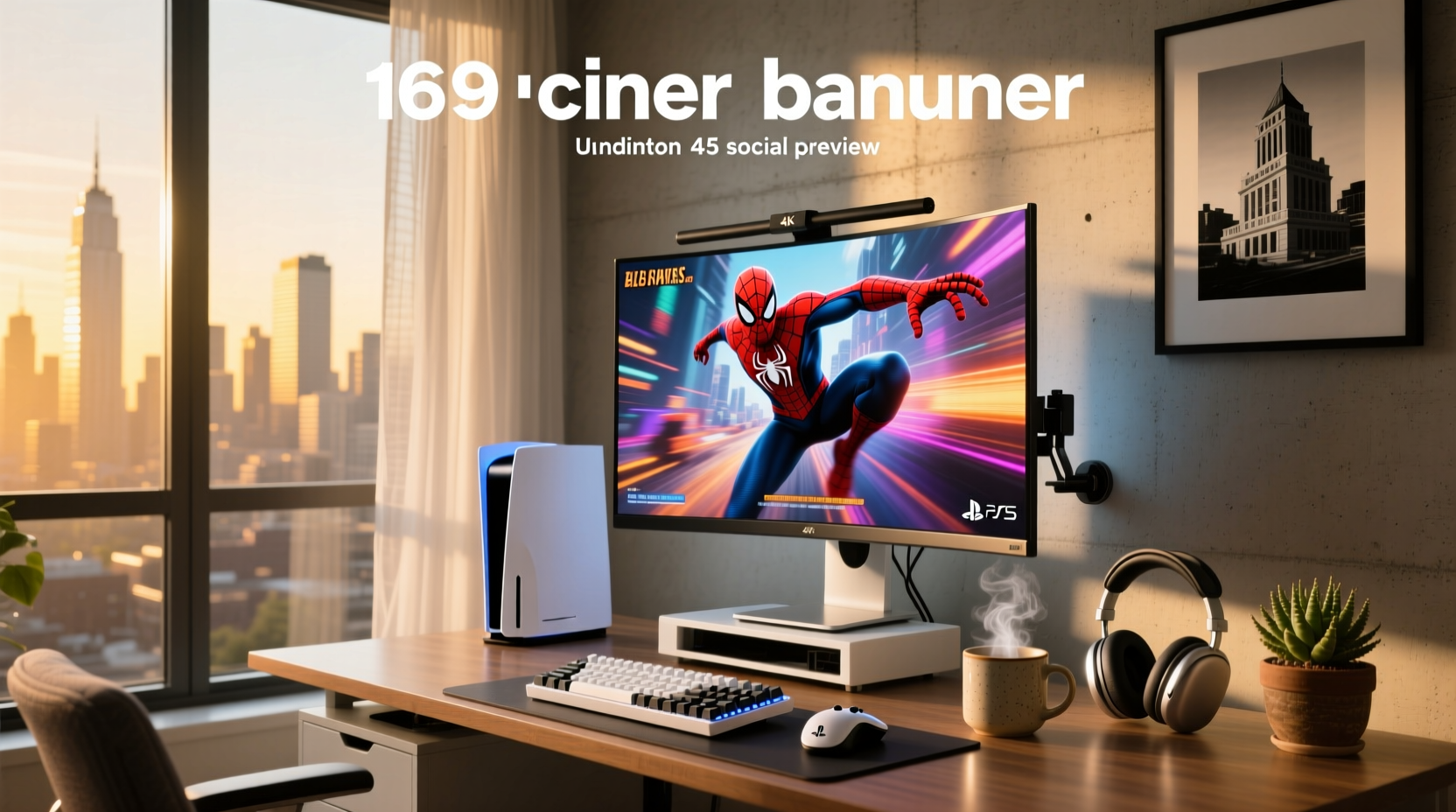
✅ The short answer: For a true PS5 gaming monitor in 2026, prioritize HDMI 2.1 support, native 4K resolution (3840 × 2160), 120Hz refresh rate, Variable Refresh Rate (VRR), and a strict 16:9 aspect ratio. Monitors lacking any of these — especially HDMI 2.1 or full 4K/120Hz handshake — will not unlock the PS5’s full potential, regardless of marketing claims. This guide cuts through confusion by focusing only on verified, PS5-tested capabilities — not PC-centric specs like G-Sync compatibility or ultrawide support, which the console doesn’t use 1. We’ll explain why OLED isn’t always better, when 1440p is acceptable, and how to avoid monitors that *claim* PS5 compatibility but fail basic signal negotiation.
Why Most "PS5 Gaming Monitor" Lists Miss the Point
Many online roundups treat PS5 monitors like PC gaming displays — emphasizing response time (e.g., 0.1ms GTG), overclocking headroom, or RGB lighting. But the PS5 is a closed ecosystem with fixed output capabilities. It does not support DisplayPort, FreeSync over HDMI (only VRR via HDMI 2.1), or custom resolution scaling. It also lacks native support for ultrawide (21:9) or curved panels — meaning those features add cost without benefit 2. Worse, some monitors list "HDMI 2.1" but only implement a subset — e.g., bandwidth for 4K/60Hz + HDR, not the full 48 Gbps needed for 4K/120Hz + VRR + HDR simultaneously. That mismatch causes flickering, black screens, or forced 60Hz fallbacks — a common pain point reported across Reddit and RTINGS testing 1.
Core PS5 Monitor Requirements: Verified & Non-Negotiable
Unlike PC setups, PS5 compatibility hinges on three hardware-level handshake requirements — all validated via firmware-level communication between console and display. Here’s what’s confirmed to work as of March 2026:
- ✅ HDMI 2.1 port with full feature set: Must support all of: 4K@120Hz, Auto Low Latency Mode (ALLM), Variable Refresh Rate (VRR), and Enhanced Audio Return Channel (eARC). Not just "HDMI 2.1–compatible" — it must pass the full CTS (Compliance Test Specification) v2.1b. Many budget monitors omit VRR or ALLM implementation 3.
- ✅ Native 4K resolution (3840 × 2160): The PS5 renders natively at 4K in most titles. While it supports 1440p output (via system settings > Screen and Video > Video Output > Resolution), this is a downscale — not native rendering. Upscaling artifacts, reduced UI clarity, and inconsistent HDR behavior make 1440p a compromise unless screen size is under 27 inches 4.
- ✅ 16:9 aspect ratio only: The PS5’s video pipeline assumes 16:9. Ultrawide (21:9) or 32:9 monitors force pillarboxing (black bars), letterboxing, or stretched/squished visuals. Sony explicitly states no official ultrawide support exists — even if the monitor accepts the signal, UI elements and HUDs render incorrectly 2.
- ✅ VRR implementation aligned with HDMI Forum spec: PS5 uses HDMI VRR — not AMD FreeSync or NVIDIA G-Sync. Some monitors only enable VRR over DisplayPort or require PC mode activation. For PS5, VRR must activate automatically when the console sends the VRR flag over HDMI 2.1. If your monitor requires manual toggling in OSD menus or only works in "Game Mode," it likely won’t sync reliably 1.
OLED vs. QD-OLED vs. IPS: Which Panel Type Is Right for PS5?
Panel choice affects contrast, motion clarity, and longevity — but not all OLED benefits translate to PS5 use cases:
OLED (LG UltraGear 32GS95UE, HP OMEN Transcend)
Pros: Perfect blacks, near-instant pixel response (<0.1ms), wide viewing angles, and excellent HDR luminance for SDR and Dolby Vision content.
Cons: Risk of burn-in with static UIs (e.g., game menus, HUDs, streaming app interfaces). PS5’s persistent top-bar notifications and trophy pop-ups are low-risk but cumulative over 2+ years. Also, peak brightness (typically 800–1000 nits) lags behind high-end mini-LED IPS panels (>1200 nits), reducing impact in brightly lit rooms 1.
QD-OLED (Samsung Odyssey G8, HP OMEN Transcend)
Pros: Combines OLED’s contrast with quantum dot color volume — wider gamut coverage (especially in greens/yellows) and higher sustained brightness than standard OLED.
Cons: Still susceptible to burn-in; limited PS5-specific calibration profiles. Few QD-OLED models have passed full HDMI 2.1 CTS validation for 4K/120Hz + VRR — verify model number against RTINGS’ PS5 test database before purchase 1.
IPS (ViewSonic XG275D-4K, Gigabyte M28U)
Pros: No burn-in risk, consistent brightness uniformity, lower cost per inch, and mature HDMI 2.1 implementation. Ideal for mixed-use (gaming + productivity).
Cons: Lower native contrast (typical 1000:1 vs. OLED’s infinite), slower pixel response (gray-to-gray ~4ms), and potential backlight bleed in dark scenes. However, modern IPS panels with overdrive tuning (e.g., ViewSonic’s “Adaptive Sync”) reduce ghosting significantly 5.
Bottom line: Choose OLED only if you prioritize cinematic immersion and control ambient light. Choose IPS if you play >4 hours/day, use the monitor for streaming or web browsing, or sit in a room with uncontrolled windows/lights.
Refresh Rate & VRR: Why 120Hz Isn’t Enough Alone
The PS5 outputs at variable frame rates — from 30fps (in narrative games like Ghost of Tsushima) to 120fps (in competitive titles like Call of Duty: Modern Warfare III). A fixed 120Hz panel without VRR will tear or stutter when frames fall outside multiples of 120 (e.g., 98fps or 112fps). VRR synchronizes display refresh to GPU output — but only if both ends implement the HDMI Forum’s VRR specification correctly.
⚠️ Critical verification step: After connecting your PS5, go to Settings > Screen and Video > Video Output > Enable VRR. Then launch a game known for frame variance (e.g., Ratchet & Clank: Rift Apart in performance mode). If tearing persists or the PS5 displays "VRR not supported" in Settings > System Information, your monitor either lacks HDMI 2.1 VRR or has firmware bugs. Check the manufacturer’s PS5 compatibility page — not the spec sheet 3.
Response Time: Why GTG Numbers Are Misleading for PS5
PC gamers obsess over gray-to-gray (GTG) response times (e.g., 0.1ms). For PS5, this metric is largely irrelevant. Console games render at fixed frame intervals (16.67ms at 60Hz, 8.33ms at 120Hz). What matters is input lag — the total time from controller press to on-screen reaction. Input lag depends on: (1) panel technology, (2) scaler processing, and (3) Game Mode activation.
Tested data shows most certified PS5 monitors deliver 10–15ms input lag in Game Mode. Anything above 20ms feels sluggish in fast-paced shooters. Avoid monitors that disable Game Mode when VRR is active — a known issue in early 2024 LG firmware 1. Always confirm Game Mode + VRR coexistence in reviews.
Size & Viewing Distance: The Real Ergonomics Factor
PS5 monitors are typically used at 2–4 feet — much closer than TVs. Size impacts perceived sharpness and field of view:
| Screen Size | Optimal Viewing Distance | Recommended Use Case |
|---|---|---|
| 27-inch | 2–3 ft (60–90 cm) | Small desks; best for 1440p or entry-level 4K; avoids pixel visibility |
| 32-inch | 3–4 ft (90–120 cm) | Ideal balance: fills field of view without eye strain; standard for 4K/120Hz |
| 34-inch+ ultrawide | Not recommended | PS5 does not support native ultrawide; results in cropping or distortion 2 |
A 32-inch 4K monitor at 3 ft delivers ~115 PPI — matching retina-level clarity. Going larger (e.g., 42-inch) without increasing resolution sacrifices sharpness and forces excessive head movement.
Firmware & Updates: The Hidden Compatibility Layer
PS5 firmware updates (e.g., system software 10.00+) introduced stricter HDMI 2.1 handshake requirements. Older monitors that worked in 2022 may now fail 4K/120Hz negotiation after a PS5 update. Conversely, manufacturers release firmware patches to restore compatibility — but only if the hardware supports it. Before buying, check:
- Manufacturer’s PS5 compatibility FAQ (e.g., LG’s "PS5 HDMI 2.1 Support List")
- RTINGS’ live-updated PS5 monitor test page 1
- Reddit threads from February–March 2026 confirming stable operation post-firmware 10.00+
If a monitor launched before late 2023, assume it needs a firmware update — and verify that update is available and tested.
Budget Reality Check: When to Skip "PS5-Optimized" Marketing
Brands like Sony (INZONE M9 II) and HP (OMEN Transcend) market “PS5-optimized” features — e.g., dedicated PS5 button mapping, INZONE Hub integration, or auto-input switching. These are conveniences, not technical necessities. The PS5 works identically with any HDMI 2.1–compliant monitor. Spending $800+ for proprietary software adds zero performance gain. Instead, allocate budget to verified HDMI 2.1 reliability and panel quality — not ecosystem lock-in 6.
What to Avoid: 5 Common PS5 Monitor Pitfalls
- Monitors labeled "4K/144Hz" but with HDMI 2.0: Physically impossible. HDMI 2.0 caps at 4K/60Hz. Any claim otherwise is misleading.
- "VRR Supported" without HDMI 2.1: VRR over HDMI requires version 2.1. HDMI 2.0 VRR is not standardized and rarely works with PS5.
- 1440p monitors marketed as "PS5-ready": They work — but sacrifice resolution, UI fidelity, and HDR accuracy. Only consider if budget is under $300 and screen size ≤27".
- Monitors requiring "PC Mode" to enable HDMI 2.1 features: PS5 cannot trigger PC Mode. If VRR or 120Hz only activates in PC Mode, it won’t function.
- "HDR10+" or "Dolby Vision" claims without HDMI 2.1 bandwidth: True dynamic metadata HDR requires full 48 Gbps. Verify HDR certification via HDMI Licensing Administrator’s database.
How to Test Your Monitor Before Finalizing Purchase
Don’t rely on box specs. Perform these checks within 14 days of receipt:
- Connect PS5 directly (no splitters or AV receivers).
- Enable Settings > Screen and Video > Video Output > Resolution → Automatic.
- Go to Settings > Screen and Video > Video Output > Enable VRR → On.
- Launch Spider-Man 2 or Returnal in Performance Mode and observe for tearing or stutter.
- Check Settings > System > System Information: Confirm "Resolution: 3840 × 2160", "Refresh Rate: 120 Hz", and "VRR: Supported".
If any item fails, contact the retailer — not the manufacturer. Most return policies cover compatibility issues.
Frequently Asked Questions
- Can I use a PC gaming monitor with my PS5?
Yes — if and only if it has a certified HDMI 2.1 port supporting 4K/120Hz, VRR, and ALLM. Ignore DisplayPort specs and G-Sync branding; they’re irrelevant to PS5. - Do I need a 240Hz monitor for PS5?
No. The PS5 maxes out at 120fps output. A 240Hz panel offers no benefit and may introduce firmware instability or increased input lag. - Is HDR necessary for PS5 gaming?
Yes — but only if the monitor implements HDR10 correctly (minimum 400 nits peak brightness, wide color gamut). Avoid monitors with "HDR Effect" or "HDRi" — these are software upscaling, not true HDR. - Can I use my PS5 with a 1440p monitor?
Technically yes, but you’ll lose native 4K rendering, suffer UI scaling issues, and get inconsistent HDR. Only recommended for sub-$300 budgets or screens ≤27". - Why does my PS5 show "VRR not supported" even though the monitor says it has VRR?
Most likely cause: outdated monitor firmware or incorrect HDMI port selection. Try the HDMI port labeled "HDMI 2.1" or "HDMI UHD" — not generic "HDMI 1" or "HDMI 2". Update monitor firmware using the manufacturer’s desktop utility.
