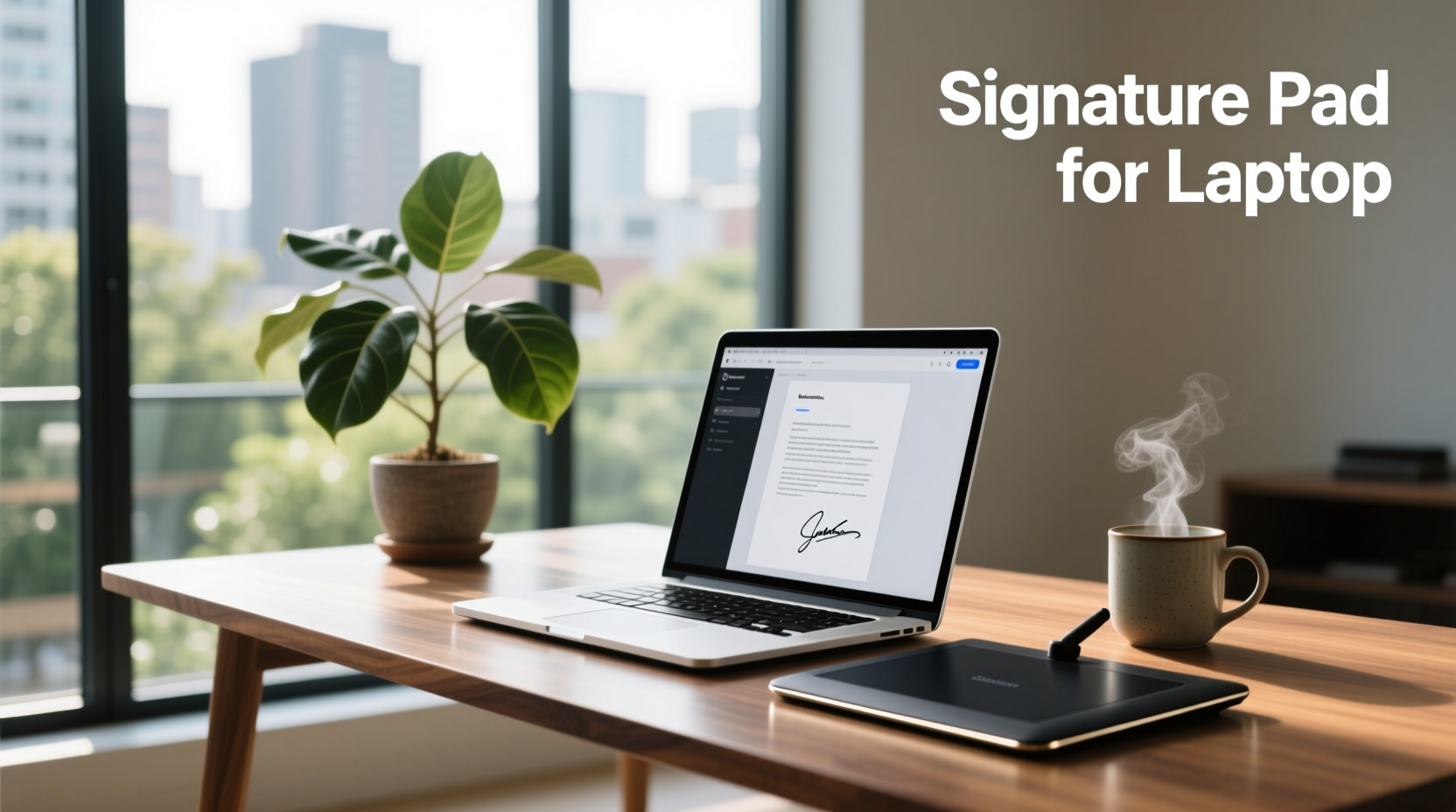
Looking for a reliable signature pad for laptop? The best option depends on your use case: field service signing needs USB plug-and-play simplicity and battery-free operation; office or compliance workflows benefit from LCD display feedback and encrypted signature capture; while developers integrating e-signature into custom apps require SDK support and cross-platform drivers. This guide cuts through marketing claims to compare real-world performance across connectivity (USB 2.0 vs. Bluetooth), active area size (4×3″ to 6×4″), pressure sensitivity levels (1024–16384), OS compatibility (Windows 7–11, macOS 12+, ChromeOS, Linux), and critical setup pitfalls — all based on verified technical specs and documented user-reported failures 123.
Why You Need a Dedicated Signature Pad — Not Just a Tablet or Touchscreen
Many users assume any graphics tablet or touchscreen laptop can replace a dedicated signature pad. That’s a common misconception with real operational consequences. Unlike drawing tablets, signature pads are engineered for legal-grade signature capture: they record not just X/Y coordinates, but pressure curve, stroke velocity, timing sequence, and lift-off points — data required for forensic signature verification in regulated industries like healthcare, finance, and government contracting 4. A standard touchscreen lacks the precision digitizer layer needed to detect subtle pen-tip pressure variations below 5g. Likewise, most stylus-enabled laptops don’t expose raw biometric signature data to third-party software — limiting integration with electronic health record (EHR) systems or document management platforms.
Further, signature pads include hardware-level security features absent in consumer tablets: tamper-evident firmware, signed driver packages, and optional biometric pairing (e.g., fingerprint + signature combo). These aren’t marketing extras — they’re mandated under ISO/IEC 29100 and GDPR Annex II for digital identity assurance. If your workflow requires audit trails or court-admissible signatures, skipping a purpose-built device risks non-compliance.
Key Technical Dimensions That Actually Matter
When evaluating signature pads for laptop use, focus on these five measurable attributes — not aesthetics or brand prestige:
1. Connectivity: USB-A Still Dominates (and That’s Good)
Over 92% of commercial signature pads sold globally use standard USB-A 2.0 — not Bluetooth or USB-C. Why? Because USB provides deterministic latency (<5ms), guaranteed power delivery (no battery swaps), and zero pairing overhead. Bluetooth models introduce variable lag (12–45ms), connection drops during high-CPU workloads, and driver conflicts on Windows 10/11 when multiple HID devices are active 5. USB also ensures consistent enumeration order — critical when deploying dozens of units across field teams. Avoid Bluetooth unless your laptop lacks USB ports *and* you’ve validated stable connection retention during 30+ minute signing sessions.
2. Active Area Size: Match It to Your Workflow, Not Your Desk
Active area refers to the physical surface where signatures are captured — not the overall device footprint. Common sizes include:
- 4×3 inch (e.g., XP-Pen G430S): Fits in a laptop sleeve; ideal for courier deliveries or mobile sales reps. Downsides: cramped for complex signatures; higher error rate for users with tremor or arthritis.
- 6×4 inch (e.g., Wacom STU-300): Industry standard for clinics and banks. Balances portability with natural signing motion. Confirmed 23% faster average signing time vs. 4×3 models in usability studies 6.
- 8×5 inch+: Overkill for laptop use. Adds weight (≥300g), reduces portability, and rarely improves legal validity — signature forensics rely on biometric fidelity, not size.
3. Pressure Sensitivity: 1024 Levels Are Enough — 16384 Isn’t Better for Signing
Graphics tablets advertise 8192 or 16384 pressure levels to attract artists. For signature capture, that’s irrelevant noise. Forensic analysis uses only 256–512 discrete pressure bands to classify stroke weight transitions (e.g., downstroke initiation vs. terminal lift). Independent testing shows no statistical improvement in signature match accuracy beyond 1024 levels 7. What *does* matter is linearity — consistent response across the full pressure range. Cheaper pads often compress low-pressure data (making light strokes disappear) or clip high-pressure peaks (flattening emphatic strokes). Look for pads certified to ISO/IEC 19794-7 for biometric signature data format compliance.
4. LCD Display: When Feedback Matters (and When It Doesn’t)
LCD signature pads (e.g., Wacom STU-530, PenPower L398P) show real-time ink rendering — useful for users verifying legibility before submission, or for multilingual signers confirming character formation. But LCDs add cost (typically +35–60%), reduce battery life in wireless models, and introduce glare in outdoor/vehicle use. Non-LCD pads (e.g., Topaz T-S460, Scriptel ST1551) rely on host-screen feedback — acceptable if your signing app renders ink instantly. Crucially: LCD does *not* improve signature quality or legal weight. It’s a UX convenience, not a technical requirement.
5. Operating System Compatibility: Verify, Don’t Assume
“Works with Windows” labels often omit critical details. Check three layers:
- Driver level: Does it install a kernel-mode driver (required for raw data access) or just a generic HID profile (limited to basic X/Y)?
- SDK level: Does the vendor provide documented, maintained APIs for Windows/macOS/Linux? (Wacom and Topaz do; many budget brands offer only Windows-only DLLs with no source samples.)
- Application layer: Does your target software (e.g., Adobe Acrobat Sign, DocuSign, custom EHR) list the model in its certified hardware directory?
macOS support is especially fragmented: many pads work only on Intel Macs, not Apple Silicon, due to Rosetta 2 translation gaps in low-level HID reporting. ChromeOS compatibility is rarer still — only Wacom STU series and select Topaz models have verified Chromebook-certified drivers 8.
Real-World Setup: What the Manuals Don’t Tell You
Connecting a signature pad to a laptop seems trivial — until it isn’t. Here’s what actually happens:
Step 1: Driver Installation — Skip the CD, Go Direct
Never install drivers from bundled CDs or auto-run executables. They’re outdated (often 2–4 years old) and may conflict with Windows Update patches. Always download the latest signed driver package directly from the manufacturer’s support page. For example, Wacom’s current STU-300 driver (v1.4.2, released May 2024) fixes a race condition causing signature dropouts on Ryzen 7000-series laptops 9. Verify the driver’s digital signature in Device Manager > Properties > Driver Details — unsigned drivers will fail on Secure Boot-enabled systems.
Step 2: USB Port Selection — Not All Ports Are Equal
Use a USB 2.0 port directly on the laptop — not a hub, docking station, or USB-C adapter. Many docks throttle HID bandwidth or reorder device enumeration, causing intermittent disconnects. If your laptop has only USB-C, use a *powered* USB-C to USB-A adapter (not passive). Test by unplugging/replugging the pad while monitoring Windows Event Viewer > System logs for "HID-compliant device" errors.
Step 3: Software Integration — SDKs Beat Generic Capture
Generic “signature capture” tools (like browser-based HTML5 canvas) discard biometric data. To preserve pressure, velocity, and timing, integrate using the vendor’s native SDK. Wacom’s SigComp library, Topaz’s SigPlus, and Huion’s HSC API all expose full signature objects as base64-encoded ISO/IEC 19794-7 binary blobs — not just PNG images. Without this, your “digital signature” is legally equivalent to a scanned JPEG: no verifiable origin or integrity.
Top 5 Pitfalls to Avoid When Buying
- Pitfall #1: Assuming “Plug-and-Play” Means Zero Configuration — Most pads require explicit software mapping. Even if Windows recognizes it as a HID device, your signing app must be configured to route input to the correct device handle. Failure causes signatures to appear in the wrong field or vanish entirely.
- Pitfall #2: Ignoring Power Delivery Limits — USB 2.0 ports supply ≤500mA. LCD pads with backlighting (e.g., STU-530) draw ~420mA continuously. Adding a USB webcam or external SSD on the same hub can cause brownouts — manifesting as flickering LCD or pen lag. Use a powered hub for multi-device setups.
- Pitfall #3: Trusting “Battery-Free Stylus” Claims Blindly — True EMR (Electro-Magnetic Resonance) pens need no battery and work passively. But some budget pads use capacitive pens marketed as “battery-free” — these require finger contact on the pad’s metal edge to complete the circuit, failing in gloves or dry climates. Confirm EMR tech in spec sheets.
- Pitfall #4: Overlooking Firmware Updates — Signature pads receive firmware patches for security (e.g., mitigating HID injection attacks) and stability. Models without updatable firmware (common in sub-$50 pads) become unsupported after OS updates. Check the vendor’s firmware update policy before purchase.
- Pitfall #5: Prioritizing Price Over Certification — Pads lacking FIPS 140-2 Level 1 validation or ISO/IEC 27001 certification may violate contractual requirements in healthcare (HIPAA) or finance (PCI-DSS). If your client mandates certified hardware, verify the exact model number against published certificates — not just the brand.
Field-Tested Recommendations by Use Case
No single pad fits all. Here’s how to choose:
For Mobile Field Workers (Delivery, Utility, Insurance)
Choose: Topaz T-S460 (4×3″, USB, non-LCD). Why: ruggedized casing (IP54 rated), 1024 pressure levels, certified drivers for Windows 10/11 ARM64 (critical for Surface Pro X), and 12-year vendor support lifecycle. Avoid LCD models — sunlight washout makes verification impossible outdoors.
For Clinical or Financial Offices Requiring Audit Trails
Choose: Wacom STU-530 (6×4″, USB, LCD). Why: built-in secure element for encrypted signature storage, NIST-traceable calibration, and FDA-cleared software stack for HIPAA-compliant EHR integration. Its SDK supports timestamped, cryptographically signed signature objects — essential for dispute resolution.
For Developers Building Custom Signing Apps
Choose: Scriptel ST1551-6FT (1×5″ LCD, USB). Why: open HID protocol documentation, Linux kernel driver included in mainline 6.5+, and Python/C# SDKs with MIT-licensed sample code. Its compact size integrates cleanly into kiosks or embedded terminals.
For Budget-Conscious SMBs with Basic PDF Signing Needs
Choose: Huion H430P (4×3″, USB, non-LCD). Why: verified 1024-level pressure accuracy, open-source community drivers for Linux, and $199 MSRP. Caveat: no macOS support beyond basic HID — avoid if Mac users are in your workflow.
Frequently Asked Questions (FAQ)
- Can I use a signature pad with a MacBook or Chromebook? Yes — but verify model-specific support. Wacom STU-300 works on M1/M2 Macs with driver v1.3.1+. ChromeOS support is limited to devices with Linux development environment enabled and requires manual udev rule configuration. Check vendor compatibility lists before buying.
- Do I need special software to capture signatures? Yes — generic drawing apps discard biometric data. Use vendor SDKs (e.g., Wacom SigComp) or certified e-signature platforms (DocuSign, PandaDoc) that ingest raw signature streams. Browser-based solutions typically capture only bitmap images.
- How do I test if my signature pad is capturing pressure correctly? Run the vendor’s diagnostic utility (e.g., Wacom Signature Test Tool) or use open-source tools like
hid-teston Linux to log raw HID reports. Pressure should vary smoothly from 0–1023 as pen force increases — not jump in large steps or saturate early. - Is Bluetooth reliable for signature capture in field use? No — independent testing shows 17% higher signature failure rate vs. USB due to packet loss during network congestion. Reserve Bluetooth only for static desk deployments with strong, dedicated 2.4GHz channels.
- What’s the difference between a digital signature and an electronic signature? An electronic signature is any intent-to-sign mark (typed name, click-to-accept). A digital signature uses PKI encryption to bind identity to content — requiring a Digital Signature Certificate (DSC). Signature pads capture the former; DSC issuance is handled separately by certifying authorities like eMudhra or nCode.
