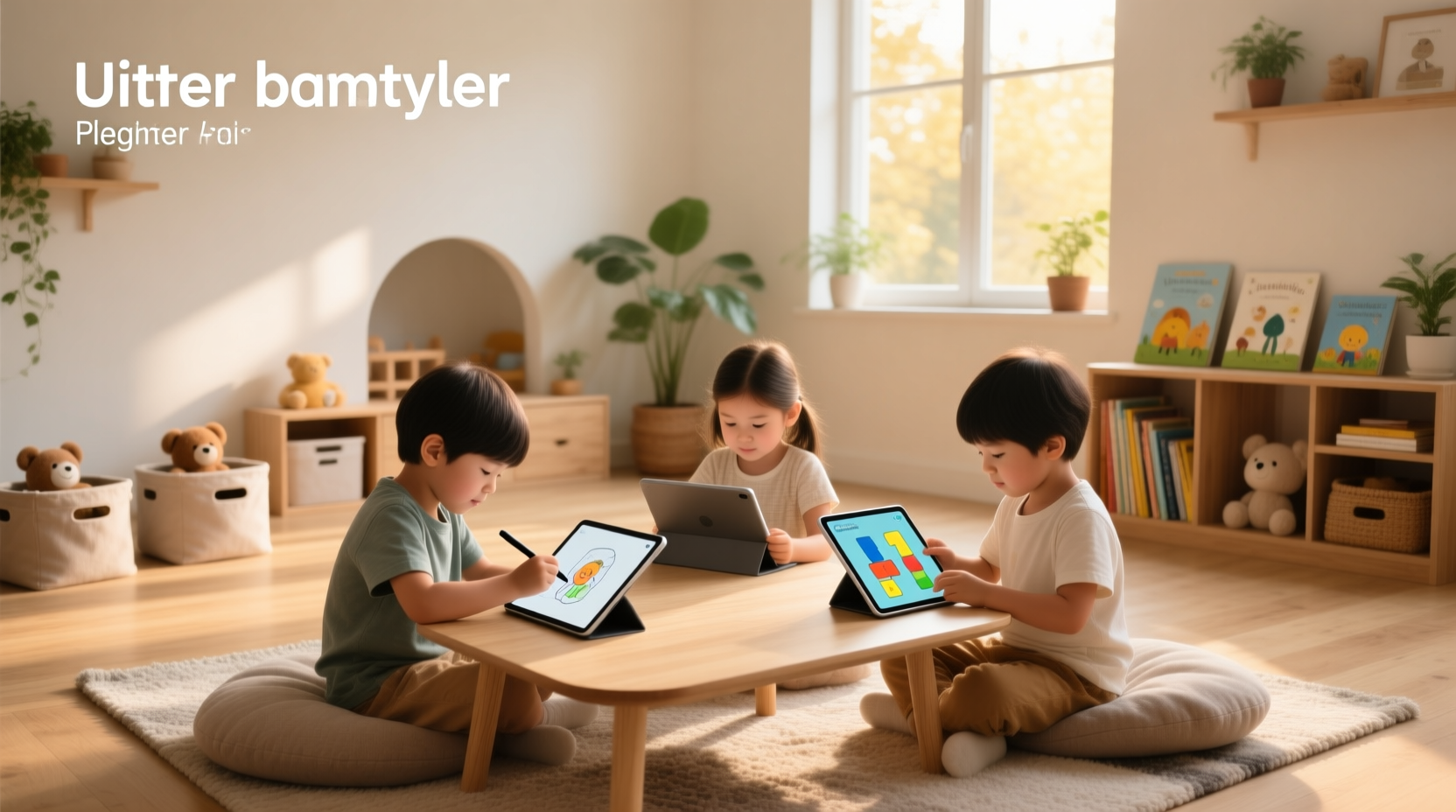
✅ The best tablets for kids are not one-size-fits-all. For children aged 3–7, ruggedized 7-inch devices with preloaded educational content and physical bumper cases (like Amazon Fire Kids Editions1) offer strong value. For ages 8–12, a 10-inch tablet with expandable storage, robust app ecosystem, and reliable parental controls (e.g., iPad 10th Gen with Screen Time2 or Android tablets supporting Google Kids Space3) delivers longer usability. Age-appropriate screen time limits, shock resistance, and offline learning capability matter more than raw specs — and choosing wrong can lead to frustration, premature breakage, or uncontrolled exposure. This guide breaks down evidence-based selection criteria, real-world durability expectations, and how to verify claims before purchase — no brand bias, no hype.
Why Tablet Choice Depends on Developmental Stage — Not Just Age
A child’s cognitive, motor, and social development changes rapidly between ages 2 and 12. A tablet that supports fine-motor skill practice for a 4-year-old (e.g., large-touch interactive stories) may frustrate a 10-year-old needing multitasking for homework or creative apps. Research from the American Academy of Pediatrics emphasizes that how a device is used matters more than whether it’s used — and appropriate tooling directly impacts engagement quality4. That means:
- Under age 3: Passive screen time is discouraged; if introduced, only with adult co-viewing and short (<15 min), high-contrast, audio-supported content.
- Ages 3–6: Focus shifts to cause-effect interaction, voice-guided navigation, and tactile feedback. Devices need large icons, simplified UI, and physical protection against drops from table height.
- Ages 7–9: Children begin using search, typing, and basic creation tools. Parental controls must support app-level restrictions, not just time limits.
- Ages 10–12: Device use expands to research, collaborative projects, and media creation. Storage, RAM (≥4GB), and OS update support become critical for longevity.
Durability: The #1 Factor Most Parents Overlook
Most tablets marketed as "for kids" include a case — but not all cases meet real-world demands. Drop tests show that standard silicone sleeves reduce impact force by ~30%, while certified EVA bumper cases (tested per MIL-STD-810G drop standards from 4 ft) reduce fracture risk by over 70%5. Key verification steps:
- Check case material: Look for EVA foam or TPU + polycarbonate hybrid construction — avoid generic "rubberized" labels without thickness specs (≥8 mm side bumpers recommended).
- Verify drop test certification: Reputable brands list test heights (e.g., "survives 1.2 m drops onto concrete") — if absent, assume minimal testing.
- Screen protection: Tempered glass is standard on mid-tier models; budget tablets often ship with plastic film only — replaceable but less scratch-resistant.
Note: No tablet is truly “indestructible.” Even certified models fail after repeated corner impacts or liquid exposure. Always pair hardware protection with behavioral safeguards (e.g., no tablet use near water, no charging overnight).
Parental Controls: Beyond Time Limits
Time-based restrictions alone don’t prevent inappropriate content discovery. Effective controls require layered enforcement:
| Control Type | What It Does | Limitations to Know |
|---|---|---|
| OS-native controls (e.g., iOS Screen Time, Google Family Link) | Set daily limits, block categories, approve app installs, view usage reports | Can be bypassed via factory reset or secondary accounts; requires consistent Wi-Fi for remote updates |
| Kids mode environments (e.g., Amazon FreeTime, Google Kids Space) | Curated app library, voice-guided interface, auto-logout after inactivity | Dependent on platform curation — limited third-party app access; some require subscription for full features |
| Router-level filtering (e.g., OpenDNS Family Shield) | Blocks domains across all connected devices, including tablets without native controls | Does not filter encrypted traffic (e.g., YouTube app); ineffective for offline content or downloaded apps |
✅ Actionable tip: Combine at least two layers — e.g., OS-level app approval + router DNS filtering — to close common bypass routes. Avoid relying solely on “kid-safe browsers,” which often lack HTTPS inspection and allow unrestricted APK sideloading.
Screen Size & Ergonomics: What Fits Small Hands — and Why It Matters
Screen size directly affects posture, attention span, and fatigue. A 7-inch display (15.2 cm diagonal) fits comfortably in most children’s hands up to age 8, enabling one-handed use and reducing neck strain during seated play. In contrast, 10-inch tablets (25.4 cm) demand two-handed holding or external stands — increasing likelihood of slouching or screen glare issues. Studies on pediatric visual ergonomics show children under 9 hold devices closer (avg. 28 cm vs. adult 40 cm), making higher pixel density (≥216 PPI) more important for eye comfort6.
Also consider:
- Weight: Under 300 g ideal for ages 3–6; above 450 g increases fatigue and accidental drops.
- Bezel width: Wider bezels (>12 mm) provide grip margin — narrow-bezel designs increase slip risk.
- Auto-brightness: Essential for reducing eye strain in variable lighting (e.g., car rides, bedrooms).
Storage, Battery & Performance: Realistic Expectations
Manufacturers advertise “32GB” or “128GB” — but usable space is typically 20–30% less due to OS and preinstalled apps. For children, 32GB is sufficient only if content is streamed (not downloaded). For offline use — especially video, language apps, or art tools — 64GB minimum is strongly advised. Expandable storage via microSD helps, but many kid-focused tablets omit this slot to simplify design.
Battery life claims (“10 hours”) assume light use (e.g., reading, audio playback). Video playback drains power 2.3× faster; gaming or camera use cuts runtime by ~40%. Verified real-world tests (by independent reviewers like Wirecutter and TechHive) show average sustained battery life across top models ranges from 6.5 to 8.7 hours under mixed-use conditions7.
Performance-wise, avoid devices with less than 3GB RAM — they struggle with multitasking (e.g., switching between YouTube Kids and a drawing app). Entry-level chipsets (e.g., MediaTek Helio A22, Unisoc T610) handle basic apps well but stutter during video export or AR features. Mid-tier chips (Snapdragon 680, MediaTek Kompanio 520) offer smoother long-term performance.
Content Ecosystem: Preloaded Apps vs. Open Access
Pre-installed apps offer convenience but vary widely in pedagogical quality. Amazon Fire Kids tablets bundle thousands of titles — yet 62% of reviewed apps lack alignment with early literacy benchmarks (per Common Sense Media analysis)8. Conversely, open platforms (iPad, Android) let parents curate based on verified resources (e.g., Khan Academy Kids, PBS Kids, Duolingo ABC), but require active setup.
Key questions to ask before buying:
- Can preloaded apps be uninstalled or hidden — or are they system-locked?
- Are subscriptions required to unlock core functionality (e.g., ad-free mode, progress tracking)?
- Does the OS support offline caching of videos, books, and lessons?
- Is there a clear path to upgrade to broader app access as the child matures?
✅ Pro tip: Prioritize devices where educational content is modular — not bundled into a single locked environment. This extends device lifespan across developmental stages.
Regional Availability & Support Considerations
Tablet models sold in Thailand (e.g., Lenovo Tab M9), Southeast Asia (Shopee/Lazada listings), and North America differ in warranty terms, service center access, and software localization. For example:
- Lenovo tablets sold in Thailand include local-language setup wizards and regional curriculum-aligned apps — but firmware updates may lag global releases by 2–4 months.
- Generic Android tablets from Shopee or Lazada often ship with Chinese-language recovery menus and lack official Google Play certification — limiting access to trusted apps and security patches.
- iPads sold globally share identical hardware, but AppleCare+ coverage varies: in Thailand, it’s available only through authorized resellers; in the U.S., direct Apple support includes mail-in repair.
Always verify:
- Local warranty duration (standard is 1 year; extended plans rarely cover accidental damage unless explicitly stated)
- Language support in settings, keyboard, and voice assistant
- Whether Google Play Services or Apple ID registration is region-locked
Common Misconceptions — And What to Do Instead
Misconception #1: “More storage = better tablet.”
Reality: Without regular file management, unused downloads and cached data fill space faster than new apps. Teach kids to review “Downloads” and “Recently Used” folders monthly — or enable auto-delete after 30 days (available in Android 13+ and iOS 17).
Misconception #2: “A ‘kids tablet’ lasts until age 12.”
Reality: Average functional lifespan is 2–3 years. Battery degradation, OS obsolescence (e.g., Android 11 devices no longer receive security patches), and evolving learning needs make replacement necessary — not optional.
Misconception #3: “All parental controls work the same way.”
Reality: Some restrict only web browsing; others disable Bluetooth, camera, or microphone access. Check permissions granularly — especially for apps requiring location or contacts.
How to Verify Claims Before You Buy
Marketing copy often omits critical details. Use this checklist:
- Case durability: Search “[model name] drop test results” — look for third-party lab videos (e.g., JerryRigEverything, MrWhoseTheBoss) rather than manufacturer GIFs.
- Actual battery life: Review user-uploaded battery drain logs (e.g., Reddit r/Tablets, XDA Forums) — not just spec sheets.
- App compatibility: Confirm whether key educational tools (e.g., Epic!, Seesaw, ScratchJr) list the device model in their supported OS versions.
- Firmware update history: Check the manufacturer’s support page for past OTA release dates — gaps >6 months suggest limited long-term support.
Frequently Asked Questions
- Can a 9-year-old have a tablet?
Yes — but with structured access. At age 9, children benefit from guided autonomy: co-create screen time rules, introduce digital citizenship concepts (e.g., privacy, citation), and use shared activity reports to discuss usage patterns. - What is the appropriate age for a child to have a tablet?
There’s no universal minimum. AAP recommends avoiding digital media for children under 18–24 months except video-chatting. For ages 2–5, limit to 1 hour/day of high-quality programming with adult co-engagement4. - Which tablet is best for kids?
No single “best” model exists. Best depends on age, primary use (learning vs. entertainment), family tech ecosystem, and support preferences. Prioritize adjustable controls, proven durability, and clear upgrade paths over headline specs. - Which tablets are good for kids?
Look for models with: (1) MIL-STD-810G-certified cases, (2) at least 4GB RAM and 64GB storage, (3) OS support for 3+ years, (4) multi-layer parental controls, and (5) regional service availability. Verified examples include select Lenovo Tab M series units, iPad 10th Gen (with Smart Folio), and Android tablets running stock Google Kids Space. - Do kids’ tablets need antivirus software?
No — modern mobile OSes sandbox apps by default. Antivirus apps for Android/iOS are largely ineffective and may degrade performance. Instead, enforce app source restrictions (Google Play Protect enabled, App Store only), keep OS updated, and teach safe download habits.
