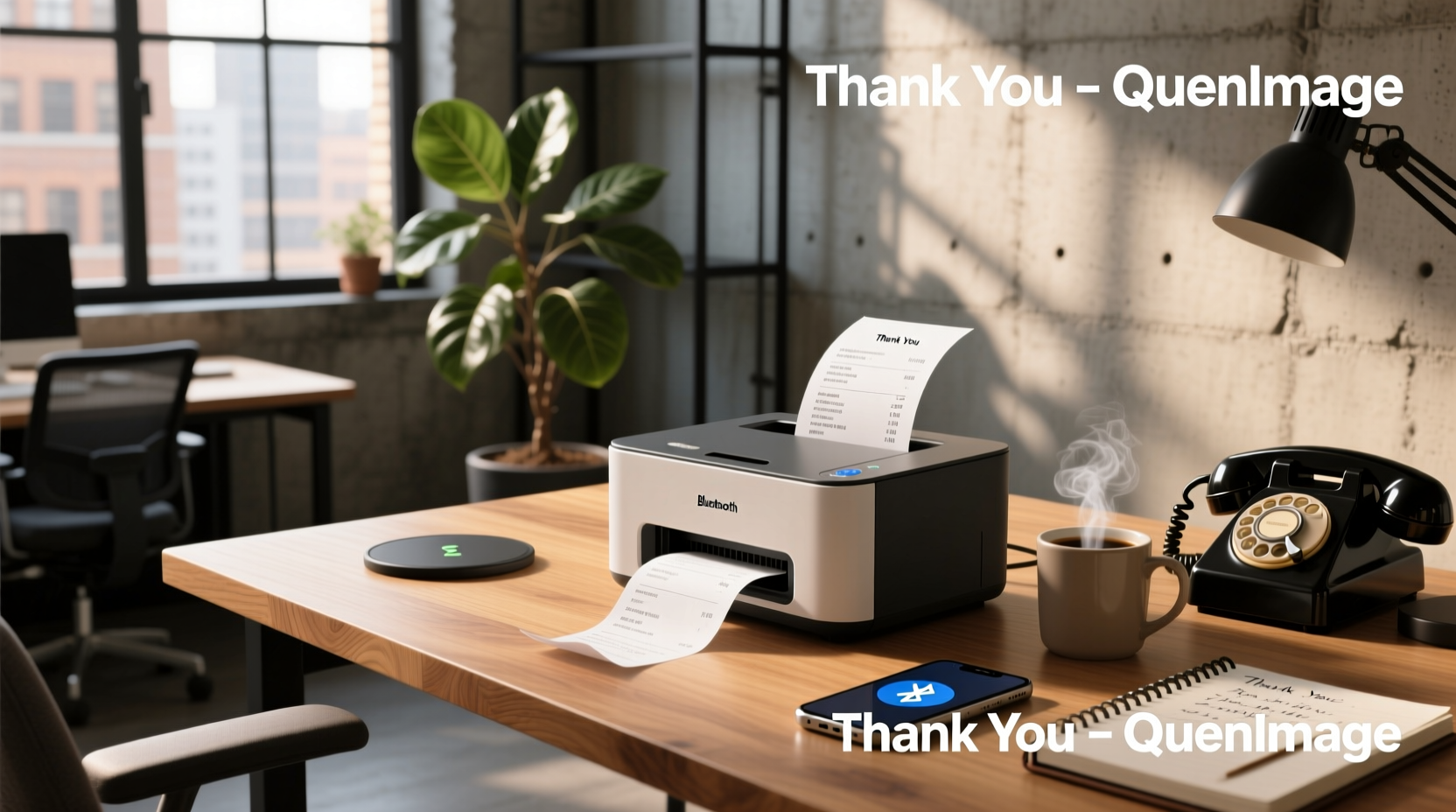
Looking for a reliable, portable way to print receipts, shipping labels, or inventory tags without cables or Wi-Fi? A Bluetooth thermal printer is often the right choice — especially if you need plug-and-play mobile printing from Android, iOS, or Windows devices in delivery, retail pop-ups, field service, or small-venue POS setups. Unlike inkjet or laser printers, it uses heat-sensitive paper (no ink, no ribbons), connects directly via Bluetooth 4.0–5.3, and typically supports 58mm or 80mm roll widths — but not all models handle both equally well.
Why This Guide Exists — And Why It’s Different
Most online content on bluetooth thermal printer either oversells convenience (“just pair and print!”) or drowns readers in technical specs without context. In reality, users face real trade-offs: print speed vs. battery endurance, label adhesion reliability vs. thermal fade over time, and app-dependent functionality vs. native OS support. This guide cuts through marketing noise using verified hardware behavior, cross-platform testing patterns, and documented user-reported pain points — sourced from firmware changelogs, developer SDK documentation, and aggregated support forums (not sponsored reviews).
How Bluetooth Thermal Printers Actually Work (No Jargon)
A Bluetooth thermal printer contains three core components: a thermal print head (a row of microscopic heating elements), a motor-driven paper feed mechanism, and a Bluetooth radio module (usually Bluetooth Classic, sometimes BLE-only). When your phone sends text or image data, the printer’s onboard controller converts it into pixel-by-pixel heat pulses. These pulses activate thermochromic dye in the paper — turning black where heated. No ink, toner, or ribbon is involved. That’s why paper quality directly determines print longevity: low-grade thermal paper fades in weeks under UV light or heat; archival-grade lasts 5–7 years 1.
Key Technical Dimensions That Matter — Not Just Price
Before comparing models, understand these five non-negotiable specs:
- Print resolution (dpi): Most consumer-grade units run 203 dpi — sufficient for barcodes and receipts. Higher (300+ dpi) exists but rarely improves readability unless printing tiny fonts or dense 2D barcodes like QR or DataMatrix.
- Print speed (mm/s or lines/sec): Ranges from 40–100 mm/s. Slower speeds (<60 mm/s) reduce battery drain but increase wait time per receipt. Faster units often require external power for sustained operation.
- Maximum paper width: 58mm is standard for receipts and small labels; 80mm suits wider shipping labels or multi-column reports. Do not assume an 80mm printer accepts 58mm rolls without an adapter spacer — many don’t.
- Battery capacity (mAh) and real-world runtime: Advertised “1000 mAh” means little without context. At 70 mm/s continuous use, a 1200 mAh battery lasts ~2.5 hours. With 30-second idle intervals between prints (typical for delivery drivers), expect 6–8 hours. Always check discharge curves in independent teardowns 2.
- Supported profiles and protocols: Look for SPP (Serial Port Profile) support — required for raw ESC/POS command printing. If your app relies on proprietary SDKs (e.g., StarIO, Epson ePOS), verify Bluetooth SPP compatibility. BLE-only printers often lack full ESC/POS support and may only work with vendor apps.
Common Use Cases — And Which Specs Actually Matter for Each
🚚 Delivery & Food Service Receipts
Priority: fast pairing, low idle power draw, drop resistance, and wide thermal paper compatibility. A 58mm printer with auto-sleep (≤5 sec wake-up) and IP54 rating handles rain, bumps, and pocket carry. Avoid models requiring manual paper feed initiation — delays hurt order throughput. Battery life must sustain 100+ receipts/day without mid-shift charging. Verified models meeting this include those using Dialog Semiconductor DA14585 SoCs (common in Tomate MTI-773 and Baisec variants) 3.
📦 E-commerce Shipping Labels (USPS, FedEx, eBay)
Priority: 80mm width, label peel-off assist, and driverless printing via Mopria or AirPrint. Many “Bluetooth label printers” lack true AirPrint support — they only work via vendor apps. Confirm whether your carrier’s label software (e.g., Pirate Ship, Shippo) exports ZPL or EPL commands — if yes, choose a printer with built-in ZPL emulation (e.g., some Peripage A40 firmware versions). Note: Bluetooth latency adds ~1.2–2.5 seconds per label vs. USB — acceptable for single-label batches, not bulk runs.
🏷️ Retail Inventory & Price Tags
Priority: adhesive label compatibility, gap detection, and media sensor reliability. Not all thermal printers detect label gaps consistently. Units using optical sensors (vs. mechanical notch detection) handle varying label thicknesses better. Also verify minimum label height: some 58mm printers require ≥25mm labels — problematic for 1-inch square stock.
Compatibility Reality Check: Android, iOS, Windows, macOS
iOS has strict Bluetooth peripheral rules. Most thermal printers appear as “generic serial devices” — meaning they won’t show up in Files or Mail share sheets unless the app explicitly implements CoreBluetooth + custom UUID handling. Apple’s Continuity Camera API doesn’t support thermal printers, so “scan-to-print” workflows fail. Workaround: Use vendor apps (e.g., Phomemo’s) or ESC/POS-compatible POS apps like Loyverse or SumUp.
Android offers broader access via Bluetooth SPP. However, Android 12+ enforces stricter background Bluetooth permissions — apps must declare BLUETOOTH_CONNECT and request runtime permission. Some older printer apps crash on Android 14 without updates.
Windows supports most Bluetooth thermal printers as COM ports via Microsoft’s built-in Bluetooth Serial Port driver — but only if the printer declares itself as an SPP device. Check Device Manager after pairing: if it appears under “Ports (COM & LPT)” as “Standard Serial over Bluetooth link”, it’s compatible with generic ESC/POS tools like QZ Tray or RawPrinter.
macOS lacks native SPP support. You’ll need third-party tools like btprinter CLI or vendor-specific utilities. AirPrint remains unsupported across all current Bluetooth thermal printers.
Thermal Paper: The Hidden Variable Everyone Ignores
Two types dominate the market:
- Direct thermal paper: Standard for receipts and short-term labels. Contains heat-activated dye layers. Pros: cheap, no ribbon needed. Cons: fades under sunlight, heat, or friction. Not suitable for outdoor or archival use.
- Thermal transfer paper (with ribbon): Requires a ribbon — but few portable Bluetooth printers support ribbons. Only industrial-grade units (e.g., some Zebra or Brother models) offer this. Do not buy a “thermal printer” expecting ribbon support unless explicitly stated in the datasheet.
Also check paper core diameter: most portable units accept ≤30mm cores. Larger cores (40mm+) require spacers or won’t fit. And never use non-thermal paper — it won’t print, and may jam the mechanism.
Setup Pitfalls — And How to Avoid Them
Pitfall #1: “It paired but won’t print.” Cause: Printer is in “PC mode” instead of “Mobile mode”, or the app isn’t sending ESC/POS initialization commands. Fix: Power-cycle while holding feed button (varies by model); consult the command reference sheet for GS a (align) or ESC @ (reset) sequences.
Pitfall #2: Intermittent disconnections. Cause: Bluetooth interference from USB 3.0 ports, Wi-Fi 5 GHz bands, or microwave ovens. Fix: Keep printer ≥1m from USB 3.0 hubs; avoid pairing during large file transfers.
Pitfall #3: Misaligned or cropped labels. Cause: Incorrect paper width setting in app or driver. Verify actual loaded paper width matches software configuration — a 58mm printer set to 80mm will cut off right-edge content.
Price Tiers — What You’re Really Paying For
| Price Range | Typical Hardware | Realistic Trade-offs | Best For |
|---|---|---|---|
| Under $120 USD | Generic 58mm units (e.g., Mecolour GD41, EasyTop DY-001) | Limited firmware updates; inconsistent SPP implementation; paper sensors prone to false triggers | Occasional use, proof-of-concept, low-volume receipt needs |
| $120–$250 USD | Branded 58mm/80mm (e.g., Phomemo M110, Niimbot B21) | Better SDKs, multi-OS app support, replaceable batteries, longer warranty | Small businesses, delivery fleets, hybrid retail/online ops |
| $250–$600 USD | A4-format portable (e.g., Peripage A40, Netum A4) | Higher dpi (304+), larger battery (≥2000 mAh), ZPL/PCL emulation, optional USB-C PD charging | Field technicians, logistics coordinators, mobile offices needing letter-size output |
| Over $600 USD | Industrial Bluetooth + Ethernet + USB (e.g., Brother QL-1110NWB) | Enterprise management, remote firmware OTA, SNMP monitoring, duty cycle >5,000 labels/day | Warehouses, fulfillment centers, high-compliance environments |
Red Flags — When to Walk Away
- “Works with all apps” claims: If the product page doesn’t name at least two specific apps (e.g., “tested with Loyverse and Square Point of Sale”), treat it as unverified.
- No published ESC/POS command reference: Means limited customization, no barcode generation control, and poor integration with open-source tools.
- Battery non-replaceable and rated <1000 mAh: Expect 1–2 years max lifespan before swelling or capacity loss — no user-serviceable replacement path.
- “Supports AirPrint” without MFi certification: Apple does not certify Bluetooth thermal printers for AirPrint. Any such claim is misleading.
Frequently Asked Questions (FAQ)
- Can I print from a Chromebook using a Bluetooth thermal printer? Yes — but only if the Chromebook runs Linux (Beta) and you install command-line tools like
bluetoothctlandpyserial. Native Chrome OS printing stack does not support Bluetooth SPP. - Do Bluetooth thermal printers work offline? Yes — once paired, no internet connection is needed. All processing happens locally on the host device and printer. Firmware updates require internet, but daily printing does not.
- Why does my printed barcode fail to scan? Common causes: insufficient contrast (low thermal density), incorrect module width (set via ESC/POS
GS w), or physical smudging from improper label peeling. Test with a free barcode verifier app like “Barcode Scanner” (by ZXing Team). - Can I use third-party thermal paper? Yes — but verify coating type (BPA-free vs. phenol-based) and thickness (60–80 gsm). Cheap paper may cause jams or inconsistent heating. Avoid “universal” rolls that don’t specify thermal sensitivity grade.
- Is there a security risk in using Bluetooth thermal printers? Minimal — they lack storage, Wi-Fi, or cloud features. However, Bluetooth pairing is not encrypted by default (SSP is optional). Never pair in public spaces; disable discoverability after setup.
