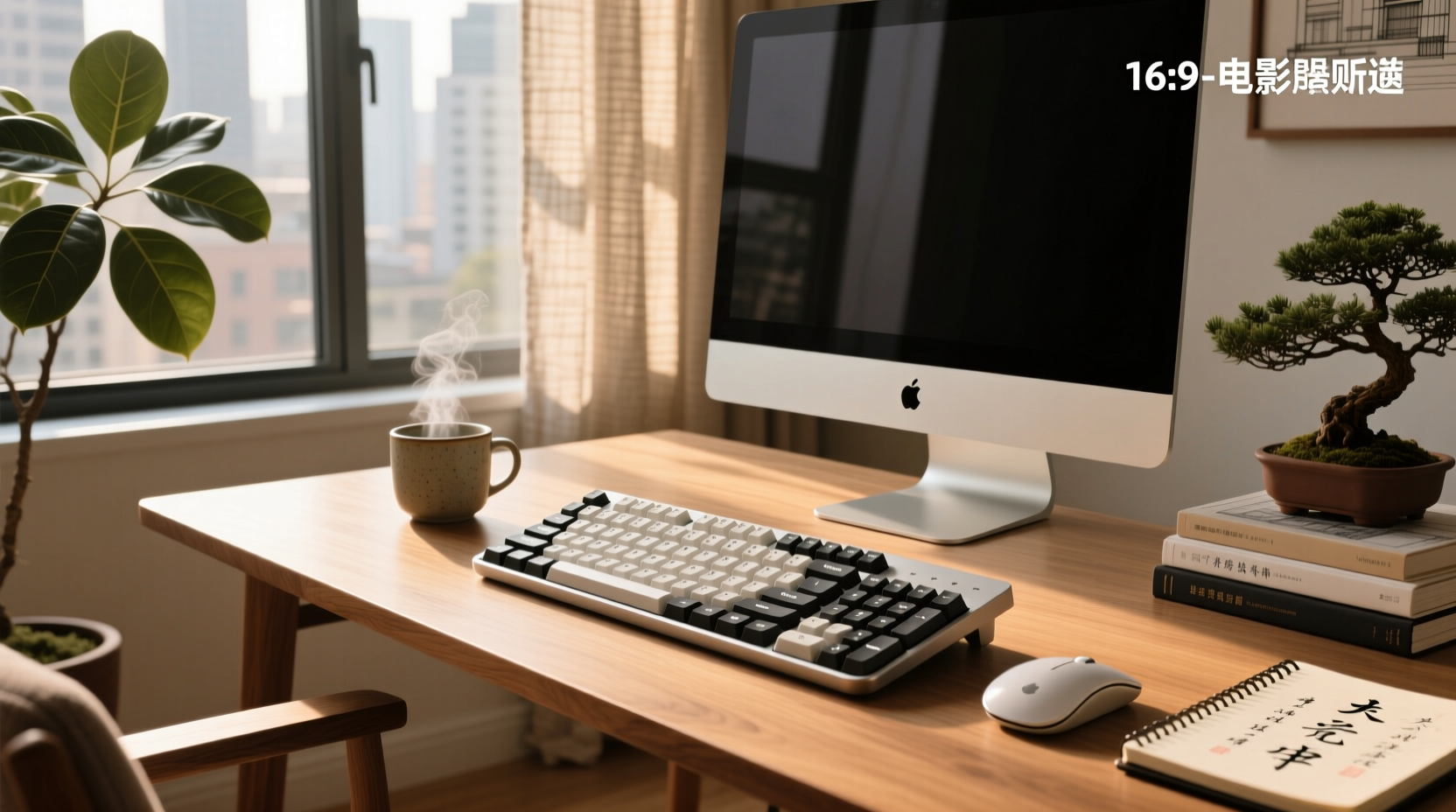
When you search for ‘Chinese computer keyboard’, what you’ll actually get is not a unique physical layout — but rather a software-driven typing system built atop the familiar QWERTY keyboard. The core answer is this: Chinese users type using Input Method Editors (IMEs) like Microsoft Pinyin, Sogou Pinyin, or Google Pinyin — all running on standard English-layout keyboards. No special keys, no extra characters printed on keycaps, and no mandatory bilingual labeling are required to type Chinese efficiently. This distinction — between hardware and software — resolves the most common misconception among non-Chinese speakers and first-time buyers. Whether you're setting up Windows 11, macOS, or Linux, or choosing a laptop in Shenzhen or Shanghai, understanding this fundamental layer is essential before purchasing, configuring, or troubleshooting.
Why There’s No ‘Physical’ Chinese Keyboard (And Why That Matters)
The term ‘Chinese keyboard’ is widely misinterpreted. Unlike Arabic, Russian, or Greek keyboards — which often feature localized keycap labels and altered layouts — there is no standardized, physically distinct ‘Chinese keyboard’ sold for general consumer use1. Most desktop and laptop keyboards used across mainland China, Taiwan, Hong Kong, and overseas Chinese communities are identical in mechanical design and key placement to ISO/ANSI QWERTY models. What changes is the software layer: the Input Method Editor (IME).
This architectural separation has real-world implications:
- No hardware dependency: You don’t need to buy a new keyboard to type Chinese — just enable an IME on your existing device.
- No regional lock-in: A US-purchased MacBook works identically to a Shenzhen-assembled Lenovo when configured with the same IME settings.
- No compatibility risk: USB or Bluetooth keyboards — even mechanical ones with custom keycaps — function without driver issues as long as the OS supports IMEs.
That said, some manufacturers do produce bilingual keyboards — typically with dual-language keycap printing (e.g., English letters + pinyin tone marks or simplified characters). These are convenience items, not functional requirements. Their utility is largely ergonomic or pedagogical — helpful for beginners learning tone placement or character radicals — but they offer no technical advantage over a plain QWERTY board.
How Chinese Typing Actually Works: Four Main Input Methods
Chinese input relies on mapping phonetic, visual, or behavioral cues to thousands of logographic characters. Because Mandarin has ~400 distinct syllables but over 8,000 commonly used characters, disambiguation is necessary. Below are the four dominant methods — ranked by adoption rate and practicality for new users.
✅ 1. Pinyin Input (Phonetic-Based — >95% of Daily Users)
How it works: Users type Romanized Mandarin (e.g., ni hao) using standard QWERTY keys. The IME converts the input into candidate characters (nǐ hǎo → 你好, 拟好, 你号, etc.), ranked by frequency, context, and personal usage history.
Key features:
- Tone-aware (optional):
ni3 hao3orni haowith spacebar-triggered tone selection. - Predictive phrase completion: Typing
woshizhongguorenmay auto-suggest 我是中国人 before full input. - Cloud-assisted learning: Sogou and Baidu IMEs adapt to user habits across devices.
Pros: Lowest learning curve; intuitive for Mandarin learners; fully compatible with all modern OSes.
Cons: Homophone ambiguity (e.g., shi yields ~150+ candidates); slower for expert typists than shape-based methods.
✅ 2. Wubi (Shape-Based — Niche but High-Speed)
How it works: Characters are decomposed into 130+ basic strokes and components (e.g., 一, 丶, 乙, 宀). Each component maps to a QWERTY key (e.g., G = 王, F = 土). A 4-key sequence generates one character.
Adoption: Primarily used by professional typists (e.g., court stenographers, editors), data entry clerks, and older generations who learned it during the 1980s–90s computing era. Still taught in some vocational schools but rarely introduced to language learners2.
Pros: Extremely fast (up to 160+ CPM); minimal homophone selection; efficient for native speakers with muscle memory.
Cons: Steep learning curve (requires memorizing component-key mappings); limited predictive support; poor for non-native speakers or occasional users.
✅ 3. Handwriting Input (Touch & Tablet-Friendly)
How it works: Users draw characters on a touchscreen, trackpad, or stylus-enabled surface. Recognition engines (e.g., Windows Ink, iOS Scribble) match stroke order, direction, and structure.
Use cases:
- Mobile devices (iOS/Android): Default for many Chinese users on smartphones.
- Hybrid laptops/tablets: Especially useful for entering rare characters (e.g., names, dialect terms) not easily recalled via pinyin.
- Educational tools: Used in language apps to reinforce character formation.
Pros: No phonetic knowledge needed; ideal for proper nouns, archaic terms, or dialectal variants.
Cons: Slow for extended text; accuracy drops with messy strokes or unfamiliar scripts (e.g., cursive or variant forms).
✅ 4. Voice Input (Rising in Popularity)
How it works: Speech-to-text converts spoken Mandarin into characters. Modern systems (e.g., iFlytek, Apple Dictation, WeChat voice-to-text) achieve >95% accuracy in quiet environments with standard Putonghua.
Limitations:
- Dialect interference: Sichuanese, Cantonese, or Shanghainese speech significantly reduces accuracy.
- Privacy sensitivity: Not suitable for confidential or public typing scenarios.
- Latency: Real-time editing lags behind keyboard input.
Voice is best used for messaging, note-taking, or draft composition — not formal documentation or coding.
Regional Variations: Mainland China vs. Taiwan vs. Overseas
While the underlying IME architecture is consistent, regional preferences affect default configurations and supported standards:
| Region | Default Script | Primary IME Standard | Keyboard Labeling Norm | OS Integration Notes |
|---|---|---|---|---|
| Mainland China | Simplified Chinese (zh-CN) | Microsoft Pinyin, Sogou Pinyin | Rarely bilingual; mostly English-only keycaps | Windows 10/11 includes built-in Simplified Chinese IME; macOS uses Pinyin (Simplified) by default |
| Taiwan | Traditional Chinese (zh-TW) | MS Zhuyin (Bopomofo), New Phonetic | Often bilingual: English + Zhuyin symbols (ㄅ, ㄆ, ㄇ…) | Zhuyin requires dedicated key mapping (usually Caps Lock or Alt+Shift toggle); less common outside Taiwan |
| Hong Kong / Macau | Traditional Chinese (zh-HK) | Cantonese Jyutping, CKC Radicals | English + Jyutping romanization (e.g., lei5 for 你) |
Jyutping IMEs available via third-party plugins (e.g., OSX Jyutping, Rime) |
| Overseas (US/CA/UK/AU) | zh-CN or zh-TW (user-selected) | Google Pinyin, Sogou, or system defaults | Typically English-only unless purchased from Chinese retailers | No regional restrictions — all IMEs installable on any locale-configured OS |
⚠️ Important note: Locale codes (e.g., zh-CN vs. zh-TW) control dictionary sets, font rendering, and punctuation style — not keyboard hardware. A ‘zh-CN’ setting will display 人民币 instead of NT$, use full-width commas (,), and prioritize simplified character variants — regardless of whether your keyboard says ‘Made in Dongguan’ or ‘Assembled in Mexico’.
What to Check Before Buying a ‘Chinese Keyboard’ Online
If you’re considering purchasing a physical product labeled ‘Chinese keyboard’, verify these five points first — many listings conflate marketing with functionality:
- Is it truly bilingual-labeled? Check product images for dual-language keycaps. If only English appears, it’s just a standard keyboard.
- Does it include pre-installed firmware or drivers? Legitimate bilingual keyboards rarely require proprietary software — IMEs are OS-level features.
- Is the layout ANSI, ISO, or JIS? Physical layout affects key spacing and Enter/Backspace shape — crucial if you’re migrating from a US or EU board.
- Are USB-C or wireless options supported? Many budget ‘Chinese keyboards’ use outdated USB-A or non-Bluetooth connectivity — problematic for modern ultrabooks.
- Does it mention IME compatibility? Reputable sellers clarify OS support (e.g., ‘Works with Windows 10+, macOS Monterey+, Android 12+’). Vague claims like ‘for Chinese users’ are red flags.
💡 Pro tip: For most users, buying a high-quality mechanical or low-profile QWERTY keyboard — then enabling Microsoft Pinyin or installing Sogou — delivers better performance and longevity than a cheap ‘bilingual’ model with flimsy switches and inconsistent key labeling.
Common Misconceptions — And Why They’re Wrong
Let’s debunk recurring myths found in forums and product descriptions:
- ❌ ‘You need a keyboard with Chinese characters printed on keys.’
→ False. Character printing is purely visual aid. IMEs don’t read keycap glyphs — they read scancodes sent by the switch. - ❌ ‘Chinese keyboards have more than 104 keys.’
→ Outdated. Early 1980s systems used massive ‘character keyboards’ with 2,000+ keys3. Modern implementations eliminated this via software compression. - ❌ ‘Pinyin typing is inefficient for native speakers.’
→ Context-dependent. While Wubi remains faster for experts, Pinyin’s adaptive prediction and mobile integration make it the de facto standard — even among journalists and novelists. - ❌ ‘Mac and Windows handle Chinese input differently.’
→ Partially true at UI level (e.g., menu placement), but core IME logic is identical. Both use Unicode 15.1+ and support GB18030, Big5, and UTF-8 encoding natively.
Step-by-Step: Setting Up Chinese Input on Your Device (2025)
Configuration takes under 90 seconds on any major platform. No downloads required for baseline functionality.
On Windows 11
- Go to Settings → Time & Language → Language & Region.
- Click Add a language → Search for Chinese (Simplified, China) → Install.
- Under Keyboards, ensure Microsoft Pinyin is enabled.
- Toggle between English/Chinese using
Win + SpaceorAlt + Shift.
On macOS Sonoma/Ventura
- Open System Settings → Keyboard → Input Sources.
- Click + → Chinese (PRC) → Pinyin – Simplified.
- Enable Show Input Menu in Menu Bar for quick switching.
- Use
Control + Spaceto cycle input sources.
On Android (Pixel/Samsung/OnePlus)
- Go to Settings → System → Languages & Input → Virtual Keyboard.
- Select your keyboard (Gboard, Samsung Keyboard) → Manage Input Languages.
- Enable Chinese (Simplified) → Choose Pinyin or Handwriting.
- Switch via globe icon or swipe-left on spacebar.
Frequently Asked Questions (FAQ)
Q1: Can I type Chinese on an English-only keyboard?
A: Yes — absolutely. All modern operating systems support Chinese IMEs without hardware modification. No bilingual labeling is required.
Q2: Do I need to know Mandarin pronunciation to use Pinyin?
A: Yes, for accurate input. However, tone marks are optional in most IMEs — typing wo ai ni will still suggest 我爱你, though adding tones (wo3 ai4 ni3) improves precision for homophones.
Q3: Is Zhuyin (Bopomofo) used outside Taiwan?
A: Rarely. It’s almost exclusively taught and deployed in Taiwan’s education system and government IT infrastructure. Mainland China, Singapore, and Malaysia use Pinyin exclusively.
Q4: Why do some Chinese keyboards have extra keys like ‘IME Switch’ or ‘Han/Eng’?
A: These are legacy or OEM-specific keys — often non-functional without bundled drivers. Standard OS shortcuts (Win+Space, Ctrl+Space) replace them universally.
Q5: Can I use a Chinese IME to type Japanese or Korean?
A: No — IMEs are language-specific. Japanese requires Romaji or Kana input engines; Korean uses Hangul composition. However, you can install multiple IMEs side-by-side and switch between them.
