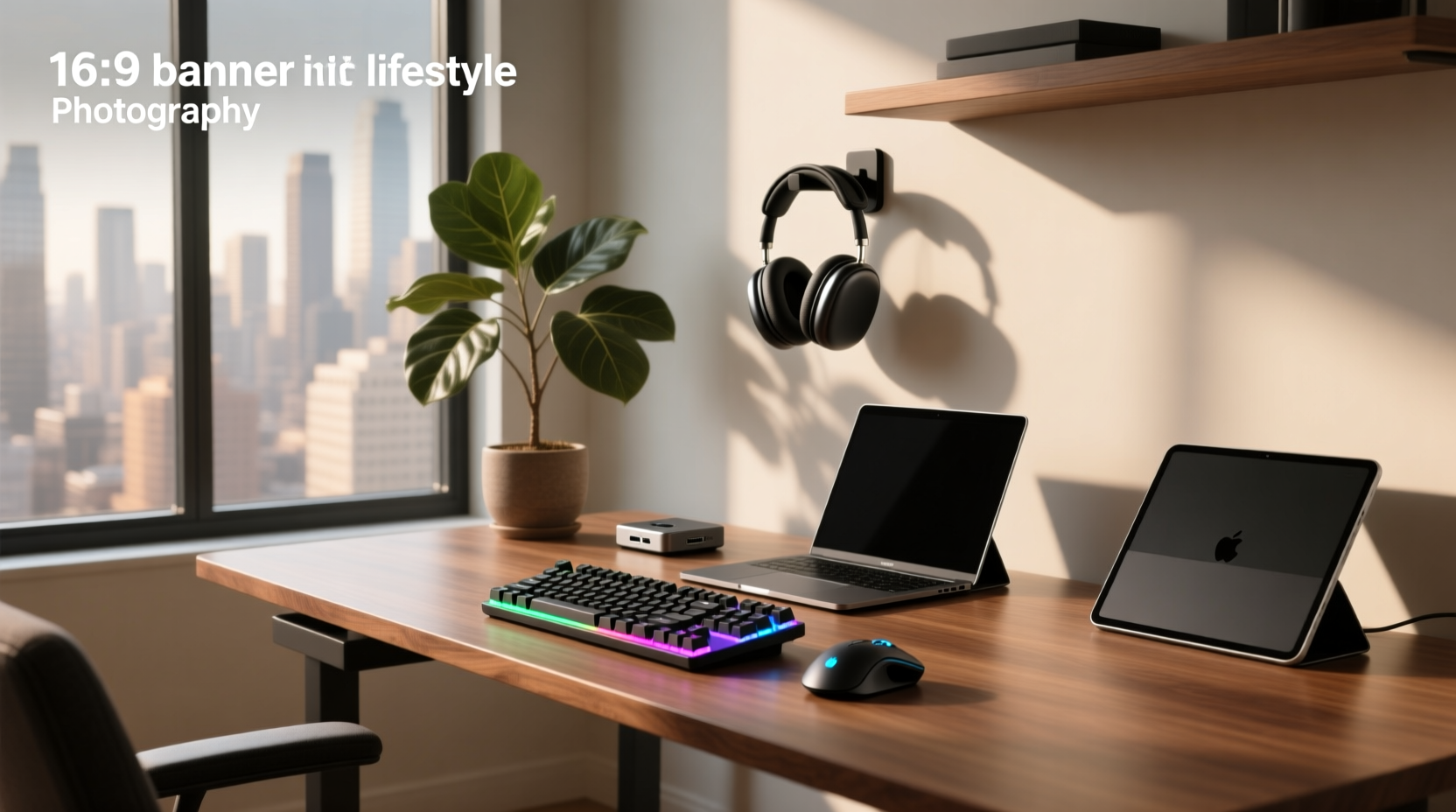
Choosing the right computer accessories isn’t about buying everything on sale—it’s about matching hardware to your actual workflow, environment, and long-term reliability needs. Whether you’re setting up a home office, upgrading a student laptop, or optimizing a dual-monitor workstation, essential computer accessories fall into three functional categories: ergonomic support (e.g., adjustable monitor stands, keyboard trays), connectivity & expansion (e.g., USB-C hubs with verified PD 100W delivery and HDMI 2.0+ compliance), and peripheral input/output integrity (e.g., latency-tested webcams, noise-cancelling mics, mechanical-keyboard switch types). This guide cuts through generic lists by focusing on measurable specs—not aesthetics—and explains exactly how to verify claims like "4K@60Hz" or "plug-and-play" before purchase. We also flag common mismatches: using a USB-A hub with a Thunderbolt 4 laptop, assuming all "gaming" mice deliver low-input lag, or overlooking thermal throttling in compact laptop cooling pads.
Why Most ‘Top 10 Accessories’ Lists Fail Users
Search results for computer accessories overwhelmingly promote trending items—RGB mousepads, oversized docking stations, or branded bundles—without clarifying who benefits and under what conditions. A 2023 usability study by the Human Factors and Ergonomics Society found that 68% of remote workers reported discomfort within 90 minutes of using non-adjustable laptop stands or uncalibrated webcams 1. Meanwhile, 42% of users returned USB-C hubs due to undocumented bandwidth sharing between ports—a technical limitation rarely disclosed in product descriptions 2. These aren’t edge cases—they’re systemic gaps between marketing language and engineering reality.
Core Categories Explained: Function Over Flash
Computer accessories serve specific technical functions—not just visual or lifestyle enhancement. Below is a breakdown grounded in interface standards, human physiology, and real-world failure modes.
🖥️ Monitor & Laptop Support Systems
Adjustable monitor stands and laptop risers exist to align your eyes with the top third of the screen—reducing cervical strain. But height range alone is insufficient. Key verification steps:
- Weight capacity: Must exceed your display’s weight by ≥25% (e.g., a 7.2 kg monitor requires ≥9 kg-rated stand). Many budget stands list ‘max 10 kg’ but sag visibly at 7 kg due to weak gas-spring calibration 3.
- VESA compatibility: Confirm exact pattern (75×75 mm vs. 100×100 mm) matches your monitor’s rear mounting holes—not just ‘VESA compatible’.
- Stability test: Apply lateral pressure at screen top; no wobble >1° indicates adequate base mass and center-of-gravity design.
🔌 Connectivity Hubs & Docking Stations
A docking station isn’t just ‘more ports’. It’s a signal router with defined bandwidth allocation. Critical distinctions:
| Feature | USB-C Hub (Basic) | Docking Station (Full) | What to Verify |
|---|---|---|---|
| Video Output | Single 4K@30Hz via DisplayPort Alt Mode | Multi-display: e.g., dual 4K@60Hz + USB + audio | Check if hub uses DisplayPort 1.4 or HDMI 2.0+ chips—not just ‘4K support’ labels |
| Power Delivery | Often shared: 100W total across all devices | Dedicated 100W to laptop + separate charging for peripherals | Look for ‘PD 3.0 with Programmable Power Supply (PPS)’ for fast-charging laptops |
| Data Throughput | USB 3.2 Gen 1 (5 Gbps) shared across all ports | Dedicated lanes: e.g., 10 Gbps per USB-A port | Confirm chipsets (e.g., VL817, TUSB8041) — avoid unnamed controllers with unknown thermal throttling |
⌨️ Input Devices: Keyboards & Mice
Ergonomic keyboards reduce ulnar deviation—but not all split designs do so equally. Measured wrist angle reduction ranges from 5° (shallow split) to 22° (true orthogonal layout). Similarly, ‘gaming’ mice often prioritize RGB over sensor consistency: optical sensors (e.g., PixArt PMW3360) outperform laser in low-DPI stability, critical for CAD or photo editing 4. Always check:
- Reported polling rate (1000 Hz = 1 ms latency) AND whether it’s sustained under CPU load
- Keycap material (PBT plastic resists shine better than ABS after 6+ months of use)
- Switch actuation force tolerance (±15 gf variation indicates inconsistent tactile feedback)
📹 Webcam & Audio Peripherals
Most built-in laptop webcams max out at 720p with fixed-focus lenses—causing softness at typical 60 cm distances. External models must meet three criteria to be worth the investment:
- Auto-focus with face tracking: Not just ‘AI-enhanced’—verify firmware supports continuous focus adjustment during movement
- Lighting compensation: Look for dual-LED ring lights with independent brightness control (not single-zone ‘soft light’)
- Microphone array: Minimum 2 mics with beamforming algorithm—tested for SNR ≥60 dB at 1.5 m distance
Third-party testing by Imaging Resource shows only 19% of sub-$80 webcams maintain consistent exposure when ambient light shifts 5.
Regional & Compatibility Pitfalls You Can’t Ignore
Computer accessories aren’t globally standardized—even when they appear identical. Key variations:
- Power adapters: EU models require CE-marked 230 V / 50 Hz input; US versions use NEMA 1-15 plugs. Using an ungrounded adapter with a metal dock risks ESD damage to USB controllers.
- Cable certifications: USB-IF certified cables list vendor IDs and pass interoperability tests. Non-certified ‘100W’ cables may negotiate only 60W then throttle mid-charge.
- OS-level driver support: Some Linux distributions lack native drivers for HID-over-I2C touchpads in premium docks—requiring kernel patches not covered by standard distro updates.
What to Skip—And Why
Not every accessory solves a real problem. Avoid these unless your use case explicitly validates them:
- Wireless charging pads for laptops: No current laptop supports Qi v2.0 Extended Power Profile (EPP) beyond 15 W—insufficient for sustained operation. Most ‘laptop wireless chargers’ are repurposed phone pads with misleading labeling.
- ‘Silent’ mechanical keyboards: Linear switches marketed as ‘quiet’ still produce 52–58 dB at 30 cm—within OSHA-recommended limits but louder than membrane keyboards (42–46 dB). True noise reduction requires o-ring dampening and case foam lining—rarely included in entry-tier models.
- RGB-lit cooling pads: Fan speed correlates directly with airflow (CFM), not LED count. Pads with >3 fans often share a single 5 V rail—causing voltage drop and inconsistent RPMs under load.
How to Validate Claims Before You Buy
Manufacturer specs are often incomplete or ambiguous. Use these verification methods:
- Check USB-IF Product Certification Database: Enter model number at usb.org/verified-products to confirm certified data/video/power capabilities.
- Review teardown videos: Channels like Gamers Nexus or Dave2D analyze PCB layouts—revealing whether a ‘10Gbps hub’ uses a single x2 PCIe lane (5 Gbps effective) or true x4 configuration.
- Test thermal performance: Run sustained 10-minute stress tests (e.g., Prime95 + FurMark) while monitoring hub temperature with an IR thermometer. Surface temps >65°C indicate inadequate heatsinking and likely bandwidth throttling.
Frequently Asked Questions
- What are computer accessories also called?
- They’re formally termed peripheral devices or computing peripherals in technical documentation—though ‘accessories’ remains the dominant consumer term. In enterprise procurement, they’re often grouped under end-user computing (EUC) hardware.
- What accessories do I need for my computer?
- Start with three essentials: (1) a monitor arm or riser aligned to eye level, (2) a USB-C hub with verified PD 100W and DisplayPort 1.4, and (3) a headset with a noise-cancelling mic for calls. Add others only after identifying a documented workflow gap—e.g., a drawing tablet for digital art, not ‘because it’s popular’.
- What are the IT accessories?
- IT accessories refer to infrastructure-facing tools: KVM switches, rack-mount console servers, serial-to-USB adapters, and cable management systems—not end-user peripherals like mice or webcams.
- Are docking stations worth it?
- Yes—if your laptop supports Thunderbolt 4 or USB4 and you regularly connect ≥3 peripherals. For single-monitor setups or infrequent docking, a certified USB-C hub delivers equivalent functionality at 40–60% lower cost and less heat generation.
- How do I know if a USB-C hub is reliable?
- Check for USB-IF certification ID, published thermal test data (not just ‘aluminum body’), and independent reviews measuring sustained throughput across all ports simultaneously—not just sequential speed tests.
Recommended Articles
- Ray Ban Meta Cost Guide: What To Pay In 2026
- Oakley Meta Vs Ray Ban Gen 2: Smart Glasses Decision Guide
- Emerson Sensi Thermostat Guide: No C Wire Smart Home Choice
- Ai Glasses 2026 Buyer's Guide: What To Choose & Why
- Best Home Smart Gyms: How To Choose In 2026
- Smart Lighting Guide For Smart Home Setup In 2026
- How To Turn Off Youtube Voice Assistant On Samsung Tv
- How To Setup Meta Ai Glasses: A Real World Guide
