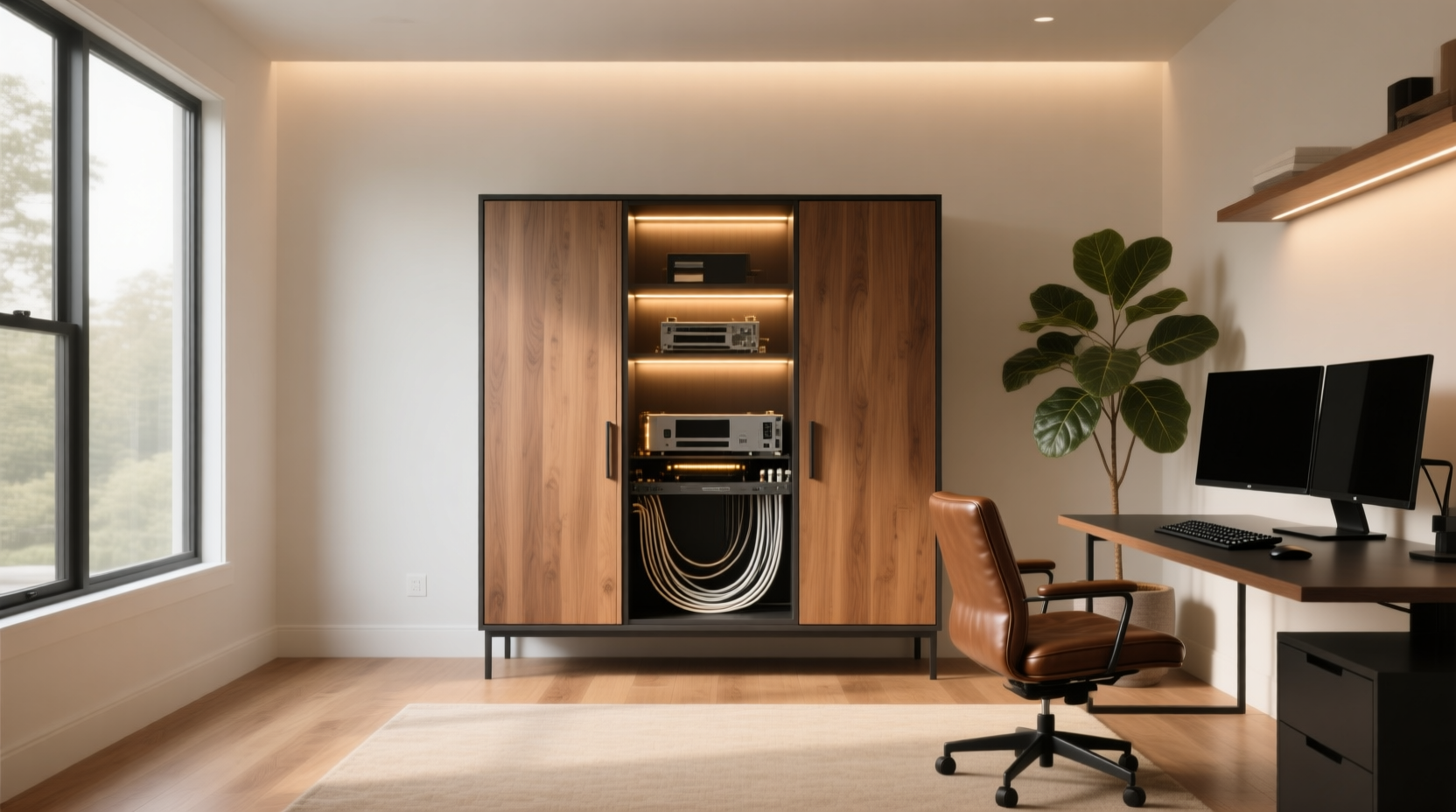
Looking for a computer cabinet with doors means you’re likely balancing three core needs: visual concealment, equipment protection, and functional workspace integration. Unlike open shelving or basic CPU stands, cabinets with doors—whether hinged, pocket, or bi-fold—offer controlled access, dust mitigation, and aesthetic cohesion in living rooms, home offices, or hybrid workspaces. This guide cuts through marketing language to clarify what door mechanisms actually deliver (and don’t deliver), how ventilation and cable management impact long-term hardware health, and why dimensions, materials, and mounting options matter more than finish alone — especially when integrating monitors, CPUs, printers, or peripherals into a single unit.
Why People Search for Computer Cabinets with Doors (Not Just 'Computer Desks')
The top related searches — "small computer cabinet with doors," "computer cabinet with doors and shelves," "wood computer cabinet with doors," and "computer armoires for small spaces" — reveal a consistent user intent: space-constrained, multi-functional concealment1. These aren’t IT server racks; they’re residential or light-commercial furniture designed to hide computing gear while supporting daily productivity. Users often live in apartments, condos, or shared homes where a visible desktop setup clashes with interior design goals — or violates lease clauses about ‘commercial equipment’ in residential units. Others need dual-use surfaces: a closed cabinet by day, a functional desk by night. Still others prioritize child or pet safety (locking doors), equipment security (in shared offices), or dust control (in high-pollen or construction-adjacent environments).
Door Types: Function Over Form
Not all doors serve the same purpose. Understanding mechanical differences helps avoid costly mismatches:
- Hinged doors (single or double): Most common. Require clearance for swing — typically 18–24 inches outward. Ideal for corner or wall-mounted placements where forward space is unoccupied. Best for frequent access but unsuitable for tight alcoves or behind sofas.
- Pocket doors: Slide laterally into the cabinet frame. Require precise internal framing and deeper side panels (often ≥2.5″). Offer full frontal access without swing clearance — critical for narrow hallways or under-window setups. However, tracks can jam with dust or misalignment over time, and repairs are rarely DIY-friendly2.
- Bifold or accordion doors: Fold compactly, minimizing swing and slide requirements. Common in smaller-width units (<30″). Lower structural rigidity than solid hinged doors — may sag or warp after 3–5 years of repeated use.
- Locking doors: Typically found on commercial-grade or premium residential models. Use tubular latches or key-based mechanisms. Not standardized — compatibility with third-party locks varies. Verify lock location (center vs. edge) and whether keys are replaceable before purchase.
Ventilation: The Silent Failure Point
A cabinet with solid doors that lacks airflow will overheat components — even idle CPUs generate 15–30W of heat. Passive ventilation (perforated back panels, mesh grilles, or routed air channels) is standard on mid-tier and higher models. Active cooling (integrated fans) appears in computer CPU side cabinets like those from Global Industrial3, but introduces noise (25–35 dBA), power dependency, and maintenance (fan cleaning every 6–12 months). If your cabinet houses an all-in-one PC or low-power mini-PC (e.g., Intel NUC, Mac Mini), passive vents suffice. For gaming rigs, workstations, or NAS devices, confirm minimum vent area: ≥120 cm² total net free area (not just hole count) across rear and bottom panels. Avoid cabinets with only decorative cutouts — measure actual open surface, not ornamental patterns.
Material & Construction: Beyond Finish Names
"Medium oak finish" or "smoky blue" tells you nothing about durability. What matters is substrate and joinery:
| Material Type | Typical Thickness | Pros | Cons | Best For |
|---|---|---|---|---|
| Particleboard (melamine-laminated) | 0.6–0.75″ | Cost-effective, consistent color, scratch-resistant surface | Low moisture resistance; swells if damp; limited screw-holding strength after 2–3 re-drills | Budget-conscious buyers with dry, climate-controlled spaces |
| MDF (medium-density fiberboard) | 0.75–1.0″ | Smooth paint-grade surface, stable in temperature shifts, better screw retention than particleboard | Heavier; absorbs water faster than particleboard; not ideal for humid basements or garages | Painted or custom-finished installations where weight isn’t limiting |
| Solid wood (e.g., rubberwood, poplar, birch) | 0.75–1.25″ | Repairable, refinishing possible, highest load capacity, natural humidity buffering | Higher cost; seasonal expansion/contraction requires proper acclimation (72°F/45% RH for 48h pre-assembly) | Long-term ownership, heirloom-style builds, or high-traffic shared spaces |
Edge banding quality is equally critical: PVC or melamine banding ≥0.04″ thick resists chipping. Thin ABS or paper-thin banding delaminates within 12–18 months of daily door use. Check product specs for "fully banded" or "3mm banding" — avoid vague terms like "durable edges." Also note: cabinets labeled "ready-to-assemble" (RTA) often use cam-lock systems. These weaken after ~5 disassembly/reassembly cycles. If you anticipate moving or reconfiguring, choose dowel-and-glue or metal bracket construction.
Dimensions & Integration: Measure Twice, Buy Once
Standard depth for CPU storage is 22–24″ — but many cabinets list "overall depth" including doors or moldings. Always verify interior usable depth. A 24″-deep cabinet with 1.5″ door overlay yields only 22.5″ interior depth. Likewise, height must accommodate monitor arms: most gas-spring arms require ≥28″ clear vertical space above desk surface. If your cabinet includes a built-in keyboard tray, confirm tray travel distance (typically 3–4″ drop) and whether it clears the CPU compartment when extended.
For corner installations, check diagonal clearance — not just width and depth. A 35″×35″ pentagonal cabinet may fit visually but block adjacent door swings or traffic flow. Use painter’s tape to mark footprint on floor before ordering. And never assume "mobile" means easy relocation: casters on heavy cabinets (>150 lbs assembled) require reinforced flooring. Look for dual-wheel casters (not single-swivel) and locking brakes rated for ≥200 lbs per wheel.
Security & Access Control: When 'Locked' Isn’t Enough
Locking doors prevent casual access — not determined tampering. Most residential cabinet locks use 5-pin tumbler mechanisms with generic keys. These can be bypassed in <5 minutes using bump keys or tension wrenches. If true security is needed (e.g., medical office records, financial data), opt for cabinets with UL 437-rated locks or integrated electronic access (PIN/keycard). Note: UL 437 certification applies to the lock *mechanism*, not the entire cabinet — verify certification number on spec sheet, not marketing copy.
Also consider internal compartmentalization. A single-door cabinet forces all gear into one zone — cables tangle, heat pools, and troubleshooting requires full door opening. Models with internal dividers, removable panels, or dedicated CPU bays (like ULINE’s mobile computer cabinets) isolate heat sources and simplify upgrades4. Avoid units where PSU vents face interior walls — this traps heat and shortens component life.
Common Misconceptions & Cost Traps
- Misconception: "All computer armoires include cable management." Reality: Only ~35% of units under $600 have integrated grommets, Velcro straps, or routed channels. Verify photos show rear-panel cutouts — not just marketing claims.
- Misconception: "Solid wood = automatically sturdy." Reality: Poor joinery (e.g., nails instead of dowels + glue) negates wood advantages. Check assembly instructions for fastener types — visible screws > hidden cam locks for longevity.
- Misconception: "Free shipping means no hidden fees." Reality: Many retailers charge $49–$129 for "threshold delivery" (curbside only) or $149+ for room-of-choice + unpacking. Read delivery policy footnotes — not just banner text.
- Misconception: "LED lighting = task-ready." Reality: Most cabinet-integrated LEDs are 2700K–3000K warm white, <150 lumens, and non-dimmable — insufficient for prolonged reading or coding. Treat them as ambiance only.
When to Skip a Computer Cabinet with Doors Altogether
These scenarios suggest alternatives may serve better:
- You run GPU-intensive workloads (rendering, AI training, gaming): Even ventilated cabinets restrict airflow vs. open benches. Consider a dedicated equipment rack with front-to-back cooling.
- Your space has high humidity (>60% RH year-round): Particleboard and MDF swell and delaminate. Opt for marine-grade plywood or powder-coated steel cabinets instead.
- You upgrade hardware annually: Frequent disassembly stresses RTA joints. A modular open-frame desk + separate acoustic hood may offer longer service life.
- You need ADA-compliant height (28–34″): Few armoires meet this range. Look for height-adjustable sit-stand bases with attachable modesty panels.
Frequently Asked Questions
- Can I install a computer cabinet with doors in a rental apartment?
Yes — but verify lease terms first. Most allow freestanding furniture if no wall drilling or permanent modifications occur. Avoid units requiring anchor bolts or toe-kick removal. Confirm weight (under 200 lbs) to ease future moves. - Do computer cabinets with doors reduce electromagnetic interference (EMI)?
No. Standard wood or MDF offers zero EMI shielding. Only fully enclosed, grounded metal cabinets (e.g., server racks with conductive gaskets) provide measurable attenuation — and these aren’t sold as 'home office armoires.' - How much weight can typical computer cabinet shelves hold?
Unreinforced shelves: 25–35 lbs. Reinforced (with center support brackets or thicker substrates): 50–75 lbs. Always distribute weight evenly — stacking heavy items at shelf edges causes sagging within 12–18 months. - Are there computer cabinets with doors that support dual monitors?
Yes — but only if depth ≥26″ and width ≥48″. Smaller units force monitors to cantilever, risking tip-over. Look for models specifying "dual-monitor ready" with reinforced desktop supports and anti-tip hardware included. - Can I add my own ventilation fans to a non-ventilated cabinet?
Technically yes — but cutting holes compromises structural integrity and voids warranties. Fan placement matters: intake at bottom rear, exhaust at top rear. Without internal ducting, airflow remains chaotic. Better to choose a model with native ventilation design.
