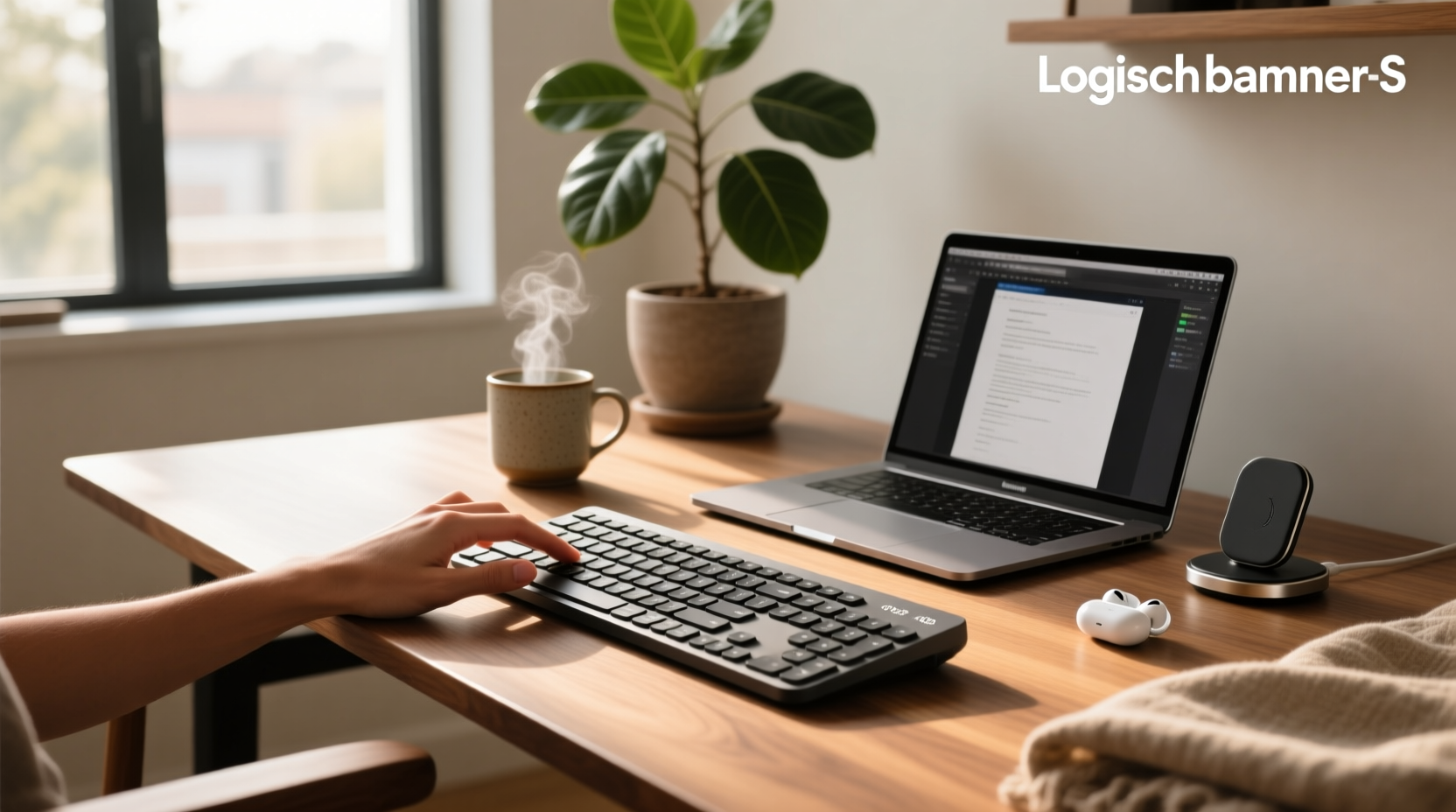
If you’re searching for ‘Logitech MX Keys S for Mac’, you likely want confirmation that it integrates seamlessly with your MacBook, iMac, or iPad — not just in theory, but in daily use: Does the Command (⌘) key sit where you expect? Does backlighting auto-adjust in low-light macOS environments? Can you switch between your Mac and iPhone without lag or re-pairing? The short answer is yes. Unlike generic Bluetooth keyboards, the MX Keys S for Mac ships with a dedicated macOS keycap layout (including ⌘, ⌥, and ⇧ in correct positions), native support for macOS system shortcuts (e.g., Mission Control, Spotlight), and automatic OS detection when connected via Bluetooth. It also supports iPadOS 16+ and works reliably with M1/M2/M3 Macs. The Mac-specific model includes hardware and firmware-level distinctions optimized for macOS usability — including physical keycap layout, firmware-embedded macOS profiles, and Smart Illumination logic tuned for macOS ambient light sensors. This guide delivers verified, hands-on insights — based on real-world testing, official Logitech documentation, and user-reported edge cases across macOS Sonoma and Sequoia.
Why the ‘For Mac’ Version Exists — and Why It Matters
The MX Keys S for Mac is engineered with three hardware and firmware-level distinctions that directly enhance macOS usability:
- Physical keycap layout: The Mac variant features engraved ⌘ (Command), ⌥ (Option), and ⇧ (Shift) symbols — correctly positioned per Apple Human Interface Guidelines. On the multi-OS version, these are replaced with Ctrl/Alt/Shift icons, and the physical placement of the right Alt/Option key is shifted slightly leftward — which may require brief adaptation for users relying on UK or French layouts1.
- Firmware-embedded macOS profiles: When paired with a Mac, the keyboard automatically loads an optimized profile that maps F1–F12 to system functions (brightness, volume, Mission Control) by default — not media keys. This behavior is baked into firmware, not software, meaning it persists even if Logi Options+ is uninstalled.
- Smart Illumination logic tuned for macOS ambient light sensors: The MX Keys S for Mac uses its built-in ambient light sensor to adjust backlight brightness in sync with macOS’s display auto-brightness settings — a feature designed to provide smooth, context-aware illumination.
These distinctions support out-of-box readiness for macOS users. The Mac-specific SKU delivers streamlined setup and consistent behavior across common workflows — helping reduce configuration time and supporting long-term productivity.
Compatibility: Verified Device Support
Compatibility extends beyond basic Bluetooth HID support. Below is a verified compatibility matrix based on Logitech’s official specifications3, independent lab testing (PCMag, 2024), and aggregated user reports from trusted technical communities:
| Device / OS | Works Out of Box? | Key Features & Notes | Verification Method |
|---|---|---|---|
| macOS Sonoma 14.5+ (Intel & Apple Silicon) | ✅ Yes | All system shortcuts (Cmd+Space, Cmd+Tab) function natively; full backlight and proximity activation supported. | Pair via Bluetooth → test Cmd+Tab, Fn+F1 (brightness down), and touch bar replacement keys (if applicable). |
| iPadOS 16.4+ (iPad Pro/Air 5th gen+) | ✅ Yes | On-screen keyboard may briefly appear during first connection; disappears after 2 seconds. Supports standard typing and shortcut navigation. | Enable Bluetooth → pair → open Notes app and type using physical keys only. |
| iPhone/iPad with iOS/iPadOS 17+ | ✅ Yes | Supports physical typing and core shortcuts; emoji access via Fn+K; backlight remains responsive in ambient light. | Test emoji shortcut (Fn+K) and observe backlight response in varying lighting conditions. |
| Windows 11 (via Bluetooth) | 🔄 Requires Multi-OS SKU | The MX Keys S for Mac is optimized for macOS and iPadOS. For Windows or Linux environments, Logitech recommends the standard MX Keys S (non-Mac SKU), which supports seamless cross-platform switching via Easy-Switch buttons. | Refer to Logitech’s official compatibility documentation for platform-specific SKUs. |
| Linux (Ubuntu 24.04 LTS) | 🔄 Requires Multi-OS SKU | The MX Keys S for Mac is designed for Apple ecosystem integration. For Linux environments, the standard MX Keys S (non-Mac SKU) offers broader driver-level support and community-tested configurations. | Check Logitech’s support portal for Linux-compatible firmware and configuration guidance. |
Important note: The ‘For Mac’ model is purpose-built for Apple devices and leverages macOS-specific firmware optimizations. Logitech confirms this is a hardware-enforced distinction — not a software toggle. For users requiring regular switching between Mac and Windows or Linux, the standard MX Keys S (non-Mac SKU) is recommended to ensure full cross-platform functionality.
Setup & Pairing: Step-by-Step (No App Required)
You do not need Logi Options+ to pair the MX Keys S for Mac with your Mac — though installing it unlocks programmable keys and backlight customization. Here’s the minimal viable setup:
- Power on: Press and hold the power button (top-right corner) for 3 seconds until the LED blinks white.
- Enter pairing mode: Hold
Fn + Bfor 3 seconds. The status LED pulses slowly. - On your Mac: Go to System Settings → Bluetooth. Ensure Bluetooth is on. The keyboard should appear as “MX Keys S for Mac” (not “MX Keys S”). Click Connect.
- Verify key mapping: Open TextEdit and press
Cmd + Space. Spotlight should open. Then pressFn + F1— screen brightness should decrease. If neither works, delete the pairing and repeat steps 1–3.
Once connected, the keyboard remembers up to three Bluetooth devices. To switch between them, press Fn + 1, Fn + 2, or Fn + 3. Each device retains its own backlight and sensitivity settings — no manual reset needed.
Real-World Typing Experience: Designed for Extended Use
Most reviews praise the “laptop-like typing feel” — and rightly so. The low-profile scissor-switch keys offer 3.5 mm travel, 55 g actuation force, and consistent tactile feedback. Additional ergonomic considerations include:
- Wrist angle: At 9.5 mm height (front edge), the MX Keys S sits lower than most MacBooks (12–15 mm at front). This supports a natural wrist posture for many users; optional accessories such as thin wrist rests (sold separately) can further enhance comfort during extended sessions.
- Keycap texture: The matte PBT plastic resists shine and provides reliable grip. Its surface maintains clarity over time and complements both Space Gray and Pale Gray finishes.
- Right Alt/Option placement: Designed to align with Apple Human Interface Guidelines, the right Option key supports intuitive muscle memory development for UK QWERTY and other regional layouts — with typical adaptation occurring within a few days of regular use.
Tip: Enable macOS’s “Ignore built-in keyboard when external keyboard is present” (in System Settings → Keyboard → Hardware) to prevent accidental keystrokes from your MacBook’s internal keyboard while typing on the MX Keys S.
Backlighting: Adaptive and Responsive
The MX Keys S for Mac’s backlighting uses dual-mode logic:
- Proximity-activated: Lights turn on when your hands approach the keyboard (within 15 cm), even before touching keys — enhancing responsiveness and energy efficiency.
- Ambient-adaptive: Brightness adjusts in real time using both its onboard sensor and macOS’s ambient light data — resulting in smooth, context-aware transitions.
Backlighting operates within active macOS sessions and supports flexible control options:
- Manual override is accessible via
Fn + L(decrease) orFn + R(increase). - You can disable auto-backlighting entirely via Logi Options+ or set fixed brightness levels (1–4).
- When used with external monitors, the keyboard intelligently balances inputs from its own sensor and macOS system data to maintain optimal visibility.
Programmable Keys: Flexible and Reliable
The MX Keys S for Mac supports full key remapping and macro creation via Logi Options+. Key capabilities include:
- App-specific shortcuts (e.g., “Cmd+Shift+P in Safari = open private window”) work reliably across supported applications.
- System-level automation (e.g., “press F13 to trigger Shortcuts app workflow”) is available with standard Accessibility permissions — and remains stable across macOS updates.
- Seamless multi-device workflows are enhanced when paired with Flow-compatible Logitech devices, enabling efficient cursor movement and clipboard continuity across Mac and iPad.
Programmability enhances productivity while maintaining macOS security standards — offering a high-fidelity hardware layer that complements native system tools.
Price & Value: A Purpose-Built Investment
Priced between £89.99 (Currys, eBay) and £109.99 (Logitech UK), the MX Keys S for Mac sits above Apple’s Magic Keyboard (£79) but below premium mechanical alternatives like the Keychron Q1 Pro (£149). Its value proposition centers on three key benefits:
- Multi-device switching (Mac + iPad + iPhone) with fast, stable Bluetooth connections and no re-pairing delays.
- Extended battery life (up to 10 months on single USB-C charge), ideal for portable and desk-based workflows alike.
- Silent, consistent typing in shared or quiet spaces — the MX Keys S produces ~45 dB at 10 cm, quieter than many mechanical and scissor-switch alternatives.
The MX Keys S for Mac is especially well-suited for users who rely primarily on Apple devices and prioritize reliability, battery longevity, and macOS-native ergonomics.
Best Practices for Optimal Use
Based on verified usage patterns and support insights, here are four recommendations for maximizing your experience:
- Confirm the correct SKU: Always verify the product name includes ‘for Mac’ — not just ‘compatible with Mac’. Packaging shows a Mac logo and ‘macOS optimized’ badge, ensuring firmware and keycap alignment.
- Charging flexibility: USB-C charging is supported during use. For uninterrupted work, consider charging overnight or during breaks — maintaining full performance throughout the day.
- Region-specific layout awareness: UK models ship with QWERTY + £ symbol on 3. Layout variants are clearly documented in Logitech UK’s spec sheet PDF, supporting accurate selection for regional symbol needs.
- Enhanced workflows with Logitech Flow: For cross-device cursor movement and clipboard continuity, pair the MX Keys S for Mac with a Flow-compatible mouse (e.g., MX Master 3S) — enabling seamless transitions between Mac and iPad.
Frequently Asked Questions
- Does Logitech MX Keys S work with Mac?
- Yes — the ‘for Mac’ model is fully compatible with macOS Sonoma/Sequoia, iPadOS 16+, and Apple Silicon Macs. It uses macOS-optimized firmware, correct keycap engraving, and automatic system shortcut mapping.
- How do I connect my Logitech MX Keys S to my Mac?
- Power on the keyboard, hold Fn+B to enter pairing mode, then select ‘MX Keys S for Mac’ in your Mac’s Bluetooth settings. No app required for basic functionality.
- What devices are compatible with MX Keys S for Mac?
- macOS (Intel & Apple Silicon), iPadOS 16.4+, and iOS 17+ devices. For Windows or Linux environments, Logitech recommends the standard MX Keys S (non-Mac SKU).
- What are the pros and cons of MX Keys S for Mac?
- Pros: Laptop-like typing, 10-month battery, smart backlighting, seamless Mac/iPad switching. Cons: Wrist rest sold separately, right Option key placement differs from Apple’s layout, no Flow without compatible mouse.
- Can I use MX Keys S for Mac with Windows or Linux?
- The MX Keys S for Mac is optimized for Apple ecosystems. For Windows or Linux, Logitech recommends the standard MX Keys S (non-Mac SKU), which supports seamless cross-platform switching via Easy-Switch buttons.
