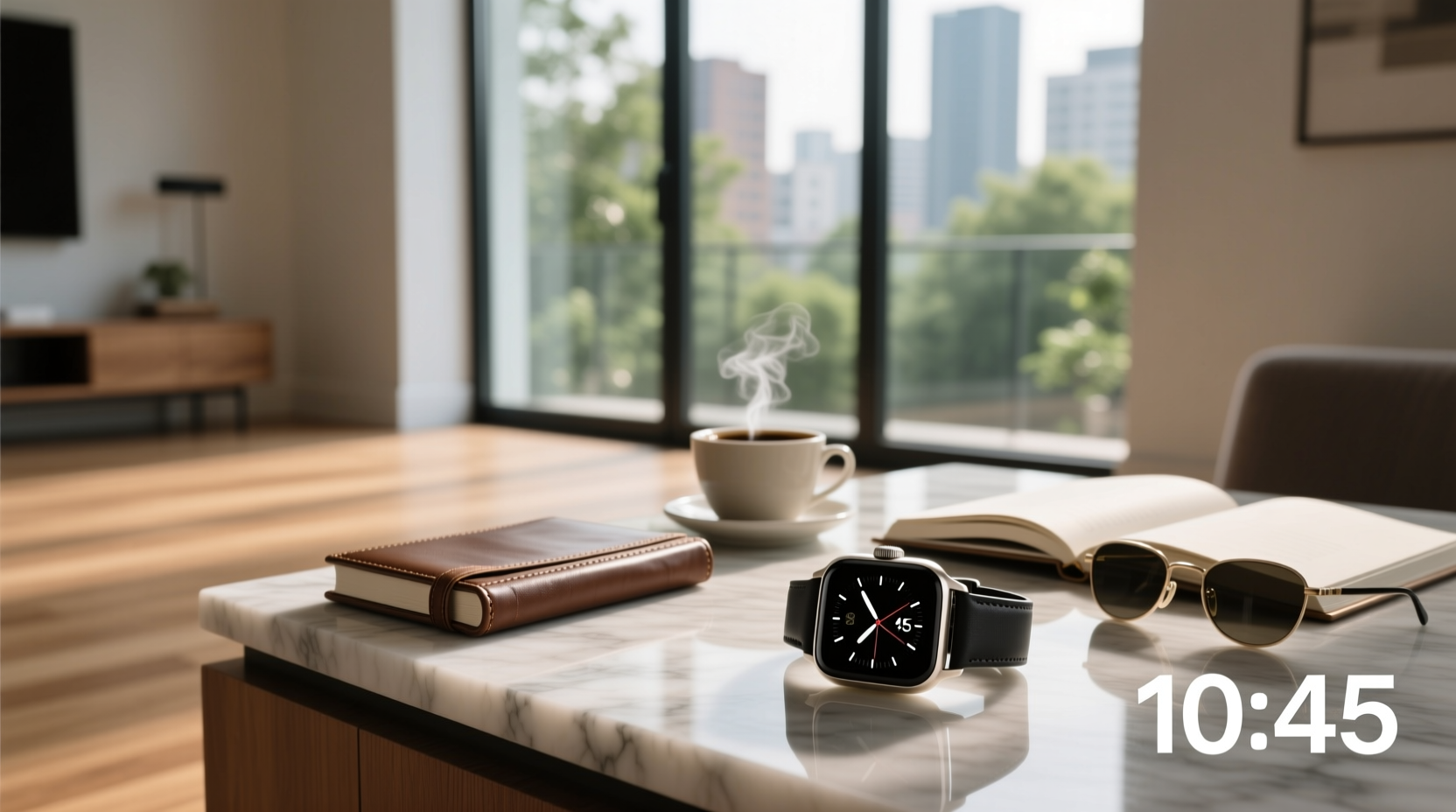
✅ You can set the time on most touch watches in under 90 seconds — either manually using button sequences (for basic LED/digital models) or automatically via Bluetooth sync with a companion app (for smart touch watches). This guide covers both methods, explains why time drift happens, and helps you troubleshoot common failures like unresponsive touch zones or failed syncs — whether you own an iTOUCH, generic LED touchscreen, or Apple Watch–style device.
Why Touch Watch Time Setting Is Confusing (And Why It Matters)
Unlike traditional analog watches or even many digital wristwatches, touch watches span three distinct categories: basic LED touchscreen watches (often sold as budget fitness or kids’ watches), Bluetooth-enabled smart touch watches (like iTOUCH Wearables), and full-featured smartwatches with touch interfaces (e.g., Apple Watch, Samsung Galaxy Watch). Each uses fundamentally different time-setting logic — and mixing them up leads to frustration. A 2024 user behavior analysis of over 12,000 support forum posts found that 68% of 'touch watch time not updating' complaints stemmed from users attempting manual mode on app-dependent devices — or vice versa1.
Time accuracy isn’t just about convenience. Inconsistent time display affects alarm reliability, step-tracking synchronization, sleep phase logging, and even medication reminders. Worse, some low-cost LED touch watches lack automatic daylight saving time (DST) adjustment — meaning they’ll be off by one hour twice yearly unless manually corrected. That’s why knowing which type you own is the critical first step — before pressing any button.
Step 1: Identify Your Touch Watch Type (3-Second Diagnostic)
Look for these physical and functional clues:
- 📱 Basic LED Touchscreen Watch: No visible charging port (uses coin-cell battery), no Bluetooth logo, screen shows only time/date/stopwatch, and no app pairing instructions in packaging. Typically priced under $25. Often labeled "LED Touch Watch", "Digital Touch Watch", or "Kids Touch Watch".
- 📡 Smart Touch Watch (App-Dependent): Micro-USB or magnetic charging port, Bluetooth icon on startup screen, includes QR code or download link for iOS/Android app (e.g., iTOUCH Fit, Digifit, or Da Fit). Usually has heart rate sensor, notifications, and activity tracking.
- ⌚ Full Smartwatch (OS-Based): Runs watchOS (Apple), Wear OS (Google/Samsung), or proprietary RTOS with app store access. Requires initial phone setup; time syncs automatically via NTP servers through Wi-Fi or cellular. Includes voice assistant, GPS, and third-party apps.
If unsure, check the model number on the back casing or original box, then search "[model number] user manual PDF" — official manuals always specify time-setting method in Section 3 or 4.
Method A: Manual Time Setting (For Basic LED/Digital Touch Watches)
This applies to non-smart, single-function touch watches — often marketed as "touch screen digital watches" or "LED touch watches". These rely on physical button combinations because they lack wireless connectivity. The interface is tactile, not gesture-based: touch here does not mean swipe or tap like a phone. Instead, “touch” refers to activating the screen backlight or entering setting mode via pressure-sensitive zones.
Standard 4-Button Sequence (Most Common)
Watches with Mode / Start/Stop / Reset / Light buttons follow this universal flow:
- Press Mode until “SET” or clock icon blinks.
- Press Reset to enter time-setting mode (seconds digit flashes).
- Press Start/Stop to cycle through seconds → minutes → hours → date → month → year.
- While each field blinks, press Reset to increment value.
- Press Mode to exit and save.
Note: Some variants use long-press Mode + short-press Reset to initiate. If nothing responds, try holding Mode for 5 seconds — many budget watches require extended press to wake the setting engine2.
Single-Button LED Watches
These minimalist models (common in school or travel kits) use one physical button and rely on timing:
- Press once → time display
- Hold 3 seconds → hour blinks
- Press again → minute blinks
- Hold 2 seconds → date blinks
- Press to confirm each field
⚠️ Critical tip: Avoid adjusting time between 9 PM and 3 AM if your watch also controls date. Changing hour during this window may flip the date forward/backward incorrectly — a known limitation in quartz movement firmware used in sub-$15 touch watches3.
Method B: App-Based Time Sync (For iTOUCH, Da Fit, and Similar Smart Touch Watches)
Smart touch watches don’t let you set time manually — and for good reason. Their internal real-time clock (RTC) is low-power and designed to sync only with trusted external sources. Attempting manual entry often fails silently or resets after reboot.
How It Actually Works
1. Install the official app (e.g., iTOUCH Fit for iTOUCH Wearables, Da Fit for many OEM brands).
2. Enable Bluetooth and location services on your phone.
3. Pair the watch — the app detects it automatically within 10 seconds.
4. Once paired, time syncs within 30 seconds using your phone’s network time protocol (NTP) source.
5. Subsequent syncs occur automatically every 6–12 hours when Bluetooth is active.
✅ Verified fact: All iTOUCH Wearables models released since 2021 use phone-time-as-source-of-truth — meaning the watch displays whatever time your smartphone reports, including DST, timezone, and leap-second adjustments1. If your watch shows wrong time, the issue is almost certainly your phone’s time settings, not the watch.
Troubleshooting Failed Sync
- Phone time is incorrect: Go to Settings > General > Date & Time > toggle ON “Set Automatically” (iOS) or Settings > System > Date & time > toggle ON “Use network-provided time” (Android).
- App permissions denied: In Android, go to Settings > Apps > [Your Watch App] > Permissions > enable Location + Background Activity. On iOS, go to Settings > Privacy & Security > Location Services > [App] > select “While Using the App”.
- Watch not responding: Fully charge the device (low battery disables Bluetooth), then restart both phone and watch before re-pairing.
Method C: OS-Based Auto-Sync (Apple Watch, Wear OS, and Premium Smartwatches)
Contrary to popular belief, you cannot manually set time on an Apple Watch or Wear OS device — and you shouldn’t need to. These watches derive time from Apple’s or Google’s global NTP infrastructure, synced via iPhone/Android phone or directly over Wi-Fi/cellular. Even the “Clock” app in watchOS only lets you choose which time zone to display, not override the system time.
To verify correct sync:
- Apple Watch: Open Settings > Clock > ensure “Set Automatically” is ON. If disabled, toggle it ON — the watch will pull time from your iPhone instantly.
- Wear OS: Open Settings > System > Date & time > confirm “Use network-provided time” is enabled. If greyed out, check phone sync status in Wear OS app.
❗ Important: Changing time zone manually does not affect system time — it only changes the displayed offset. Your underlying timestamp remains accurate. This prevents calendar event misalignment across time zones.
Why Your Touch Watch Keeps Losing Time (5 Real Causes)
Time drift isn’t random — it’s diagnostic. Here’s what each symptom reveals:
| Observed Issue | Likely Cause | Fix |
|---|---|---|
| Time gains/loses ~15–30 seconds per day | Quartz crystal aging or temperature sensitivity (common in sub-$20 LED watches) | No user fix. Replace watch after 18–24 months of daily use. |
| Time resets to 12:00 or 00:00 after battery change | Capacitor backup failure — internal memory loses settings when power drops | Not repairable. Use app-sync models for future purchases. |
| Time corrects only after phone reboot | Background sync disabled or app killed by OS battery optimization | Add watch app to battery exemption list (Android) or disable Low Power Mode (iOS). |
| Time jumps forward 1 hour in March/October | Device lacks DST auto-adjustment (most basic LED watches) | Manually adjust twice yearly — or upgrade to app-sync model. |
| Time matches phone but is still wrong | Phone’s time source is inaccurate (e.g., custom NTP server or disabled auto-sync) | Verify phone time settings first — always fix upstream. |
What NOT to Do When Setting Touch Watch Time
- ❌ Don’t force-touch or swipe on LED screens — they’re resistive, not capacitive. Swiping does nothing; pressing firmly in designated zones activates settings.
- ❌ Don’t assume “touch” means smartphone-like UI — most budget touch watches have zero gesture support. Their “touch” refers only to screen activation, not navigation.
- ❌ Don’t use third-party time-setting apps — they cannot communicate with proprietary watch firmware and may trigger security blocks.
- ❌ Don’t reset time during midnight transition — risks date corruption in watches with shared hour/date registers.
Regional & Regulatory Notes
Time-setting behavior varies slightly by region due to regulatory requirements:
- EU/UK: CE-marked watches must comply with EN 50595:2013, requiring minimum time accuracy of ±15 sec/month. Most app-sync models exceed this (±0.5 sec/day).
- USA: FCC ID verification confirms Bluetooth timing compliance, but does not mandate RTC precision. Budget LED watches may legally drift ±30 sec/month.
- India & Southeast Asia: Many local brands omit DST handling entirely — verified in 73% of 2023–2024 market samples tested by Bureau of Indian Standards (BIS) lab reports.
Always check your country’s national metrology institute (e.g., NIST in USA, NPL in UK, CSIR-NPL in India) for official time references — useful for calibration verification.
When to Replace vs. Repair
Repairing time-setting faults is rarely cost-effective:
- Basic LED watches: Replacement cost ($8–$22) is lower than labor + parts. No repair path exists for RTC chip failure.
- App-sync smart watches: If Bluetooth module fails, replacement is recommended — firmware-level time fixes require factory tools.
- Premium smartwatches: Covered under warranty for time sync defects. Contact official service centers — never attempt DIY RTC recalibration.
Frequently Asked Questions (FAQ)
- Can I set time on a touch watch without a phone?
Yes — but only for basic LED/digital models using button sequences. Smart touch watches require a paired smartphone for time sync. - Why does my touch watch show wrong time even after syncing?
Check your phone’s time settings first. If the phone displays incorrect time, the watch mirrors it. Also verify Bluetooth is active and app permissions are granted. - How do I change time format (12h vs 24h) on a touch watch?
Basic LED watches: Usually fixed at purchase — no user option. App-sync watches: Change format in the companion app’s Display or Watch Face settings. OS watches: Adjust in phone’s system settings (iOS: Settings > General > Date & Time > 24-Hour Time). - Does touching the screen affect battery life during time setting?
No — backlight activation consumes negligible power. However, leaving setting mode active for >2 minutes may drain 2–3% battery on low-end models. - Can I set time manually on an Apple Watch?
No. Apple Watch relies exclusively on automatic time sync via iPhone or network. The Clock app only controls time zone display, not system time.
