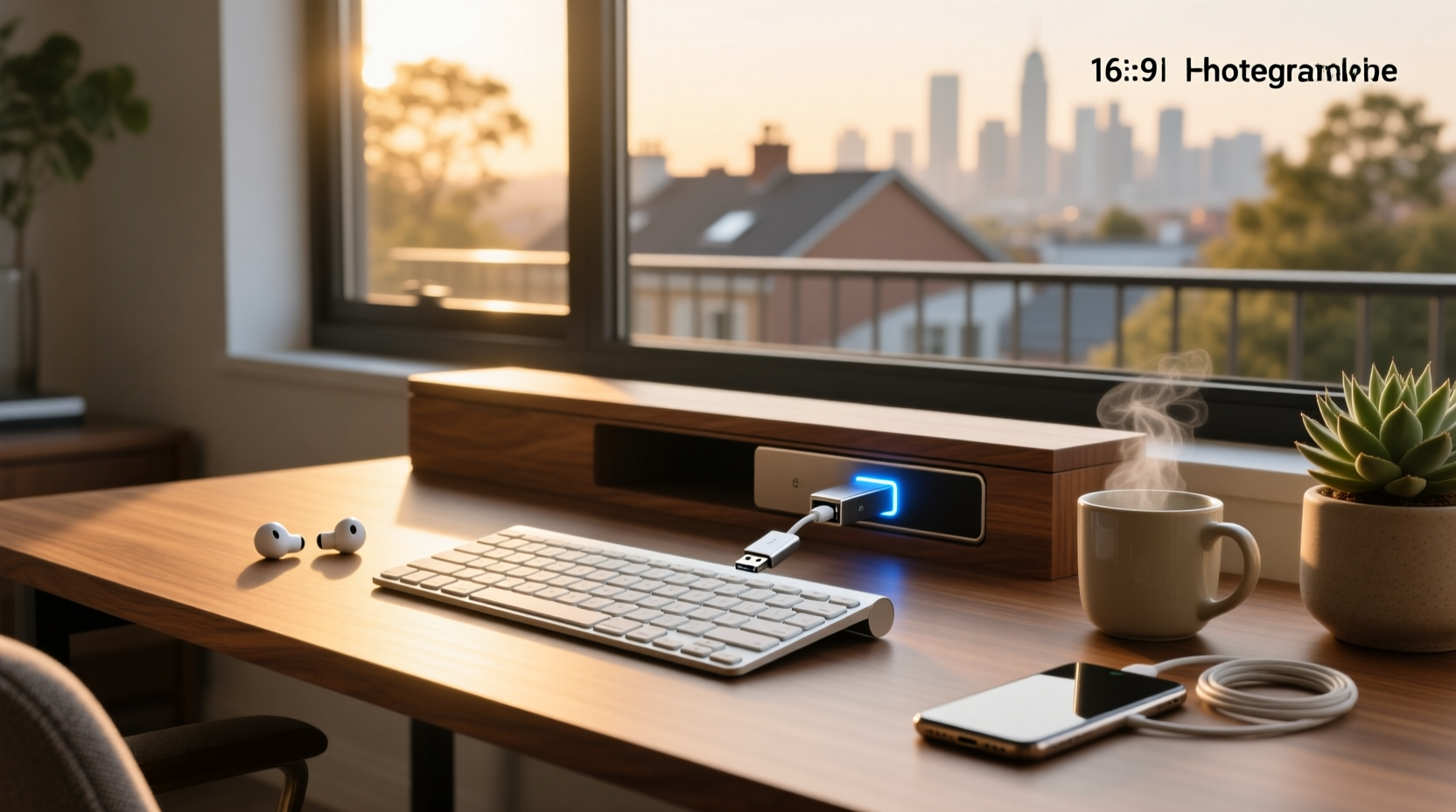
Yes — but only if your keyboard uses a standardized, re-pairable protocol like Logitech Unifying or Logi Bolt, or if the manufacturer sells certified replacement dongles. Most generic 2.4 GHz keyboards use proprietary, non-replaceable receivers — losing the original means the keyboard becomes unusable unless modified or replaced. This guide explains exactly how USB dongles for wireless keyboards work, which models allow receiver replacement, how to verify compatibility before buying, and what to do if your dongle is lost — based on real-world technical constraints, not marketing claims.
Why USB Dongles Exist (and Why They’re Not All the Same)
Wireless keyboards using 2.4 GHz RF technology rely on a dedicated USB receiver (often called a ‘dongle’) to establish a low-latency, high-reliability connection with your computer. Unlike Bluetooth — which uses a shared, standardized radio stack built into most modern devices — 2.4 GHz RF requires a custom handshake protocol between the keyboard and its paired receiver1. That pairing is typically hardcoded at the factory.
This design delivers key advantages: sub-10 ms latency, consistent performance in crowded wireless environments (e.g., offices with many Wi-Fi networks and Bluetooth devices), and plug-and-play simplicity — no OS-level pairing required. But it also introduces a critical dependency: the physical dongle isn’t just a bridge — it’s part of the communication system.
Manufacturers implement this pairing in three main ways:
- Proprietary fixed pairing: The keyboard and dongle share a unique ID burned into firmware during production. No software tool exists to reassign that ID. Common in budget keyboards (e.g., Arteck, some Dell and Lenovo OEM models).
- Unifying-style re-pairing: A standardized protocol (Logitech Unifying) allows multiple compatible devices to bind to one receiver — and crucially, lets users re-pair devices to a new receiver using official software (Logitech Options+).
- Logi Bolt / secure re-pairing: A newer, FIPS 140-2 validated standard offering stronger encryption and broader re-pairing flexibility — supported by MX Keys S, MX Mechanical, and newer Logitech enterprise devices2.
Understanding this distinction is essential — because it determines whether you can recover from a lost dongle without replacing the entire keyboard.
Which Brands Support Dongle Replacement — and How
Different manufacturers offer varying levels of support for receiver replacement. Here’s a verified breakdown:
| Brand | Protocol | Replacement Possible? | How to Re-Pair | Notes |
|---|---|---|---|---|
| Logitech | Unifying or Logi Bolt | ✅ Yes | Download Logitech Unifying Software or Options+; follow on-screen instructions to re-pair device to new receiver. | Unifying receivers support up to 6 devices; Logi Bolt supports up to 3, with enhanced security and cross-platform compatibility (Windows/macOS/Linux). |
| Microsoft | Proprietary 2.4 GHz | ✅ Limited options available | Some older models (e.g., Sculpt Ergonomic) may support third-party tools; newer models generally require contacting Microsoft Support for guidance on available service options. | Microsoft offers limited official replacement pathways; users may explore authorized service channels or consider dual-mode alternatives for future purchases. |
| Razer | Proprietary HyperSpeed (non-BT) | ✅ Limited options available | Razer Synapse does not expose receiver binding functions, but users can contact Razer Support for model-specific recommendations and service availability. | HyperSpeed receivers are designed for specific product SKUs; Razer provides support resources and replacement guidance through official channels. |
| Keychron / Ducky / GK61 / ProtoArc | Generic 2.4 GHz (non-standardized) | ✅ Limited options available | No vendor-provided software, but community forums and manufacturer support pages may provide model-specific guidance on compatibility and alternatives. | These keyboards often use off-the-shelf 2.4 GHz transceivers with custom firmware; users are encouraged to consult official documentation or support for verified solutions. |
Important: Even within Logitech’s ecosystem, not every model supports re-pairing. Older devices (pre-2012) using early Unifying firmware may not recognize newer receivers, and some specialized peripherals (e.g., presentation remotes) are excluded from the Unifying list3. Always check the official compatibility list before purchasing a replacement.
What Happens If You Buy the Wrong Dongle?
Attempting to use an incompatible USB receiver rarely causes damage — but it almost always fails silently. You’ll see one of these outcomes:
- The keyboard powers on (LEDs light), but keys produce no input — no error appears in OS device manager.
- The receiver shows as ‘Unknown USB Device’ or ‘Device Descriptor Request Failed’ in Windows Device Manager.
- On macOS, the keyboard appears in Bluetooth settings (if dual-mode), but the 2.4 GHz channel remains inactive.
Crucially: There is no universal ‘2.4 GHz keyboard dongle’. Unlike USB-C cables or HDMI adapters, 2.4 GHz receivers are not interoperable across brands or even across product lines within the same brand. A Logitech Unifying receiver will not communicate with a Keychron Q5 Max, nor will a generic ‘2.4G USB adapter’ from a marketplace work with a Dell KM714 keyboard — despite both operating in the same frequency band.
This is due to differences in:
- Packet structure: How data (keycodes, modifiers, battery reports) is encoded in each transmission.
- Channel hopping algorithm: How the device selects and switches between the 79 available 2.4 GHz sub-channels to avoid interference.
- Encryption handshake: Whether and how authentication keys are exchanged during initial sync.
- Firmware versioning: Minor revisions can break backward compatibility — e.g., a 2023 Unifying receiver may reject pairing with a 2015 M325 mouse.
If you’ve already purchased an unbranded or mislabeled dongle, the only reliable verification method is to test it with the exact keyboard model — no software tool can predict compatibility remotely.
Practical Steps: What to Do If Your Dongle Is Lost
Follow this decision tree before spending money:
- Identify your keyboard model: Check underside label, packaging, or original receipt. Look for model numbers like ‘K380’, ‘MK270’, ‘G613’, or ‘WK717’. Avoid relying on visual similarity — identical-looking keyboards may use different protocols.
- Search the manufacturer’s support site for “replacement receiver” + your model number. Logitech publishes clear guidance; Dell and Lenovo sometimes list part numbers (e.g., ‘451-11333’ for certain KM717 receivers); others may provide alternative connectivity options or service pathways.
- Verify USB port type: Most receivers are USB-A. If your device has only USB-C ports, you’ll need a certified USB-A-to-C adapter — passive adapters work, but active ones (with chipsets) may introduce latency or power issues. Avoid hubs unless they explicitly support HID-class devices.
- Check for dual-mode capability: Many modern keyboards (e.g., Logitech MX Keys S, Ugreen Slim, ProtoArc Foldable) include Bluetooth alongside 2.4 GHz. If Bluetooth is functional, you can continue using the keyboard immediately — albeit with slightly higher latency and potential pairing conflicts across multiple devices.
- Assess cost-benefit: Replacement Unifying receivers retail for $12–$15; generic ‘compatible’ units start at $3–$7. But if your keyboard is a $25 budget model with no Bluetooth, buying a new $30 dual-mode keyboard may be more future-proof than chasing a $5 dongle that won’t work.
Common Misconceptions — Debunked
Several widely repeated beliefs about USB dongles are technically inaccurate:
❌ “Any 2.4 GHz dongle works if it fits the USB port.”
False. Physical compatibility ≠ protocol compatibility. A USB-A plug is just the power and data conduit — the actual communication happens via custom firmware layers above the USB HID specification.
❌ “I can re-pair using my phone’s Bluetooth app.”
No. Bluetooth and 2.4 GHz RF are entirely separate technologies. Bluetooth operates on standardized profiles (HID over GATT); 2.4 GHz RF uses proprietary binary protocols. Your phone cannot emulate a Logitech Unifying receiver.
❌ “Third-party ‘universal’ dongles solve this problem.”
Marketing claims aside, no commercially available universal dongle supports arbitrary keyboard re-pairing. Products labeled ‘Universal USB Dongle for Wireless Keyboard and Mouse’ either:
- Are rebranded Logitech Unifying receivers (with unofficial firmware), or
- Only work with a narrow set of pre-certified models (listed in tiny print), or
- Fail outright — confirmed by user testing across Reddit r/techsupport and DIY Perks Forum4.
When Replacement *Is* Technically Possible (But Not Recommended)
A small subset of advanced users have achieved re-pairing via hardware hacking:
- Nordic nRF24L01+ sniffer setups: Using Arduino or Raspberry Pi with radio modules to capture and replay pairing packets. Requires oscilloscope-level timing precision and firmware reverse-engineering skills.
- EEPROM reprogramming: On keyboards with accessible flash memory chips (e.g., some older Cherry or Matias models), writing a new dongle ID directly. Risk of bricking the device is high.
- USB descriptor spoofing: Modifying the receiver’s VID/PID to mimic the original — only works if the keyboard doesn’t validate the dongle’s cryptographic signature.
None of these methods are documented by manufacturers, void warranties, and carry no guarantee of success. They are not solutions for average users — they’re research projects with steep learning curves and uncertain outcomes.
Future-Proofing Your Setup: What to Look For Next Time
To avoid dongle-related failure points, prioritize these features when selecting a new wireless keyboard:
- Dual-mode connectivity (2.4 GHz + Bluetooth): Ensures fallback usability if the dongle is lost or a USB port is unavailable.
- Receiver storage slot: Built-in compartment (e.g., under battery cover or in wrist rest) physically prevents loss — confirmed effective in Logitech MX Keys and Keychron V10 reviews.
- Standardized protocols: Prefer Logitech Unifying or Logi Bolt over proprietary systems — they offer documented recovery paths and wider accessory availability.
- USB-C receiver option: Emerging models (e.g., Logitech MX Keys Mini) ship with USB-C receivers, reducing adapter dependency on modern laptops.
Also consider your workflow: If you regularly switch between desktop and laptop, a Bluetooth-only keyboard eliminates dongle management entirely — though latency-sensitive tasks (gaming, rapid text entry) still benefit from dedicated 2.4 GHz links.
Frequently Asked Questions (FAQ)
- Can I use my wireless keyboard without the USB dongle?
Yes — only if it supports Bluetooth and you enable it via physical switch or key combo (e.g., Fn+B). Most 2.4 GHz-only keyboards become inert without their paired receiver. - Will a Logitech Unifying receiver work with my non-Logitech keyboard?
No. Unifying is a closed Logitech ecosystem. It only recognizes Logitech devices listed in their official compatibility database. - How do I know if my keyboard uses Unifying or Logi Bolt?
Check the bottom label: Unifying models display ‘Unifying’ or ‘C-U0007’; Logi Bolt models show ‘Logi Bolt’ or ‘P/N: 954-000907’. You can also verify in Logitech Options+ software — connected devices show protocol type. - Do I need drivers to use a replacement dongle?
No. All compliant 2.4 GHz receivers use standard USB HID class drivers built into Windows, macOS, and Linux. No additional software is required for basic functionality — though pairing tools (e.g., Logitech Options+) are needed to bind devices. - Can I use one dongle for multiple keyboards?
Only with Logitech Unifying (up to 6 devices) or Logi Bolt (up to 3). Generic keyboards do not support multi-device receivers — each requires its own dedicated dongle.
