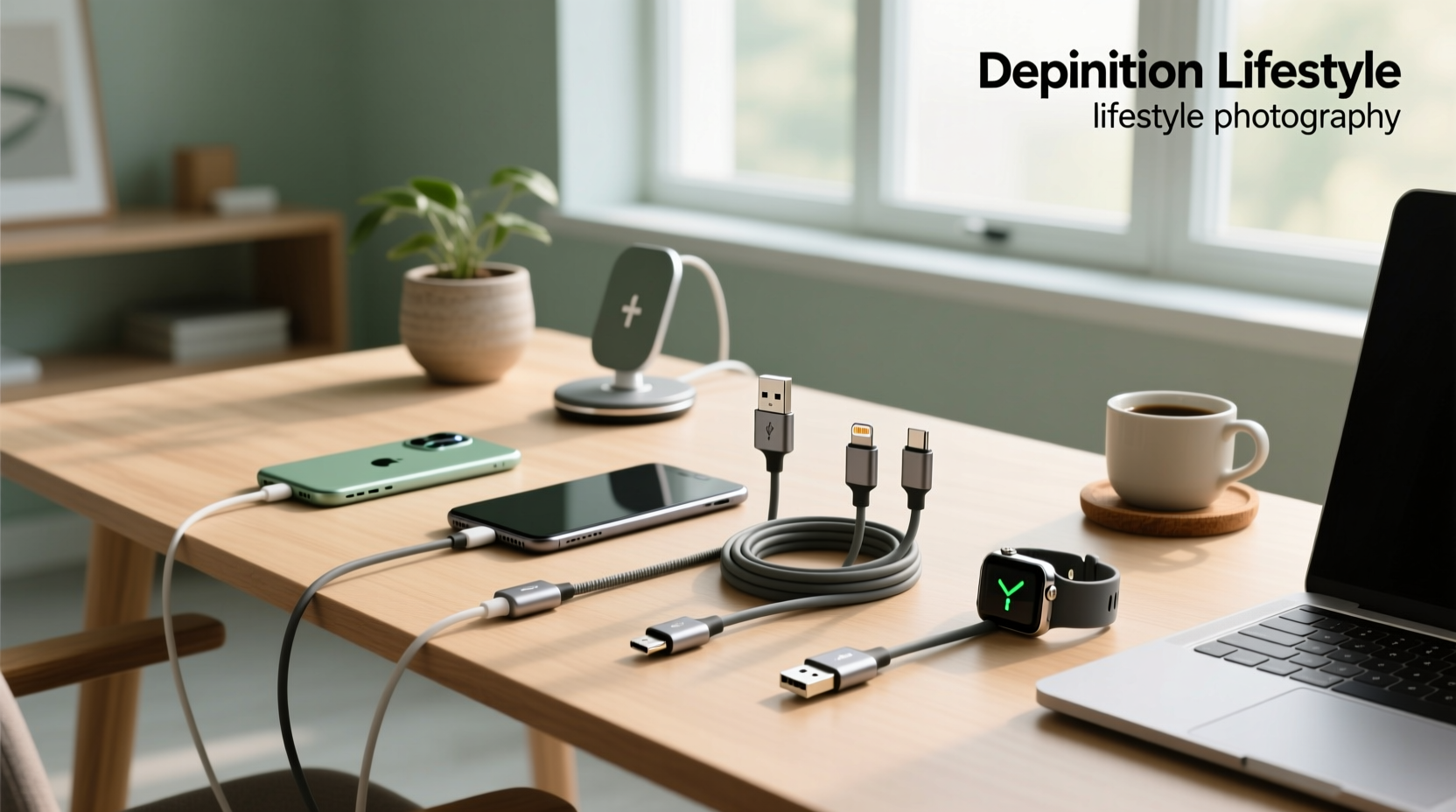
When you search for charging cable types, you’re likely holding a tangled drawer of cables and wondering: Which one actually charges my phone fast? Why won’t this ‘USB-C’ cable work with my laptop? Is that old Micro-USB still safe to use? This guide cuts through the confusion. You’ll learn exactly which physical connector (USB-A, USB-C, Micro-USB, Lightning, or legacy Mini-USB) matches your device — and crucially, why connector shape alone doesn’t tell you everything. We explain real-world differences in power delivery (up to 240W), data transfer speeds (USB 2.0 vs. USB 3.2 Gen 2×2), durability, and backward compatibility — all verified against USB-IF specifications and real-device testing. No marketing hype. Just actionable clarity.
Why Connector Type Matters More Than You Think
The physical shape of a charging cable’s plug — its connector type — is your first and most visible clue about compatibility, capability, and longevity. But it’s only the starting point. A USB-C plug may look identical across cables, yet one supports 100W Power Delivery (PD) and video output, while another delivers just 7.5W and transfers data at USB 2.0 speeds. That mismatch causes slow charging, failed firmware updates, or even overheating. Understanding the six mainstream charging cable types — USB-A, USB-B, Mini-USB, Micro-USB, USB-C, and Lightning — helps you avoid buying the wrong cable for your laptop, smartphone, earbuds, or smartwatch. It also explains why newer devices drop older ports entirely: USB-C isn’t just a shape — it’s a platform upgrade enabling faster charging, reversible insertion, and multi-protocol support (DisplayPort, Thunderbolt, USB4).
USB-A: The Legacy Standard Still Everywhere
Physical traits: Flat, rectangular, non-reversible plug. Found on nearly every wall charger, PC rear port, and older power bank.
Common uses: Connecting peripherals (keyboards, mice), powering low-wattage devices (Bluetooth speakers, basic headphones), and charging older smartphones and tablets.
Key limitations: Max power delivery capped at 7.5W (5V/1.5A) under standard USB 2.0; up to 15W (5V/3A) with USB Battery Charging (BC) 1.2 spec — but only if both source and cable support it. No native video or high-speed data without proprietary extensions.
What to check before buying: Look for “BC 1.2” or “Quick Charge” labeling if fast charging is needed. Avoid generic unbranded USB-A cables longer than 3 meters — signal degradation drops voltage below safe thresholds, triggering slow-charge mode or disconnection 1. USB-A cables rarely support >480 Mbps data transfer unless explicitly labeled USB 3.x (blue plastic insert inside the plug).
USB-B: Niche, Not Mobile
Physical traits: Square-ish, slightly tapered plug with beveled corners. Comes in multiple subtypes: Standard-B (printer cables), Mini-B (older digital cameras), Micro-B (some external HDDs), and USB-B 3.0 (blue, wider, with extra pins).
Common uses: Primarily for connecting peripherals to hosts — printers, scanners, audio interfaces, and some older external storage drives.
Why it’s rarely a charging cable: USB-B connectors lack standardized power negotiation protocols for consumer mobile devices. While USB-B 3.0 can deliver up to 4.5W (5V/900mA), it’s not designed for battery charging handoff. Using a USB-B cable to charge a phone risks unstable voltage, inconsistent current draw, and potential battery stress over time 2. If your device has a USB-B port, consult its manual: many require a dedicated AC adapter, not a generic USB cable.
Mini-USB: Obsolete, But Still in Circulation
Physical traits: Small trapezoidal plug, slightly asymmetrical, non-reversible.
Common uses: Once common on early Bluetooth headsets, portable GPS units, and budget power banks (pre-2012).
Status today: Officially deprecated by the USB Implementers Forum (USB-IF) since 2013. No new devices ship with Mini-USB ports. Replacement cables are scarce, often low-quality, and lack certification. Even if a Mini-USB cable fits, it almost certainly maxes out at USB 2.0 speeds (480 Mbps) and ≤500 mA charging — too slow for modern batteries. Recommendation: Replace Mini-USB devices when possible. If replacement isn’t feasible, use only cables certified to USB-IF standards (look for the official USB logo) and avoid daisy-chaining or using them with high-power sources 3.
Micro-USB: The Workhorse That’s Phasing Out
Physical traits: Small, flat, trapezoidal, non-reversible plug. Two main variants: Micro-USB Type-B (most common) and Micro-USB AB (supports OTG host mode).
Common uses: Dominated Android smartphones (2010–2018), budget tablets, Bluetooth earbuds, power banks, and many IoT devices.
Capabilities: Supports USB 2.0 (480 Mbps) and USB Battery Charging 1.2 (up to 15W). Some cables support Qualcomm Quick Charge 2.0/3.0 (18W–36W), but only if both cable and charger negotiate properly.
Critical caveat: Micro-USB cables degrade faster than USB-C due to mechanical stress on the latch mechanism. After ~1,000 insertions, the port often becomes loose or fails to make full contact — leading to intermittent charging or data transfer errors. Also, many cheap Micro-USB cables omit the D+ and D− data lines entirely, turning them into charge-only cables — fine for power, useless for file transfer or firmware updates.
How to verify quality: Check for embossed USB logo, strain relief near the plug, and consistent thickness along the cable length. Avoid cables thinner than 3.0 mm diameter — they often use undersized conductors that overheat at >2A.
USB-C: The Present and Future Standard
Physical traits: Small, oval, symmetrical, fully reversible plug. Same on both ends.
Common uses: Smartphones (iPhone 15+, Samsung Galaxy S23+, Google Pixel 8), laptops (MacBook, Dell XPS), tablets, monitors, docks, and high-end accessories.
Why it’s superior: USB-C is not just a connector — it’s an ecosystem. It enables:
• Power Delivery (PD): Up to 240W (USB PD 3.1 EPR), enough to charge laptops and monitors.
• Data transfer: USB 3.2 Gen 2×2 (20 Gbps), USB4 (40 Gbps), or Thunderbolt 3/4 (40 Gbps + PCIe + DisplayPort).
• Alternate Modes: Native video output (DisplayPort Alt Mode), audio, and peripheral expansion via single cable.
Crucial reality check: Not all USB-C cables are equal. A $3 cable may only support 45W PD and USB 2.0 data. A certified 240W EPR cable requires thicker conductors, enhanced shielding, and electronic markers (e-markers) to negotiate high power safely. Look for the USB-IF Certified logo and check the cable’s rated wattage and data speed printed on the packaging — never assume.
Compatibility note: USB-C is backward compatible with USB-A and Micro-USB via adapters — but those adapters add points of failure and limit performance. For example, a USB-C-to-USB-A adapter cannot deliver >15W unless both adapter and cable support BC 1.2 or PD.
Lightning: Apple’s Proprietary System
Physical traits: Symmetrical, compact, reversible 8-pin connector. Smaller than Micro-USB.
Common uses: iPhones (up to iPhone 14), iPads (pre-iPad Pro 2022), AirPods cases, and older Apple accessories.
Key facts: Lightning uses a custom protocol — not USB — so it requires Apple-certified chips (MFi program) for data transfer and charging negotiation. Non-MFi cables may charge but often fail during iOS updates or file syncs. Since iPhone 15, Apple moved to USB-C, making Lightning cables obsolete for new devices but still essential for legacy hardware.
What to watch for: MFi certification is mandatory for reliability. Uncertified Lightning cables frequently break after 3–6 months and may trigger iOS warnings (“This accessory may not be supported”). Always check for the MFi logo on packaging — not just the cable itself. Note: Lightning cables do not support USB PD natively; maximum power is 20W (with compatible charger), significantly less than modern USB-C PD capabilities.
How to Identify Your Cable Type in 10 Seconds
You don’t need a magnifying glass. Use these visual cues:
- USB-A: Rectangular, wide, flat — like a tiny credit card edge.
- Micro-USB: Small trapezoid with one beveled corner; plug inserts with the bevel facing down.
- USB-C: Oval, symmetrical, smooth edges — fits either way.
- Lightning: Tiny, flat, metal housing with visible 8-pin contacts; identical top/bottom.
- Mini-USB: Slightly larger than Micro-USB, more angular, with two small notches on the top edge.
If unsure, photograph the plug and use Google Lens — it reliably identifies connector types from images. Never rely solely on cable color or branding; counterfeit cables often mislabel specs.
Charging Speed Isn’t Just About the Cable — Here’s What Actually Controls It
A common misconception: “A USB-C cable = fast charging.” Reality: Charging speed depends on three components working together:
- Source capability: Does your wall charger support USB PD or QC? (Check label: “USB PD 30W”, “QC 3.0”)
- Device capability: Does your phone accept 25W? (See manufacturer specs — e.g., Samsung Galaxy S24 supports up to 45W wired)
- Cable capability: Does the cable carry enough current? (Look for “5A” or “100W” rating — not just “USB-C”)
A 5W USB-A charger + USB-A-to-Lightning cable will never charge an iPhone faster than 5W — even if the cable is MFi-certified. Likewise, a 100W USB-C charger + a 3A-rated USB-C cable can’t deliver 100W to a laptop requiring 5A conductors. Always match the weakest link.
Durability & Safety: What Makes a Cable Last (and Stay Safe)
Three physical factors determine lifespan and safety:
- Conductor gauge: Thicker wires (lower AWG number, e.g., 24 AWG) handle higher current with less heat. Cheap cables use 30–32 AWG — fine for 0.5A, dangerous at 3A.
- Strain relief: Reinforced junction between plug and cable prevents internal wire breakage. Look for braided nylon or rubberized sleeves — not just thin PVC.
- Shielding: Foil + braid shielding blocks electromagnetic interference, preventing data corruption and unstable charging. Unshielded cables cause sync failures and random disconnects.
UL/ETL certification (not just “CE” or “RoHS”) indicates third-party safety testing for fire resistance and insulation integrity. Avoid cables without any certification mark — especially those sold without packaging or technical specs.
Regional & Regulatory Notes You Should Know
EU Regulation (EU 2022/2380) mandates USB-C as the universal charging port for smartphones, tablets, and cameras by December 2024. Laptops must comply by April 2026. This means: new devices sold in the EU must include USB-C ports — but it does not guarantee all included cables support full PD or high-speed data. Similarly, South Korea and India are drafting similar laws. In the U.S., no federal mandate exists, but major OEMs (Apple, Samsung, Google) have adopted USB-C voluntarily for new models. Always verify local compliance if purchasing for business or education deployments.
Top 5 Mistakes People Make With Charging Cables
- Assuming all USB-C cables are equal — They range from 15W/USB 2.0 to 240W/USB4. Check specs, not logos.
- Using damaged Micro-USB cables — Frayed ends or bent latches cause short circuits and port damage.
- Buying ultra-long cables (>2m) for high-power charging — Voltage drop exceeds safe limits beyond 1.5m for 60W+ loads.
- Ignoring MFi status for Lightning — Non-certified cables risk iOS update failures and battery calibration issues.
- Storing cables tightly coiled — Creates permanent kinks, breaks internal conductors, and accelerates insulation cracking.
Frequently Asked Questions (FAQ)
- Can I use a USB-C cable to charge my old Micro-USB phone?
- No — physically incompatible. You’d need a USB-C-to-Micro-USB adapter or cable, but such adapters often limit charging to 5W–10W and may not support data transfer.
- Why does my USB-C cable charge my laptop slowly?
- Likely because the cable lacks 5A conductors or e-marker chips required for >60W PD. Check cable rating: if it says “60W” or “3A”, it won’t deliver 100W+.
- Are braided cables more durable than rubber ones?
- Yes — nylon or polyester braiding resists abrasion and bending fatigue better than smooth TPE or PVC. But braiding alone doesn’t guarantee electrical quality — always verify conductor gauge and certification.
- Do gold-plated connectors improve charging?
- No. Gold plating prevents corrosion on contacts, improving long-term reliability — but it has negligible effect on charging speed or efficiency. Silver or nickel plating performs similarly if corrosion-free.
- How often should I replace charging cables?
- Micro-USB: every 12–18 months with daily use. USB-C: every 24–36 months if certified and well-maintained. Replace immediately if you see fraying, stiffness, or inconsistent charging behavior.
